

The most reliable 5-digit codes for oCOSMO TVs are 10878, 11599, 10889, 11360, and 10000. These work with most universal remotes including GE, RCA, Comcast Xfinity, DirecTV, and Spectrum. If the first code you enter doesn’t work, try each one in order. One of them will pair your remote. This guide covers every format — 5-digit, 4-digit, and 3-digit — plus three programming methods and a fix-it section for when nothing works.
All Ocosmo Universal Remote Codes
Before entering any code, check your remote’s manual or the back label to confirm how many digits it accepts. Older GE remotes (version 1) use 4-digit codes. Most modern universal remotes — including Xfinity XR11 and Spectrum SR-002 — use 5-digit codes. You can also use our Remote Code Finder tool if you’re unsure which code format applies to your specific remote model.
5-Digit Universal Remote Codes for Ocosmo TV
These are the primary codes. Start with 10878 — it works with the widest range of remotes.
| Code | Notes |
|---|---|
| 10878 | Most widely compatible — try this first |
| 11599 | Works well with GE and RCA remotes |
| 10889 | Common for Xfinity and Comcast |
| 11360 | DirecTV and satellite remotes |
| 10000 | Fallback code — broad compatibility |
| 10810 | Alternative for older oCOSMO models |
| 13899 | CE4001 model compatibility |
4-Digit Universal Remote Codes for Ocosmo TV
These apply to older GE universal remotes (version 1 hardware) and some RCA models that don’t support 5-digit input.
| Code | Notes |
|---|---|
| 0879 | GE version 1 remotes |
| 1360 | RCA 4-digit v.1 |
| 0000 | Generic fallback |
| 0889 | Philips and One-For-All remotes |
3-Digit Universal Remote Codes for Ocosmo TV
3-digit codes are used on older cable boxes, Innovage Jumbo remotes, and some basic universal remotes.
| Code | Notes |
|---|---|
| 879 | Standard 3-digit format |
| 000 | Universal fallback |
| 360 | Some cable-branded remotes |
Ocosmo Codes by Remote Brand
Different remote brands have their own code libraries. Using the wrong code format wastes time. Here are the confirmed codes broken down by remote type.
GE Universal Remote Codes for Ocosmo TV
GE remotes come in two hardware versions. Version 2 and newer use 5-digit codes. Version 1 requires 4-digit codes.
- 5-digit: 10878, 11599, 10889, 10000, 11360
- 4-digit: 0879, 1360, 0889
If you’re using a GE remote and want the full programming procedure, the GE universal remote codes guide covers every GE model with step-by-step setup.
RCA Universal Remote Codes for Ocosmo TV
- 5-digit: 10878, 10889, 11599, 10000
- 4-digit: 1360, 0879
RCA remotes scan codes quickly. If manual entry fails, the auto-scan method (Method 2 below) is faster on RCA hardware. See the full RCA universal remote codes list for other device pairings.
Xfinity / Comcast Remote Codes for Ocosmo TV
Xfinity XR2, XR5, and XR11 remotes all use 5-digit codes.
- 5-digit: 10889, 10878, 11599, 10000
Note: Some users with the oCOSMO CE4001 model report that the XR2 does not pair via code entry. If that happens, use the auto-scan method. The full Comcast Xfinity universal remote codes guide has model-specific workarounds.
DirecTV Remote Codes for Ocosmo TV
DirecTV RC71 and RC72 remotes use 5-digit codes.
- 5-digit: 11360, 10878, 10889, 10000
Spectrum Remote Codes for Ocosmo TV
- 5-digit: 05651, 01877, 02187, 01376, 03560, 03294
Spectrum remotes sometimes use a different code format than standard universal remotes. If these don’t pair, try the Spectrum universal remote codes page for brand-specific programming steps.
How to Program Your Universal Remote to an Ocosmo TV
Three methods work for oCOSMO TVs. Method 1 is fastest when you have the right code. Method 2 works when you don’t.
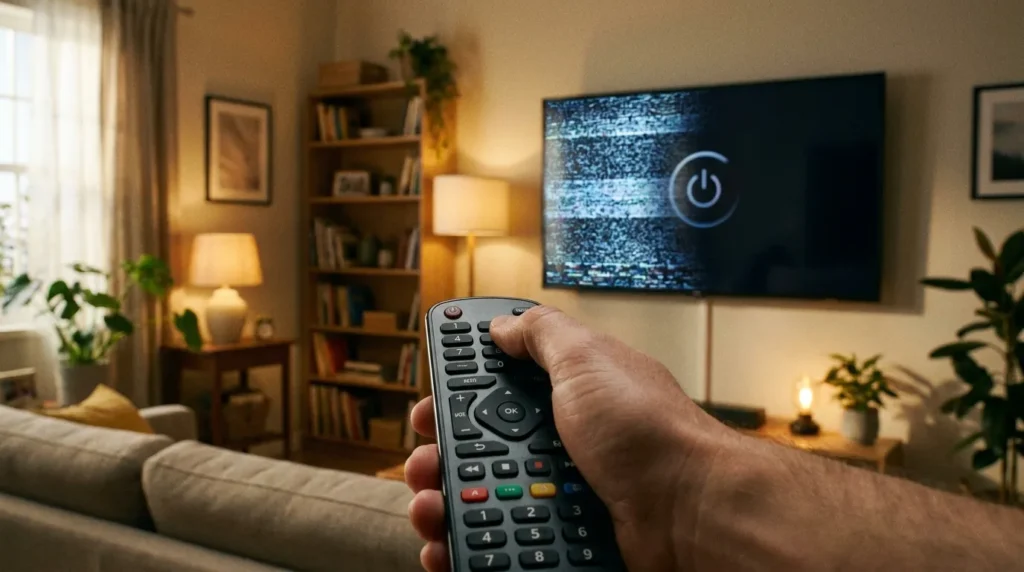
Method 1 — Manual Code Entry (Fastest)
Use this when you already have a code from the list above.
- Turn your oCOSMO TV on.
- Press the TV button on your universal remote.
- Press and hold the Setup button until the LED indicator stays on (solid light, not blinking).
- Enter your chosen 5-digit or 4-digit code using the number pad.
- Point the remote at the TV and press Power.
- If the TV turns off — your code worked. Press Power again to turn it back on.
- Press the TV or Setup button one more time to save the code. The LED will blink twice to confirm.
If the TV doesn’t respond, enter the next code from the list and repeat from step 5.
Method 2 — Auto-Scan (No Code Required)
Use this if no code in the list is working or if you don’t know your remote’s digit format.
- Turn your oCOSMO TV on.
- Press and hold the TV button (or CBL/OK/SEL depending on your remote) for 3 seconds until the LED turns on.
- Point the remote at the TV and press Channel Up repeatedly.
- The remote cycles through codes one at a time. Stop when the TV turns off.
- Press Power to turn the TV back on and confirm it responds.
- Press the TV or device button to lock in the code. Two LED blinks = confirmed.
This method can take 2–5 minutes depending on how far down the code library your TV’s code sits.
Method 3 — Code Search Using 9-9-1
This is a forced search mode built into most universal remotes. It’s more aggressive than auto-scan.
- Turn your oCOSMO TV on.
- Press and hold Setup until the LED lights up solid.
- Enter 9-9-1 on the number pad. The LED will blink twice.
- Press and hold the Power button while pressing Channel Up repeatedly.
- Stop pressing when the TV powers off.
- Press Power to verify the TV responds.
- Press Setup or TV to save.
Not sure which buttons your remote uses for each step? The remote control button explainer tool identifies every button function by remote model.
Code Not Working? Fix It in 4 Steps
Most pairing failures come down to one of four problems. Work through these in order.
Step 1 — Replace the Batteries
Weak batteries cause the most programming failures. The LED light appears to work, but the IR signal isn’t strong enough to reach the TV. Put in fresh AA batteries before trying anything else.
Step 2 — Try Every Code in the List
None of the codes in this guide are guaranteed to work on their own — oCOSMO TVs shipped with different IR receivers depending on the production run. Work through all seven 5-digit codes before switching to a different method. Most people stop after two or three and assume none will work.
Step 3 — Confirm Your Remote’s Digit Format
A 5-digit code entered into a remote that only accepts 4 digits will always fail — silently. Pull out your remote’s manual (or search the model number on the manufacturer’s website) and confirm whether it accepts 3, 4, or 5-digit input. You can also use the universal remote compatibility checker to verify which code formats your remote supports.
Step 4 — Use Auto-Scan as the Final Fallback
If no manual code works and you’ve confirmed the digit format, run Method 2 (auto-scan). It bypasses the code list entirely and cycles through the remote’s full database. It’s slower, but it finds working codes that aren’t in any published list.
When Your Remote Is Beyond Saving
If you’ve exhausted all methods — fresh batteries, all codes, auto-scan — and your universal remote still won’t pair with your oCOSMO TV, the remote itself may be faulty. IR emitters degrade over time. A remote that worked fine last year may have a weakened IR blaster that simply can’t complete a pairing sequence.
At that point, a replacement universal remote is the practical fix. Most current universal remotes ship with updated code libraries and pair to oCOSMO TVs without issues. Look for one with at least 5-digit code support and an auto-scan fallback mode.
If you use One For All remotes or Philips universal remotes, both have updated firmware that handles oCOSMO pairing reliably.
Conclusion
The fastest way to program a universal remote to an oCOSMO TV is to enter code 10878 using the manual method. If that doesn’t pair, work through the full 5-digit list: 11599, 10889, 11360, 10000, 10810, and 13899. If every code fails, run the auto-scan method — it finds working codes the list misses. Most pairing issues resolve within 10 minutes using these three methods.


