



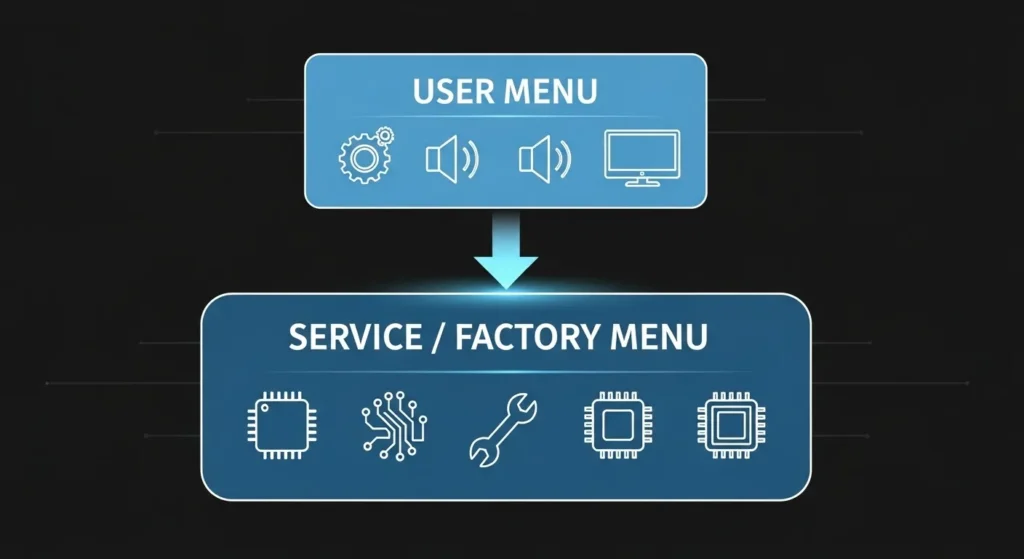
The Daewoo TV service menu is a hidden diagnostic panel built into every Daewoo television. It gives you direct access to low-level settings that the standard user menu locks away — things like geometry, white balance, regional tuner settings, and factory reset options.
Most people end up here because something’s wrong. The picture geometry is off. Colors look washed out. The TV is stuck on the wrong region. Normal settings won’t fix it.
This guide covers every known access method across Daewoo’s CRT, LCD/LED, and Android Smart TV lines. You’ll find model-specific key combinations, a full parameter reference table, step-by-step navigation instructions, and recovery steps if something goes wrong. If you work with other brands too, we also have a complete list of LCD and LED TV service menu codes covering dozens of manufacturers in one place.
Write down your original values before you change anything. That’s the most important thing in this entire guide.
What Is the Daewoo TV Service Menu?
The service menu — sometimes called the factory menu or engineer mode — is a second layer of settings embedded in the TV’s firmware. Daewoo technicians use it during manufacturing calibration and post-repair alignment.
It controls things the user menu doesn’t touch:
- Horizontal and vertical geometry (critical for CRT models)
- RGB gain and cutoff levels (white balance)
- Sub-brightness and sub-contrast ceilings
- AGC (Automatic Gain Control) for the tuner
- Regional broadcast standards (PAL, NTSC, DVB-T2)
- EEPROM reset — a full wipe to factory state
The normal user menu adjusts values within a range the service menu defines. If the service menu ceiling for brightness is set to 60, your user menu can never go above 60 — even if the slider looks like it goes higher.

What the Service Menu Won’t Do
It won’t fix hardware failures. If your backlight is physically burned out or a capacitor is dead on the board, no code will help. Service menus fix calibration problems, not component failures. If you’re dealing with a completely dark display, read through this guide on how to fix a dark TV screen before touching the service menu — the problem might not need a service menu fix at all.
How to Access the Daewoo TV Service Menu
Universal Access Method
This sequence works on the majority of Daewoo LCD and LED models manufactured between 2008 and 2023.
Steps:
- Turn the TV on and wait for the home screen to fully load.
- Point your original Daewoo remote at the TV.
- Press Menu on the remote.
- While the menu is open, press 1, 1, 4, 7 on the number pad.
- The service menu will appear as a separate overlay — usually grey or blue text on a dark background.
If nothing happens after step 4, try pressing Menu first, then Mute twice, then 1, 4, 7. Some firmware versions use this variant.
For detailed instructions on using these codes once you’re inside, see our dedicated Daewoo TV service menu codes instructions page.
Model-Specific Access Codes
Different Daewoo series use different entry sequences. Use the table below to match your model.
| Model Series | Entry Method | Notes |
|---|---|---|
| DTQ (CRT, 1998–2006) | Power off → press Menu + Vol– on TV panel → power on | Hold both buttons during startup |
| DTC (CRT, 2000–2007) | Remote: Mute → 1 → 8 → 2 | TV must be in standby first |
| DLP / DLF (LCD, 2006–2014) | Remote: Menu → 1 → 1 → 4 → 7 | Most common sequence |
| K-Series (LED, 2014–2019) | Remote: Menu → Mute → Mute → 1 → 4 → 7 | |
| CN-Series (LED, 2017–2022) | Remote: Home → 1 → 1 → 4 → 7 | Home replaces Menu key |
| Android Smart TV (2020–2026) | Remote: Settings → About TV → click Build Number 7 times → back → Service Menu | Developer mode must be enabled first |
Note for Android models: If the “About TV” method doesn’t reveal a service menu link, try: Settings → Device Preferences → About → Build Number (×7). Some units require a PIN — default is 0000 or 1234.
If Your Original Remote Is Lost or Broken
You need a remote that matches the original Daewoo IR codes. Options:
- Universal remote: Program it using Daewoo’s IR code set. Common Daewoo codes for universal remotes: 0054, 0178, 0345, 0489. Try all four.
- IR remote apps: Android apps like “Sure Universal Remote” support Daewoo. Works only if your phone has a physical IR blaster.
- Replacement OEM remote: Available online for $8–$15. Models RC-401, RC-402, and RC-501 cover most Daewoo LCD/LED sets.
If you’re working with a Vizio and run into the same remote problem, the method is similar — here’s how to turn on a Vizio TV without a remote or power button as a reference for the general approach.
Daewoo TV Service Menu Codes — Full Parameter Reference
Once you’re inside the service menu, you’ll see a list of options. Navigation is almost always the same:
- Up/Down arrows = move between parameters
- Left/Right arrows or Vol+/Vol– = change the selected value
- Menu or Exit = leave the service menu (may or may not save — see the section below)
Picture & Geometry Parameters
| Parameter | What It Does | Safe Range |
|---|---|---|
| H-SIZE | Horizontal picture width | ±20 from default |
| H-POS | Horizontal picture position | ±15 from default |
| V-SIZE | Vertical picture height | ±20 from default |
| V-POS | Vertical picture position | ±15 from default |
| OVERSCAN | Edge crop amount | 0–5% |
| SUB-BRT | Brightness floor | 0–255 |
| SUB-CNT | Contrast ceiling | 0–255 |
White Balance & Color Parameters
| Parameter | What It Does | Safe Range |
|---|---|---|
| R-GAIN | Red channel gain | 0–255 |
| G-GAIN | Green channel gain | 0–255 |
| B-GAIN | Blue channel gain | 0–255 |
| R-CUT | Red cutoff level | 0–255 |
| G-CUT | Green cutoff level | 0–255 |
| B-CUT | Blue cutoff level | 0–255 |
| COLOR TEMP | Preset color temperature | Warm / Normal / Cool |
Audio Parameters
| Parameter | What It Does |
|---|---|
| MAX VOL | Maximum volume ceiling |
| BASS GAIN | Low-frequency level |
| TREBLE GAIN | High-frequency level |
| BALANCE | Left/right channel offset |
Tuner & Regional Settings
| Parameter | What It Does |
|---|---|
| COUNTRY | Broadcast region lock |
| COLOR SYS | PAL / NTSC / SECAM selection |
| AGC | Automatic Gain Control for antenna signal |
| DVB REGION | DVB-T2 frequency band |
Factory Reset Code
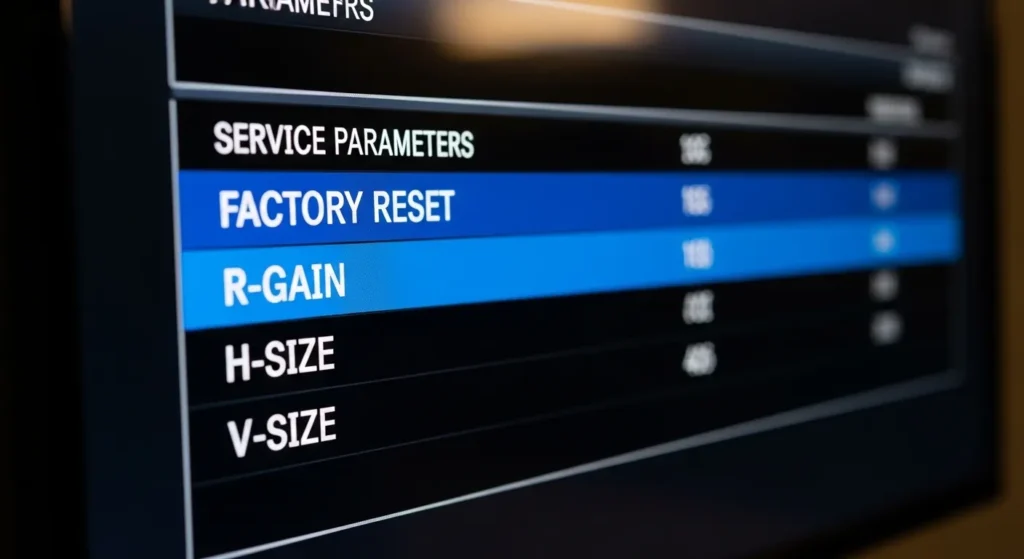
To perform a full EEPROM reset on most Daewoo LCD/LED models:
- Enter the service menu using your model’s access code.
- Navigate to FACTORY RESET or EEPROM INIT (exact label varies by firmware).
- Press OK or Enter to confirm.
- The TV will restart and return to its out-of-box state.
On older CRT models (DTQ, DTC), the factory reset option is labeled MEMORY CLEAR or INIT ALL. If you’re familiar with Samsung’s factory reset process, the logic is very similar — you can compare it with this guide on how to perform a factory data reset on a Samsung TV to understand how these resets generally work across brands.
How to Navigate the Service Menu Safely
Step 1 — Write Everything Down First
Before you touch any value, scroll through every parameter and write down the current number. Take a phone photo of each screen. This takes 3 minutes and can save your TV.
Step 2 — Change One Value at a Time
Don’t adjust multiple parameters in one session if you’re not a technician. Change one thing, exit, test the result, then re-enter if needed.
Step 3 — Know the Value Limits
Most parameters run on a 0–255 scale. Don’t push values to extreme ends (0 or 255) unless you’re doing it deliberately. Values above 240 or below 10 for gain/cutoff settings can cause clipping or complete loss of a color channel.
How to Exit Without Saving
On most Daewoo models, pressing the Power button while inside the service menu exits without saving changes. Test this on your specific model by changing one low-risk value, then powering off and back on to check if it reverted.
Pressing Menu or Exit while in the service menu typically saves and closes. That’s the key difference.
How to Save Changes
Press Menu or Exit after making adjustments. On some models, a prompt appears asking for confirmation. On others, changes save automatically on exit.
Common Fixes Using the Service Menu
Fix Overscan / Underscan
If the picture is slightly cut off at the edges, or there’s a black border around the image, this is a common problem across many TV brands. For Daewoo:
- Enter service menu.
- Go to OVERSCAN or H-SIZE / V-SIZE.
- Reduce overscan by 1–3 units. Or adjust H-SIZE and V-SIZE to fill the screen correctly.
If you’ve seen this issue on a Samsung and wonder how service menus compare, this guide on fixing Samsung TV not showing full screen covers the same concept from the user side.
Fix Geometry on CRT Models
CRT Daewoo TVs (DTQ, DTC series) drift in geometry over time due to heat and component aging.
- Pincushion distortion (curved sides): Adjust PIN or PINCUSHION parameter.
- Keystone (trapezoid shape): Adjust KEYSTONE or CORNER settings.
- Tilt: Adjust TILT parameter in small increments — 1 unit at a time.
Adjust Backlight Ceiling
If the screen is too dim even at 100% brightness in the user menu:
- Find SUB-BRT in the service menu.
- Increase it by 10–15 units from its current value.
- Exit and test. Don’t push above 230 — it accelerates backlight wear.
Persistent dark screens sometimes have a different root cause. This article on fixing a TV with no picture walks through the full diagnostic process if backlight adjustment doesn’t help.
Fix Tuner Region Lock
If the TV shows “No Signal” despite a valid antenna or cable connection:
- Go to COUNTRY or COLOR SYS in the service menu.
- Match it to your broadcast region: PAL-B/G for most of Europe, NTSC-M for North America, PAL-I for UK legacy.
- Save and re-run the auto-scan channel search from the user menu.
How Service Menus Compare Across Brands
The Daewoo service menu structure is similar to what you’ll find on other mid-range TV brands. If you service multiple brands, these references will be useful:
- Sony TV service menu codes
- LG TV service menu codes
- Panasonic TV service menu codes
- Samsung TV service menu codes
Vestel is worth noting specifically because Daewoo licensed Vestel chassis for several of their European LCD models. If your Daewoo LCD code isn’t working, try the Vestel sequence — there’s a reasonable chance your unit runs on a Vestel board.
For brands more common in South Asian and emerging markets, these are also relevant:
Frequently Asked Questions
Will accessing the service menu void my warranty?
On most Daewoo models, yes — if the set is still under warranty and a technician detects non-factory service menu changes, the warranty claim can be denied. Check your warranty status before proceeding.
My remote doesn’t have the required button — what do I do?
The most common missing button is Mute. On some Daewoo models, you can substitute it by pressing Vol– and Vol+ simultaneously on the TV panel. A replacement OEM remote is the cleaner fix. If you’re using a Roku-based Daewoo Smart TV variant, here’s how to use a Roku TV without a remote as a fallback reference.
I changed a value and now the screen is black — what do I do?
Don’t panic. First, try power-cycling the TV. If it boots to a black screen with audio, you’ve likely pushed a brightness or backlight value too low. Re-enter the service menu blind — press the same access code sequence — and navigate to SUB-BRT or BRT and increase the value. If you can’t navigate blind, perform a factory reset (EEPROM INIT) using button combinations on the TV panel. For more black screen recovery steps, this guide on fixing an LG TV black screen covers the diagnostic logic that applies across most flat panel TVs.
Are service menu codes the same across all Daewoo models?
No. The entry sequence varies by model series and sometimes by firmware version within the same series. Always confirm your model number (on the label on the back panel) before using a code.
What’s the default PIN for Daewoo Android TV service menu?
Try 0000 first. If that fails, try 1234 or 0413. Some region-specific firmware versions use 9999.
My Daewoo TV shows a black screen but I can hear sound — is this a service menu issue?
Possibly. It could be a SUB-BRT value set to zero, or a backlight driver issue. Check this guide on fixing a TV black screen for general diagnostic steps before entering the service menu.
When to Call a Technician Instead
The service menu fixes software and calibration problems. Stop and call a repair technician if:
- You hear a high-pitched whine and the screen flickers (power board issue)
- The TV smells like burning plastic
- The problem started immediately after a power surge
- You’ve already done an EEPROM reset and the problem persists
- Any capacitors on the main board look swollen or leaking
A professional TV repair for a Daewoo set typically costs $60–$180 depending on the fault and your region. That’s cheaper than a new panel if the underlying board is repairable. If you’re troubleshooting a TV that simply won’t turn on at all, that’s a different problem from a service menu issue — see this guide on fixing a Philips TV that won’t turn on for a checklist that works across brands.
Final Thoughts
The Daewoo TV service menu is a useful tool — but it’s not designed for casual use. The codes in this guide are accurate for the model series listed, based on documented firmware behavior through 2026. If your specific model uses a different sequence, your best source is the service manual PDF for that exact model number, which can often be found through electronics repair databases.
Go slow. Document before you change. And if the TV gets worse instead of better, the EEPROM reset is your reset button.
For more service menu references across all major TV brands, bookmark our full LCD and LED TV service menu codes directory.



