



Programming an Insignia universal remote takes 2-5 minutes using either manual code entry or automatic code search. You’ll enter a specific code for your TV brand or let the remote scan through codes until it finds the right one.
Most Insignia remotes work with over 500 brands including Samsung, LG, Vizio, Sony, and TCL. The programming process uses LED light signals to confirm each step, similar to how you’d program a GE universal remote or RCA universal remote.

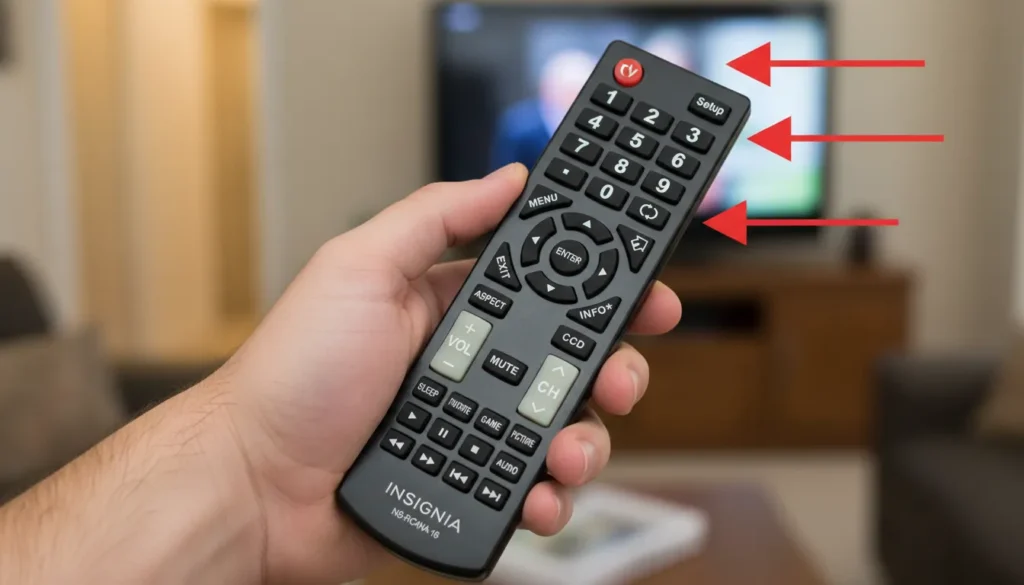
What You Need Before Programming
Check these items before starting:
- Fresh batteries installed in the remote (2 AAA batteries for most models)
- Your TV or device turned on and within 15 feet
- Your TV brand name (check the front panel or back label)
- A clear line of sight between remote and TV
Remove any obstacles between the remote and TV. The infrared signal needs a direct path to work.
Insignia Universal Remote Code List by Brand
Try these codes first before using auto-search. Start with the first code listed for your brand.
5-Digit Codes
Samsung: 10812, 10060, 10702, 10178, 10030
LG: 11423, 10178, 11265, 10856, 10700
Vizio: 11758, 11756, 10864, 10885, 11499
Sony: 10000, 10810, 10834, 11100, 11317
TCL: 11756, 12434, 12049, 11602, 12187
Hisense: 10748, 11660, 12183, 10145, 12355
Sharp: 10093, 10165, 10386, 11602, 12360
Toshiba: 10154, 10156, 11265, 10060, 11156
Panasonic: 10051, 10250, 11291, 10375, 11310
Philips: 10054, 11454, 10171, 10690, 11154
4-Digit Codes
Samsung: 0812, 0060, 0702, 0178, 0030
LG: 1423, 0178, 1265, 0856, 0700
Vizio: 1758, 1756, 0864, 0885, 1499
Sony: 0000, 0810, 0834, 1100, 1317
RCA: 0047, 1047, 1147, 1247, 0051
3-Digit Codes
Samsung: 812, 060, 702, 178, 030
LG: 423, 178, 265, 856, 700
Vizio: 758, 756, 864, 885, 499
Sony: 000, 810, 834, 100, 317
Insignia TV (using Insignia remote): 171, 095, 002, 209, 456
Most newer remotes use 5-digit codes. Check your remote’s manual or the sticker inside the battery compartment to confirm which code length your model uses. If you’re programming a different brand remote, you may need Samsung TV remote codes, Vizio universal remote codes, or Sony TV remote codes depending on your setup.
Method 1: Program Using Manual Code Entry
This method works when you know your TV’s brand and have the code list. The process mirrors the steps used for programming Philips universal remotes and One For All universal remotes.
Step-by-Step Instructions
Step 1: Turn on your TV manually using the power button on the TV itself.
Step 2: Press and hold the Setup button on your remote for 3 seconds. The LED light will turn on and stay lit.
Step 3: Press the TV button once. The LED will blink once and remain on.
Step 4: Enter your 3-digit, 4-digit, or 5-digit code using the number pad. The LED will turn off after you enter the last digit.
Step 5: Point the remote at your TV and press the Power button. If the TV turns off, the code worked.
Step 6: Turn your TV back on and test the volume and channel buttons. If they work, programming is complete.
If the TV doesn’t respond, the LED will blink twice to indicate the code failed. Repeat steps 2-6 with the next code from your brand’s list.
Testing Your Code
After programming, test these functions:
- Power button turns TV on and off
- Volume up and down buttons adjust sound
- Channel up and down buttons change channels
- Number buttons select specific channels
- Mute button silences audio
If some buttons work but others don’t, you may need to try a different code for full functionality.
Method 2: Program Using Auto-Search (No Code Required)
Auto-search cycles through all available codes until your TV responds. This takes 5-15 minutes but works when you don’t have the right code. This method is particularly useful for older TV brands like Dynex, Zenith, or Daewoo.
When to Use Auto-Search
Use this method if:
- None of the manual codes work
- You don’t know your TV’s brand
- Your TV is an older or uncommon brand
- The code list doesn’t include your TV
Step-by-Step Instructions
Step 1: Turn on your TV using the TV’s power button.
Step 2: Press and hold the Setup button for 3 seconds until the LED turns on.
Step 3: Press the TV button. The LED blinks once and stays on.
Step 4: Press and release the Power button repeatedly. Wait 2 seconds between each press. The remote sends a different code each time.
Step 5: Watch your TV carefully. When it turns off, immediately press the Setup button to save that code. The LED will blink twice to confirm.
Step 6: Turn your TV back on and test the remote functions.
The remote stores up to 500 codes. If you go through all codes without the TV responding, your TV may not be compatible with this remote model.
Method 3: Program Using Popular Brand Setup
Some Insignia remotes have a quick setup feature for popular brands.
Quick Setup Steps
Step 1: Turn on your TV.
Step 2: Press and hold the TV button for 3 seconds until the LED turns on.
Step 3: Press 991 for Samsung, 992 for LG, or 993 for Vizio.
Step 4: The LED will blink twice if the brand is recognized.
Step 5: Test the Power button. If it works, programming is done.
This feature only works on NS-RMT8D21 and newer models. Check your model number on the battery compartment label.
How to Test Your Insignia Remote After Programming
Complete these tests to verify programming worked correctly:
Power test: Turn the TV off, wait 5 seconds, turn it back on. Both actions should work smoothly.
Volume test: Press Volume Up 5 times, then Volume Down 5 times. The TV’s on-screen volume indicator should move accordingly.
Channel test: Change channels using both the number pad and the CH+/CH- buttons. Try channels 2, 11, and 501.
Input test: Press the Input button. The TV’s input menu should appear.
Menu test: Press the Menu button. Your TV’s settings menu should open.
If any test fails, reprogram the remote using a different code from your brand’s list. The testing process is similar to verifying Spectrum universal remote programming or Blackweb universal remote setup.
Troubleshooting Common Programming Issues
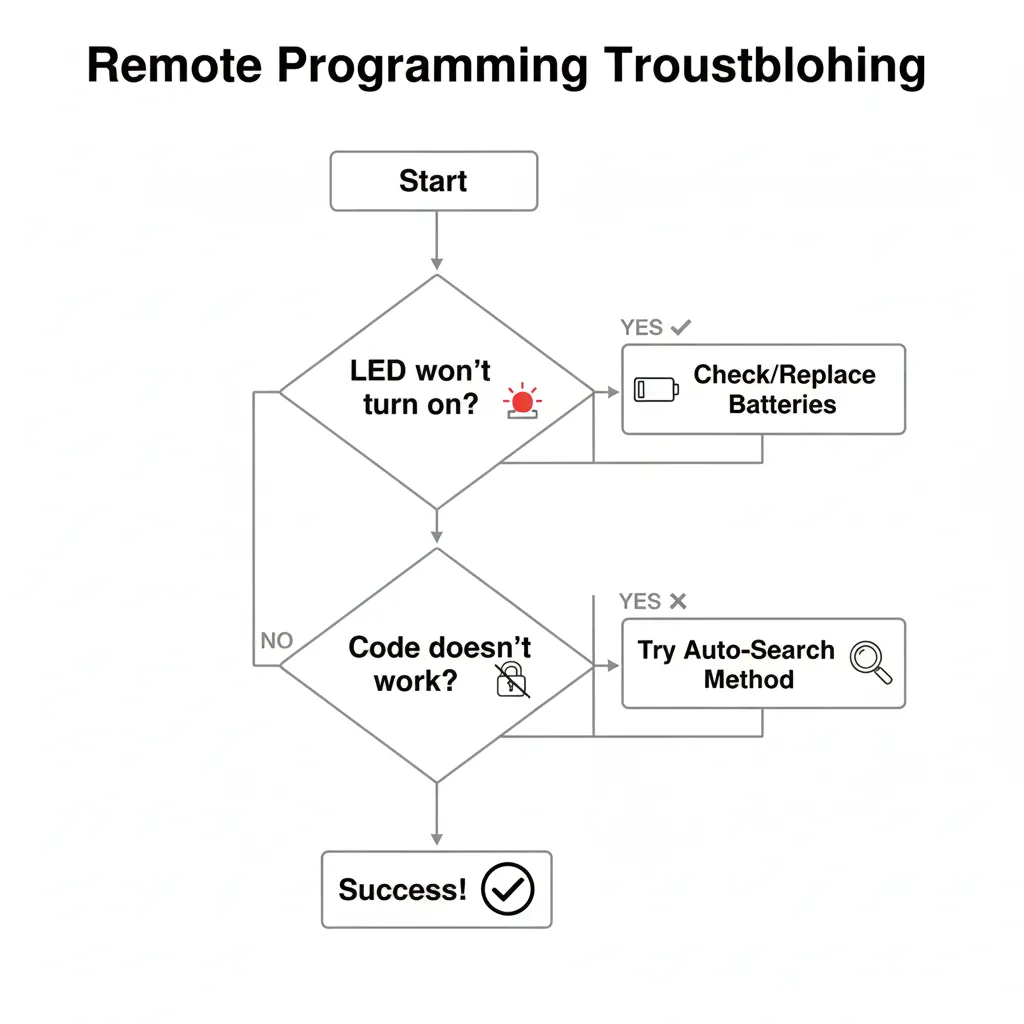
LED Won’t Turn On
The LED should light up when you press Setup. If it doesn’t:
- Replace the batteries with fresh AAA batteries
- Check battery orientation (+ and – symbols match the compartment)
- Clean the battery contacts with a cotton swab and rubbing alcohol
- Try pressing Setup harder for the full 3 seconds
Dead batteries are the most common cause. Batteries typically last 3-6 months with regular use.
Code Doesn’t Work
If your TV doesn’t respond after entering a code:
- Try all codes listed for your brand, not just the first one
- Verify you’re entering the correct number of digits (3, 4, or 5)
- Make sure you pressed the TV button before entering the code
- Point the remote directly at the TV’s IR sensor (usually near the power light)
- Stand within 10 feet of the TV during programming
Some TV models require a specific code. You may need to try 5-10 codes before finding the right one. For Hisense TVs specifically, check our comprehensive Hisense TV remote codes guide for additional programming options.
TV Turns Off But Won’t Turn Back On
This happens when the code controls power but not other functions:
- Try the next code on the list for your brand
- Use auto-search to find a more compatible code
- Check if your TV has multiple IR sensors (front and side) and aim at different locations
Some codes provide partial functionality. Keep trying codes until you get full control.
Some Buttons Work, Others Don’t
Partial functionality means you need a different code:
- If power and volume work but channels don’t, try the next code
- If channels work but volume doesn’t, your TV may have fixed volume (monitors and some soundbar setups)
- Reprogram using auto-search for complete button mapping
Volume issues often indicate the remote is programmed to the wrong device type (TV vs cable box). This is a common issue with many universal remotes, including Bose universal remotes and Vivitar universal remote controls.
Remote Worked Yesterday But Not Today
Sudden failure usually means:
- Batteries are dying (replace them)
- Something is blocking the IR sensor on your TV
- You accidentally reprogrammed the remote by pressing Setup
- The TV’s IR sensor failed (test with your smartphone camera—point the remote at the camera and press a button; you should see a purple light through the camera screen)
Check batteries first. This fixes 80% of sudden remote failures.
Factory Reset Your Remote
If nothing works, reset the remote to factory settings:
Step 1: Remove the batteries and wait 60 seconds.
Step 2: Press and hold the Power button for 10 seconds while batteries are out.
Step 3: Reinstall the batteries.
Step 4: Press Setup, then 9-8-1. The LED will blink twice.
The remote is now reset. Reprogram it using Method 1 or Method 2.

Alternative Ways to Control Your TV
If programming fails completely, these options work as backups.
Using Smartphone Apps
Download your TV manufacturer’s official app:
- Samsung: SmartThings app
- LG: LG ThinQ app
- Vizio: Vizio SmartCast app
- Sony: Sony TV SideView app
- TCL (Roku TV): Roku mobile app
These apps turn your phone into a remote. They require your phone and TV to be on the same Wi-Fi network.
Using Physical TV Buttons
Every TV has physical buttons, usually located:
- Bottom right corner of the front bezel
- Right side of the back panel
- Bottom center of the front panel
These buttons typically control power, volume, channel, input, and menu. They work when all remotes fail.
Frequently Asked Questions
How do I know which Insignia remote model I have?
Check the model number on the label inside the battery compartment. Common models include NS-RMT3D21, NS-RMT8D21, and NS-RC4NA-14.
Can I program multiple devices?
Yes. Most Insignia remotes control 3-8 devices. Press the device button (TV, DVD, AUX) before programming each one. Follow the same steps for each device. You can program different devices just like you would with Durabrand TV remote codes or Element TV remote codes.
Do I need to reprogram after changing batteries?
No. The remote stores codes in permanent memory. Changing batteries won’t erase programming.
Why does my remote only work from certain angles?
The infrared signal requires line of sight. Point the remote directly at the TV’s IR sensor, usually located near the power indicator light on the front panel.
How far away can I use my Insignia remote?
Infrared remotes work up to 30 feet in ideal conditions. Walls and obstacles block the signal. Bluetooth remotes (rare on Insignia models) work through walls up to 30 feet.
Can I use an Insignia remote with a non-Insignia TV?
Yes. Insignia universal remotes work with 500+ brands. You’re actually more likely to use an Insignia remote with a different brand than with an Insignia TV. Many users successfully program them with Sony universal remote codes or ByJasco universal remote codes.
What if my TV brand isn’t in the code list?
Use auto-search (Method 2). This method tests all available codes and works with brands not listed in the manual.
How do I program the AUX button?
The AUX button can control cable boxes, DVD players, or streaming devices. Press and hold AUX instead of TV in step 3, then enter the device’s code. Find AUX codes in your remote’s manual or use auto-search. This works similarly to programming Pavy universal remote codes for multiple devices.



