

Your Spectrum remote won’t control your TV until it’s programmed with the right code. This guide gives you every code for every major TV brand, explains all three programming methods, and covers each Spectrum remote model separately. You’ll also find troubleshooting steps for the most common problems people run into after programming.
Start by identifying your remote model. That one step saves most people 20 minutes of frustration.
Quick Note: If you’re also looking for a broader code list that works across multiple remotes and devices, our guide on Spectrum universal remote codes covers additional device types and alternate code sets.
Step Zero: Find Your Spectrum Remote Model
Most programming guides skip this. Don’t. Using the wrong method for your remote is the number one reason programming fails.
How to Read the Model Number
Flip your remote over. The model number is printed on a sticker on the back, usually near the battery compartment or below it. It’ll look something like 1060BC3, UR5U-8780L, or RC122.
If the sticker is worn off, check the inside of the battery compartment cover.
Quick Reference – Common Spectrum Remote Models
Spectrum Guide Remote — Slim, dark gray. Has a microphone button at the top. Most common remote shipped after 2019. Says “Spectrum” on the front.
1060BC2 / 1060BC3 — Older gray remote, no mic button. Has a rounded top. Very common in homes with legacy Spectrum service.
Universal CLIKR-5 (UR5U-8780L / UR5U-8790L) — Slightly larger than average. Has a curved body. Common with Charter legacy accounts.
Philips RC122 — Slim and rectangular. Usually black. Has a small Philips logo at the bottom. If you own other Philips universal remotes, the programming logic is similar but the code sets differ.
UR3-SR3M / UR3-SR3S — Smaller remote, often silver and black. No guide button.
URC 2060 / URC1160 — Older models, flat rectangular shape. Often shipped with early Spectrum cable boxes.
Once you know your model, jump to the matching section under Programming Instructions by Remote Model below.
Spectrum Remote Codes by TV Brand
These are verified codes for each major TV brand. Try the first code listed. If it doesn’t fully work, move to the next one. Some brands have multiple codes because the same brand name is used across TVs made by different manufacturers.
Samsung
0178, 0030, 0060, 0019, 0587, 10812, 11632, 10030, 10178
Samsung is the most straightforward brand to program. Code 0178 works on the vast majority of Samsung TVs made after 2010. For a full breakdown of Samsung-specific codes across multiple remote brands, see our Samsung TV remote codes guide.
LG
0178, 0017, 0050, 0135, 0442, 11423, 10017, 10178, 10050
Older LG Plasma TVs sometimes need 0442. Newer OLED and NanoCell models work with 0178 or 11423.
Sony
0000, 0040, 0049, 0077, 0810, 10000, 10040, 11685
Code 0000 is Sony’s universal fallback. If your Sony Bravia isn’t responding, try 10000 next. We also have a dedicated Sony TV remote codes page if you need codes for other remote brands pairing with Sony TVs.
TCL
0178, 0030, 10178, 11780, 0463
TCL Roku TVs are a separate case — see the Roku TV section below.
Hisense
0178, 0463, 0744, 11780, 10178
Hisense has grown fast and manufacturing varies. If 0178 fails, 0463 or 11780 usually picks it up. For Hisense-specific codes across other remote types, check the Hisense TV remote codes guide.
Vizio
0178, 0463, 0864, 11756, 10178
Vizio doesn’t use standard IR codes on all models. If none of these fully work, use the Auto Scan method below. You can also find extended Vizio code lists in our Vizio universal remote codes guide.
Roku TV (TCL Roku, Hisense Roku, Sharp Roku)
0178, 0463, 11780, 12183
Roku TVs are sold by multiple brands. The codes above cover TCL, Hisense, and Sharp Roku TVs. Insignia Roku TVs use different codes — see below.
Insignia
0178, 0463, 10463, 11756
Most Insignia TVs are made by Best Buy and use the same chipset as Hisense. Code 0178 usually works.
Philips
0003, 0038, 0049, 0168, 10003, 10038
Philips TVs sold in the US after 2015 are actually made by Funai. Code 0168 handles most of those newer models.
Panasonic
0250, 0264, 0060, 0171, 10250, 10264
Panasonic stopped selling TVs in the US after 2016. If you have an older Panasonic, 0250 is your best starting point.
Sharp
0178, 0040, 0058, 0135, 10178, 10040
Sharp Roku TVs use the Roku codes above. Non-Roku Sharp TVs respond to 0178 or 0058.
Toshiba
0178, 0168, 0049, 0650, 10178, 10168
Toshiba TVs sold after 2018 are made by Hisense under license. Use 0178 or 0168.
Emerson
0463, 0135, 0278, 10463
Emerson is a budget brand with inconsistent chipsets. If 0463 doesn’t work, run the Auto Scan.
Sanyo
0049, 0060, 0171, 10049
Sanyo TVs haven’t been widely sold since 2013. These codes cover models from 2008–2013.
Onn
0178, 0463, 11780
Onn is Walmart’s in-house TV brand. Most units use Hisense or Roku chipsets. Code 0178 covers the majority.
Other Brands
Coby: 0463, 0135
Magnavox: 0003, 0038, 0168, 10003
Polaroid: 0463, 0135, 0650
RCA: 0000, 0077, 0145, 10000 — for extended RCA code lists across remote brands, see our RCA universal remote codes page
Acer: 0178, 0463
Admiral: 0002, 0009
Sylvania: 0003, 0038, 10003
Westinghouse: 0178, 0463, 0856
Element: 0463, 0178 — additional codes are listed in our Element TV remote codes guide
Haier: 0178, 0463, 11780
JVC: 0049, 0135, 0168, 10049
Daewoo: 0463, 0135, 0077 — if you have a Daewoo TV, our Daewoo TV remote codes guide covers additional remote pairings
Dynex: 0178, 0463 — see our Dynex TV remote codes page for more
Durabrand: 0463, 0135 — full code list available in our Durabrand TV remote codes guide
Zenith: 0017, 0135, 0463 — additional Zenith codes are covered in our Zenith universal remote codes guide
If your brand isn’t listed here, use the Auto Scan method. It works for virtually any IR-compatible TV regardless of brand.
Which Programming Method Should You Use?
You have a code and it’s your first try → Use Method 1 (Manual Code Entry). Fastest when it works.
You’ve tried 3+ codes and none worked → Use Method 2 (Auto Scan). Finds the right code automatically.
You have a Spectrum Guide Remote → Use Method 3 (Single-Digit Method). It’s faster and specific to that remote.
You don’t know your remote model → Go back to Step Zero above.
If you own a different universal remote alongside your Spectrum remote, our guide on One For All universal remote codes may help you find codes for that device separately.
How to Program a Spectrum Remote – 3 Methods
Method 1: Manual Code Entry
This works on all Spectrum remote models unless stated otherwise.
- Turn on your TV manually using its power button.
- Press and hold the TV button on your Spectrum remote for 3 seconds. The LED at the top will turn on.
- While the LED is on, enter the 4 or 5-digit code for your TV brand.
- The LED blinks twice if the code is accepted. It blinks once (or stays solid) if rejected.
- Press the Power button. If your TV turns off, the code worked.
- Press Power again to turn the TV back on, then test the Volume and Mute buttons.
- If the TV doesn’t turn off in step 5, repeat from step 2 with the next code on the list.
Note: Hold the remote within 10 feet of the TV and point it directly at the IR sensor (usually at the bottom center of the TV bezel).
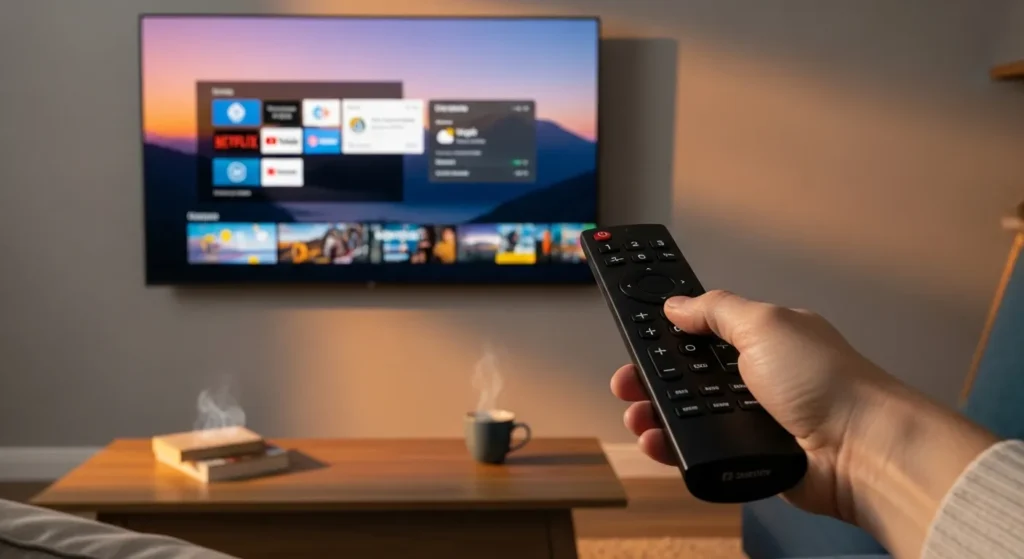
Method 2: Auto Scan (No Code Required)
Use this when you’ve exhausted the code list or don’t know your TV brand.
- Turn on your TV using its own power button.
- Press and hold the TV button for 3 seconds until the LED lights up.
- Press Channel Up slowly and repeatedly. The remote sends codes one at a time in sequence.
- Stop pressing Channel Up the moment your TV turns off.
- Press Power to turn the TV back on.
- Test Volume, Mute, and Channel buttons to confirm full function.
- If any functions don’t work, press Channel Up a few more times and test again.
Auto Scan can take 2–5 minutes depending on how far down the code list your TV brand sits. Be patient and press Channel Up at a steady pace — one press every 2 seconds is ideal.
Method 3: Single-Digit Method (Spectrum Guide Remote Only)
This method is exclusive to the Spectrum Guide Remote (the slim one with the mic button).
- Press the Spectrum button on your remote.
- Go to Settings → Remote Control.
- Select your device type (TV, Audio, etc.).
- Follow the on-screen prompts. The Guide Remote walks you through it step by step.
- Enter the 4 or 5-digit code when prompted, or choose auto-search.
The Guide Remote can also be set up through the Spectrum TV app on your phone if your remote is unresponsive.
Programming Instructions by Remote Model
Spectrum Guide Remote
Use Method 3 above. This remote has on-screen programming built into the Spectrum menu. It also supports voice commands once paired. You don’t need to use button sequences.
1060BC2 / 1060BC3
Use Method 1 or Method 2. Hold the TV button for 3 seconds to enter programming mode. The LED is at the top of the remote. These models use 4-digit codes.
When the code is accepted, the LED blinks twice in quick succession. A single long blink means rejected.
Universal CLIKR-5 (UR5U-8780L / UR5U-8790L)
These remotes require you to press and hold Setup instead of the TV button. The LED blinks twice when you enter programming mode.
- Hold Setup for 3 seconds. LED blinks twice.
- Press TV.
- Enter your 4 or 5-digit code.
- LED blinks twice for success, once for failure.
Philips RC122
- Press and hold Setup until the LED blinks twice.
- Press 1 (for TV device).
- Enter your 4-digit code.
- Test with the Power button.
The RC122 uses a slightly older code set. If standard codes fail, try older 4-digit versions like 0178, 0017, or 0049.
UR3-SR3M / UR3-SR3S
- Press and hold the TV button until the LED blinks twice.
- Enter your 4-digit code.
- Press Power to test.
These remotes don’t display the LED in the same place as others — it’s a small indicator light above the button cluster, not at the very top.
URC 2060 / URC1160
- Press and hold Setup for 4 seconds. LED blinks twice.
- Press TV.
- Enter the 5-digit code.
- LED blinks twice to confirm.
These are older models and respond better to 5-digit codes when available. The 4-digit versions often work but with reduced button functionality.
Programming a Spectrum Remote for Soundbars and Other Devices
Audio Receiver / Soundbar Codes
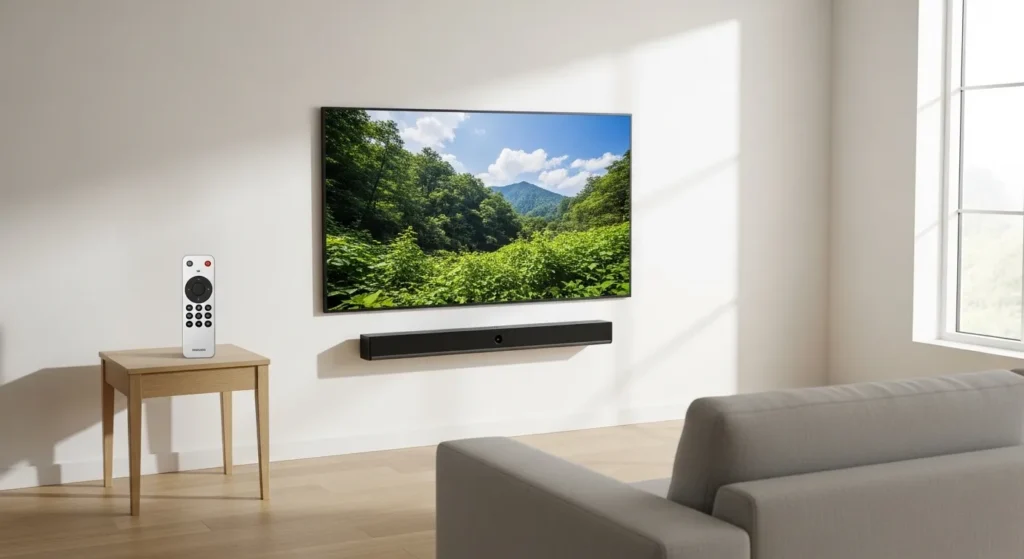
Most Spectrum remotes have an AUX button for secondary audio devices. Common soundbar codes:
Samsung Soundbar: 31674, 31779 LG Soundbar: 31953, 32094 Sony Soundbar: 30490, 31360 Vizio Soundbar: 31093, 31352 Bose: 31517, 30956 — for more Bose-specific codes, see our Bose universal remote codes guide Yamaha: 30491, 30639 Denon: 30491, 31093 Onkyo: 30490, 31360
To program a soundbar:
- Hold the AUX button for 3 seconds.
- Enter the code for your soundbar brand.
- Test with the Volume Up/Down and Mute buttons.
DVD and Blu-ray Player Codes
Hold the DVD button for 3 seconds and enter the code:
Samsung: 20460, 20119 LG: 20619, 20048 Sony: 20069, 20117 Panasonic: 20436, 20001 Philips: 20001, 20044
Setting Up AUX Volume Lock
Volume Lock keeps your volume buttons controlling your soundbar instead of switching to the TV’s audio. This matters if you use a separate soundbar and don’t want the remote toggling between the two.
- Press and hold AUX for 3 seconds.
- Press and hold Volume Up for 3 seconds. The LED blinks twice.
- Your volume is now locked to the AUX device.
To undo it, repeat the same steps.
Spectrum Remote Troubleshooting
Code Not Accepted (LED Blinks Once or Stays Solid)
A single blink or a solid LED means the remote rejected the code. Check these:
- You held the TV (or Setup) button long enough — it must stay lit before you enter the code.
- You entered the right number of digits. Some models use 4-digit codes, some use 5-digit codes.
- You’re using the right code set for your remote model (older remotes don’t recognize newer 5-digit codes).
- The batteries are low. Weak batteries cause intermittent LED behavior. Replace with fresh AA batteries and try again.
Remote Works Partially (Volume But Not Power, or Vice Versa)
This is a code mismatch. It means the code you entered is close but not exact — likely for an older version of the same TV brand.
Try the next code on the list. If you’re on the last code for your brand, run Auto Scan.
If volume works but nothing else does, your remote may have programmed into AUX or Audio mode instead of TV mode. Press TV once to switch device mode and test again.
Remote Completely Unresponsive
Before assuming a programming issue, check these basics:
- Batteries: Remove and re-insert. Or swap for new ones.
- Line of sight: The remote needs a clear path to the TV’s IR sensor. Nothing blocking it.
- Distance: Stay within 10 feet.
- Point directly at the bottom center of the TV screen (that’s where most IR sensors sit).
If the remote doesn’t respond to anything — not even the cable box — the issue may be hardware. Test by pointing your phone camera at the remote’s IR tip and pressing any button. If you see a flash of light on your phone screen, the remote is functioning. If no light appears, the remote hardware is dead.
How to Factory Reset Your Spectrum Remote
For most Spectrum remotes:
- Press and hold the TV and OK buttons at the same time for 5 seconds.
- The LED blinks 3 times.
- All programming is cleared. The remote returns to default settings.
For the Spectrum Guide Remote:
- Press and hold Spectrum + Volume Down for 5 seconds.
- The LED blinks twice.
- Remote resets.
After a reset, you’ll need to re-program all devices. If you’re considering switching to a different universal remote altogether, our guides on GE universal remote codes and Blackweb universal remote codes cover two popular alternatives.
Frequently Asked Questions
What is the universal code for Spectrum remote?
There’s no single universal code. Code 0178 works for the largest number of TV brands including Samsung, LG, TCL, Hisense, Vizio, and others — but it doesn’t work for every TV. If it fails, use the Auto Scan method.
How do I find the code for my TV if it’s not on the list?
Use the Auto Scan method (Method 2 above). It cycles through hundreds of codes automatically. It works for any IR-compatible TV regardless of brand or age.
Can I program my Spectrum remote without a code?
Yes. Auto Scan doesn’t require a code. It searches automatically until it finds one that controls your TV.
Why does my remote only control volume but not power?
This is a partial code match. Try the next code for your TV brand. If you’ve run through all codes, use Auto Scan. Also confirm the remote is in TV mode — press the TV button once and test.
Can I use a Spectrum remote for a soundbar?
Yes. Use the AUX button to program a soundbar separately from your TV. See the soundbar setup section above for codes and steps.
How do I know if my Spectrum remote needs to be replaced?
Point a phone camera at the IR tip (the small dark dome at the front of the remote). Press any button. If your phone camera shows no light flash, the remote is no longer transmitting. Call Spectrum at 1-833-780-1880 or visit a Spectrum store for a free replacement.
Why do some TV brands have multiple codes?
TV brands often outsource manufacturing to different factories, especially for budget models. Each factory uses a slightly different chipset, which requires a different IR code. That’s why a Hisense TV from 2018 might need a different code than a 2023 model with the same brand name.
Can I use the Spectrum TV app as a remote instead?
Yes. The Spectrum TV app (available on iOS and Android) includes a built-in remote function that works over Wi-Fi without requiring IR programming. It’s a useful backup while you’re troubleshooting.
Final Note
Start with the codes for your TV brand, use Method 1 if the code list includes your TV, and switch to Auto Scan if it doesn’t. If your remote still isn’t working after trying both, the reset steps above clear any conflicting programming. Spectrum also replaces defective remotes at no charge — so if the hardware is the problem, getting a new one is free and fast.
For other universal remote options that work alongside or instead of your Spectrum remote, browse our guides on Sony universal remote codes, Vivitar universal remote codes, and ByJasco universal remote codes.


