

The most common Telefunken service menu code is Menu + 4725. This works on roughly 70% of Telefunken TV models from 2010 to 2026. Two alternative methods exist using sound balance settings with codes 1969 or 0532.
Service menu access lets you adjust factory settings like white balance, backlight levels, and system diagnostics. Most users need this for picture calibration or troubleshooting display issues. Be warned: changing the wrong settings can permanently damage your TV or void the warranty.
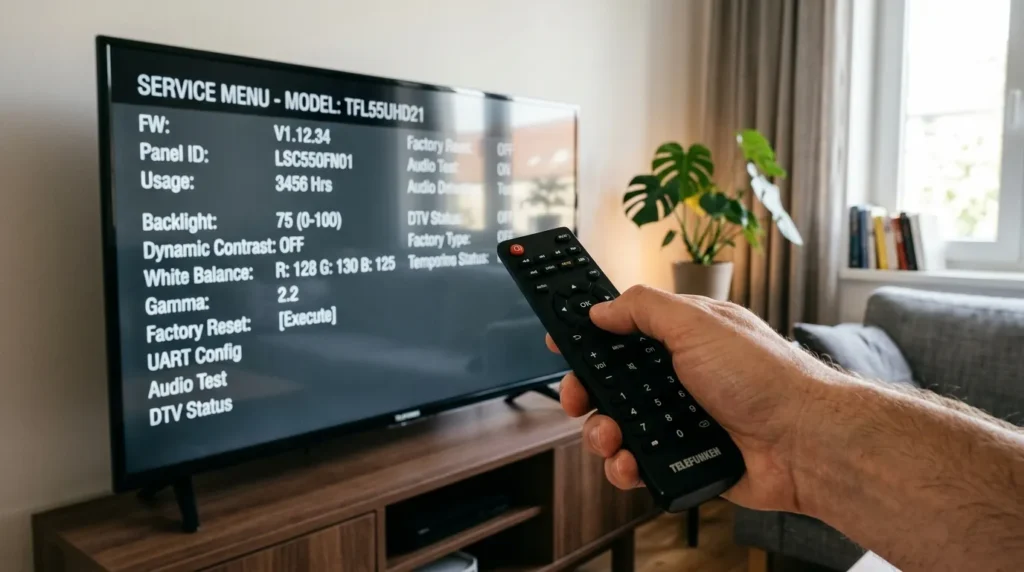
What is the Telefunken Service Menu?
The service menu is a hidden interface designed for technicians. It contains advanced settings not available in the standard user menu.
You can adjust parameters like color temperature, geometry corrections, panel voltage, and audio DAC settings. The menu also displays diagnostic information including panel hours, firmware version, and error logs.
Access this menu only when necessary. Random adjustments can brick your TV.
When You Need Service Mode Access
Use service mode to fix specific problems. Common scenarios include correcting color tint issues, reducing backlight bleed, adjusting overscan on older models, or resetting corrupted settings after a failed firmware update.
If your TV works fine, stay out of the service menu.
Risks and Warnings
Incorrect settings cause permanent damage. You can destroy the display panel, corrupt the firmware, or create unfixable picture distortion.
Write down original values before changing anything. Some settings have no undo option.
Telefunken voids warranties for unauthorized service menu access in some regions. Proceed at your own risk.
Requirements Before You Start
You need the original Telefunken remote control. Universal remotes rarely work because they don’t send the exact infrared codes required. While RCA universal remotes and GE universal remotes support many TV brands, service menu access demands manufacturer-specific IR sequences.
The TV must be powered on and showing a picture. Service mode doesn’t work from standby.
Have a pen and paper ready to document original settings.
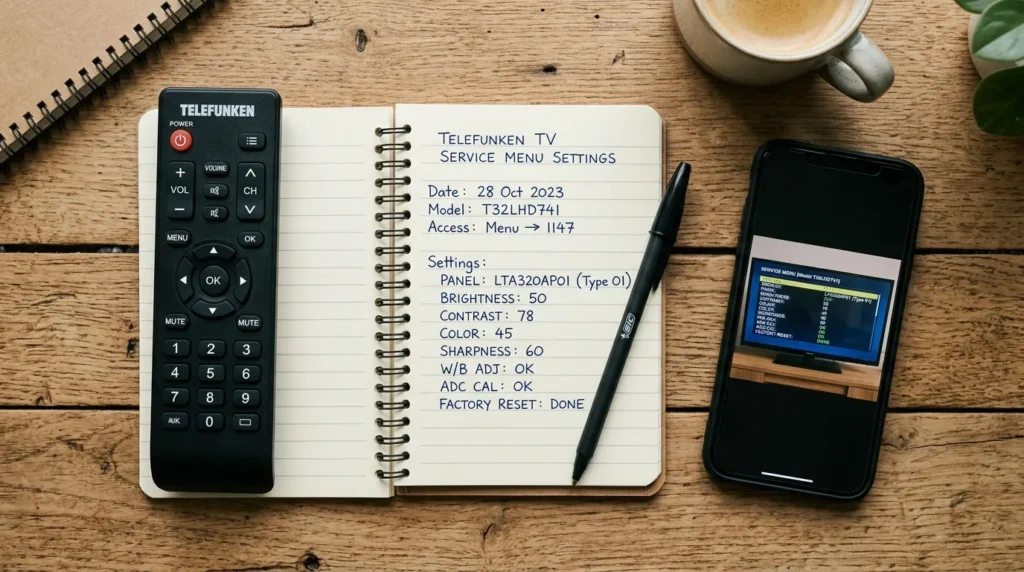
Method 1: Menu + 4725 Code (Most Common)
This method works on most Telefunken LCD and LED models from 2012 onward.
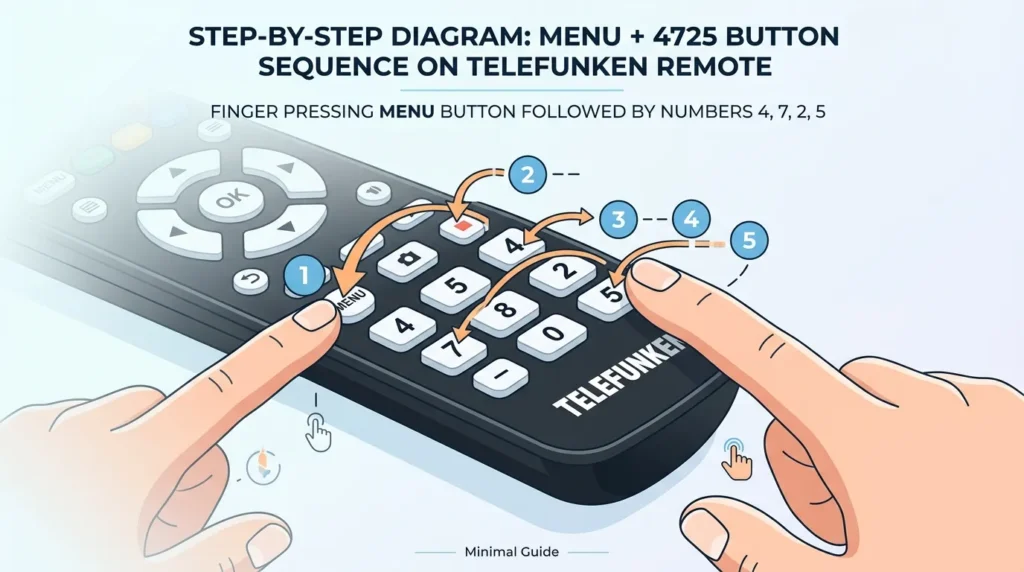
- Press Menu on the remote
- Immediately enter 4 7 2 5 in quick succession
- Service menu appears on screen
The menu looks different from the standard interface. You’ll see technical parameters with abbreviated names.
Compatible Models
This code works on F-series, D-series, and H-series models. Confirmed working models include F32NF02C16, D32H289N4CWI, H49N03CW16, and TE32269B44V2D.
Most models from 2015 to 2026 use this method.
Troubleshooting This Method
If nothing happens, you pressed the buttons too slowly. The sequence must complete within 2 seconds.
Try again from a live TV source, not the menu screen. Some firmware versions are picky about input mode.
Method 2: Sound Balance + 1969 Code
This method appears on older Telefunken models and some Vestel chassis variants.
- Press Menu button
- Navigate to Sound settings
- Select Balance
- Set Balance to 0
- While at Balance = 0, enter 1 9 6 9
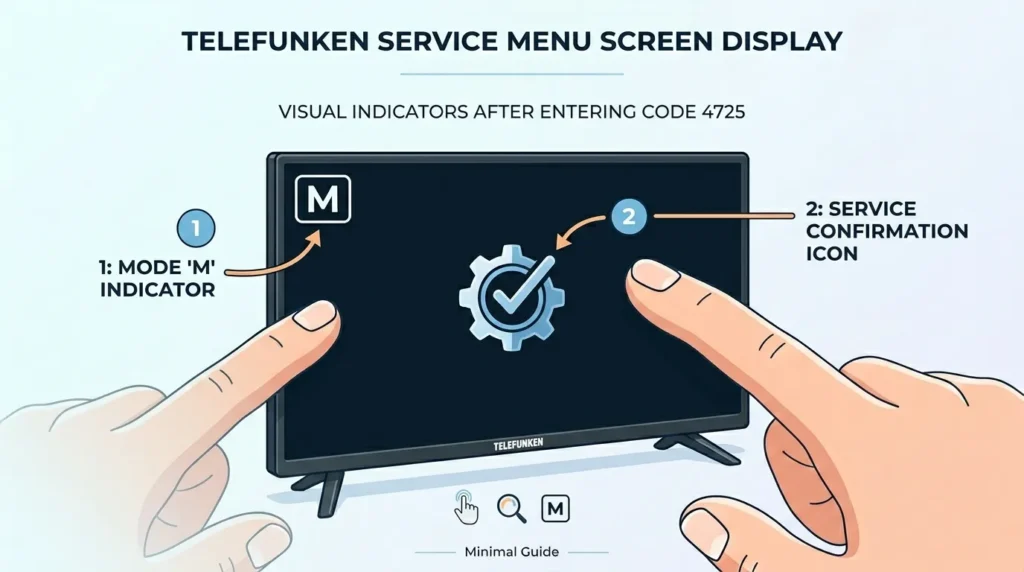
- An “M” appears in the upper left corner
- Press Menu again
- Factory Service OSD displays
The “M” indicator confirms you entered service mode successfully.
When to Use This Method
Use this if Method 1 fails. It’s common on 2010-2014 models and budget series TVs using TTE chassis.
Models like D32H125N4 and similar 32-inch variants respond to this code.
Method 3: Sound Balance + 0532 Code
This is a variant of Method 2 for specific chassis types.
- Press Menu button
- Go to Sound → Balance
- Ensure Balance = 0
- Enter 0 5 3 2
- “M” appears on screen
- Press Menu
- Service menu loads
Follow the same process as Method 2 but with different numbers.
Alternative for Specific Models
This code works on select 2011-2013 models that reject the 1969 sequence. Try this if Method 2 shows the “M” but the menu doesn’t appear.
Model-Specific Service Menu Codes
Different chassis use different codes. Telefunken uses Vestel, MStar, and Novatek chips across their range.
ICC chassis (2010-2014): Use Balance + 1969 TX chassis (2013-2018): Use Menu + 4725 Vestel 17MB chassis (2015-2022): Use Menu + 4725 Android TV models (2020+): Use Menu + 4725, may require developer mode first
Smart TVs running Android occasionally block service access via software updates. Check your firmware version if codes fail.
Understanding Service Menu Options
Service menus contain 50+ adjustable parameters. Key sections include:
Picture Settings: White balance (R/G/B gain and offset), gamma curves, color temperature presets, dynamic contrast thresholds, backlight PWM frequency.
Sound Adjustments: Equalizer fine-tuning, speaker impedance compensation, volume curve mapping, audio delay correction.
System Information: Panel manufacturer code, total operating hours, backlight hours, firmware version, motherboard revision.
Never change values randomly. A 5% shift in RGB gain can turn your picture green permanently.
How to Exit Service Menu Safely
Press the Power button to turn off the TV. This saves changes and exits service mode.
Some models require you to press Menu then navigate to an Exit option within the service menu itself.
Unplugging the TV while in service mode can corrupt settings. Always exit properly.
What to Do If Stuck
If the remote stops responding, unplug the TV for 60 seconds. This forces a hard reset.
Settings changed before the crash may remain modified. You’ll need to re-enter service mode to restore them.
Common Problems and Solutions
Code not working: Check you’re using the original remote. Try fresh batteries. Enter numbers faster.
No remote control: You cannot access service menu using TV buttons alone. Purchase a replacement Telefunken remote or check if Sony universal remotes offer Telefunken compatibility for basic functions, though service mode typically requires original equipment.
Service menu appears then disappears: Your firmware has service mode disabled. This happens after some security updates. Downgrade firmware or contact Telefunken support.
Changed settings by accident: Write down what you changed. Look for a “Reset to Default” option in the service menu section you modified. If unavailable, you may need professional restoration.
TV won’t exit service mode: Hold Power button for 10 seconds. If that fails, unplug for 2 minutes then replug.
Safety Guidelines and Best Practices
Document every original value before making changes. Take phone photos of each screen.
Adjust one parameter at a time. Test the result before changing anything else.
Avoid these high-risk settings: panel voltage, backlight drive current, LVDS settings, EEPROM writes, firmware flash options.
If you don’t understand what a setting does, don’t touch it. The abbreviations aren’t always obvious.
Frequently Asked Questions
Can I use a universal remote? No. Universal remotes don’t send precise IR codes needed for service mode. You need an original Telefunken or compatible Vestel remote. While Spectrum universal remotes and Philips universal remotes work for standard TV functions, they cannot access service menus.
Will this reset my TV? No. Accessing service mode doesn’t reset anything. You must manually change settings or select reset options.
Is this legal? Yes, but it may void your warranty. Check your warranty terms before proceeding.
Which method should I try first? Try Menu + 4725 first. It works on 70% of models. If that fails, try the Balance methods.
Can I fix a dead pixel using service mode? No. Dead pixels are hardware defects. Service menu can’t repair physical panel damage.
How do I know my TV model number? Check the label on the back panel or look in Settings → About.
What if all three methods fail? Your model may use a different code, or service mode may be locked by firmware. Contact Telefunken technical support.
Do these codes work with other TV brands? No. Each manufacturer uses unique service codes. Check brand-specific guides for Samsung TV remote codes, Vizio universal remote codes, Hisense TV remote codes, or Sony TV remote codes for their respective service menu access.
Conclusion
Most Telefunken TVs open service mode using Menu + 4725. Older models need the Balance + 1969 or Balance + 0532 sequences. Always document original settings before making adjustments. Exit properly using the Power button to avoid corruption. Use service mode only when necessary for calibration or troubleshooting specific issues.
Unlike standard remote programming for brands like Element TVs or Insignia TVs, service menu access requires precise manufacturer codes and carries significant risk if misused



Need to know more…..