

High-end 4K LED displays demand strong performance from Unreal Engine 5 projects. These screens often appear in virtual production setups or large-scale visuals, where smooth frame rates matter. This guide covers steps to balance quality and speed based on proven methods.
Key Performance Factors
Projects running on 4K LED displays face challenges from high pixel counts. Even powerful hardware like an RTX 4080 can drop below 60 frames per second in native resolution without adjustments. Lower internal render resolutions and upscaling help maintain steady output.
Use the engine’s built-in tools to profile scenes. Check frame times and identify bottlenecks in rendering or memory use.
Set Up Scalability Levels
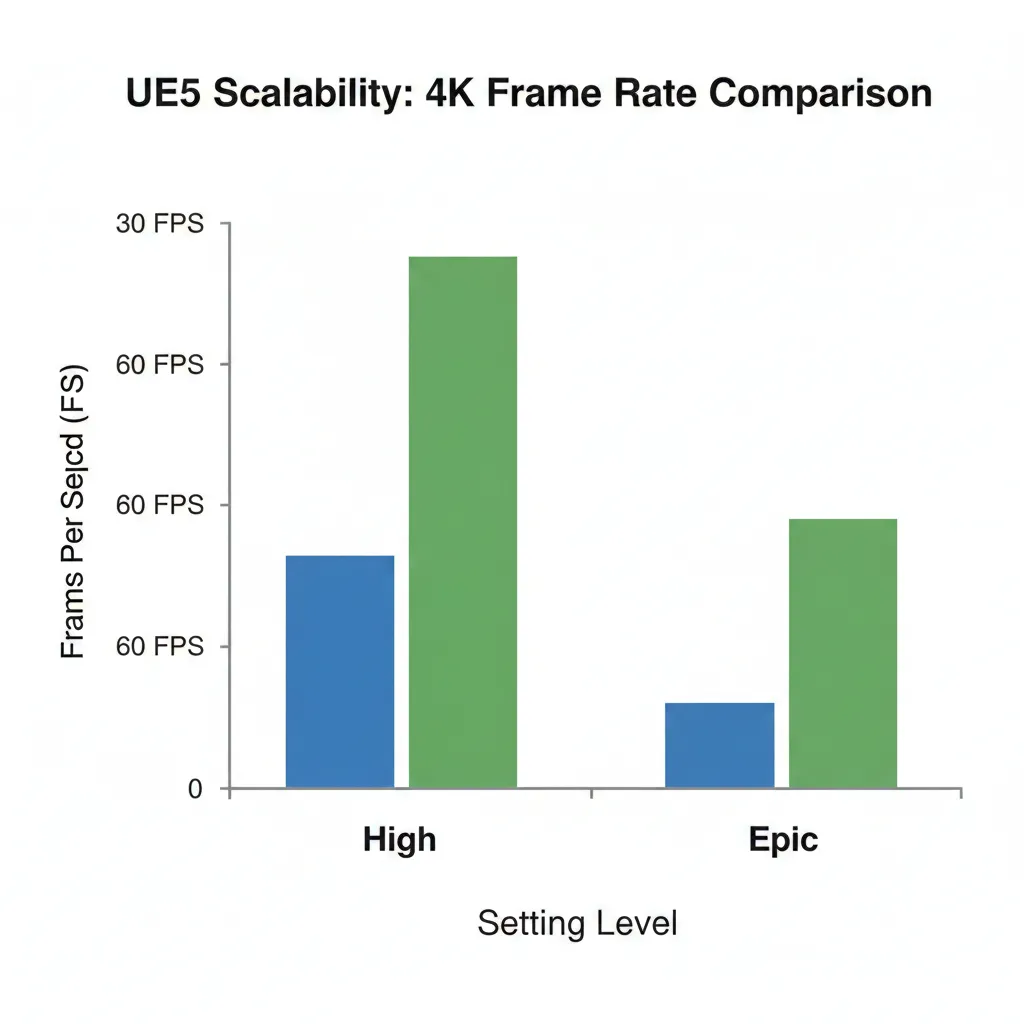
Start with the High scalability setting for global illumination and reflections. This targets 60 frames per second on capable hardware, unlike the Epic level aimed at 30 frames per second.
Adjust these in the console device profiles or project settings. For 4K output, rely on temporal super resolution to upscale from around 1080p. This keeps details sharp while easing the load on the GPU.
- Lower screen percentage to 50-70% for better frame rates.
- Keep anti-aliasing at level 4 or higher to reduce edge artifacts visible on large screens.
- Set shadow quality to Epic for clear details without heavy costs.
Handle Rendering and Upscaling
Render at a reduced resolution internally, then upscale to 4K. Temporal super resolution handles this well, providing clear images from lower base resolutions.
On high-end setups, this approach avoids memory limits and keeps performance high. For LED video walls, split rendering across multiple GPUs if possible—one for the main view and another for surrounding areas.
Manage Lighting with Lumen
Lumen provides dynamic global illumination, but it needs tuning for 4K. Stick to the High quality setting for illumination and reflections to hit 60 frames per second.
Enable hardware ray tracing only if the hardware supports it without frame drops. Turn on stochastic interpolation in screen probe gathering for up to 30% better efficiency.
This reduces overall frame time by about 1.2 milliseconds on top-tier GPUs at 4K.
Texture and Material Adjustments
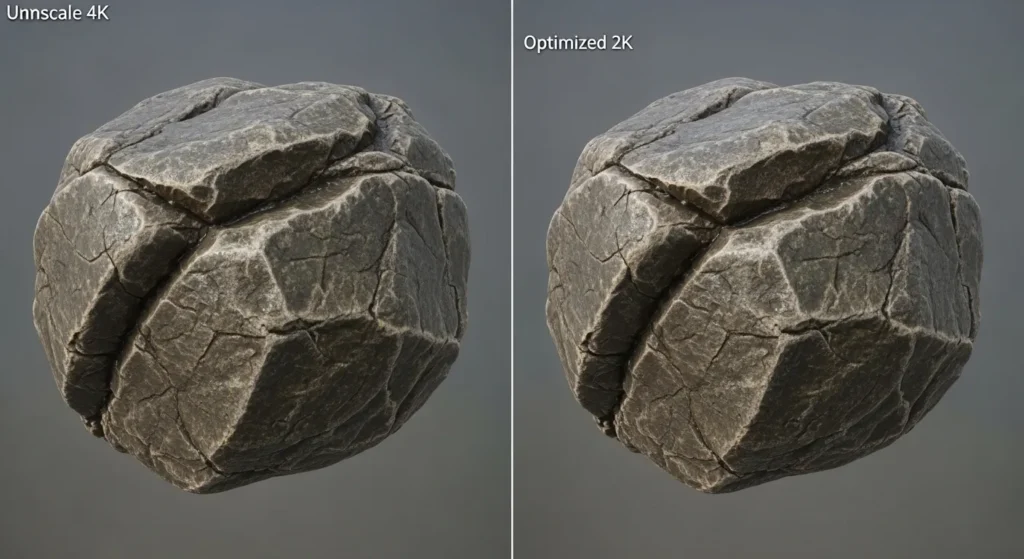
Textures consume memory quickly at high resolutions. Audit them to ensure only necessary ones stay at 4K—drop others to 2K or 1K where details won’t show on distant objects.
Use material instances instead of base materials for faster loading. Set texture streaming pool to match available VRAM, around 2GB or more for complex scenes.
In projects with many assets, this step frees up resources. You can download assets for game development that come pre-sized for better results.
- Limit maximum anisotropy to 8x for sharp textures without excess cost.
- Avoid overusing 8K textures unless critical for close-up views on large displays.
Optimize Meshes and Effects
Enable levels of detail for static and skeletal meshes. This cuts triangle counts at distance, vital for large LED screens where far-off elements still appear.
For Nanite meshes, manage cluster sizes to avoid high draw calls. Turn off features like virtual shadow maps if they cause hitches, switching to standard shadows.
Keep effects quality at Epic, but disable motion blur or depth of field if not needed for the display setup.
Hardware Tips for LED Setups
High-end 4K LED displays, especially in virtual production, benefit from GPUs with 24GB or more VRAM. This handles large volumes without slowdowns.
Sync multiple systems with nDisplay for seamless output across screens. Test on actual hardware to spot issues like overdraw or shader complexity.
Tools for Debugging
Open the Statistics panel under Window to scan for high-cost assets, triangle counts, and texture sizes.
Use Unreal Insights for detailed GPU and CPU traces. Profile sessions to pinpoint slow areas, then adjust based on findings.
These steps ensure projects run well on 4K LED displays, blending quality with reliable performance.
Explore recent posts:


