

The Inteset INT422 universal remote supports over 1,000 device codes covering TVs, amplifiers, AV receivers, streaming devices, DVDs, and VCRs. This guide gives you every code and all four programming methods in one place — updated for 2026.
Not sure if the Inteset is the right remote for your setup? The universal remote compatibility checker can help you confirm before you start.
What You Need Before You Start
INT422-3 vs INT422-4 — Which Model Do You Have?
Inteset makes two versions of the INT422 remote. Flip yours over and check the label on the back.
INT422-3 — Older version. Supports devices in four modes: A, B, C, and D. Comes with its own key mapping document for IReTV IR Receiver compatibility.
INT422-4 — Current version. Same four-mode structure but with an updated code library and backlit keys. This is the version most people buy new in 2026.
Both use the same programming methods. The code library differs slightly between them. If a code works on one model but not the other, check the official user guide PDFs linked on Inteset’s website.
Devices the Inteset Remote Can Control
- TVs
- Amplifiers and receivers
- AV receivers
- DVD players
- VCRs (legacy)
- Streaming devices (Roku, Fire TV, Apple TV)
- Cable and satellite boxes
How to Program the Inteset Universal Remote
All four methods work with both the INT422-3 and INT422-4. Method 1 is the fastest when you already have a code. If you’re coming from a different brand and want to compare approaches, the steps for programming a GE universal remote follow a very similar structure.
Method 1 — Direct Code Entry (Recommended)
Step 1. Turn on the device you want to control.
Step 2. Press the device mode key on the remote — A, B, C, or D — depending on which slot you’re assigning it to.
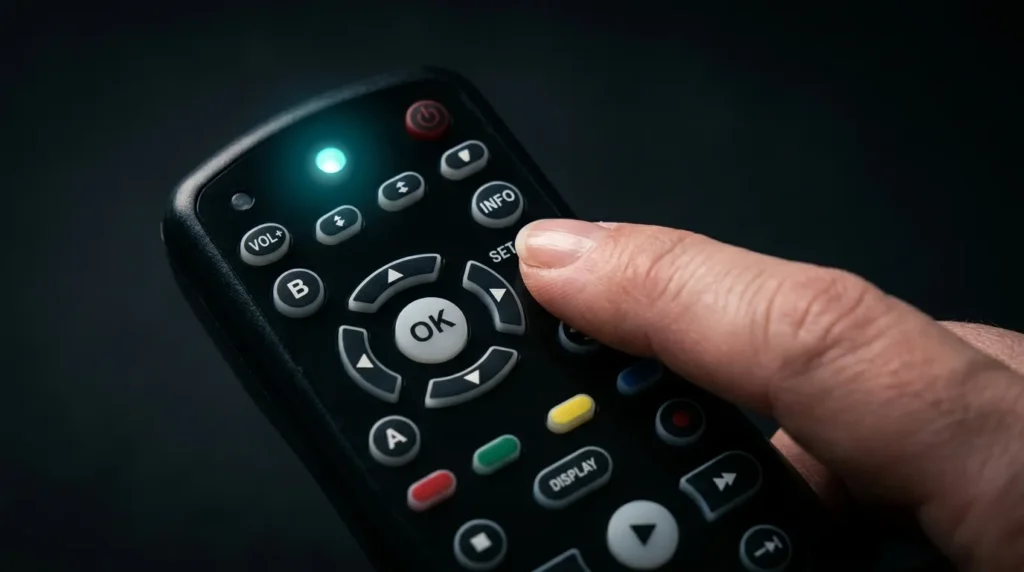
Step 3. Press and hold the Set button until the LED blinks twice. Release it.
Step 4. Enter the 5-digit setup code for your device brand. Find your code in the tables below.
Step 5. If the code is accepted, the LED blinks twice again. If it blinks once or not at all, the code was rejected — try the next code for your brand.
Step 6. Point the remote at the device and press Power. If the device turns off, programming is complete. If not, repeat with another code.
Method 2 — Auto-Search Method
Use this when you don’t have a code or none of the listed codes work.
Step 1. Turn on the device.
Step 2. Hold the device mode key (A, B, C, or D) for 3 seconds until the LED lights up.
Step 3. Press CH+ or CH− repeatedly, pointing the remote at the device. The remote cycles through codes one at a time.
Step 4. Stop when the device turns off.
Step 5. Press Power to confirm the code works.
Step 6. Press the device mode key to save.
Method 3 — Manual Entry Method
Step 1. Turn on the device.
Step 2. Press the device mode key (TV, DVD, etc.).
Step 3. Tap the Setup button until the LED blinks.
Step 4. Enter the code from the list in your remote’s manual.
Step 5. Press Power while pointing at the device.
Step 6. If the device turns off, the code is saved.
Method 4 — Code Search Method (Using Code 991)
This forces the remote into search mode.
Step 1. Turn on the device.
Step 2. Press the Setup button on the remote.
Step 3. Enter 991.
Step 4. Hold Power and press Channel Up repeatedly until the device turns off.
Step 5. Release and press Power again to confirm. The device should turn on if the code locked correctly.
Unsure what a button on your remote actually does? The remote control button explainer tool breaks down every key in plain language.
Inteset Remote Codes for TV (2026 Full List)
Use these 5-digit codes with Method 1. Try the first code listed for your brand. If it doesn’t work, try the next. You can also use the remote code finder tool to search by brand and device type.
| Brand | Codes |
|---|---|
| Samsung | 10156, 10812, 10702, 10556, 10037, 10650, 10208, 11458, 11632, 11959, 12051, 12953 |
| LG | 10017, 10556, 10037, 10714, 10698, 11423, 11840, 11860, 12182, 12358 |
| Sony | 11505, 10810, 11385, 11651, 11825, 12778 |
| Vizio | 10864, 10885, 11756, 11758, 12512, 12707, 12757, 13415, 13758 |
| TCL | 10698, 10898, 12414, 12434, 13047, 13183, 13426 |
| Hisense | 10156, 10556, 10508, 10208, 11208, 12183, 12846, 13382, 13519 |
| Panasonic | 10250, 10037, 10650, 10508, 10208, 11291, 11480, 11636, 11650, 11924, 11927, 11941, 11947, 12170, 12264, 13825 |
| Philips | 10017, 10171, 11454, 10556, 10037, 11394, 11506, 11866, 11867, 11944, 12372, 12597, 12768, 12800, 13292, 13614 |
| Toshiba | 10156, 10093, 10195, 11037, 10650, 10508, 11508, 11524, 11656, 11743, 11959, 12676, 12724, 13105 |
| Sharp | 10093, 10650, 10818, 11393, 11423, 11659, 12360, 12676, 12951 |
| RCA | 10093, 11661, 11447, 11454, 10625, 12183, 12247, 12434, 12746, 12855, 12932, 13382, 13419, 13426, 13577, 13717 |
| JVC | 10093, 10650, 10653, 10508, 11601, 11670, 11774, 11892, 12264, 12271, 12321, 12676 |
| Hitachi | 10156, 10150, 10037, 10634, 11037, 10508, 10679, 11576, 11585, 11643, 11667, 12005, 12170, 12433, 12676, 13639 |
| Sanyo | 10156, 11037, 10508, 10208, 11142, 11208, 11362, 11498, 11585, 11667, 12461, 12676 |
| Emerson | 10171, 11661, 10037, 10714, 11394, 11864, 11886, 11944, 11963, 12183, 13559 |
| Insignia | 10171, 11326, 11385, 11423, 11564, 11641, 11892, 11963, 12049 |
| Magnavox | 10171, 11454, 11506, 11755, 11866, 11867, 11944, 11963, 12372, 12597, 13292 |
| Haier | 10037, 10698, 10508, 11570, 11748, 11749, 11753, 11983, 12293, 12309, 12876, 13382, 13620 |
| Funai | 10171, 10714, 11037, 11394, 11963 |
| Element | 11687, 11886, 12183, 12964, 13559 |
| Dynex | 12049 |
| Westinghouse | 10885, 11217, 11712, 11755, 12293, 12397, 13094, 13382, 13470, 13579 |
| Sceptre | 11217, 11360, 12528 |
| Seiki | 12964, 13559 |
| Coby | 12344, 13478, 13627 |
| Proscan | 11447, 12147, 12183, 12256, 13382, 13577, 13717 |
| Curtis | 11326, 12352, 12397, 12855, 13382, 13577 |
| AOC | 10093, 10625, 11589, 12087 |
| Onn | 11667, 12125 |
| GE | 10093, 10765, 11447, 11454, 10625 |
| Mitsubishi | 10250, 10093, 10150, 11250, 10556, 10037, 11037, 10512, 11797, 13330 |
| Pioneer | 10037, 10698, 10512, 10679, 11260, 11457, 11636 |
| Grundig | 10556, 10037, 10195, 10443, 10672, 11223, 11523, 11667, 12125, 12561, 12676, 13067 |
| Blaupunkt | 10195, 12426 |
| Loewe | 10512, 10633 |
| Changhong | 10156, 10765, 10508, 11498, 13434, 13538 |
| Daewoo | 11661, 10556, 10037, 10634, 10672 |
| Zenith | 10017, 11661, 11423, 12358 |
| Viewsonic | 10864, 10885, 11564, 11640, 11755, 12049, 12087 |
For brands not listed above — including Akai, Alba, Bush, Goodmans, Matsui, Medion, Orion, Polaroid, Schneider, and hundreds more — use Method 2 (Auto-Search) to find a working code. Dedicated guides are also available for specific brands: Samsung TV remote codes, LG TV universal remote codes, Sony TV remote codes, Vizio universal remote codes, Hisense TV remote codes, Panasonic universal remote codes, Philips universal remote codes, JVC TV remote codes, Sanyo universal remote codes, Daewoo TV remote codes, Zenith universal remote codes, Element TV remote codes, Coby TV remote codes, Dynex TV remote codes, AOC TV remote codes, Onn universal remote codes, Insignia universal remote codes, and Magnavox universal remote codes.
Inteset Remote Codes for Streaming Devices
Roku Codes
Roku devices use specific IR codes on the INT422. Try these:
| Roku Device | Codes |
|---|---|
| Roku TV | 12183, 13047, 13559 |
| Roku Streaming Stick | 12183 |
| Roku Ultra / Express | 12183, 11687 |
If none of these work, use the Auto-Search method (Method 2). Roku devices respond to IR but some newer models may require the official Roku remote app as a backup. If you’re evaluating streaming options more broadly, the streaming service comparison tool can help you figure out what’s worth keeping.
Amazon Fire TV Codes
| Fire TV Device | Codes |
|---|---|
| Fire TV Stick (all generations) | 12183, 13559 |
| Fire TV Cube | 12183 |
Note: Fire TV Sticks use Bluetooth for their native remote. The Inteset INT422 communicates via IR. It will control Fire TV Sticks that have an IR receiver on the connected TV, but direct Fire Stick IR control is limited on some models.
Apple TV Codes
Apple TV 4K and HD models use Bluetooth natively. The INT422 can control the television Apple TV is connected to, but cannot replace the Siri Remote for Apple TV navigation itself.
Inteset Remote Codes for Amplifiers
| Brand | Codes |
|---|---|
| Denon | 30272, 32706 |
| Harman/Kardon | 33045 |
| Logitech | 31408 |
| Marantz | 32138 |
| Onkyo | 32878 |
Inteset Remote Codes for AV Receivers
| Brand | Codes |
|---|---|
| Bose | 31229 |
| Cambridge Audio | 31647 |
| Denon | 31360, 32516, 32681, 32857, 32861 |
| Harman/Kardon | 31304 |
| Integra | 30135, 31320, 31805 |
| JBL | 31304 |
| JVC | 30074 |
| Kenwood | 31313, 31293 |
| LG | 31293, 32197 |
| Marantz | 31269, 31289, 32114 |
| NAD | 30320 |
| Onkyo | 30135, 31320, 31805, 33259 |
| Panasonic | 31518, 31763, 31779, 31831, 33309, 33425 |
| Philips | 31269, 31289, 31673, 31831, 32459, 33005 |
| Pioneer | 31023, 31123, 31459, 31935 |
| Samsung | 31295, 31304, 31868, 32809 |
| Sony | 31441, 31759, 31622, 31112, 31158, 31454, 31758, 31822, 31858, 32172 |
| Yamaha | 30176, 31276, 31776, 31815, 32061, 32467, 33030 |
| Zenith | 31293, 32197 |
If you’re pairing a soundbar rather than a full receiver, the soundbar compatibility checker can confirm whether your model will respond to these codes. For Bose-specific setups, the Bose universal remote codes guide covers additional pairing options.
Inteset Remote Codes for DVD / VCR
VCR support is legacy. These codes still work if you have an older setup. DVD players are more commonly used with these codes today.
| Brand | Codes |
|---|---|
| Sony | 20032 |
| Panasonic | 21562 |
| Samsung | 20240, 20742 |
| LG | 20037, 21137 |
| JVC | 20081, 20067 |
| Hitachi | 20037, 20081, 20240 |
| Toshiba | 20081, 20067, 20742 |
| Philips | 20081, 20739 |
| Sanyo | 20048, 20240, 20067, 21137 |
| Sharp | 20037, 20048, 21137 |
| Emerson | 20037, 20240 |
| RCA | 20048, 20240 |
| GE | 20048, 20240 |
| Daewoo | 21137 |
| Magnavox | 20081 |
| Aiwa | 20037, 20032, 20742, 21137 |
Code Not Working? Here’s What to Try
Try All Codes Listed for Your Brand
Some brands have 10 or more codes. Each one targets a different chipset generation. A Samsung TV from 2019 may use a different code than one from 2023. Work through every code on the list before moving on.
Use Auto-Search Mode
If none of the listed codes work, Method 2 (Auto-Search) scans every code in the remote’s library automatically. It takes a few minutes but usually finds a match when manual entry fails. Other universal remote brands like the One For All universal remote and RCA universal remote use this same auto-scan approach as a fallback.
Check Your LED Blink Pattern
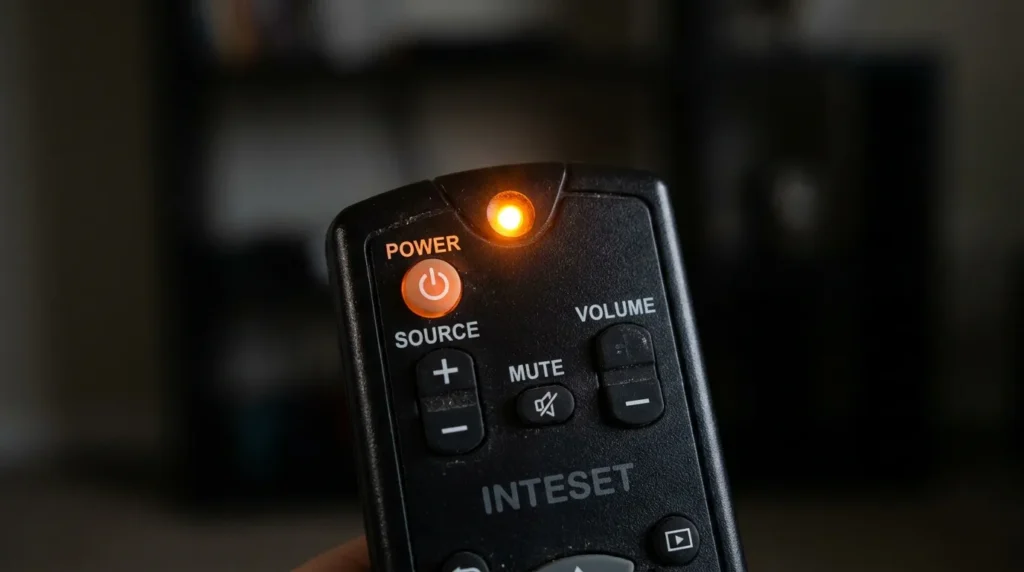
- 2 blinks after code entry = code accepted into memory
- 1 blink or no blink = code rejected, try the next one
- LED stays solid = remote is still in programming mode, press Set again
Still Not Working?
A few possibilities:
- The device’s IR receiver is blocked or dirty. Clean the front panel and make sure nothing blocks the signal path.
- The remote needs fresh batteries. Weak batteries cause inconsistent IR signals, which look like wrong codes.
- The device brand uses a proprietary IR protocol not in the INT422 library. In that case, the Inteset remote’s learning function (on some firmware versions) can copy signals from an original remote. If you’re troubleshooting a TV error at the same time, the TV error code lookup tool can help identify what the TV itself is reporting.
- If none of these solve it, an Inteset INT422-4 replacement remote is worth considering if your current unit is old or damaged.
Frequently Asked Questions
Does the Inteset INT422 remote work with smart TVs? Yes. It controls the basic functions of smart TVs — power, volume, input, and channels — using IR. It does not replace smart TV apps or voice commands built into the TV’s native remote.
What is the difference between INT422-3 and INT422-4? The INT422-4 is the current model. It has a backlit keypad and an updated code library. The INT422-3 is the older version. Programming steps are identical for both.
How many devices can I program into the Inteset remote? Up to 4 devices — one per mode key (A, B, C, D).
What do I do if the LED blinks 4 times instead of 2? Four blinks usually means the remote failed to save the code. Repeat the programming sequence from Step 1. Make sure you hold the Set button long enough to get the 2-blink confirmation before entering the code.
Can I use the Inteset remote to control a soundbar? Yes, if your soundbar brand is in the AV receiver or amplifier code list. Brands like Bose, Sony, Samsung, Yamaha, and Harman/Kardon are supported. Use Method 1 with the AV receiver codes. If you’re not sure whether your soundbar is compatible, the soundbar compatibility checker can confirm before you start entering codes.


