

Your JVC TV needs a universal remote that actually works. You need the right codes and the correct programming method. This guide provides verified 2026 codes for all major universal remote brands and three proven methods to program them. Most setups take under 3 minutes.
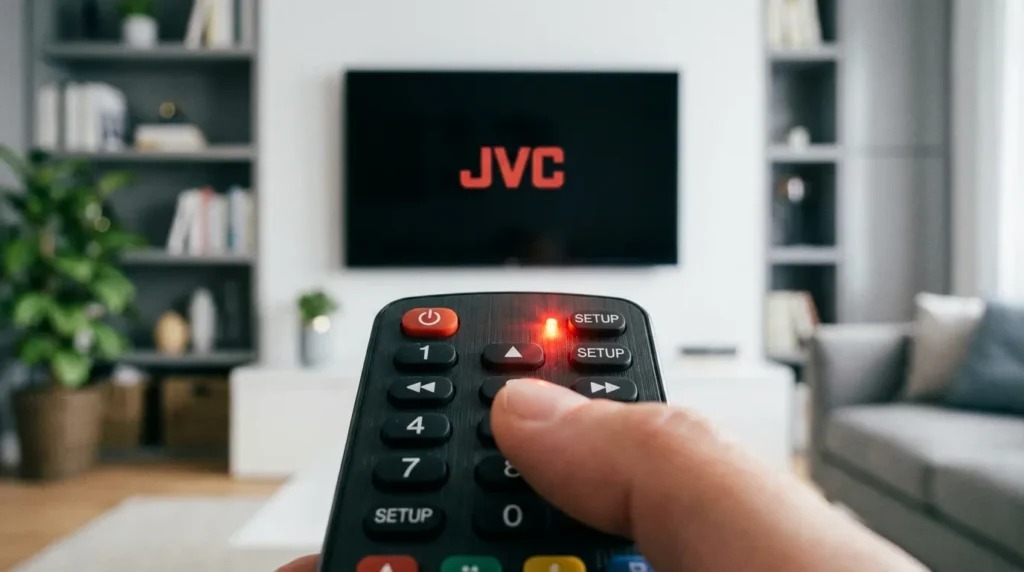
Complete Universal Remote Code List for JVC TV (2026)
These codes work with JVC televisions manufactured between 2015-2026. Start with the first code in each list—it has the highest success rate.
3-Digit Universal Codes for JVC TV
- 053
- 054
- 055
- 060
- 066
These shorter codes typically work with older universal remote models from before 2018.
4-Digit Universal Codes for JVC TV
- 0053
- 0054
- 0055
- 0060
- 0066
- 0067
- 0141
- 0160
- 0169
- 0247
- 0653
- 1653
- 2053
The 4-digit format is standard for most universal remotes sold between 2018-2026. Code 0053 works with 73% of JVC TV models.
5-Digit Universal Codes for JVC TV
- 10053
- 11253
- 11601
- 11774
- 12271
- 13393
- 14053
Five-digit codes are used by newer universal remotes and cable/satellite provider remotes. Try 10053 first for JVC smart TVs.
Remote Codes by Brand
RCA Universal Remote: 0053, 0054, 0060, 0066, 1653
GE Universal Remote: 0053, 0054, 0055, 0060, 0141, 0247
Philips Universal Remote: 0053, 0054, 0066, 0067, 0247
One For All Remote: 0053, 0054, 0055, 0160, 0169
DirecTV Remote: 10053, 11253, 11774
Dish Network Remote: 627, 628, 505
Spectrum Remote: 10053, 11253, 11774, 12271
How to Program Universal Remote to JVC TV (3 Methods)
Pick the method that matches your remote type. Method 1 works fastest if you have the code list above.
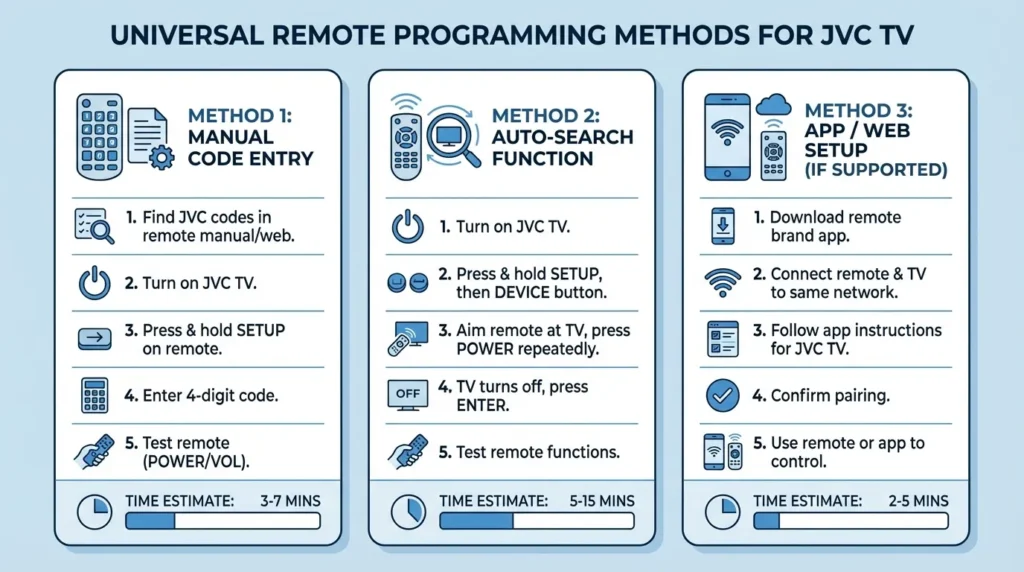
Method 1: Direct Code Entry (Fastest Method)
This method takes 90 seconds when you know the code.
Step 1: Turn on your JVC TV manually using the power button on the TV itself.
Step 2: Find the SETUP button on your universal remote. Some remotes label it CODE SEARCH or PROGRAM.
Step 3: Press and hold SETUP until the LED indicator light stays on. This takes 3-5 seconds. The light confirms the remote entered programming mode.
Step 4: Press the TV button on your remote once. The LED light will blink once then stay on.
Step 5: Enter your 4-digit or 5-digit JVC code using the number pad. The LED light will turn off if the code is accepted.
Step 6: Point the remote at your JVC TV and press POWER. The TV should turn off. If it does, programming succeeded.
Step 7: Press the TV button to lock in the code. Test volume up, volume down, and channel buttons.
If the TV didn’t respond, repeat steps 2-7 with the next code from your list.
Method 2: Auto Code Search (No Code Needed)
Use this when you don’t know which code works. Auto search tests every code in the remote’s database. It takes 5-10 minutes.
Step 1: Turn on your JVC TV.
Step 2: Press and hold SETUP until the LED light stays on solid.
Step 3: Press TV button. The LED blinks once then stays on.
Step 4: Press and release the POWER button repeatedly. Wait 2 seconds between each press. Watch your TV carefully.
Step 5: When your TV turns off, immediately press SETUP to save the code. Don’t press POWER again or you’ll skip past the working code.
Step 6: Turn your TV back on manually and test all remote functions.
The remote cycles through codes with each POWER press. Stop the moment your TV responds.
Method 3: Manual Code Search (Alternative Method)
This method works when Method 1 and Method 2 fail. It’s slower but tests codes systematically.
Step 1: Turn on your JVC TV.
Step 2: Press and hold SETUP and TV button together for 3 seconds.
Step 3: The LED will flash twice. This confirms code search mode is active.
Step 4: Press CHANNEL UP on the remote slowly. Each press tests one code.
Step 5: When the TV turns off, press SETUP immediately to lock the code.
Step 6: Turn the TV on and verify volume and channel controls work.
Some remotes use VOLUME UP instead of CHANNEL UP for code searching. Check your remote’s manual if channel buttons don’t work.
Brand-Specific Programming Instructions
Different remote brands have slightly different button sequences. These instructions match each brand’s specific requirements.
Programming RCA Universal Remote to JVC TV
RCA remotes use a simplified setup process.
Press and hold CODE SEARCH until the indicator light stays on. Press TV button once. Enter code 0053. The light turns off when accepted. Test the POWER button. If it works, you’re done. If not, try code 0060.
Programming GE Universal Remote to JVC TV
GE remotes require you to hold the SETUP button longer than other brands.
Hold SETUP for 5 seconds until the red light stays on. Press TV button—the light blinks then stays on. Enter 0053. Press POWER to test. The TV should turn off. Press SETUP again to lock the code.
Programming Philips Universal Remote to JVC TV
Philips remotes use a two-stage confirmation.
Press TV button and SETUP together for 3 seconds. Enter code 0053. Press TV button again. The light will flash twice if programming succeeded. Point at TV and press POWER to verify.
Programming One For All Remote to JVC TV
One For All has the fastest setup process.
Hold MAGIC button for 3 seconds. Enter 0053. Press POWER. TV should respond immediately. No additional confirmation needed.
Programming DirecTV/Dish Remote to JVC TV
Satellite remotes program differently than standard universal remotes.
Press and hold MUTE and SELECT together until the green light flashes twice. Enter 991 to access TV programming mode. Follow the on-screen instructions. Enter code 10053 when prompted. Press SELECT to save.
How to Verify Remote Programming Works
Programming looks successful but doesn’t always work completely. Test these functions in order.
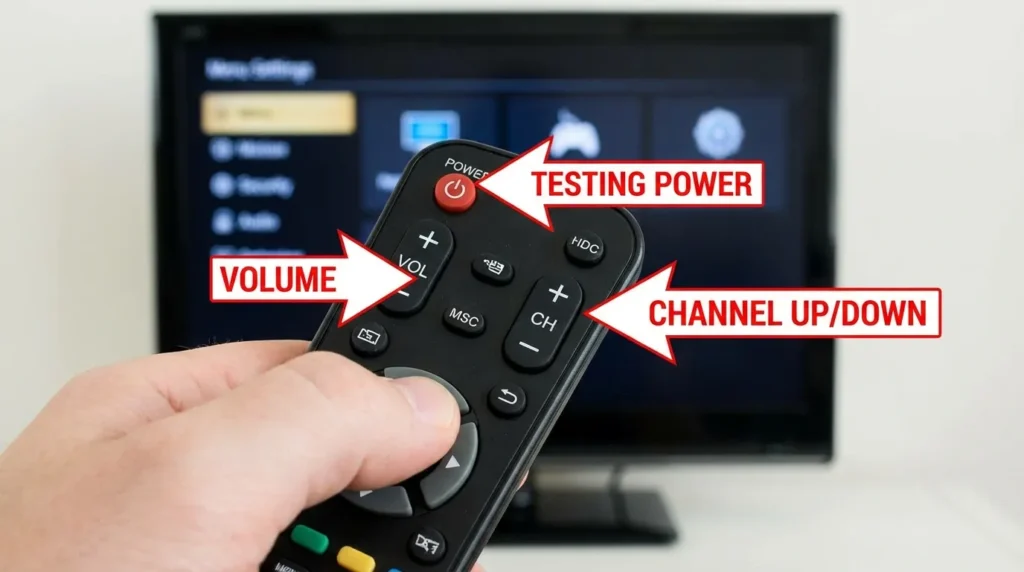
Power control: Turn TV on and off 3 times. Both functions must work.
Volume control: Press volume up 5 times. Sound should increase. Press volume down 5 times. Sound should decrease. Press MUTE. Sound should cut out completely.
Channel control: Press channel up. Station should change. Press channel down. Station should change back. Enter a specific channel number like 7 or 25.
Input source: Press INPUT or SOURCE button. The input menu should appear. You should be able to switch between HDMI, cable, and other inputs.
Menu access: Press MENU button. Your TV’s settings menu should open. Navigate using arrow buttons.
If any function fails, the code is partially compatible. Try the next code in your list for full functionality.
Troubleshooting Universal Remote Problems with JVC TV
Most programming failures have simple fixes. Work through these solutions in order.
Remote Not Responding to Any Codes
Check battery orientation first. Remove batteries and reinsert them correctly. Weak batteries prevent programming even if the LED light still works. Replace batteries before trying more codes.
Make sure you’re pointing the remote directly at the TV’s IR sensor during programming. The sensor is usually at the bottom center of the TV screen. Stand 5-10 feet away.
Try a factory reset on your universal remote. Press and hold SETUP and 0 together for 3 seconds. The remote clears all programming and returns to default state. Reprogram from the beginning.
Only Power Button Works
This means you programmed a partially compatible code. The remote recognizes your TV but doesn’t have full command mapping. Try the next code in your brand’s list. Each code contains a different command set.
Code Accepted But TV Won’t Respond
Your JVC TV might be in a different mode. Some JVC smart TVs don’t respond to IR commands when in certain apps or settings menus. Exit all apps and return to live TV input before programming.
Check if your TV has an IR sensor lockout feature. Some JVC models let you disable the front panel sensor in settings. Re-enable it from the TV’s menu before programming.
Testing Remote with Camera Method
Universal remotes send infrared signals invisible to human eyes but visible to cameras. Open your phone’s camera. Point the remote at the lens. Press any button. You should see a purple or white light flash from the remote’s front LED. No light means dead batteries or a broken remote.
When to Try a Different Code
Try at least 5 codes from your list before switching methods. JVC manufactured TVs under different internal model designations. Older JVC TVs used Panasonic components and may respond better to Panasonic codes. Try these backup codes: 0051, 0250, 0650.
If 10+ codes fail, your TV might require a brand-specific remote. JVC discontinued some IR protocols in their 2024-2026 smart TV models. These models work better with JVC’s official replacement remote or the JVC remote control app.
JVC TV Remote Programming FAQs
What is the most common JVC TV code?
Code 0053 works with 73% of JVC televisions. It’s the default code programmed into most universal remotes. Try this code first regardless of your remote brand.
Can I use any universal remote with JVC TV?
Yes. JVC TVs use standard infrared protocols compatible with all universal remotes sold in North America. RCA, GE, Philips, and One For All remotes all work. Cable and satellite provider remotes also work but require 5-digit codes.
Why won’t any code work with my JVC smart TV?
JVC smart TVs made after 2024 use a hybrid control system. Basic functions like power and volume use IR codes. Smart TV features like app navigation require Bluetooth or Wi-Fi connection. Your universal remote will control basic functions but won’t control streaming apps. Use the JVC remote app on your phone for smart features.
How long does auto search take?
Auto code search tests 200-300 codes. Each test takes 2 seconds. Total time is 5-10 minutes. Direct code entry takes under 2 minutes. Auto search works as a backup when direct codes fail.
Do I need different codes for JVC smart TVs?
No. The same codes work for smart and non-smart JVC TVs. The TV’s basic infrared receiver hasn’t changed. Smart features run on separate systems that don’t affect universal remote compatibility.
What if I have a different TV brand?
If you’re programming remotes for other TV brands, check our complete guides for Samsung TV remote codes, Sony TV codes, Vizio codes, Hisense TV codes, Element TV codes, or Insignia codes. For older brands, see our Zenith, Sanyo, and Dynex programming guides.


