

The Magnavox MC348 is an 8-in-1 universal remote that controls up to 8 devices using 4-digit codes. To program it, find the code for your device brand in the list below, press and hold the SET button for 3 seconds until the LED lights up, select your device button, enter the 4-digit code, and the LED will turn off to confirm success.
What Is the Magnavox MC348?
The MC348 is Magnavox’s 8-device universal remote. It controls TVs, DVD players, cable boxes, satellite receivers, VCRs, CD players, audio devices, and game consoles — all from one remote. It runs on 2× AAA batteries and has an effective IR range of approximately 15 feet (5 meters).
It supports four programming methods: direct code entry, brand name code, auto setting, and manual scan.
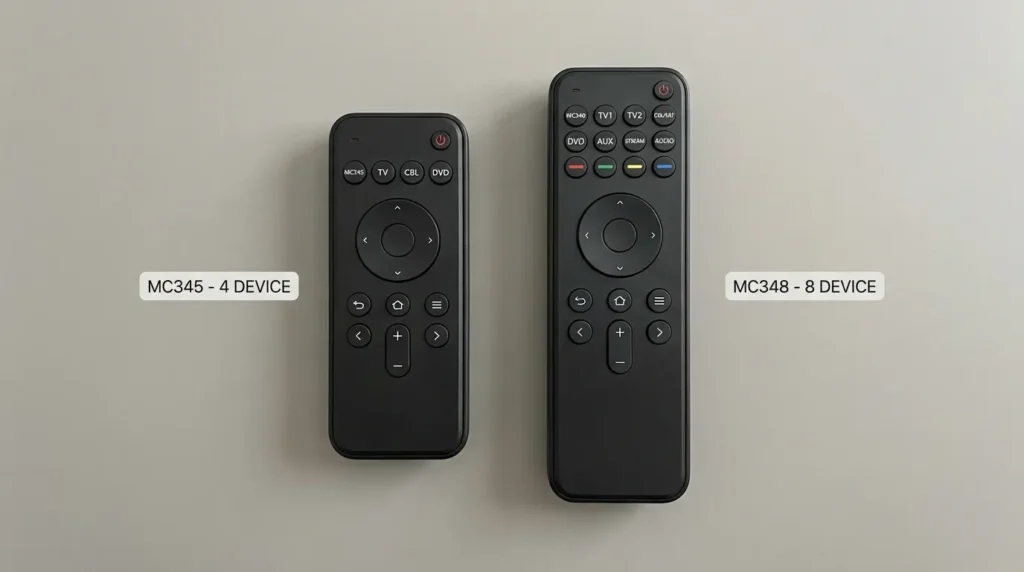
MC348 vs. MC345 — How to Tell Them Apart
Both remotes look similar, but the difference is simple. The MC345 has 4 device selection buttons. The MC348 has 8. Look at the top row of buttons on your remote. If you count 4 device buttons, you have the MC345. If you count 8, you have the MC348. The codes for each model are different, so using MC345 codes on an MC348 won’t work.
If you’re looking for a broader comparison of universal remotes that cover more brands and device types, our One For All universal remote codes guide covers an extensive range of compatible devices and programming methods.
Magnavox MC348 Code List by Device
Use the tables below to find the correct 4-digit code for your device brand. If the first code doesn’t work, try the next one in the list.
TV Codes
| Brand | Codes |
|---|---|
| Samsung | 0047, 0587, 0060, 0093, 0178 |
| Sony | 0000, 0001, 0002, 0003, 0004 |
| LG | 0178, 0056, 0205, 0338 |
| Vizio | 0478, 0864, 1292 |
| TCL | 0047, 0060, 0864 |
| Sharp | 0093, 0165, 0060 |
| Toshiba | 0047, 0060, 0093, 0178 |
| Philips | 0002, 0165, 0178 |
| RCA | 0047, 0060, 0178, 0205 |
| Panasonic | 0056, 0205, 0338 |
| Sanyo | 0165, 0178, 0205 |
| Hitachi | 0047, 0060, 0178 |
| JVC | 0056, 0093, 0205 |
| Emerson | 0047, 0205, 0338 |
| Insignia | 0864, 0478, 1292 |
| Hisense | 0047, 0864, 1292 |
| Element | 0864, 1292 |
| Westinghouse | 0478, 0864 |
| Magnavox | 0002, 0165, 0178 |
For Samsung-specific remote programming tips and additional codes, see our dedicated Samsung TV remote codes guide. For Sony TVs, our Sony TV remote codes page covers additional code sets. Vizio owners can also check the Vizio universal remote codes list for extended options. If you own a Hisense TV, the Hisense TV remote codes guide has a full list. For Element TV users, the Element TV remote codes page covers more models. Sanyo TV owners can find additional codes in the Sanyo universal remote codes guide.
DVD Player Codes
| Brand | Codes |
|---|---|
| Samsung | 0490, 0503, 0741 |
| Sony | 0000, 0490, 0571 |
| LG | 0503, 0741, 0812 |
| Panasonic | 0490, 0571, 0741 |
| Philips | 0490, 0503, 0571 |
| Toshiba | 0490, 0503, 0741 |
| RCA | 0490, 0571, 0812 |
| JVC | 0503, 0571, 0741 |
| Magnavox | 0490, 0503 |
| Emerson | 0490, 0812 |
For Philips device codes, our Philips universal remote codes guide has a full breakdown. RCA DVD codes are also covered in the RCA universal remote codes list.
Cable Box (CBL) Codes
| Brand | Codes |
|---|---|
| Comcast / Xfinity | 0003, 0006, 0176 |
| Charter / Spectrum | 0003, 0176, 0476 |
| Cox | 0003, 0006 |
| Motorola | 0003, 0176, 0476 |
| Cisco | 0003, 0176 |
| Samsung | 0003, 0476 |
| Scientific Atlanta | 0003, 0176 |
| Pace | 0176, 0476 |
| Arris | 0003, 0176 |
Spectrum cable box users can also check the full Spectrum universal remote codes page and the Spectrum TV remote codes guide for additional setup help.
Satellite Receiver (SAT) Codes
| Brand | Codes |
|---|---|
| DirecTV | 0003, 0006, 0476 |
| Dish Network | 0003, 0476, 0752 |
| Hughes Network | 0476, 0752 |
| Bell ExpressVu | 0476 |
| Echostar | 0476, 0752 |
VCR Codes
| Brand | Codes |
|---|---|
| Samsung | 0047, 0178, 0347 |
| Sony | 0000, 0001, 0047 |
| Panasonic | 0056, 0178, 0347 |
| JVC | 0056, 0093, 0347 |
| RCA | 0047, 0178, 0347 |
| Toshiba | 0047, 0093, 0178 |
| Emerson | 0047, 0205, 0338 |
| Magnavox | 0002, 0165, 0178 |
CD / Audio Device Codes
| Brand | Codes |
|---|---|
| Sony | 0000, 0001, 0002 |
| Panasonic | 0056, 0205 |
| JVC | 0056, 0093 |
| Pioneer | 0093, 0165 |
| Kenwood | 0165, 0205 |
| Onkyo | 0056, 0338 |
| Denon | 0165, 0338 |
| Yamaha | 0093, 0205 |
If you use a Bose audio system, check our Bose universal remote codes guide for compatible code sets.
Game Console Codes
| Brand | Codes |
|---|---|
| Sony PlayStation | 0571, 0741 |
| Microsoft Xbox | 0478, 0864 |
| Nintendo | 0478 |
How to Program the Magnavox MC348 Remote
The MC348 supports four programming methods. Method 1 is the fastest when you have a working code. If that fails, try Methods 3 or 4.
Method 1 — Enter a 4-Digit Device Code
- Turn on the device you want to control.
- Find the 4-digit code for your device brand in the tables above.
- Press and release the device button on the MC348 (TV, DVD, CBL, etc.).
- Press and hold the SET button for about 3 seconds until the LED lights up, then release.
- Enter the 4-digit code using the number buttons. The LED will turn off when the code is accepted.
- Point the remote at your device and test — try Power, Volume, and Channel.
- If it works, you’re done. If not, repeat from Step 2 using the next code in the list.
Note: If the LED stays on after you enter the code, the code is invalid. Try the next code.
Method 2 — Use the 1-Digit Brand Name Code
This method uses a single-digit brand code instead of a 4-digit device code. It’s useful when you can’t find a working 4-digit code.
- Turn on your device and point the remote at it.
- Find the single-digit brand code for your device from the Brand Name Code List included in the MC348 booklet.
- Press and hold both the device button (e.g., TV) and the numeric button for the brand code at the same time.
- Hold both for about 2 seconds until the LED starts blinking.
- Release the numeric button only. Keep holding the device button. The remote sends a power-off signal every 0.5 seconds.
- The moment your device turns off, release the device button immediately. This saves the setting.
- Test the remote. If the device responds correctly, setup is complete.
Method 3 — Auto Setting (No Code Needed)
Use this when you don’t have a code and want the remote to find one automatically.
- Turn on your device.
- Press and release the device button on the remote (TV, DVD, etc.).
- Press and hold SET for 3 seconds until the LED lights up, then release.
- Point the remote at your device and press the POWER button once. The remote cycles through codes, sending a power-off signal every 0.5 seconds.
- The moment your device turns off, press OK immediately. This locks in the code.
- Test the basic functions. If they work, setup is done.
Tip: Don’t walk away during this step. You need to press OK the instant the device powers off — not after.
Method 4 — Manual Scan with CH+ / CH–
This gives you direct control over the code scanning process.
- Turn on your device.
- Press and release the device button on the remote.
- Press and hold SET for 3 seconds until the LED lights up, then release.
- Point the remote at your device and press CH+ or CH– repeatedly. The LED blinks with each press as it sends different IR signals.
- The moment your device turns off, press OK immediately to save.
- Test the remote.
Use CH+ to move forward through codes, CH– to move backward. This method takes longer but gives you more control than Auto Setting.
If you regularly program universal remotes across different brands, the GE universal remote codes guide and Blackweb universal remote codes list cover similar 4-step programming methods worth bookmarking.
Code Not Working? Try This
What the LED Tells You
The LED on the MC348 communicates the entire setup status:
| LED Behavior | What It Means |
|---|---|
| LED lights up and stays on | Remote is in setup mode, waiting for a code |
| LED turns off after code entry | Code accepted — setup successful |
| LED stays on after code entry | Code is invalid — try the next code |
| LED blinks during CH+/CH– | Remote is scanning through IR codes |
| LED blinks 5 times | Wrong code entered — restart the process |
Why Some Buttons Won’t Respond
Not every button on the MC348 maps directly to every function of every device. The button labels on a universal remote don’t always match the original remote. Some functions — like specific input menus or picture settings — may not respond. This is normal. The MC348 covers the core functions: Power, Volume, Channel, Input, Play, Pause, Stop, and navigation.
If you’re finding the MC348 too limited for your setup, a replacement universal remote with broader device support may be worth considering.
How to Reset the MC348
If the remote is frozen, behaving strangely, or you want to wipe all saved codes and start fresh:
- Open the battery compartment.
- Remove both AAA batteries.
- Wait at least 1 full minute.
- Reinstall the batteries.
All saved device codes are cleared after a reset. You’ll need to reprogram each device.
MC348 Battery & Specs
| Spec | Detail |
|---|---|
| Battery type | 2× AAA (not included) |
| Effective range | ~15 feet (5 meters) in open area |
| Max devices | 8 |
| Signal type | Infrared (IR) |
| Signal interval (Auto/Brand method) | Every 0.5 seconds |
Install batteries following the polarity markings inside the compartment. Don’t mix alkaline and carbon-zinc batteries. Don’t mix old and new batteries. If the remote sits unused for a long period, remove the batteries to prevent leakage damage.
FAQ
What’s the difference between the Magnavox MC345 and MC348? The MC345 controls 4 devices. The MC348 controls up to 8 devices. The codes are not interchangeable — always use MC348-specific codes for the MC348 remote.
How many codes can I try for one device? As many as listed. Each brand has multiple codes because manufacturers use different IR protocols across product generations. Try every code in the list before switching to Auto or Manual Scan.
Can the MC348 control a smart TV? Yes, for basic functions. The MC348 sends standard IR signals. It can power the TV on/off, change channels, and adjust volume. Smart TV-specific features — like app navigation or voice control — won’t work through a universal remote.
What do I do if none of the codes work? Use Method 3 (Auto Setting) or Method 4 (Manual Scan). These scan the entire code library without requiring you to know the code in advance. You can also check our Onn universal remote codes guide and Insignia universal remote codes page to see how similar remotes handle code search across devices.
Does the MC348 work with streaming devices like Roku or Fire Stick? Not directly. Roku and Fire Stick use IR or Bluetooth but their remotes typically require device-specific pairing. The MC348 may control some Roku TV models (which use standard TV IR codes) but won’t control a standalone Roku stick or Fire Stick dongle.
Do I need to reprogram the MC348 after replacing batteries? Only if the remote was fully reset (batteries removed for 1+ minute). Normal battery swaps done quickly typically preserve saved codes.
Are there other universal remotes with wider device coverage? Yes. The Zenith universal remote codes guide, Vivitar universal remote codes list, Pavy universal remote codes page, and Ultra Pro universal remote codes guide all cover remotes with different device ranges. The ByJasco universal remote codes page is also worth checking for GE-licensed remotes.


