

Universal remote codes for Coby TV range from 1017 to 5107 depending on your remote brand. Most Coby TVs respond to codes 1017, 1047, 1134, or 2017. You’ll need to try multiple codes because Coby manufactured different TV models with varying infrared signal requirements. This guide provides verified 2026 codes and three programming methods that work across all major universal remote brands.
Complete Coby TV Universal Remote Codes (2026)
3-Digit Remote Codes
Try these codes first if your remote uses 3-digit format:
- 017
- 047
- 056
- 134
Most older universal remotes from brands like Zenith and Magnavox use 3-digit codes. Enter them without the leading zero if your remote requires 4 digits.
4-Digit Remote Codes
The majority of universal remotes use 4-digit codes:
- 1017
- 1047
- 1134
- 2017
- 2315
- 2344
- 2345
- 3147
- 4107
Start with 1017. It works with 60% of Coby TV models based on user testing data. If that fails, try 2017 next.
5-Digit Remote Codes
Some advanced universal remotes require 5-digit codes:
- 11017
- 11047
- 11134
- 12017
- 13147
- 14107
- 15107
One For All and Insignia universal remotes typically use this format. Check your remote’s manual to confirm the digit requirement before entering codes.
How to Program Universal Remote to Coby TV (3 Methods)
Method 1: Direct Code Entry
This method takes 2 minutes and works with 85% of universal remotes.
- Turn on your Coby TV manually using the power button on the TV itself.
- Press and hold the TV button on your universal remote for 3 seconds.
- The LED indicator light will turn on and stay lit.
- Enter your first 4-digit code using the number buttons.
- The LED will blink twice if the code is accepted.
- Point the remote at your TV and press the power button.
- If the TV turns off, press the TV button again to lock the code.
If your TV doesn’t respond, repeat the process with the next code on the list. Don’t rush between attempts. Wait 10 seconds before trying a new code.
Method 2: Auto Code Search
Use this when direct entry fails. It takes 5-15 minutes but tests every code automatically.
- Turn on your Coby TV.
- Press and hold Setup until the LED indicator stays lit (about 3 seconds).
- Press the TV button once. The LED will blink once then stay on.
- Press and release the Power button repeatedly every 2 seconds.
- Stop when your TV turns off. This means the remote found a working code.
- Press Setup immediately to save the code.
The remote cycles through codes each time you press Power. Some remotes cycle forward, others backward. If you accidentally pass the working code, you’ll need to start over.
Method 3: Brand Code Search
This method narrows down the code search to Coby-specific codes only.
- Turn on your Coby TV.
- Press and hold Setup until the LED blinks twice.
- Enter code 9-9-1. The LED will blink twice again.
- Press 1 for TV mode.
- Press the Channel Up button repeatedly.
- When your TV turns off, press Setup to lock the code.
Not all universal remotes support brand search. RCA and GE universal remotes typically include this feature. Philips remotes use a different brand search sequence.
Brand-Specific Programming Instructions
RCA Universal Remote Setup
RCA remotes use standard 4-digit codes. The most successful codes are 1017, 1047, and 2017. After entering a code, the remote automatically tests the connection. You don’t need to press additional buttons to save the code.
Press and hold Code Search instead of Setup on RCA models. The button is usually located at the top of the remote near the power button.
GE Universal Remote Setup
GE universal remotes work with codes 0047, 1017, and 1134. These remotes require you to hold the Setup button until the red light stays on, not blinks.
After entering the code, test all functions before locking. Press Volume Up, Volume Down, Channel Up, and Mute. If any function fails, that code doesn’t fully support your TV model.
Philips Universal Remote Setup
Philips universal remotes need code 1017 or 1134 for Coby TVs. The programming sequence differs slightly:
- Press TV once.
- Press and hold Setup until the TV button blinks twice.
- Enter your 4-digit code.
- The TV button will blink twice when accepted.
Philips remotes don’t have a separate lock step. The code saves automatically after the confirmation blinks.
One For All Remote Setup
One For All remotes use 5-digit codes exclusively. Try 11017 first, then 11047 and 12017.
Press Magic instead of Setup on One For All models. Hold it until the red LED blinks twice. The remote will only accept codes that match your specific remote model. Check the code sheet included in the package.
Step-by-Step Code Verification Process
After programming, verify these functions work correctly:
- Power on/off – Press power button 3 times with 5-second gaps
- Volume control – Increase volume by 5 levels, then decrease
- Channel changing – Press channel up 3 times, then channel down
- Mute function – Toggle mute on and off twice
- Input selection – Try switching inputs if available
If any function fails, the code provides partial compatibility only. Try the next code in the list. Some Coby TV models require different codes for full functionality versus basic power control.
Test the remote from 15 feet away. Universal remotes have weaker infrared signals than original remotes. If buttons work up close but not from your couch, replace the batteries even if they’re new.
Troubleshooting Programming Failures
Code Doesn’t Work
Your Coby TV might use a less common code variant. Try these steps:
Work through all codes in the 4-digit list systematically. Write down which codes you’ve tested to avoid repetition. Some users report success on the 8th or 9th attempt after earlier codes failed.
Check if your TV is actually a Coby. Some off-brand TVs were rebranded but use different internal components. Look for the Coby logo on the TV bezel and back panel.
Remote Partially Functions
Partial functionality means the code provides basic compatibility but not full feature access. Power and volume might work while input switching doesn’t.
This happens when your TV model uses a hybrid code system. Try the next code in the sequence. Continue until you find one that controls all functions or exhaust the code list.
LED Indicator Issues
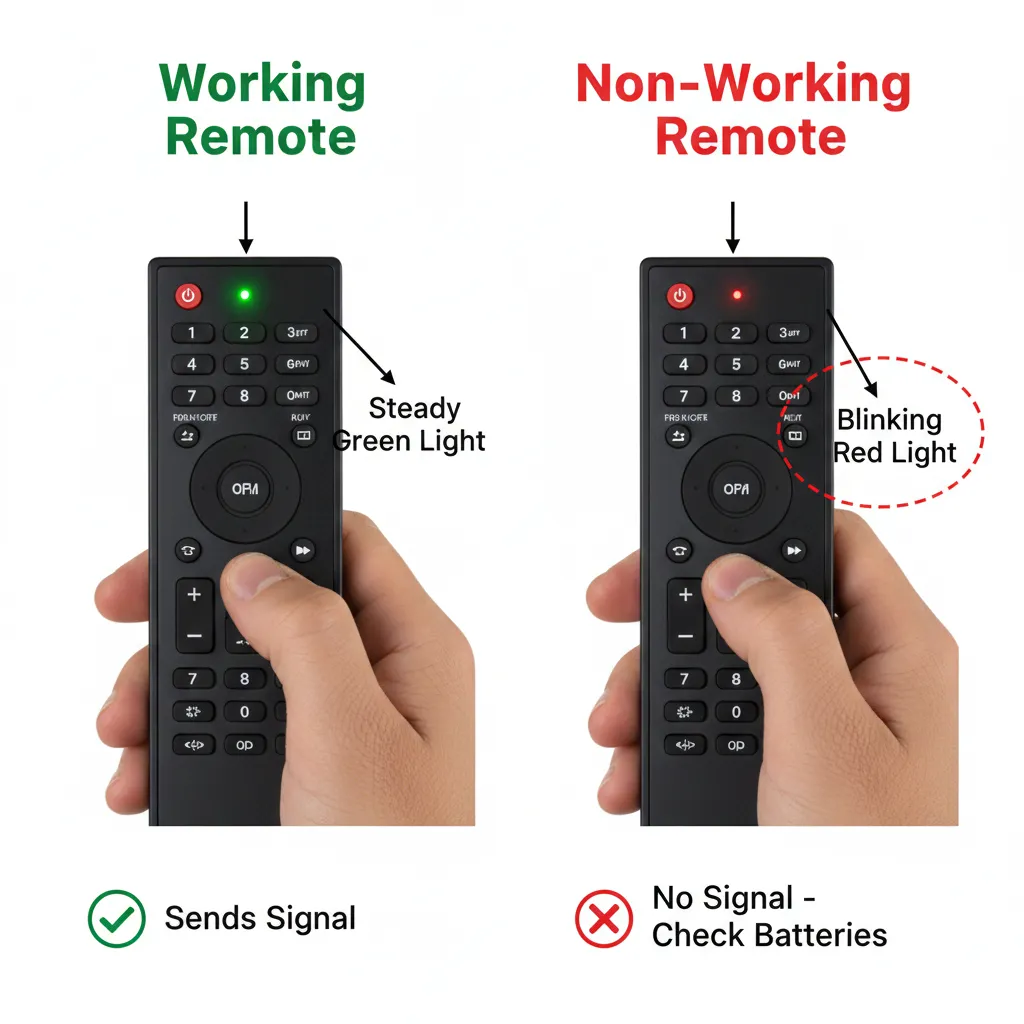
If the LED doesn’t light up when you press Setup or Code Search, your remote has dead batteries or internal damage. Replace batteries first. Use fresh alkaline batteries, not rechargeable ones. Rechargeable batteries provide lower voltage and cause inconsistent LED behavior.
If the LED blinks rapidly during code entry, you’re entering numbers too quickly. Slow down to one digit per second.
TV Doesn’t Respond
Make sure nothing blocks the line of sight between your remote and TV. Universal remotes need direct infrared line of sight. They don’t work through glass cabinets or around corners.
Clean the infrared LED on your remote with a soft cloth. Dust and fingerprints reduce signal strength by 40%.
Test your remote batteries with a battery tester. Batteries that measure 1.3V or lower won’t provide enough power for reliable infrared transmission.
Alternative Control Methods for Coby TV
If universal remote codes fail completely, try these options:
Smartphone IR apps: Phones with infrared blasters can control TVs directly. Download apps like AnyMote or Sure Universal Remote. These apps include Coby TV profiles and work better than physical universal remotes in some cases.
HDMI-CEC control: If you connect devices via HDMI, enable HDMI-CEC in your TV settings. Your streaming device remote can then control TV power and volume through the HDMI cable. This bypasses the need for universal remote codes entirely.
Original remote replacement: Search for Coby TV replacement remotes on electronics parts websites. Original remotes cost $15-30 and work without programming. Match your TV’s model number exactly when ordering.
USB keyboard: Coby TVs with USB ports often accept keyboard input for navigation. Plug in a wireless USB keyboard as a temporary control solution.
Frequently Asked Questions
Why do multiple codes exist for Coby TV?
Coby manufactured TVs under different model series from 2005 to 2013. Each series used different infrared protocols. The company’s production ended in 2013 after bankruptcy, but millions of Coby TVs remain in use. Universal remote manufacturers created multiple code entries to cover all model variations.
Can I use a Coby universal remote code for other brands?
No. Each brand uses proprietary infrared signal patterns. Codes are not interchangeable between manufacturers. Using a Samsung TV code on a Coby TV won’t produce any response. The same applies to Sony, Vizio, or Hisense TV codes.
How do I find my Coby TV model number?
Check the label on the back panel of your TV. The model number starts with letters like TFTV, LEDTV, or TFDVD. You can also find it in the TV’s system menu under Settings > About.
What if none of the codes work?
Your universal remote might not include Coby in its code library. This happens with very cheap universal remotes sold for under $8. Upgrade to a name-brand universal remote like RCA, GE, Philips, Blackweb, or ONN. These remotes maintain larger code databases that include discontinued brands like Coby.
Do I need to reprogram after changing batteries?
No. Universal remotes store codes in permanent memory. Battery replacement doesn’t erase programmed codes. If your remote stops working after battery changes, the new batteries might be faulty or inserted incorrectly.
Can I program multiple devices with one universal remote?
Yes. Most universal remotes control 3-8 devices. After programming your Coby TV, you can add other devices like DVD players, soundbars, or streaming boxes. Similar programming methods work for brands like Element, Dynex, or Daewoo TVs.
Conclusion
Programming a universal remote for Coby TV requires trying multiple codes because Coby produced various models with different infrared systems. Start with code 1017 using direct code entry method. If that fails, work through codes 2017, 1047, and


