

Rogers universal remote codes are 3-digit, 4-digit, or 5-digit numbers that sync your Rogers remote with TVs, soundbars, and other devices. These codes tell your remote which brand and model to control. This guide covers all Rogers remote models including Ignite XR11, XR15, Atlas, Champion, and Big Button remotes with verified codes updated for March 2026.
You’ll find complete code lists, three programming methods, model-specific instructions, and troubleshooting fixes.
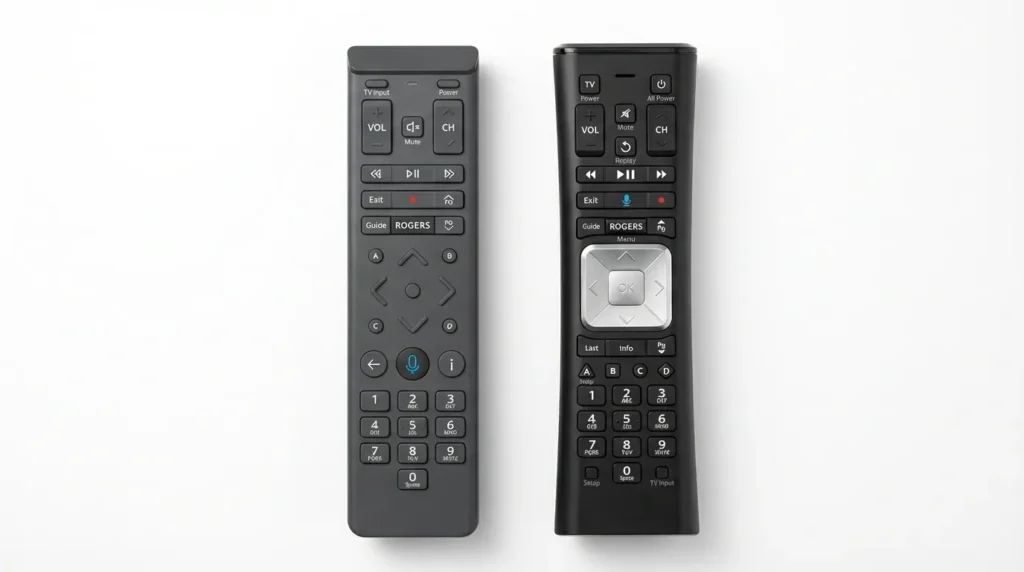
Rogers Universal Remote Code Lists by Brand
Understanding Code Formats (3-Digit, 4-Digit, 5-Digit)
Rogers uses three code formats depending on your remote model.
3-digit codes work with older NextBox remotes (Atlas URC1056, Champion URC2125, Polaris URC1090). These codes range from 000 to 999.
4-digit codes work with Ignite voice remotes (XR11, XR15) and some NextBox models. Most modern TVs manufactured after 2020 use 4-digit codes.
5-digit codes apply to specific Ignite remotes when programming audio devices and newer smart TV models from 2024-2026. These provide more precise device matching.
Your remote determines which format to use. The programming method stays the same regardless of code length.
Complete TV Brand Code List
| Brand | 3-Digit Codes | 4-Digit Codes | 5-Digit Codes |
|---|---|---|---|
| Samsung | 004, 005, 009, 015, 104, 105, 106, 109 | 0019, 0030, 0178, 0644, 1060, 1189, 1575, 1903 | 10030, 10178, 10702, 11060, 11903 |
| LG | 001, 005, 025, 106, 138 | 0001, 0134, 0178, 0700, 1178, 1423, 1768 | 10178, 10700, 11178, 11423, 11768 |
| Sony | 002, 006, 013, 071 | 0002, 0071, 0380, 0810, 1685, 1904, 1925 | 10810, 11685, 11904, 11925 |
| Vizio | 031, 142 | 0081, 0112, 0143, 1169, 1756, 1758 | 10885, 11169, 11756, 11758 |
| TCL | 131, 169 | 1111, 1423, 1756, 2049, 2187 | 11756, 12049, 12187, 12434 |
| Sharp | 004, 006, 020, 079, 095, 111 | 0020, 0079, 0223, 0688, 1459 | 10688, 10818, 11459 |
| Toshiba | 049, 050, 089, 109, 138, 170 | 0049, 0089, 0159, 1265, 1369, 1508 | 10159, 11265, 11369, 11508 |
| Hisense | 073, 182 | 0182, 0748, 1176, 1741, 2098 | 10748, 11176, 11741, 12098 |
| Insignia | 031, 095 | 0029, 0081, 0135, 0911, 1204, 1423 | 10029, 10463, 11204, 11423 |
| RCA | 003, 004, 005, 096 | 0003, 0004, 0096, 1003, 1547 | 10047, 11003, 11447, 11547 |
| Panasonic | 003, 010, 054 | 0003, 0054, 0381, 0950, 1291 | 10051, 10381, 10950, 11291 |
| Philips | 004, 008, 012, 013, 062, 068, 074, 076 | 0004, 0062, 0189, 0456, 1154, 1756 | 10189, 10456, 11154, 11756 |
| Sanyo | 004, 048, 049, 108, 180 | 0004, 0049, 0108, 0799, 1142 | 10799, 11142 |
| Magnavox | 004, 008, 009, 068, 074, 075, 076 | 0004, 0009, 0456, 1254 | 10456, 11254, 11454 |
| JVC | 005, 013, 014, 054, 055, 069, 157 | 0013, 0054, 0463, 1253, 1774 | 10463, 11253, 11774 |
| Westinghouse | 005, 114, 142 | 0005, 0143, 1217 | 10143, 11217 |
| Emerson | 004, 009, 025, 068, 076, 135, 171, 177 | 0004, 0009, 0451, 1394 | 10451, 11394, 11864 |
| Haier | 081 | 0081, 1034, 1749 | 11034, 11749 |
| Sceptre | 149 | 0149, 1132, 1167 | 11132, 11167 |
| Element | 081, 091 | 0081, 0091, 1025, 1173 | 10885, 11025, 11173 |
For 2025-2026 TV models: Try the highest numbered codes first. Samsung TV models from late 2024 onward respond best to codes 11903, 1903, or 1575. LG OLED and QNED models manufactured in 2025 work with 11768, 1768, or 1423.
Audio Device Codes
Soundbars:
| Brand | 4-Digit Codes | 5-Digit Codes |
|---|---|---|
| Samsung | 0199, 0290, 1295, 1500 | 10199, 11295, 11500 |
| LG | 0156, 0741, 1602 | 10156, 10741, 11602 |
| Sony | 0172, 0380, 1058, 1758 | 10172, 11058, 11758 |
| Vizio | 1064, 1517, 1758 | 11064, 11517, 11758 |
| Bose | 1229, 1253, 1933 | 11229, 11253, 11933 |
| Yamaha | 0176, 0376, 1176 | 10176, 10376, 11176 |
| Sonos | 1869, 2117 | 11869, 12117 |
AV Receivers:
| Brand | 4-Digit Codes |
|---|---|
| Denon | 0176, 1360, 2706 |
| Yamaha | 0176, 0376, 1176, 1276 |
| Onkyo | 0135, 0842, 1298 |
| Sony | 0158, 0172, 1058 |
| Pioneer | 0014, 0150, 1023 |
| Marantz | 0176, 1269, 1892 |
If you’re programming Bose audio equipment, the codes listed above provide optimal compatibility with Rogers Ignite remotes.
DVD/Blu-ray Player Codes
| Brand | 4-Digit Codes |
|---|---|
| Samsung | 0199, 1044, 1075 |
| Sony | 0533, 1033, 1070, 1431 |
| LG | 0591, 0741, 1105 |
| Panasonic | 0490, 1362, 1490 |
| Toshiba | 0503, 1045, 1510 |
Rogers Remote Models Compatibility Guide
Ignite Voice Remotes (XR11, XR15, XR100)
The XR11 and XR15 are Rogers Ignite TV voice remotes. Both use 4-digit and 5-digit codes.
XR11 came with Ignite TV installations from 2018-2021. It has a white voice button at the top center and uses RF (radio frequency) to communicate with your Ignite box. For TV control, it switches to IR (infrared).
XR15 replaced the XR11 in 2021 and remains the current standard remote in 2026. It features a microphone icon on the voice button and improved battery life. The XR15 supports HDMI-CEC for newer TVs.
XR100 Large Button is the accessibility version with oversized buttons and high-contrast labels. It uses the same codes as XR11/XR15.
These remotes accept 4-digit codes for most devices and 5-digit codes for equipment manufactured after 2023.
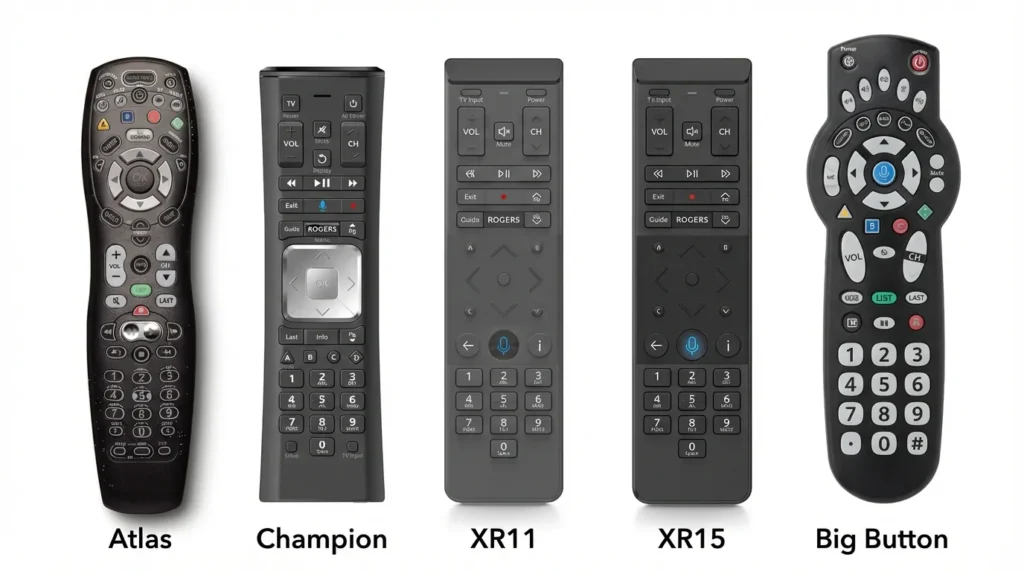
NextBox Remotes (Atlas, Champion, Polaris)
NextBox was Rogers’ previous cable service before Ignite TV. If you still have NextBox service, you use one of these remotes.
Atlas URC1056 uses 3-digit codes exclusively. To program it, press and hold SETUP until the red light stays on. Enter your 3-digit code. The light will turn off if accepted.
Champion URC2125 accepts both 3-digit and 4-digit codes. This remote has a gray body with a Rogers logo at the top.
Polaris URC1090 is similar to Champion but with a black finish. It uses 3-digit and 4-digit codes.
All NextBox remotes use IR only. They must have direct line of sight to your TV or device.
Digital Adapter Remotes (Delta)
Delta URC3068 comes with Rogers Digital Adapters for customers who have limited channel packages. This remote uses 3-digit codes and has a simplified button layout. It only controls power and volume for TVs, not full functionality.
Which Codes Work With Your Remote Model
If you have XR11 or XR15: Use 4-digit codes from the tables above. For TVs manufactured in 2024-2026, try 5-digit codes first.
If you have Atlas, Champion, Polaris, or Delta: Start with 3-digit codes. Champion and Polaris can also use 4-digit codes if 3-digit codes fail.
If you have XR100: Use the same codes as XR15 (4-digit and 5-digit).
Model year matters. A Samsung TV from 2018 and a Samsung from 2025 require different codes even though they’re the same brand.
How to Program Rogers Universal Remote (3 Methods)
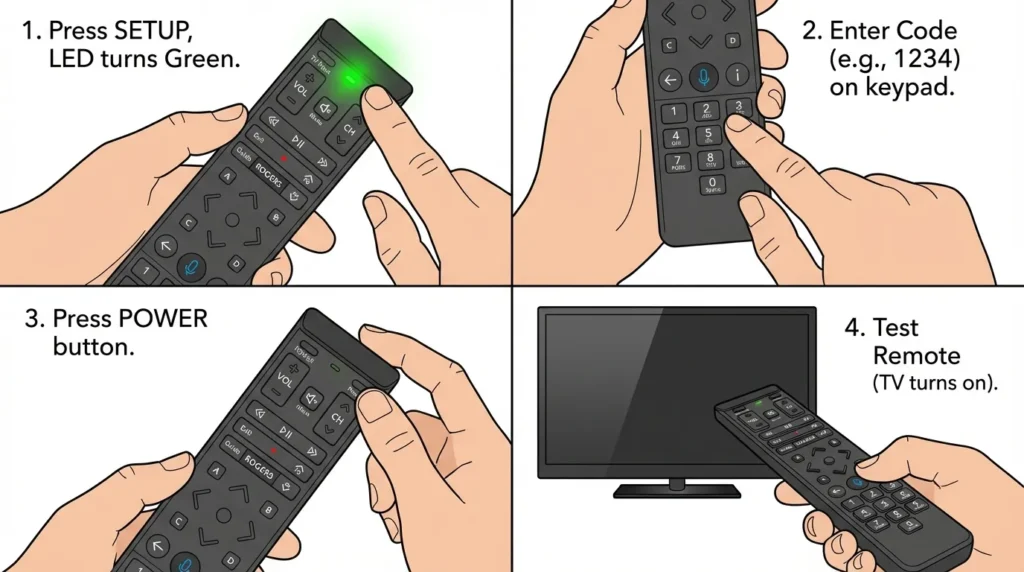
Method 1: Direct Code Entry (Fastest – 2 Minutes)
This method works when you know the correct code for your device.
For Ignite Remotes (XR11, XR15, XR100):
- Turn on the device you want to control (TV, soundbar, etc.).
- Press and hold SETUP until the LED at the top changes from red to green. This takes about 5 seconds.
- Enter your 4-digit or 5-digit code using the number pad.
- Press the POWER button once. Your device should turn off.
- If your device turns off, press SETUP to lock in the code. The green light will blink twice.
- If your device stays on, the code didn’t work. Repeat from step 2 with a different code.
For NextBox Remotes (Atlas, Champion, Polaris):
- Turn on your TV or device.
- Press and hold SETUP until the red LED stays lit (about 3 seconds).
- Release SETUP. The LED should remain on.
- Enter your 3-digit code. The LED will turn off if the code is accepted.
- Point the remote at your device and press POWER. The device should turn off.
- If it doesn’t turn off, repeat with the next code from your brand’s list.
For Delta Remote:
- Turn on your TV.
- Press and hold SETUP and MUTE together for 3 seconds.
- The red light will blink then stay on.
- Enter your 3-digit code.
- Press POWER to test. If successful, the TV turns off.
Time estimate: 1-2 minutes if you have the right code. Budget 5-10 minutes if you need to try multiple codes.
Method 2: Auto Code Search (5-10 Minutes)
Auto search cycles through all stored codes until it finds one that works. Use this when you don’t know which code your device needs. This method is similar to the auto search feature on Spectrum remotes.
For Ignite Remotes:
- Turn on your device.
- Press and hold SETUP until the LED turns green (5 seconds).
- Press 9-9-1. The LED will blink green twice.
- Point the remote at your device.
- Press CH+ repeatedly. The remote sends a power signal with each press. Wait 2 seconds between presses.
- When your device turns off, press SETUP immediately to save that code. Don’t press CH+ again or you’ll skip past the working code.
- Turn your device back on and test volume and other functions.
For NextBox Remotes:
- Turn on your TV.
- Press and hold SETUP until the red LED stays on.
- Press 9-9-1. The LED will blink once.
- Point the remote at your TV and press POWER repeatedly (1-second intervals).
- When the TV turns off, press SETUP immediately to lock the code.
- Turn the TV on and verify all functions work.
Time estimate: 5-10 minutes. There are hundreds of codes in the database, but common brands appear early in the sequence.
Method 3: Manual Brand Search
Manual search narrows the code list to your specific brand, which is faster than full auto search.
For Ignite Remotes:
- Turn on your device.
- Press and hold SETUP until green (5 seconds).
- Press 9-9-2. Green light blinks twice.
- Find your brand code from this list:
- Samsung: 0
- LG: 1
- Sony: 2
- Vizio: 3
- Sharp: 4
- Toshiba: 5
- Panasonic: 6
- Other brands: 9
- Press your brand number.
- Press CH+ repeatedly until your device turns off.
- Press SETUP to save when it turns off.
For NextBox Remotes:
- Turn on your TV.
- Press and hold SETUP until the red LED is on.
- Press 9-9-2.
- Enter your brand code (same list as above).
- Press POWER repeatedly until the TV turns off.
- Press SETUP to lock.
Manual search takes 2-5 minutes compared to 10+ minutes for full auto search.
Model-Specific Programming Instructions
Programming Rogers Ignite XR11 Remote
The XR11 pairs automatically with your Ignite set-top box using RF. You only need to program it for TV control.
Quick Setup:
- Press and hold MUTE and ENTER together for 5 seconds until the LED turns green.
- Your Ignite box will display a 3-digit pairing code on screen.
- Enter that code on your remote.
- The LED blinks green twice when paired.
TV Programming:
Use Method 1 (Direct Code Entry) with these popular codes:
- Samsung: Try 1903, then 1575, then 11903
- LG: Try 1768, then 1423, then 11768
- Sony: Try 1904, then 1925, then 0810
- Vizio: Try 1758, then 1756, then 1169
Volume Punch-Through Setup:
The XR11 can control TV volume even when you’re watching cable. This is already enabled by default, but if it stops working:
- Press and hold SETUP until green.
- Press 9-9-3.
- Press VOL+.
- The LED blinks green twice. Volume now controls your TV instead of the cable box.
Programming Rogers Ignite XR15 Remote
The XR15 is identical to XR11 for programming purposes but adds HDMI-CEC support.
HDMI-CEC Automatic Setup:
If your TV supports CEC (Samsung calls it Anynet+, LG calls it SimpLink, Sony calls it Bravia Sync):
- Connect your Ignite box to your TV with an HDMI cable.
- Turn on CEC in your TV settings menu.
- Press and hold SETUP on the XR15 until green.
- Press 9-8-1.
- The remote will detect your TV automatically through HDMI. The LED blinks green twice if successful.
- No code entry needed.
This method works for about 70% of TVs manufactured after 2022.
Manual Programming:
If CEC fails, use the same steps as XR11. The XR15 accepts all the same codes.
Voice Command Setup:
Press and hold the microphone button and say “Program remote.” The Ignite box will guide you through TV setup on screen. This feature requires an active internet connection.
Programming Atlas Remote (Code 991)
The Atlas URC1056 uses a special setup code (991) for enhanced features.
Standard Programming:
- Press and hold SETUP until the red light stays on.
- Enter 991.
- Press the TV button.
- Enter your 3-digit TV code (from the 3-digit column in the tables).
- The red light turns off if accepted.
If 991 doesn’t work:
Some Atlas remotes use code 987 instead:
- Hold SETUP (red light on).
- Enter 987.
- Press TV.
- Enter your 3-digit code.
Testing Atlas Programming:
Point the remote at your TV and press POWER. The TV should turn off. Press VOL+ and VOL- to verify volume control works. Press MUTE to test that function.
If only power works but volume doesn’t, enter code 993:
- Hold SETUP (red light on).
- Enter 993.
- Press VOL+.
This forces volume commands to your TV instead of the cable box.
Programming Champion Remote
The Champion URC2125 has dual compatibility with 3-digit and 4-digit codes.
Basic Setup:
- Turn on your TV.
- Press and hold SETUP for 3 seconds. Red LED lights up.
- Enter your code (3 or 4 digits).
- The LED turns off when the code is accepted.
- Test POWER and VOLUME.
Champion-Specific Codes:
Some older Champion remotes respond better to these alternative codes:
- Samsung: 005, 004
- LG: 001, 005
- Sony: 002, 006
If the codes from the main table don’t work, try these.
Audio Device Programming on Champion:
- Hold SETUP (red LED on).
- Press the AUD button.
- Enter your soundbar code.
- LED turns off.
- Test volume control.
Programming Big Button Remote
The XR100 Large Button remote uses XR15 codes and methods, but the buttons are arranged differently.
Location of Key Buttons:
- SETUP: Top right corner, small button labeled “S”
- VOICE: Center top, large microphone icon
- Number pad: Center section, oversized digits
Programming Steps:
- Press and hold the “S” button (top right) for 5 seconds until the LED strip at the top turns green.
- Enter your 4-digit code.
- Press the large red POWER button (top left).
- If the TV turns off, press “S” again to save.
The XR100 LED strip shows green for successful operations and red for errors. A long red blink means the code was rejected.
Troubleshooting Rogers Remote Issues
Remote Won’t Enter Programming Mode (LED Won’t Light)
Check batteries first. Remove the battery cover on the back and replace both AA batteries. Rogers remotes draw significant power during programming. Weak batteries prevent the LED from lighting.
For Ignite remotes: The battery terminals may have corrosion. Remove batteries and wipe the metal contacts with a dry cloth. Reinsert batteries and try again.
SETUP button might be stuck. Press SETUP multiple times rapidly, then try holding it again. Sometimes dust accumulates under the button membrane.
Factory reset the remote:
- XR11/XR15: Hold A and D buttons together for 5 seconds. The LED will flash green three times.
- NextBox remotes: Remove batteries, press POWER for 20 seconds (to discharge), reinsert batteries.
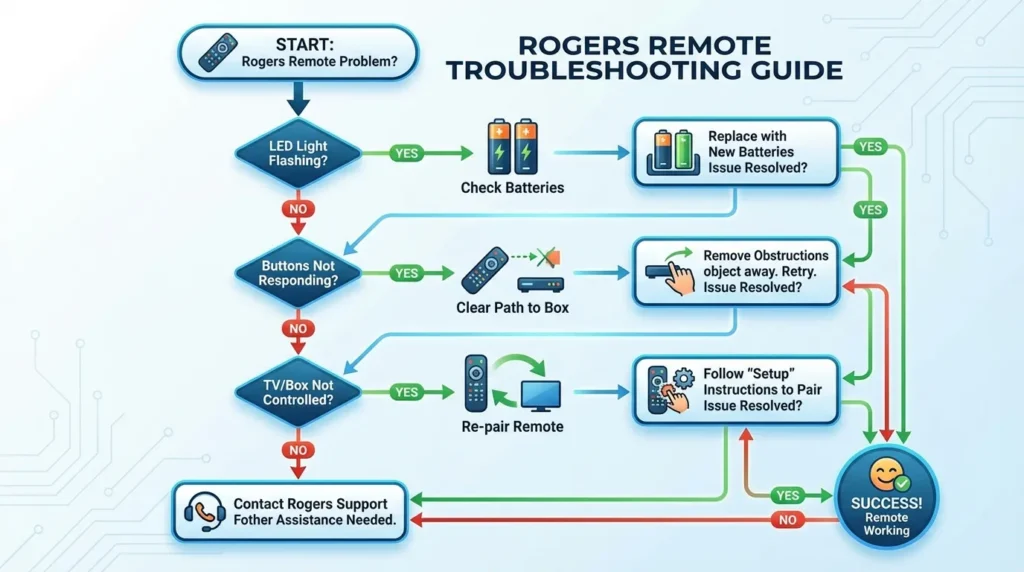
Code Rejected (LED Blinks Red or Long Blink)
A red blink or long blink means the remote doesn’t recognize that code.
Wrong code format: If you have an Ignite remote and entered a 3-digit code, that’s why it failed. Ignite remotes need 4-digit or 5-digit codes.
Code not in database: Some TV brands have limited code support. TCL, Hisense, and Element TVs manufactured before 2020 may not have codes in older remote databases.
Try these universal backup codes:
- 0178 (works for many LG, Samsung, and generic brands)
- 0081 (Vizio and Element fallback)
- 1423 (LG and Insignia fallback)
Switch to auto search: If you’ve tried 5+ codes with no success, use Method 2 (Auto Code Search). Your TV might need an uncommon code that’s not in the quick reference lists.
Partial Functionality (Power Works, Volume Doesn’t)
This happens when the code controls power but not all features.
The code is incomplete. Some codes in the database only control basic functions. Try the next code in your brand’s list.
Volume is locked to cable box. Your remote might be sending volume commands to your Ignite box instead of your TV.
Fix for Ignite remotes:
- Press and hold SETUP (green LED).
- Press 9-9-3.
- Press VOL+.
- LED blinks twice. Volume now goes to your TV.
Fix for NextBox remotes:
- Hold SETUP (red LED on).
- Press 9-9-3.
- Press VOL+.
- LED turns off.
HDMI-CEC conflict: If you enabled CEC, your TV might be receiving commands from both the cable box and the remote. Turn off CEC in your TV settings and reprogram using a direct code instead.
Remote Won’t Pair with Ignite Box
RF pairing issues between your XR11/XR15 and Ignite set-top box.
Re-pair the remote:
- Unplug your Ignite box from power.
- Wait 30 seconds.
- Plug the box back in and wait for it to fully boot (2-3 minutes).
- Press and hold MUTE and ENTER together on the remote for 5 seconds.
- The TV displays a 3-digit code.
- Enter that code within 60 seconds.
If no pairing code appears on screen:
Your Ignite box might not be detecting the pairing request.
- Press and hold SETUP, INFO, and A buttons together for 3 seconds.
- The remote LED flashes red, then green.
- This forces a pairing broadcast.
- The on-screen code should appear within 10 seconds.
Box software issue:
Restart your Ignite box using the Rogers app or by unplugging it for 60 seconds. Outdated box software can prevent pairing. The box will auto-update when it reboots if an update is available.
RF vs IR Mode Issues
Ignite remotes use RF for the cable box and IR for the TV. Sometimes they get stuck in the wrong mode.
Symptoms:
- Remote works for cable but not TV (stuck in RF mode)
- Buttons don’t respond from across the room (stuck in IR mode when it should use RF)
Force IR mode for TV:
- Point remote directly at TV.
- Press and hold SETUP until green.
- Enter your TV code.
- Press POWER while pointing at the TV screen.
The remote will use IR for TV control going forward.
Reset RF mode for cable box:
- Press and hold SETUP (green LED).
- Press 9-8-7.
- Press OK.
- LED blinks green twice.
This resets RF communication.
Physical obstruction: RF signals pass through furniture, but the Ignite box has an internal antenna. If your box is inside a closed cabinet with metal components, RF signals weaken. Move the box to an open shelf or keep cabinet doors open.
Resetting Your Rogers Remote
Full factory reset erases all programming.
XR11 / XR15 Reset:
- Hold A and D buttons together for 5 seconds.
- The LED flashes green 3 times.
- All codes and pairing are erased.
- Re-pair with your Ignite box using MUTE + ENTER.
- Reprogram your TV using your code.
NextBox Remote Reset:
- Remove both batteries.
- Press and hold POWER for 20 seconds (drains residual power).
- Press and hold SETUP while reinserting batteries.
- Continue holding SETUP for 3 more seconds.
- The LED will flash red twice.
- Remote is reset.
When to reset:
- Remote controls the wrong TV after moving to a new home
- Buttons behave erratically (POWER turns on but also changes input)
- You sold or replaced your TV and need to start fresh
- Nothing else in this troubleshooting section worked
Advanced Setup Options
Programming Multiple Devices
Rogers remotes can control your TV and one audio device simultaneously.
Setup sequence:
- Program your TV first using any method from section above.
- Test TV control (power, volume, input).
- Press and hold SETUP until green (Ignite) or red (NextBox).
- Press the AUD button (or DVD button on some models).
- Enter your soundbar or receiver code.
- Press POWER to test.
- Press SETUP to save.
Switching control:
- Press TV button: volume controls TV
- Press AUD button: volume controls soundbar
The XR15 remembers which device you last selected. If you pressed AUD, all volume commands go to your soundbar until you press TV again.
Setting Up Audio Device Control
Soundbars need specific setup for full functionality.
Soundbar programming (XR11/XR15):
- Turn on your soundbar.
- Hold SETUP (green LED).
- Enter your soundbar code from the audio device table.
- Press VOL+ to test.
- If volume increases, press SETUP to save.
Common issue: Soundbar turns on but volume doesn’t work.
This happens when TV and soundbar both respond to IR volume commands. You need to disable TV volume:
- Hold SETUP (green).
- Press 9-9-4.
- Press MUTE.
- LED blinks twice.
- Only the soundbar responds to volume now.
AV Receiver setup:
Receivers have multiple inputs (DVD, Blu-ray, game console). The Rogers remote only controls receiver power and volume, not input switching. You’ll still need your receiver’s original remote for input selection.
Using HDMI-CEC with Rogers Remotes
HDMI-CEC lets your remote control your TV through the HDMI cable instead of infrared.
Benefits:
- No line-of-sight needed
- Faster response time
- Automatic input switching
- Works even if IR sensor is blocked
Enabling CEC:
- Go to your TV settings menu.
- Find HDMI-CEC (called different names by brand):
- Samsung: Anynet+
- LG: SimpLink
- Sony: Bravia Sync
- Vizio: CEC
- TCL: T-Link
- Enable the feature.
- On your XR15 remote, hold SETUP (green).
- Press 9-8-1.
- The remote auto-detects your TV through HDMI.
- LED blinks green twice if successful.
CEC limitations:
Not all TV functions work through CEC. Input selection and power work reliably. Volume control works on 80% of TVs. Picture settings and menu navigation typically don’t work.
If you experience delayed response (2-3 second lag when pressing buttons), disable CEC and use standard IR programming instead.
Switching Between RF and IR Mode
This is an advanced feature for specific scenarios.
Why you’d switch modes:
- RF mode: Cable box control when box is in a cabinet
- IR mode: Universal remote compatibility, controlling non-cable devices
Force IR mode only (disables RF):
- Hold SETUP and INFO buttons together for 5 seconds.
- Press 9-8-6.
- Press OK.
- LED blinks red twice.
- Remote now uses IR for everything, including cable box.
You’ll need line-of-sight to your cable box after this change.
Re-enable RF mode:
- Hold SETUP and INFO together for 5 seconds.
- Press 9-8-7.
- Press OK.
- LED blinks green twice.
- RF mode restored.
Most users should leave RF enabled for the cable box and IR for TV. Only switch if you have a specific technical reason.
Frequently Asked Questions
What is the universal code for Rogers remotes?
There’s no single universal code. Rogers remotes store hundreds of codes for different brands. Samsung TVs use codes like 1903 or 0019 depending on model year. LG uses 1768 or 0178. You need to match your specific TV brand and model year to the correct code from the tables above.
How do I find the code for my TV brand?
Check the complete TV brand code list in this guide. Find your TV brand in the left column, then try each code listed from left to right. Start with 4-digit codes for Ignite remotes or 3-digit codes for NextBox remotes. If you’ve tried all listed codes without success, use auto search (Method 2).
Why does my remote work for power but not volume?
Your remote is using a code that only supports basic power control. Try the next code in your brand’s list. If you’ve tried all codes, perform a volume punch-through: Hold SETUP until green, press 9-9-3, then press VOL+. This routes volume to your TV.
Can I program Rogers remote without codes?
Yes. Use auto code search (Method 2). Press SETUP until green, enter 9-9-1, then press CH+ repeatedly. The remote cycles through all stored codes. When your TV turns off, press SETUP immediately to save that code. This takes 5-10 minutes but requires no code lookup.
How do I reset my Rogers Ignite remote?
Hold the A and D buttons together for 5 seconds. The LED flashes green three times. This erases all programming. You’ll need to re-pair with your Ignite box (hold MUTE and ENTER together) and reprogram your TV.
What batteries does Rogers remote use?
All Rogers remotes use two AA batteries. Alkaline batteries last 3-6 months with normal use. Rechargeable batteries work but may cause the LED to appear dimmer. Replace both batteries at the same time, never mix old and new batteries.
Why won’t my XR15 pair with my Ignite box?
Unplug your Ignite box for 60 seconds to reset it. Plug it back in and wait 3 minutes for full boot. Hold MUTE and ENTER on the remote for 5 seconds. A 3-digit code appears on screen. Enter that code within 60 seconds. If no code appears, hold SETUP + INFO + A together for 3 seconds to force pairing mode.
Do Rogers remote codes work with other cable providers?
Rogers uses Comcast Xfinity technology. Rogers Ignite remotes are rebranded Xfinity XR11 and XR15 models. Codes are interchangeable. If you have a Comcast code list, those codes work on Rogers remotes. The same applies to Shaw and other Comcast-based providers in Canada.
How many devices can one Rogers remote control?
Ignite remotes (XR11, XR15) control your cable box plus one TV and one audio device (soundbar or receiver). NextBox remotes control the cable box plus one TV. You cannot program multiple TVs on a single remote.
What does error code 9-9-1 mean?
9-9-1 is not an error code. It’s the command to start auto code search on Ignite remotes. If the LED blinks red after entering 9-9-1, you didn’t hold SETUP long enough first. Hold SETUP for a full 5 seconds until the LED turns green, then enter 9-9-1.
Can I use my phone instead of a Rogers remote?
Yes. The Ignite TV app (iOS and Android) acts as a full remote replacement. Download the app, connect to the same WiFi as your Ignite box, and use your phone to control the cable box. The app doesn’t control your TV power or volume, only cable functions.
Why does my remote randomly stop working?
Battery drain is the most common cause. Replace batteries every 4-6 months even if the remote still works, as weak batteries cause intermittent failures. If you have an Ignite remote, check for RF interference from WiFi routers or wireless speakers placed near your cable box. Move the box 3 feet away from other wireless devices.
Conclusion
Rogers universal remote codes give you control over TVs, soundbars, and other devices using your cable remote. The key is matching your remote model (XR11, XR15, Atlas, Champion, or others) to the correct code format.
Start with direct code entry for speed. Use the code tables to find your TV brand, then enter codes one at a time until one works. If direct entry fails after trying 3-5 codes, switch to auto search mode.
For Ignite remotes, try HDMI-CEC first if you have a 2022 or newer TV. This eliminates the need for codes entirely.
When troubleshooting, check batteries first, then verify you’re using the right code format (3-digit for NextBox, 4-digit for Ignite). Factory reset only as a last resort.
If you’re looking for codes for other universal remote brands, check out our guides on RCA universal remotes, GE remotes, One For All remotes, and Philips universal remotes.
Save this guide for when you replace your TV, upgrade your soundbar, or move to a new home. The codes and methods stay consistent across all Rogers remote models.


