

Press the Home button on your Insignia remote, go to Settings → Accessibility → Closed Captions, and set it to Off. That’s the fastest path on most current Insignia TVs. The exact steps differ depending on whether you have a Fire TV Edition, a Roku TV, or an older legacy model — so use the section below that matches your TV.
Which Insignia TV Do You Have?
Insignia makes three distinct types of TVs, and the caption menus are completely different on each one.
Insignia Fire TV Edition — the most common current model. Runs Amazon’s Fire TV interface. Remote has an Alexa button and a microphone icon. Sold as the F20, F30, and F50 series.
Insignia Roku TV — runs Roku OS. Remote has a purple Roku button or a home icon that looks like a house. Roku’s interface uses purple menu tiles.
Older / legacy Insignia TV — no smart features. Remote may have a button labeled CCD or CC. Menu is accessed through a basic Menu button, not a home screen.
Check the back of the TV for the model number if you’re unsure. Not sure what the model number means? The Insignia TV model number decoder tool breaks it down for you. Fire TV models include “Fire TV” in the product name. Roku models say “Roku TV” on the box and the remote.
How to Turn Off Closed Captions on Insignia Fire TV
Using the Settings Menu
- Press the Home button on your remote.
- Scroll right and select Settings (the gear icon).
- Scroll down to Accessibility.
- Select Closed Captions.
- Toggle it to Off.
Captions disappear immediately. No reboot needed.
Using Alexa (Fastest Method)
Hold the Alexa button on your remote and say: “Turn off closed captions.”
Done in under 3 seconds. This works on all current Insignia Fire TV Edition models as of 2026.
If your Fire TV remote has stopped responding altogether, check this guide on how to use Amazon Fire TV without a remote to get back into the settings.
How to Turn Off Closed Captions on Insignia Roku TV
- Press the Home button on the Roku remote.
- Go to Settings.
- Select Accessibility.
- Choose Captions Mode.
- Set it to Off.
On some older Roku TV firmware versions, the path is Settings → Captions directly — skip the Accessibility step if you don’t see it.
There is no dedicated CC button on Insignia Roku remotes. The menu path above is the only built-in method.
How to Turn Off Closed Captions on Older Insignia TVs
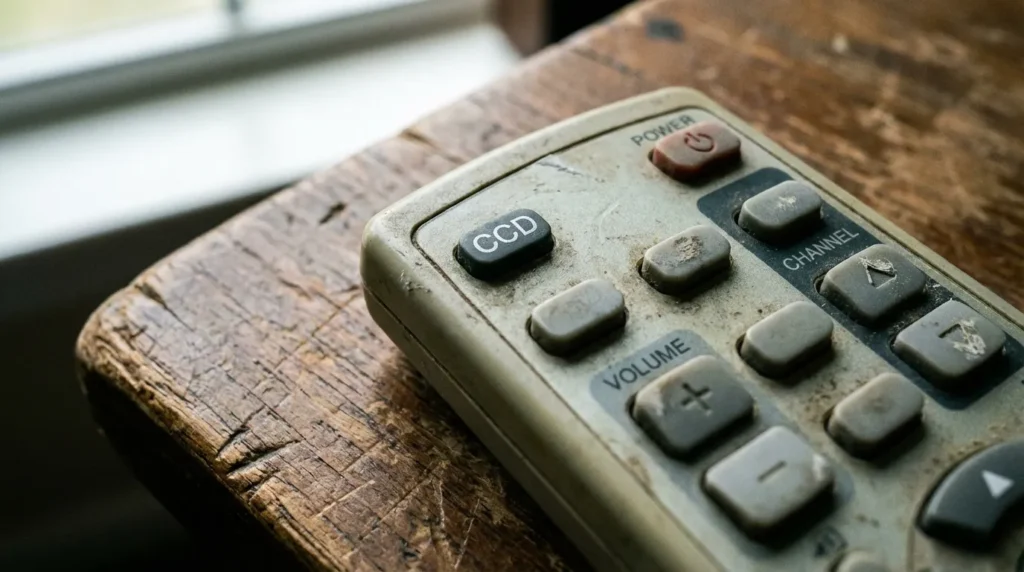
Using the CCD Button
Find the CCD button on your remote — it’s usually near the bottom, sometimes labeled CC. Press it repeatedly to cycle through: CC1 → CC2 → CC3 → CC4 → Off.
Stop when the captions disappear from the screen.
If you’re unsure what any button on your remote actually does, the remote control button explainer tool maps out every key with plain-language descriptions.
Using the Menu
- Press the Menu button on the remote.
- Navigate to Settings using the left/right arrows.
- Press Enter or the down arrow to open it.
- Find Closed Caption and select it.
- Choose CC Off.
- Press Exit to close the menu.
For deeper TV adjustments on older Insignia models, the Insignia TV service menu codes page covers advanced settings not accessible from the standard menu.
Closed Captions Won’t Turn Off — Fix It
If you followed the steps above and captions keep coming back, the problem isn’t the TV setting. Here are the four most common causes.
1. The Streaming App Has Its Own Caption Setting
Netflix, Amazon Prime Video, Disney+, and most other apps control captions independently from the TV. Turning off captions in the TV’s Accessibility menu does nothing for these apps.
Fix for Netflix: Play something → press down on the remote → select Audio & Subtitles → set subtitles to Off.
Fix for Prime Video: While playing content, press the Menu or Options button → select Subtitles → choose Off.
Each app remembers your preference separately.
2. A Cable Box or Satellite Receiver Is Generating the Captions
If you watch TV through a cable box (Xfinity, DirecTV, Spectrum, etc.), the captions are often coming from that device — not your Insignia TV. Changing the TV’s settings won’t help.
Grab your cable box remote and look for a button labeled CC, Captions, or Subtitles. Press it to toggle off. If there’s no dedicated button, go into the cable box’s own settings menu and disable captions under the Accessibility section.
3. “Captions on Mute” Is Enabled
Some Insignia Fire TV models have a setting called Captions on Mute. When active, captions appear automatically whenever the TV volume hits zero — even if captions are otherwise turned off.
To disable it: Settings → Accessibility → Closed Captions → Captions on Mute → Off.
4. Factory Reset (Last Resort)
If captions keep turning back on after every attempt and nothing above has worked, a firmware glitch may be causing it. A factory reset clears all settings and typically resolves persistent caption bugs.
On Insignia Fire TV: Settings → My Fire TV → Reset to Factory Defaults. Confirm when prompted.
On Insignia Roku TV: Settings → System → Advanced System Settings → Factory Reset.
If your Insignia TV develops other issues after a reset — or if it simply won’t power on — this guide on fixing an Insignia TV that won’t turn on covers the next troubleshooting steps.
This wipes all your apps and login info, so treat it as a last resort.
No Remote? Two Alternatives
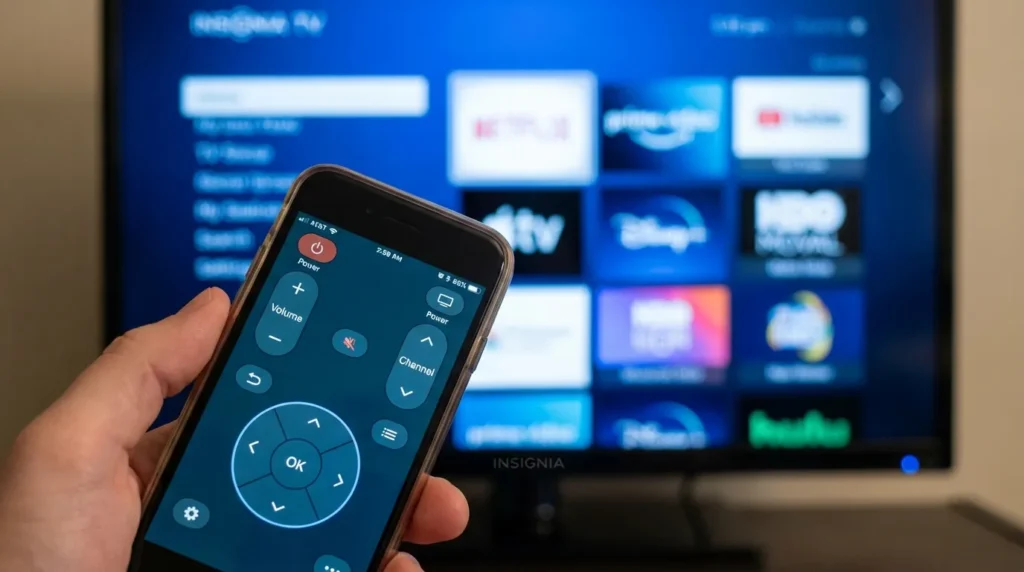
Insignia TV Remote App (Android)
Download the Insignia TV Remote app on an Android phone. Connect your phone and TV to the same Wi-Fi network. The app replicates the remote layout and gives you full access to Settings — including the caption toggle.
Note: The app has limited iOS support. iPhone users get more reliable results with a third-party universal remote app. Before downloading one, use the universal remote compatibility checker to confirm it will work with your specific Insignia model.
Physical Buttons on the TV
Most Insignia TVs have a row of physical buttons on the back or side panel. Use the Menu or Input button to open the on-screen menu, then navigate with the volume and channel buttons to reach Accessibility settings.
If your Fire TV stick is acting up separately from the TV itself, this guide on fixing a Fire TV black screen may also be useful.
FAQ
Why did closed captions suddenly turn on by themselves? The most common causes are an accidental button press (especially the CCD button on older remotes), the Captions on Mute setting activating, or a connected cable box pushing captions to the screen. Check all three before digging into menus.
Does Insignia Roku TV have a CC button on the remote? No. Current Insignia Roku remotes don’t have a dedicated CC or CCD button. Use the menu path: Home → Settings → Accessibility → Captions Mode → Off.
Will turning off captions in Settings also turn them off in Netflix? No. Netflix and most streaming apps manage captions separately. You need to disable them inside each app while content is playing.
My Insignia is a very old model with no smart features. How do I access the menu without a working remote? Use the physical panel buttons on the side or back of the TV. Press Menu, then navigate using the channel (up/down) and volume (left/right) buttons to reach the Closed Caption setting.


