

The Spectrum app stopped working on your Samsung TV. Maybe it won’t open, crashes after a few seconds, shows a server error, or just sits on a loading screen. Whatever the symptom, this guide covers every fix — in the right order — so you’re not wasting time on steps that don’t apply to your situation.
Why the Spectrum App Stops Working on Samsung TV
Before jumping into fixes, here’s what actually causes this. Each cause points to a different fix.
App cache corruption — The most common cause. Old cached data conflicts with an updated version of the app. Symptoms: crashes, freezes, spinning wheel.
Outdated Spectrum app — Spectrum pushes updates that break older app versions. If your Samsung TV hasn’t refreshed its app list, you’re running a stale build.
Samsung firmware conflicts — When Samsung releases a Tizen OS update, apps that haven’t been updated to match can stop working correctly.
Network problems — Spectrum requires a stable in-home Wi-Fi connection. Slow speeds, VPN interference, or a dropped router connection trigger errors like WLC-1006 and error code-21.
Spectrum server outages — Occasionally the problem isn’t your TV at all. Spectrum’s own servers go down and affect users across all devices.
Unsupported TV model — This is the one most guides skip. In 2024, Spectrum officially ended app support for Samsung TV models from 2016 and earlier. If you have one of those TVs, no troubleshooting step will restore the app.
Quick Checks First (Do These Before Anything Else)
Three things to verify in under 5 minutes:
1. Power cycle your Samsung TV Unplug the TV from the wall — not just the remote power off. Wait a full 60 seconds. Plug it back in and try Spectrum. This clears temporary memory and resolves a large percentage of app issues on its own.
2. Restart your router Unplug your router for 30 seconds, then plug it back in. Wait for it to fully reconnect before testing Spectrum again. If your Samsung TV keeps losing Wi-Fi, check why your Samsung TV won’t connect to Wi-Fi for a dedicated fix guide.
3. Check if Spectrum is down Open DownDetector.com and search for Spectrum. A spike in reports means it’s a server issue on their end. You can also check Spectrum’s official status page. If it’s a Spectrum-wide outage, wait it out — nothing on the TV side will fix it.
Fix 1 — Clear the Spectrum App Cache on Samsung TV
This fixes: app freezing, crashing at launch, infinite loading screen.
- Press Home on your Samsung remote
- Go to Settings (gear icon)
- Select Apps
- Find and select Spectrum TV from the list
- Tap Clear Cache
- Restart the app
Don’t confuse this with Clear Data. Clear Cache removes temporary files. Clear Data wipes your login credentials too — only use that if cache clearing doesn’t help.
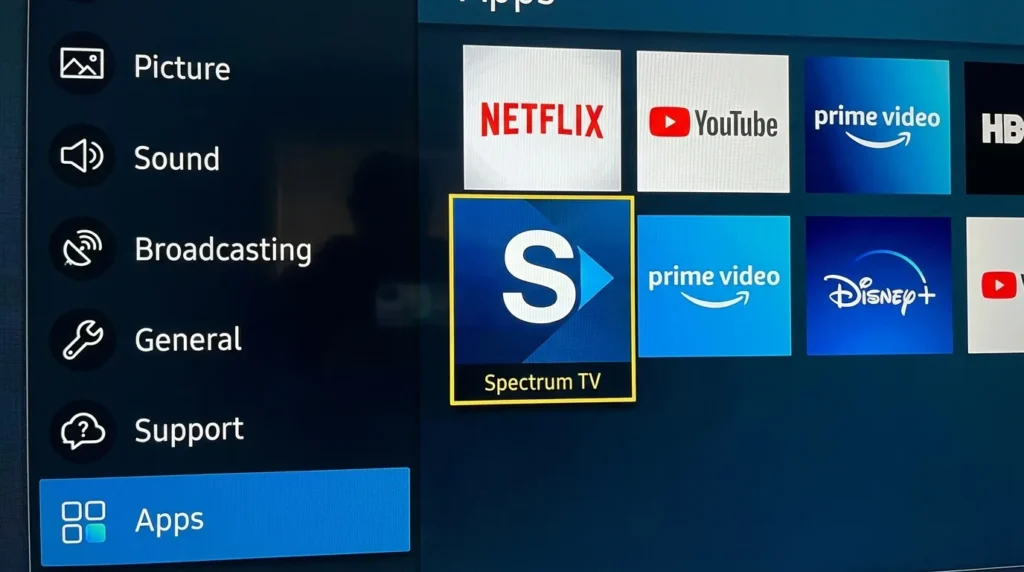
Fix 2 — Update the Spectrum App
This fixes: error codes after a Spectrum platform update, app behaving unexpectedly.
- Press Home on the remote
- Navigate to the Apps section on the Samsung Home screen
- Press and hold the Spectrum app icon until options appear
- Select Update if available
- Let it complete and relaunch
If no update option appears, the app is already current. Move to the next fix.
Fix 3 — Update Samsung TV Firmware
This fixes: compatibility errors after a Samsung OS update, app failing to launch entirely.
On Samsung TVs from 2020–2025 (Tizen OS):
- Press Home on the remote
- Go to Settings > Support > Software Update
- Select Update Now
- The TV will download and install any pending update
- It will restart automatically
Keep the TV plugged in during this process. Do not power it off mid-update.
Running outdated firmware is one of the most overlooked causes of streaming app failures. Samsung and Spectrum don’t always stay in sync — a firmware gap between the two can silently break the app.
Fix 4 — Uninstall and Reinstall the Spectrum App
This fixes: corrupted installation, app stuck in a broken state, cache clearing not enough.
To uninstall:
- Go to Settings > Apps
- Select Spectrum TV
- Choose Delete or Uninstall
- Confirm
To reinstall:
- Press Home and go to Samsung App Store (Smart Hub)
- Search for Spectrum TV
- Select and install
- Sign in with your Spectrum credentials
Reinstalling removes corrupted files that a simple cache clear won’t touch.
Fix 5 — Reset Smart Hub on Samsung TV
This fixes: multiple apps failing at once, Spectrum missing from the app list, persistent download errors.
Smart Hub is Samsung’s app and content platform. Resetting it refreshes all app data without wiping your TV settings.
- Press Home > Settings > Support
- Scroll to Self Diagnosis (some models show Device Care)
- Select Reset Smart Hub
- Enter PIN: 0000 (default Samsung PIN)
- Confirm the reset
- Reinstall the Spectrum app after Smart Hub restarts
Note: This will log you out of all apps. Have your streaming passwords ready before you start.
You can also use the TV Error Code Lookup tool to identify what’s behind any persistent error code before deciding whether a Smart Hub reset is necessary.
Fix 6 — Disable VPN or Fix Network Settings
This fixes: WLC-1006 error, server connection failures, sign-in errors.
Spectrum’s streaming service requires you to be on your in-home Wi-Fi network. If you’re connected to a VPN, Spectrum reads your location as outside the home and blocks access.
Turn off your VPN completely, then restart the Spectrum app.
Also worth checking:
- Your Samsung TV is connected to the correct Wi-Fi network (not a guest network or neighbor’s hotspot)
- Your internet connection is delivering at least 10 Mbps for SD streaming, 25 Mbps for HD
- Your router isn’t blocking Samsung TV’s MAC address
Fix 7 — Factory Reset Samsung TV (Last Resort)
This fixes: deep software conflicts that none of the above cleared.
Use this only after all other fixes fail. A factory reset wipes the TV back to factory defaults — all apps, settings, and accounts are removed.
- Press Home > Settings > General
- Scroll to Reset
- Enter PIN: 0000
- Confirm
After the reset, set up your TV again, reinstall Spectrum, and sign in. For a detailed walkthrough, the Samsung TV factory reset guide covers every Samsung model variation step by step.
Spectrum Error Codes Explained
If you’re seeing a specific code, here’s what each one means and the fastest fix.
| Error Code | What It Means | Fix |
|---|---|---|
| Error code-21 (net:ERR_NETWORK_CHANGED) | Network interrupted mid-session | Restart router, reconnect TV to Wi-Fi |
| STCF-1101 | App installation or compatibility error | Uninstall and reinstall the Spectrum app |
| WLC-1006 | TV detected as away from home network | Disable VPN, connect to home Wi-Fi |
| WLI-1010 | Incorrect username or password | Verify Spectrum login credentials |
| WLI-1027 | Auto-access authentication failed | Sign in manually with Spectrum username and password |
For error codes not listed here, Spectrum’s official support page at spectrum.net/support is the best reference. You can also run the TV Error Code Lookup tool to get a quick explanation before calling support.
Is Your Samsung TV Model Still Supported by Spectrum?
This is the section most guides don’t include — and it’s critical if your Samsung TV is more than a few years old.
In August 2024, Spectrum confirmed it ended app support for Samsung TV models manufactured between 2012 and 2016. If you have one of those TVs, the Spectrum app will not work — and no fix on this page will change that. The app has been removed from the Samsung app store for those models.
How to check your Samsung TV’s manufacture year: The model number is on a sticker on the back of the TV. The first letter after the screen size in the model number indicates the year — for example, “M” = 2017, “N” = 2018, “R” = 2019, “T” = 2020. You can decode your exact model using the TV Model Number Decoder tool.
If your TV is from 2017 or newer, it should still be supported. Run through the fixes above.
If your TV is from 2016 or earlier, Spectrum’s official recommendation is to use a streaming device instead:
- Xumo Stream Box — Spectrum’s own recommended device for older TVs
- Roku Streaming Stick 4K — fully supports the Spectrum TV app
- Apple TV — supports Spectrum TV app
- Xbox — supports the Spectrum TV app
If you’re considering switching to a streaming device and want to compare what each one offers, the streaming service comparison tool can help you find the right setup for your needs.
When to Contact Spectrum Support Directly
If you’ve completed every fix above and Spectrum still won’t work, the issue is either account-level or requires Spectrum to reset something on their end.
Contact Spectrum at 1-833-267-6094 or through the live chat at spectrum.net/support. Give them your Samsung TV model number and the specific error code you’re seeing. They can check account flags, force a re-authentication, or confirm if your area has an infrastructure issue.
Also worth verifying: your Spectrum subscription includes TV streaming access. Some internet-only plans don’t include Spectrum TV app access, which looks identical to an app error from the TV’s side.
The fastest path to a fix: Start with the power cycle and router restart. If that doesn’t work, clear the app cache. Those two steps alone resolve the issue for most users. If you’re seeing a specific error code, jump straight to the error code table above. And if your TV is from 2016 or earlier, skip the troubleshooting entirely — you need a streaming device, not a fix.


