

Honeywell TVs are older, budget-range sets that shipped without smart features. Most of the original remotes are long gone. The good news: any GE, RCA, Philips, or One For All universal remote can control a Honeywell TV — you just need the right code and the right steps.
This guide gives you every verified code organized by remote brand, three programming methods, and a troubleshooting section for when nothing seems to work.
Before You Start
Two things to confirm before you enter any codes.
Find Your Remote Brand and Model Number
Flip the remote over. The brand is usually printed on the front or back. The model number is on a sticker inside the battery compartment — something like CL4, CL5, GE24927, or SRP2006.
This matters because GE remotes use different code libraries than Philips or RCA remotes. A code that works on a GE remote will not work on a Philips remote even for the same TV. If you’re unsure which remote you have, the Remote Code Finder tool can help you match your remote to the right code list.
Locate Your Honeywell TV Model
Check the back of the TV or the original box. Honeywell TVs were produced under licensing agreements and sold as budget sets, primarily in the early 2000s. The brand is no longer in active TV production, which means original Honeywell remotes are no longer available — universal remotes are your only option.
Honeywell TV Universal Remote Codes
Codes are organized by remote brand. Try each code in order. The first one that works is your code — write it down somewhere.
GE Universal Remote Codes for Honeywell TV
GE remotes use 4-digit codes on most models. Check inside your battery compartment for a sticker marked CL3, CL4, CL5, or CL6 — use only codes from the matching version list.
4-Digit GE Codes for Honeywell TV:
| Code | Notes |
|---|---|
| 0028 | Most commonly reported working code |
| 0027 | Second most reliable |
| 0021 | Older GE remote versions |
| 0000 | Fallback / search trigger |
| 6141 | Confirmed working on select GE models |
5-Digit GE Codes for Honeywell TV:
| Code |
|---|
| 11758 |
| 10027 |
| 10028 |
Start with 0028 for 4-digit remotes and 11758 for 5-digit remotes. These are the codes with the highest confirmed success rate for Honeywell TV sets.
For the full GE code library across all TV brands, see the GE universal remote codes guide.
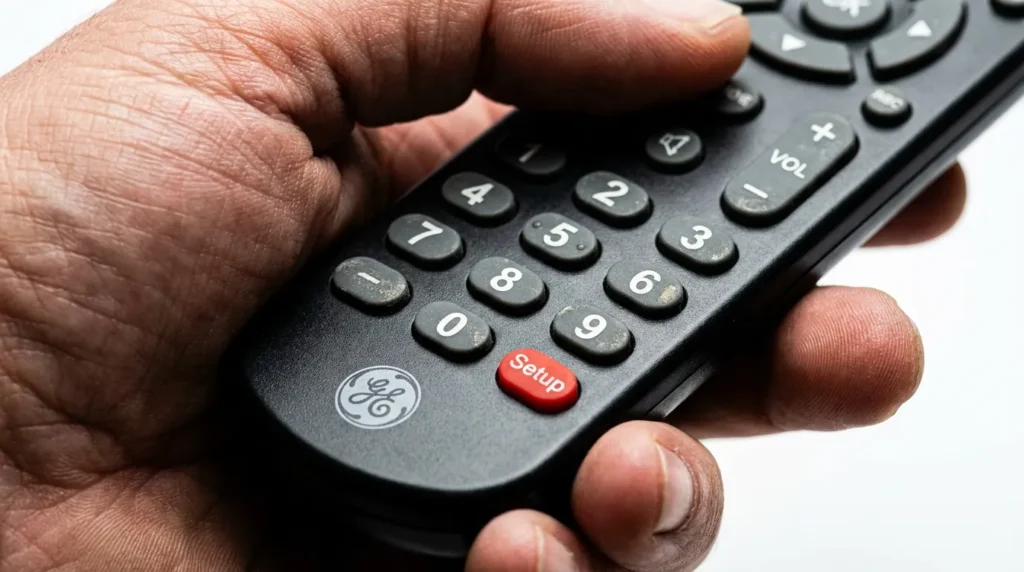
RCA Universal Remote Codes for Honeywell TV
RCA remotes typically use 4-digit codes. Some newer RCA models (RCRC, RCRP series) use 5-digit codes.
4-Digit RCA Codes for Honeywell TV:
| Code |
|---|
| 0028 |
| 0027 |
| 0021 |
| 0179 |
| 0192 |
5-Digit RCA Codes for Honeywell TV:
| Code |
|---|
| 11758 |
| 10179 |
See the complete RCA universal remote codes list if you’re also pairing other devices.
Philips Universal Remote Codes for Honeywell TV
Philips remotes use 4-digit codes on most models. Newer Philips remotes (SRP5016 and later) may use 5-digit codes. Check your model number on the back sticker.
4-Digit Philips Codes for Honeywell TV:
| Code |
|---|
| 0028 |
| 0179 |
| 0021 |
| 0037 |
| 6141 |
The full Philips universal remote codes guide covers all device types if you need to pair a soundbar or DVD player at the same time.
One For All Remote Codes for Honeywell TV
4-Digit One For All Codes for Honeywell TV:
| Code |
|---|
| 0028 |
| 0021 |
| 0027 |
| 0179 |
More One For All codes across all brands are available in the One For All universal remote codes guide.
DISH, Spectrum, and Xfinity Remote Codes for Honeywell TV
Cable and satellite remotes use different code formats. Most DISH and Spectrum remotes use 3-digit or 4-digit codes. Xfinity/Comcast remotes typically use 5-digit codes.
DISH Remote Codes:
| Code | Format |
|---|---|
| 627 | 3-digit |
| 535 | 3-digit |
| 721 | 3-digit |
Spectrum Remote Codes:
| Code |
|---|
| 0028 |
| 0021 |
For more Spectrum codes and setup steps, see the Spectrum universal remote codes guide.
Xfinity/Comcast Remote Codes:
| Code |
|---|
| 11758 |
| 10028 |
Full Comcast setup instructions are covered in the Comcast Xfinity universal remote codes guide.
How to Program a Universal Remote to a Honeywell TV
Three methods. Start with Method 1 — it’s the fastest. If the code doesn’t work, move to Method 2 or 3.
Method 1 — Manual Code Entry (Fastest)
Use this when you already have a code from the list above.
- Turn on your Honeywell TV.
- Press the TV button on your universal remote.
- Press and hold the SETUP button until the indicator light turns red or flashes twice, then release.
- Enter the 4-digit (or 5-digit) code using the number pad.
- The indicator light will turn off when the code is accepted.
- Point the remote at the TV and press Power.
- If the TV turns off, the code worked. Press Power again to turn it back on.
- Test volume and channel buttons to confirm full function.
If the TV doesn’t respond, repeat from Step 2 with the next code on the list.
Important: If power works but volume or channel buttons don’t respond, that is not a successful pairing. It means you have a partial code match. Try the next code — don’t stop at power-only function.
Method 2 — Auto Code Search (No Code Required)
Use this when you don’t have a code or none of the manual codes worked. The remote scans through its entire code library automatically.
- Turn on your Honeywell TV.
- Press the TV button on your remote.
- Press and hold SETUP until the light turns red.
- Press and hold the Power button on the remote.
- The remote begins scanning. Keep the Power button held, or press CH+ repeatedly — one press every 3 seconds.
- Stop when the TV turns off.
- Press Power once to turn the TV back on.
- Press SETUP (or Enter/OK on some models) to lock the code.
- Test all buttons.
This method can take 2–5 minutes if the correct code is near the end of the library.
Method 3 — 9-9-1 Search Mode
This is a forced search mode available on most GE, RCA, and Philips remotes. It’s slower than Method 2 but useful when the auto-scan doesn’t lock properly.
- Turn on your Honeywell TV.
- Press and hold SETUP until the indicator light turns red.
- Enter 9-9-1 using the number pad. The light will flash twice.
- Press and hold the Power button.
- Press CH+ once every 3–5 seconds until the TV turns off.
- Release Power and press Power once more to confirm the TV responds.
- Press SETUP to save.
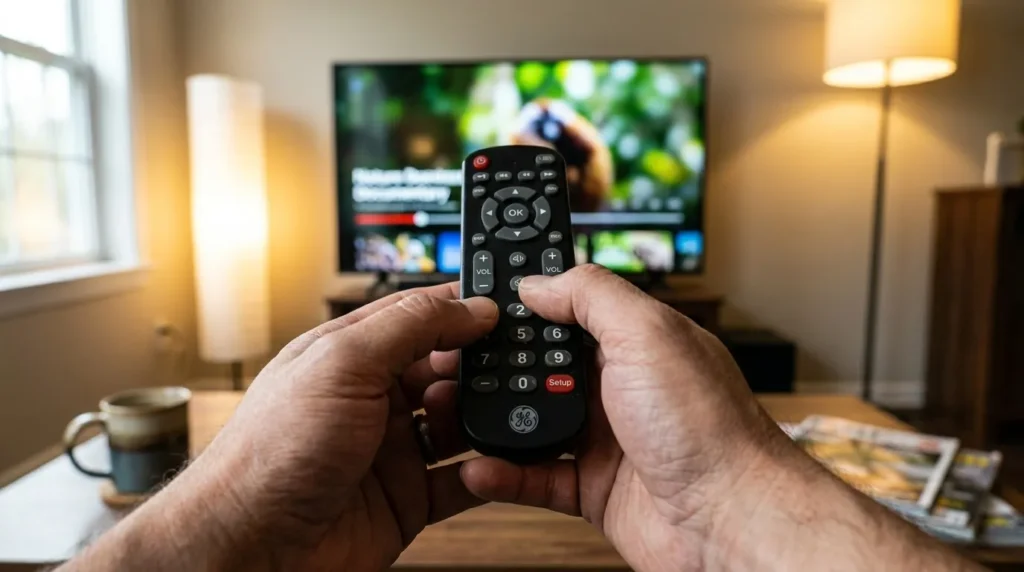
If you’re not sure which buttons your specific remote uses, the Remote Control Button Explainer tool identifies every button function by remote model.
How to Test the Code After Programming
Once you enter a code and the TV responds to Power, run this 3-button check:
- Volume Up / Volume Down — confirms audio control
- Channel Up / Channel Down — confirms input scanning
- Input / Source button — confirms you can switch HDMI inputs
All three should respond. If any one of them doesn’t, the code is a partial match. Go back and try the next code on the list — a better match exists.
Troubleshooting — When Codes Don’t Work
Remote flashes but TV doesn’t respond
The IR signal isn’t reaching the TV. Check:
- Distance: stay within 10 feet of the TV during programming.
- Angle: point the remote directly at the TV’s IR sensor (usually bottom-center of the screen bezel).
- Batteries: weak batteries cause missed signals. Replace them and try again.
- Obstructions: remove anything between the remote and the TV’s front panel.
Power works but volume or input doesn’t
This is a partial match — not a success. The code controls some functions but not all. Try the next code on the list. Honeywell TVs have 3–5 valid codes per remote brand. Work through every one before concluding the remote is incompatible.
No codes work at all
If you’ve tried all listed codes and all three methods, try these steps:
- Use the Universal Remote Compatibility Check tool to confirm your remote model supports Honeywell TV.
- Check that your remote version (CL3, CL4, CL5, CL6 for GE remotes) matches the code list you used.
- Try a different remote brand. If a GE remote isn’t working, try a Philips or One For All.
- Check if the TV’s IR sensor is functional by using a phone camera — point the original remote at the TV and press any button. If you see a purple/white flash on the camera screen, the TV’s IR sensor is receiving signal. If you don’t see a flash with a working remote, the sensor may be faulty.
When You Need a Replacement Remote
If none of the codes work across multiple remote brands and the auto-scan methods fail, the issue is likely a faulty IR receiver on the TV. At that point, a dedicated universal TV remote is worth considering — particularly a Logitech Harmony or a GE 4-device remote (model CL4 or CL5), which carry the broadest code libraries and highest reported success rates for older TV brands like Honeywell.
A quality universal remote costs between $8 and $25. That’s significantly cheaper than a TV replacement and solves the problem permanently.
Summary
Honeywell TV remote codes that work most reliably:
| Remote Brand | Best Code to Try First |
|---|---|
| GE (4-digit) | 0028 |
| GE (5-digit) | 11758 |
| RCA | 0028 |
| Philips | 0028 |
| One For All | 0028 |
| DISH | 627 |
| Xfinity | 11758 |
Start with Method 1 (manual entry), test all three buttons after each attempt, and move to Method 2 or 3 only if manual codes fail. Most Honeywell TVs pair successfully within the first 3 code attempts.
If you’re also trying to set up remotes for other budget TV brands, similar guides are available for Durabrand TV remote codes, Dynex TV remote codes, and Zenith universal remote codes — all of which share similar programming methods and code formats.


