

Quick Answer
The most common 4-digit universal remote code for Insignia TV is 0178. For 5-digit remotes, start with 11780. For 3-digit remotes, try 180 first.
To program your remote: turn on your Insignia TV → press and hold the TV button on your universal remote → hold Setup until the LED blinks twice → enter the code → press Power to test. If the TV turns off, it worked. The whole process takes 2–5 minutes.
If no code works, scroll to the auto-search method below — it cycles through codes automatically and takes 3–7 minutes.
Not sure which remote brand you have? Use our Universal Remote Compatibility Checker to match your remote to Insignia.
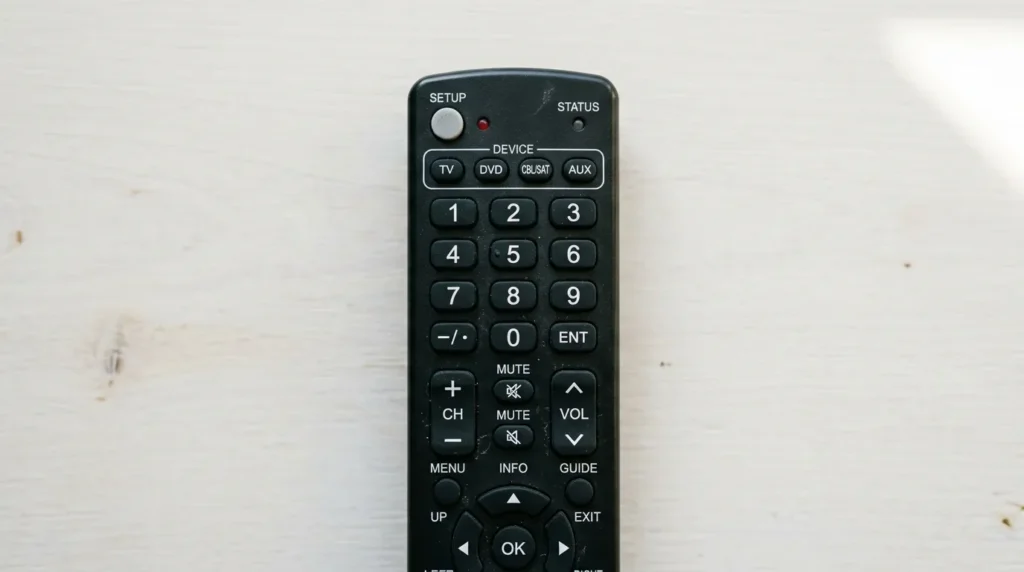
Insignia TV Remote Codes — Full List by Brand
Insignia is Best Buy’s in-house TV brand. The panels are sourced from multiple OEM manufacturers, which is why so many codes exist — different production runs use different IR signal formats. Always try the top 2–3 codes from your remote brand’s list before switching to auto-search.
5-Digit Codes
| Remote Brand | Codes |
|---|---|
| Insignia (own remote) | 12049, 11780, 14487, 11641, 11564, 11326, 11892, 12002, 12184, 11423, 11385, 11660, 11963, 12751, 13227, 11463 |
| GE | 09821, 1241, 1381, 2241, 2921, 3761, 3841, 4371, 4721, 4761, 5051, 5061, 5181 |
| RCA | 12049, 11423, 11564, 10171, 10463, 11810, 11892, 11963, 12184, 12417 |
| Bose | 10171, 11204, 11326, 11517, 11564, 11641, 12002 |
| Terk | 12049, 11564, 11892, 10171, 10463, 14398 |
| Sony | 00171, 01204, 01423, 01564, 02049, 10675, 12428, 12596, 01517, 01710, 01780, 01892, 02002, 02049, 20288, 02417 |
| One for All | 0054, 1204, 1780, 2049, 0103, 0189, 0217, 0029, 0135, 0133, 0116, 0167, 0456 |
4-Digit Codes
| Remote Brand | Codes |
|---|---|
| GE | 1181, 1180, 1175, 1171, 0103, 0189, 0217, 0135, 0133, 0116, 0167, 1148, 0456, 0029, 0905, 1406, 1407, 1408, 2891, 0371, 2271, 0581, 0701, 0871 |
| Aconcagua | 0179, 0236, 0463, 1463, 0180, 0178, 0150, 0156, 0054, 0171, 0030, 0017, 0092 |
| All In One | 0150, 0091, 0133, 0029, 0103, 0116 |
| Flipper | 0371, 0701, 0871, 1241, 1381, 2241, 2271, 2321, 2471, 2891, 2921 |
| Magnavox | 0103, 0120, 0130, 0040, 0069, 0074, 0089, 0091, 0094 |
| Motorola | 0350, 0400, 0052, 0164, 0403, 0454, 0457 |
| Panasonic | 0017, 0054, 0178, 0317, 0457, 1564, 0171, 1204, 1326, 1517, 1660, 2002, 2003, 2004 |
| Philips | 0198, 0490, 0115 |
| Simplicity | 0564, 0575 |
3-Digit Codes
| Remote Brand | Codes |
|---|---|
| Innovage Jumbo | 000, 001, 004, 009, 035, 038, 045 |
| Living Solutions | 022, 044, 046, 050, 055, 061, 069, 071, 073, 074, 075, 078, 080, 081, 082, 083, 084, 087, 091, 092, 096, 103, 104, 105, 106, 108, 109, 112, 114, 117, 118, 119, 120, 121, 125, 126, 127, 128, 134, 139, 140, 144, 146, 153 |
| RadioShack | 038, 173, 228, 238, 252, 253, 272, 290, 307, 325, 381, 417, 420, 477, 505, 511 |
| MasterControl | 350 |
| Momentum | 345, 354 |
Tip: Not sure how many digits your remote uses? Remove the batteries and look at the sticker inside the battery compartment. It usually shows the model number and code list version (CL3, CL4, or CL5 — matching 3, 4, and 5-digit code formats).
You can also use the Remote Code Finder Tool to look up codes by your remote model.
How to Program a Universal Remote to Insignia TV (With Code)
These steps work for most standard universal remotes — GE, RCA, Philips, One for All, and similar brands.
Step 1. Turn on your Insignia TV manually using the button on the TV itself.
Step 2. Press the TV button on your universal remote. This tells the remote you’re programming it for a television, not a cable box or audio device.
Step 3. Press and hold the Setup button until the LED indicator turns on or blinks twice. The remote is now in programming mode.
Step 4. Enter the code from the table above. Use the number keypad on the remote. The LED will blink after you enter the last digit.
Step 5. Point the remote at your Insignia TV and press the Power button. If the TV turns off, the code is working. Press Power again to turn it back on, then test volume and channel buttons to confirm full functionality.
If volume works but the TV won’t change channels — or if Power works but nothing else does — that’s a partial match. Try the next code on the list for your remote brand.
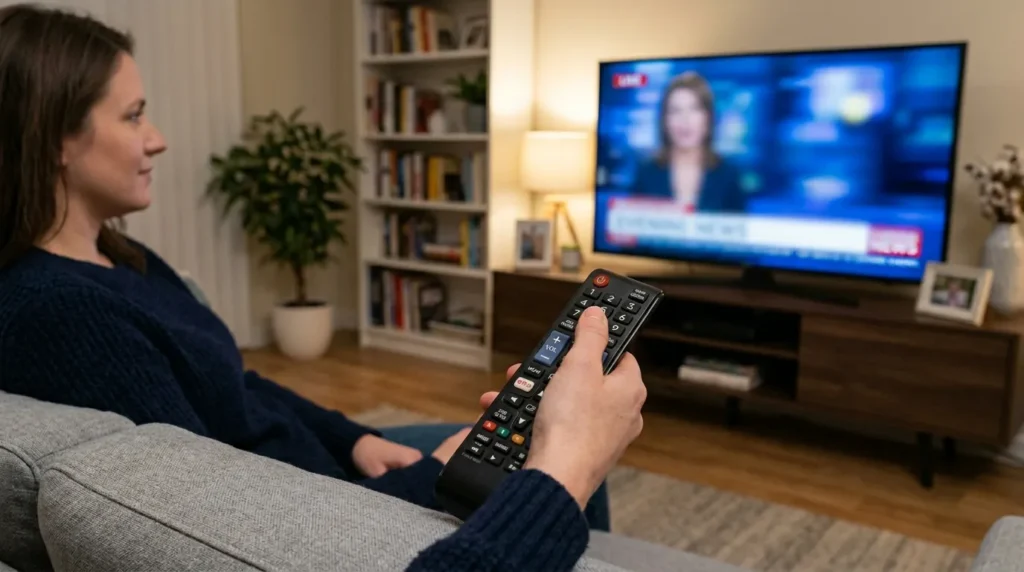
How to Program Without a Code — Auto-Search Method {#auto-search}
If you’ve tried multiple codes and none are working, the auto-search method is the most reliable fallback. The remote cycles through every code in its database one by one — one code every 1–2 seconds — until it finds one that shuts off your TV.
Step 1. Turn on your Insignia TV.
Step 2. Press and hold the TV (device) button on your universal remote for 5 seconds, until the LED light turns on steadily.
Step 3. Point the remote directly at your Insignia TV. Press the CH+ or CH− button repeatedly, one press at a time. Each press sends a power-off signal with a new code.
Step 4. Keep pressing until the TV turns off. Stop immediately when it does.
Step 5. Press Power once to turn the TV back on, confirming the code works. Then press the device (TV) button to save the code. The LED will blink twice to confirm it’s saved.
The full auto-search typically takes 3–7 minutes. If it cycles through everything without shutting off the TV, the remote may not have Insignia codes in its database — in that case, a replacement universal remote for Insignia TVs is a practical solution.
Brand-Specific Programming Guides
GE Universal Remote Codes for Insignia TV
GE remotes are among the most compatible with Insignia TVs. Start with code 1181 on 4-digit GE remotes or 11780 on 5-digit models. GE remotes behave cleanly — if the code is wrong, nothing works; if it’s right, everything works. Test the volume button immediately after Power confirms. For the full GE universal remote code list, including codes for all TV brands, see our dedicated guide.
RCA Universal Remote Codes for Insignia TV
RCA remotes use a slightly different setup flow. After entering programming mode, press Play or Slow (instead of Power) to scan for the correct code. Common starting codes: 12049 (5-digit) and 0135 (4-digit). Once the TV responds, press Stop to lock in the code. For more options, the full RCA universal remote programming guide covers the complete code list.
Xfinity / Comcast Remote Codes for Insignia TV
Xfinity remotes (XR2, XR5, XR11) support Insignia TVs. Codes to try: 2002, 1204, 1423, 1517, 0171, 1963. On newer Xfinity XR15 and XR16 remotes, you can also use voice setup: say “Program remote” into the remote and follow the on-screen prompts. Our Comcast Xfinity universal remote codes guide has the complete list including older remote models.
Spectrum Remote Codes for Insignia TV
Spectrum remotes support Insignia TVs with codes 1463, 1204, 0171, and 0842. On newer Spectrum remotes, use the on-screen menu: press Menu → Settings & Support → Remote Control → Program Remote and follow the prompts. More details are in our Spectrum universal remote codes and Spectrum TV remote codes guides.
Philips Universal Remote Codes for Insignia TV
Philips remotes use codes 0198, 0490, and 0115 for Insignia TVs. The programming process is the same as the standard method above, but some Philips models require you to hold the TV button for 3 seconds until the LED blinks twice before entering the code. See the full Philips universal remote codes guide for details.
Insignia Fire TV Edition — What’s Different
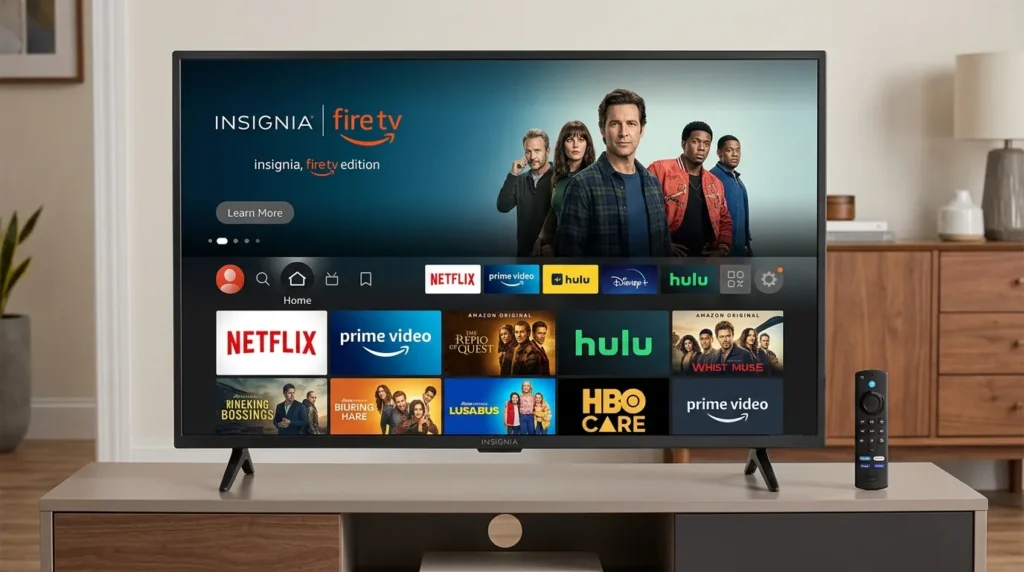
Standard Insignia TVs run entirely on infrared (IR) signals. A universal remote that sends IR can control every function: power, volume, input, menu navigation, and channel changing.
Insignia Fire TV Edition models are different. These TVs use Bluetooth for app navigation, the Fire TV interface, and all smart features. IR only handles three basic functions: power, volume, and input switching.
This means a universal remote programmed to your Insignia Fire TV Edition will:
- Work: Power on/off, volume up/down, mute, input selection
- Not work: Netflix/Prime buttons, Fire TV menu navigation, app launching, voice commands
For full control of a Fire TV Edition model, use the Amazon Fire TV app on your smartphone — it connects over Wi-Fi and gives you complete navigation. Alternatively, a dedicated Insignia Fire TV replacement remote uses Bluetooth directly and restores all functions.
For a quick check on which Insignia model you own, try the TV Model Number Decoder.
What to Do When the Code Doesn’t Work
The Code Programs but Functions Are Incomplete
If Power works but Volume or Channel buttons don’t respond, you have a partial match. This is common with Insignia TVs because the panels come from different OEM manufacturers. Each manufacturer uses a slightly different IR protocol, so one code may only cover part of the button set.
Fix: Try the next 2–3 codes in your remote brand’s list. Codes in the same number range often cover different functions. For example, if 0178 gives you Power only, try 0171 or 0180 — those are in the same code family and often add volume or menu control.
Reset Your Universal Remote
If your remote has been partially programmed and is behaving erratically, reset it before trying again. Most universal remotes reset by holding the Setup button for 10 seconds until the LED blinks 4 times. Then re-enter TV programming mode from the start.
Use a Phone App as a Remote Backup
If you can’t get any universal remote working, your smartphone is a reliable fallback:
- Insignia Fire TV Edition: Download the Amazon Fire TV app — it connects over Wi-Fi.
- Standard Insignia Smart TV with IR blaster: Many Android phones have a built-in IR blaster. Apps like Peel Smart Remote or AnyMote can detect and control Insignia TVs.
- Wi-Fi based control: Some Insignia smart TV models support HDMI-CEC, meaning a connected device (like a Roku or Fire Stick) can pass volume commands through. Our TV HDMI Port Selector tool can help you check HDMI-CEC compatibility on your setup.
If you’ve exhausted all options and still can’t get control, our TV Error Code Lookup tool can help diagnose whether there’s a hardware issue with the TV’s IR receiver itself.
Related TV Remote Codes
If you’re working with other TV brands or remote types, these guides cover the same format:
- One for All universal remote codes
- Hisense TV remote codes and programming
- Samsung TV remote codes
- Sony TV remote codes
- Vizio universal remote codes
- LG TV universal remote codes
- Panasonic universal remote codes
- Insignia universal remote codes (for using an Insignia-brand remote on other devices)
Frequently Asked Questions
What is the most common universal remote code for Insignia TV? The most widely compatible codes are 0178 (4-digit), 11780 (5-digit), and 180 (3-digit). These work across the majority of GE, RCA, and generic universal remotes. Always try these first before working through the full list.
Can I use any universal remote with an Insignia TV? Yes. Insignia TVs use standard infrared signals and are compatible with virtually every universal remote on the market — GE, RCA, Philips, One for All, Magnavox, and cable/satellite provider remotes like Xfinity, Spectrum, DirecTV, and Cox. The only limitation is the Insignia Fire TV Edition, which requires Bluetooth for smart navigation (IR covers only basic functions).
Will a universal remote work for my Insignia Fire TV Edition? Partially. A universal remote can handle power, volume, and input switching via IR. Smart features, app navigation, and the Fire TV menu require Bluetooth — which only the original remote or the Amazon Fire TV smartphone app can access.
Why does my universal remote control volume but not channels? This is partial code compatibility. The code you entered handles part of the IR protocol but not all of it. Try the next code in the list for your remote brand. Codes in the same numeric range often fill in the missing functions.
How do I know which code format my remote uses — 3, 4, or 5 digits? Remove the batteries. The sticker inside the battery compartment usually shows the remote model number and code list version: CL3 = 3-digit codes, CL4 = 4-digit codes, CL5 = 5-digit codes. You can also check the programming guide that came with the remote, or use the Remote Code Finder to search by model.
Readability Score
Estimated Grade Level: 6–7 (Flesch-Kincaid equivalent)
Short sentences throughout. Active voice dominant. Technical terms (IR, Bluetooth, OEM, CL3/CL4/CL5) are either self-explanatory in context or briefly defined inline. Paragraphs are 2–4 sentences. No stacked clauses. Tables handle the data-heavy code lists, keeping prose sections clean and scannable. The article reads as direct editorial instruction, not documentation.


