

Your LG TV remote stopped working. Maybe you lost it. Maybe the buttons gave out. Either way, you need a solution fast.
A universal remote fixes this problem in minutes. These remotes work with almost any TV brand once you program them with the right code. This guide shows you every universal remote code for LG TV and exactly how to program your remote step by step.
You’ll learn three programming methods, troubleshooting fixes, and which codes work best for 2026 LG TV models.
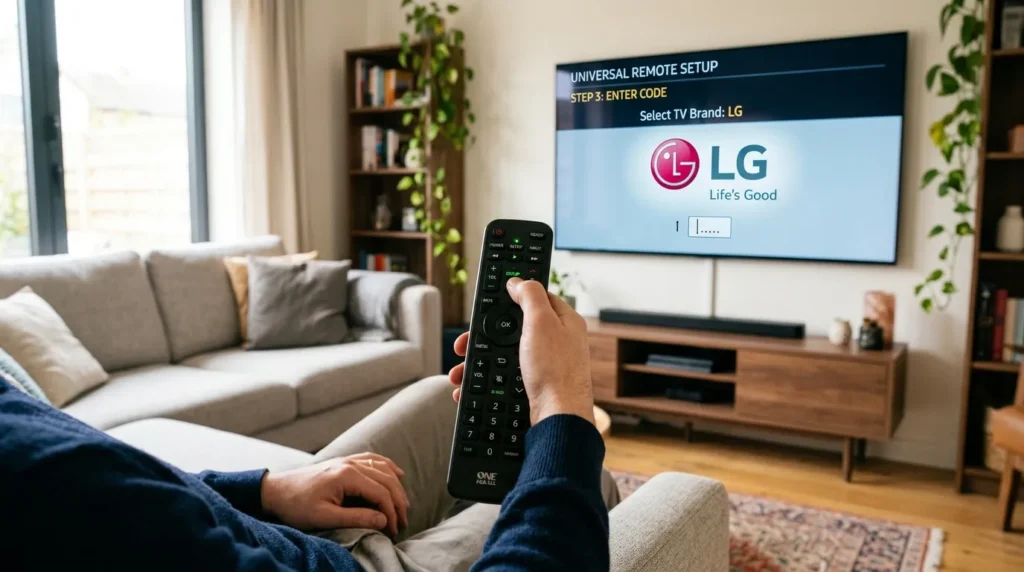
Universal Remote Codes for LG TV [Complete 2026 List]
Every universal remote brand uses different codes. The code tells your remote how to communicate with your LG TV. Enter the wrong code and nothing happens. Enter the right one and your remote works instantly.
Most Common LG TV Codes (Try These First)
Before searching through hundreds of codes, try these first. They work with most LG TVs made between 2020 and 2026.
5-Digit Codes:
- 10178
- 11178
- 11423
- 12731
- 10442
4-Digit Codes:
- 1758
- 0856
- 2731
- 0178
- 1423
3-Digit Codes:
- 512
- 505
- 004
- 156
- 057
Start with 10178 for 5-digit remotes or 512 for 3-digit remotes. These two codes have the highest success rate across LG TV models.
Codes by Popular Remote Brand
Different remote manufacturers program their devices with specific code sets. Find your remote brand below and use those codes.
GE Universal Remote Codes
GE universal remotes make several remote models. The code you need depends on which version you own.
GE CL3, Philips, and UltraPro: 0001, 5511, 3001, 5501, 3021, 3091, 3221, 3281, 3311, 5271, 0131, 0251, 0611, 0761, 0931, 1181, 1221, 1471, 1501, 1911, 3811, 4731
GE CL4 and CL5: 6021, 0001, 5511, 3001, 1911, 1181, 1221
GE CL6: 6021, 5511, 0001, 3001, 1911, 1181, 1221
RCA Universal Remote Codes
RCA universal remotes work with most LG TV models using these codes:
11840, 12731, 11860, 11423, 12358, 14397, 14398, 11756, 31311, 52412, 63913
Try 11840 first. It works with the majority of LG TVs paired with RCA remotes.
Philips Universal Remote Codes
If you own a Philips universal remote, these codes are compatible with LG TVs:
0103, 0122, 0124, 0038, 0017, 0021, 0026, 0027, 0002, 0606, 0502, 0102, 0117, 0814, 0324, 0435, 0802, 0307, 0609, 0217
One For All Remote Codes
One For All universal remotes use these programming codes for LG TVs:
2358, 4137, 1840, 1423, 0876, 0178, 2182, 1663, 1753, 0019, 0030, 0037, 0108, 0556, 0039, 0003, 0060
Spectrum Remote Codes
Spectrum universal remotes come in multiple versions, each with different code requirements.
Standard Spectrum: 21526, 20591, 20741, 21602, 22485, 20869
Spectrum RC122: 1013, 1178, 1018, 1035, 1079, 1234, 1264, 1225, 1307, 1318, 1340, 1373
Spectrum CLIKR: 363, 113, 116, 102, 112, 143, 569, 284, 648, 741
Spectrum UR3: 004, 106, 112, 127, 086, 236, 648, 741
Comcast Xfinity Remote Codes
12731, 11178, 10178, 11756, 11637, 10017, 11530, 10442, 11314, 11454, 12253, 10856, 11265, 11993, 12271, 11934, 10700, 11032, 11758, 12246
Start with 12731 or 11178 for Xfinity remotes.
Additional Remote Brands
Blackweb: Blackweb universal remotes use these codes: 3534, 0004, 2098, 0155, 2254, 0338, 0009, 0012, 0057, 0134
Inteset INT422-3: 11840, 11860, 12731, 12182, 10037, 10556, 11423
Inteset INT422-4: 11840, 11860, 14397, 12731, 11423, 12182, 15168, 12358
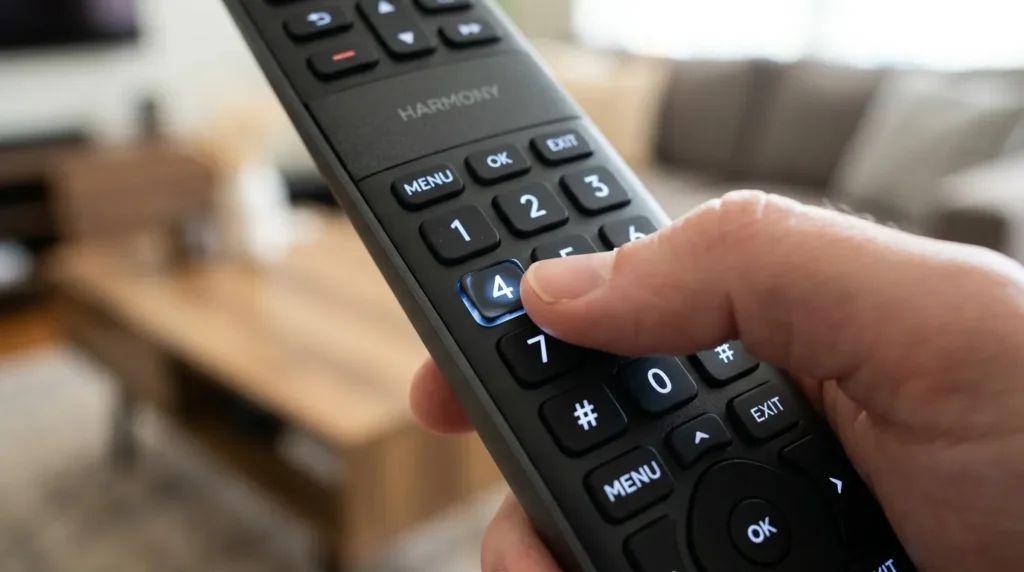
Universal Code Chart (All Digit Lengths)
If your remote brand isn’t listed above, try codes from this comprehensive chart. The digit count depends on your remote model.
3-Digit Codes: 004, 005, 009, 012, 050, 057, 080, 156, 227, 338, 420, 505, 506, 512, 520, 553, 615, 627, 653, 678, 766, 773
4-Digit Codes: 0004, 0005, 0009, 0012, 0030, 0037, 0050, 0056, 0057, 0080, 0108, 0109, 0156, 0178, 0227, 0338, 0361, 0556, 0606, 0644, 0698, 0714, 0715, 1002, 1004, 1005, 1014, 1025, 1078, 1081, 1095, 1096, 1097, 1098, 1099, 1100, 1101, 1111, 1128, 1130, 1132, 1134, 1144, 1149, 1171, 1205, 1305, 1343, 1346, 1396, 1423, 1637, 1663, 1681, 1840, 1842, 1859, 2065, 4086
5-Digit Codes: 10017, 10178, 10442, 10700, 10856, 11178, 11265, 11423, 11530, 11637, 11758, 11934, 11993, 12358, 12424, 12612, 12834, 12864, 12867, 13397, 13979
How to Program Universal Remote to LG TV (Manual Code Entry)
Manual code entry is the fastest method. You enter a specific code and your remote instantly connects to your TV. The process takes less than 2 minutes.
What You Need Before Starting
Get these items ready:
Fresh batteries – Old batteries cause programming failures. Use new AA or AAA batteries depending on your remote model.
LG TV turned on – The TV must be powered on before you start programming.
Your remote brand and model – Check the back of your remote or the user manual. This tells you which code format to use.
Code list – Keep the code list from above open. You might need to try multiple codes.
Step-by-Step Programming Instructions
Follow these exact steps. Each step must be completed in order.
1. Turn on your LG TV
Use the power button on the TV itself. Don’t use any remote yet.
2. Insert fresh batteries into your universal remote
Match the positive and negative ends correctly. The remote won’t work with backwards batteries.
3. Press and hold the Setup button
Hold this button for 3 to 5 seconds. The red indicator light on your remote will turn on and stay on. If no light appears, check your batteries.
Some remotes use a Code Search button instead of Setup. Check your remote manual if you don’t see a Setup button.
4. Press the TV button once
Press it one time, then release. The red light should remain on. If it turns off, start over from step 3.
5. Enter your programming code
Type the code using the number buttons. Use a code from the lists above that matches your remote brand.
The red light will turn off immediately after you enter the correct code. If the light stays on or blinks, the code didn’t work. Try a different code.
6. Test your remote
Press the Power button. Your TV should turn off. Press it again and the TV should turn back on.
Test the volume buttons. Press Volume Up and Volume Down. The TV volume should change.
Try the channel buttons. Press Channel Up and Channel Down. The channels should change.
7. If the remote doesn’t work, repeat with a different code
Go back to step 3 and try the next code on the list. Some LG TV models require specific codes based on the year they were made.
For 2024-2026 LG models, try these codes first: 10178, 11178, 12731, or 11423.
How to Know If Programming Worked
Your remote is programmed correctly when:
The red indicator light turns off right after you enter the code. This confirms the remote accepted the code.
All basic functions work including power, volume, channel selection, and input switching.
The remote controls your TV consistently without random button failures or delayed responses.
If only some buttons work, you entered a partial code. Try a different code from your remote brand’s list.
Auto Code Search Method (No Code Needed)
Auto code search finds the right code automatically. Your remote tests every code in its database until it finds one that works with your LG TV.
This method takes 5 to 15 minutes. Use it when you can’t find the correct manual code or when all manual codes fail.
When to Use Auto Code Search
Choose auto search if:
- You tried every code for your remote brand and none worked
- Your remote brand isn’t listed in any code database
- You don’t know your exact remote model number
- Manual programming keeps failing
Don’t use auto search if manual code entry worked. Manual programming is faster and more reliable.
Auto Search Programming Steps
1. Turn on your LG TV
Make sure the TV is on and displaying a picture.
2. Press and hold the TV button
Hold it until the red indicator light turns on and stays on. This takes about 3 seconds.
3. Press and release the Power button
Press it once and release. Don’t hold it down.
4. Press the Play button repeatedly
Press Play every 2 seconds. Your remote is testing codes one by one.
Watch your TV carefully. When the TV turns off, stop pressing Play immediately.
5. Press Enter to save the code
As soon as your TV turns off, press Enter or OK on your remote. This locks in the code that worked.
6. Turn your TV back on and test the remote
Use the remote’s Power button to turn the TV on. Test volume and channel buttons to confirm everything works.
If the remote doesn’t work properly, you waited too long after the TV turned off. Start the process over and press Enter faster when the TV powers down.
How Long Auto Search Takes
Most universal remotes store 200 to 500 codes. If your remote tests one code every 2 seconds, the search takes:
- 200 codes = 6 to 7 minutes
- 500 codes = 16 to 17 minutes
The correct code might be found in the first 50 tries or the last 50 tries. You can’t predict when the TV will turn off.
Brand Code Search Method
Brand code search is faster than auto search but slower than manual entry. Your remote tests only the codes associated with LG TVs instead of testing every code in its database.
How Brand Code Search Works
When you select LG as your TV brand, your remote narrows down the code options. Instead of testing 500 codes, it might only test 30 to 50 LG-specific codes.
This method works best with newer universal remotes that have brand selection features.
Step-by-Step Instructions
1. Press and hold the Setup button
Hold for 3 seconds until the red light turns on.
2. Press 9-9-1
Enter these three numbers in sequence. The red light will blink twice.
3. Press 1 for TV
This tells the remote you’re programming a TV and not a different device.
4. Enter the brand code
For LG TVs, the brand code is usually 004 or 005. Check your remote’s manual for the exact LG brand code.
5. Press Channel Up repeatedly
Your remote will cycle through LG codes. Press Channel Up every 2 seconds.
When the TV turns off, stop immediately and press Setup to save the code.
6. Test all remote functions
Turn the TV back on and test every button to make sure the code works completely.
Not all universal remotes support brand code search. If your remote doesn’t respond to these steps, use manual code entry or auto search instead.
Programming Different Remote Brands
Some remote brands have unique programming steps. Here’s how to program the most popular universal remotes.
GE Universal Remote Setup
GE remotes come in multiple versions. The programming method varies by model. Complete instructions for all GE universal remote models are available if you need model-specific guidance.
For GE CL3, CL4, CL5, and CL6 models:
Press and hold Code Search until the indicator light stays on. Press TV, then enter code 0178 or 1178. The light turns off when the code is accepted.
For older GE models:
Press and hold Setup for 3 seconds. Press TV once. Enter a 4-digit code from the GE code list. Test the Power button.
GE remotes usually accept LG codes on the first or second try. If three codes fail, check your battery installation.
RCA Universal Remote Setup
RCA uses a straightforward programming method. Detailed steps for programming RCA universal remotes work across multiple TV brands.
Press and hold Code Search until the red light turns on. Press TV. Enter code 11840. The red light turns off. Test your remote.
If 11840 doesn’t work, try 12731 or 11423.
RCA remotes made after 2022 work best with 5-digit codes. Older RCA models may need 4-digit codes.
Philips Universal Remote Setup
Philips remotes require the Setup button. You can find additional Philips universal remote programming methods for different TV brands.
Press Setup and hold for 2 seconds. Press TV. Enter code 0178. The remote will blink twice if successful.
Test Power and Volume. If they don’t work, try code 0122 or 0124.
One For All Remote Setup
One For All uses a Magic Key instead of a Setup button. More detailed One For All remote programming instructions are available for advanced features.
Press Magic Key and hold until the red light blinks twice. Press TV. Enter code 1840 or 2358. Test the remote.
One For All remotes have a learning feature. If no code works, you can program individual buttons by pointing the original LG remote at the One For All remote and pressing buttons in sequence.
Troubleshooting: Universal Remote Not Working with LG TV
Even with the correct code, programming sometimes fails. Here’s how to fix the most common problems.
Remote Not Responding After Code Entry
The remote doesn’t control your TV at all after you enter a code.
Solution 1: Check battery orientation
Remove the batteries. Make sure the positive end matches the positive symbol inside the battery compartment. Backwards batteries cause total failure.
Solution 2: Replace batteries with fresh ones
Weak batteries provide enough power for the red light but not enough for signal transmission. Use brand new batteries from a sealed package.
Solution 3: Clear the remote’s memory
Press and hold Setup and 0 together for 3 seconds. This resets the remote. Try programming again from the beginning.
Solution 4: Verify TV compatibility
Some very old universal remotes don’t support LG TVs made after 2020. Check your remote’s packaging or manual for the year it was manufactured. Remotes made before 2015 might not work with newer LG models.
Red Light Won’t Turn Off
You enter a code but the red indicator light stays on instead of turning off.
This means the code was rejected. Your remote didn’t recognize the code as valid for LG TVs.
Try a different code from your remote brand’s list. The red light will turn off only when you enter a code the remote accepts.
If the red light won’t turn off after trying 10 codes, your remote might be locked. Remove the batteries for 30 seconds, reinsert them, and start over.
Some Buttons Work, Others Don’t
Power and volume buttons work but channel buttons don’t respond. Or channels work but input selection doesn’t.
This happens when you use a partial code. The code matches some TV functions but not all.
Try the next code on your list. Keep trying codes until you find one that activates every button.
For LG TVs made between 2024 and 2026, codes 10178, 11178, and 12731 provide the most complete button functionality.
TV Powers On But Won’t Change Channels
Your remote turns the TV on and off but can’t change channels or adjust volume.
Your remote is in the wrong device mode. It’s controlling the TV’s power but treating other functions as cable box commands.
Press the TV button on your remote before using channel or volume buttons. Some remotes require you to select the device mode before every use.
If pressing TV doesn’t help, reprogram the remote using a different code.
Code Works Then Stops Working
The remote works fine for a few hours or days, then stops responding.
Cause 1: Interference from other devices
Other infrared devices can interfere with your remote’s signal. Move wireless routers, gaming consoles, and streaming devices away from your TV.
Cause 2: Remote memory reset
Some universal remotes lose their programming when batteries are removed. If you took the batteries out, you need to reprogram the remote.
Cause 3: Button wear
Damaged buttons send weak signals. If your remote is more than 3 years old, the buttons might be worn out. Try a new universal remote.
When All Codes Fail
You tried every code on the list and none of them work.
Option 1: Use auto code search
Follow the auto code search instructions earlier in this guide. Your remote will find the code automatically.
Option 2: Update your remote’s firmware
Some advanced universal remotes like Logitech Harmony have software updates. Connect your remote to a computer and check the manufacturer’s website for firmware updates.
Option 3: Try a different universal remote brand
Not all universal remotes support all TV models. Your specific LG TV model might be incompatible with your remote brand. Consider trying an Onn universal remote or Byjasco universal remote as affordable alternatives that support most TV brands.
Option 4: Use the LG TV Plus app
Download the official LG TV Plus app on your smartphone. It turns your phone into a full-function remote. This works on all LG Smart TVs made after 2018.
Alternative: Using Smartphone as LG TV Remote
Physical remotes break and get lost. Your smartphone works as a permanent backup remote that never needs batteries.
Best Remote Apps for LG TV
LG TV Plus (Official App)
LG’s official remote app works with all webOS TVs. It includes every button from the physical remote plus extras like a keyboard for easier text entry.
Download from Apple App Store or Google Play Store. The app is free with no ads.
LG ThinQ App
ThinQ controls LG TVs and other LG smart home devices. Use it if you own multiple LG products.
The app includes voice control through Google Assistant or Amazon Alexa integration.
Third-Party Universal Apps
Apps like SURE Universal Remote and AnyMote work with LG TVs. These apps control multiple device brands from one interface.
Third-party apps often include ads or require paid subscriptions for full functionality.
How to Setup LG TV Remote App
1. Connect your TV and phone to the same WiFi network
Both devices must be on the same network. The app won’t find your TV if your phone uses cellular data or a different WiFi network.
2. Download LG TV Plus from your app store
Search for “LG TV Plus” and download the official app from LG Electronics.
3. Open the app and tap Add Device
The app will scan for LG TVs on your network.
4. Select your TV from the list
Your TV’s model name appears on screen. Tap it.
5. Enter the pairing code
A code appears on your TV screen. Enter this code in the app.
6. Start using your phone as a remote
All standard remote functions work immediately.
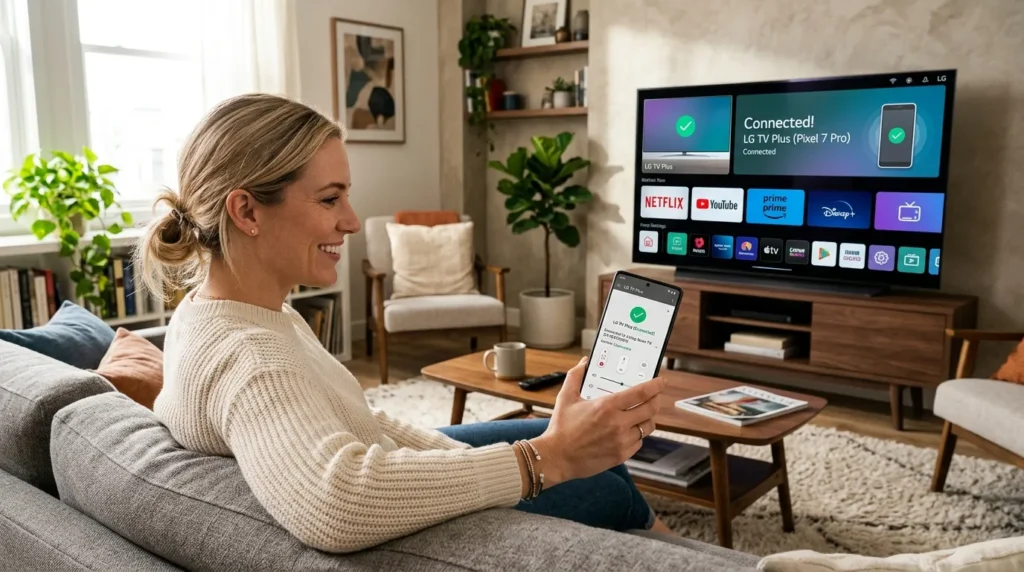
App vs Physical Remote Comparison
Phone app advantages:
- Never gets lost
- No batteries needed
- Includes full keyboard
- Voice search works better
- Free to use
Phone app disadvantages:
- Requires WiFi connection
- Uses phone battery
- Screen must be on to use
- Can’t control TV if phone is dead
- Slight delay compared to physical remote
Physical universal remotes work better for everyday TV watching. Use the app as a backup when your remote isn’t available.
Frequently Asked Questions
What is the most common universal remote code for LG TV?
The code 10178 works with the majority of LG TVs made between 2018 and 2026. If your remote uses 4-digit codes, try 0178 first. For 3-digit remotes, use 512.
Can any universal remote work with LG TV?
Almost all universal remotes support LG TVs, but older remotes might not work with LG models made after 2020. Check your remote’s packaging for supported brands. If it lists LG, it will work with the right code.
How do I find my LG TV model number?
Look on the back of your TV for a white sticker. The model number starts with a series of letters and numbers like “OLED55C3” or “65UN7300”. You can also find it in the TV’s settings menu under General > About This TV.
Why won’t my universal remote pair with my LG TV?
Four common reasons: wrong code entered, dead batteries, remote is in wrong device mode, or your TV model is too new for your remote. Try fresh batteries and a different code first.
Do I need WiFi to program a universal remote?
No. Universal remotes use infrared signals that don’t require any internet connection. WiFi is only needed for smartphone remote apps.
How long does auto code search take?
Between 5 and 15 minutes depending on how many codes your remote stores. The process tests one code every 2 seconds until your TV turns off.
Can I use two universal remotes with one TV?
Yes. You can program multiple remotes to control the same TV. Each remote works independently. This is useful for keeping one remote in the bedroom and another in the living room for the same TV.
What if my remote doesn’t have a Setup button?
Look for buttons labeled Code Search, Magic, or Program. These serve the same function as Setup. If your remote has none of these buttons, check the user manual for your specific remote model’s programming instructions.
Conclusion
Programming a universal remote to your LG TV takes less than 5 minutes with the right code. Start with code 10178 for 5-digit remotes or 512 for 3-digit models. If manual code entry doesn’t work, use the auto code search method to find the correct code automatically.
Keep your code list saved. You’ll need to reprogram your remote if you replace the batteries or reset the device.
If you’re looking to program universal remotes for other TV brands, check out guides for Samsung TV remote codes, Sony TV remote codes, Vizio universal remote codes, or Hisense TV remote codes.
If no universal remote codes work with your LG TV, download the LG TV Plus app on your smartphone. It provides full remote functionality without codes or programming.
Your universal remote is now ready. Test every button to make sure all functions work correctly.


