

Your LG TV has a picture, but the sound is completely gone. No audio from apps, no sound from HDMI devices, nothing. This happens to thousands of LG owners every year — and in most cases, the fix takes under five minutes.
This guide covers every real cause and every real solution, organized from fastest to most involved. Work through them in order and stop when your sound comes back.
Why Does LG TV Sound Stop Working?
Before touching any settings, it helps to know what you’re actually dealing with.
Software causes are the most common. A firmware glitch, a corrupted audio setting, or a WebOS memory error can silence the TV entirely — even though the hardware is perfectly fine. These are almost always fixable at home.
Settings causes come second. LG TVs automatically route audio to external devices when certain settings change. If the TV thinks a soundbar is connected (even when it isn’t), it silences the internal speakers.
Connection causes apply when you’re using HDMI, optical, or ARC. A loose cable, a dead HDMI port, or an eARC handshake failure will kill audio on that input only.
Hardware causes are rare. A blown speaker or failed amplifier IC means the TV needs a technician. You’ll know this is the issue only after ruling out everything else.
Fix 1 — Check the Basics First
This takes 30 seconds and solves the problem more often than you’d expect.
Check these four things:
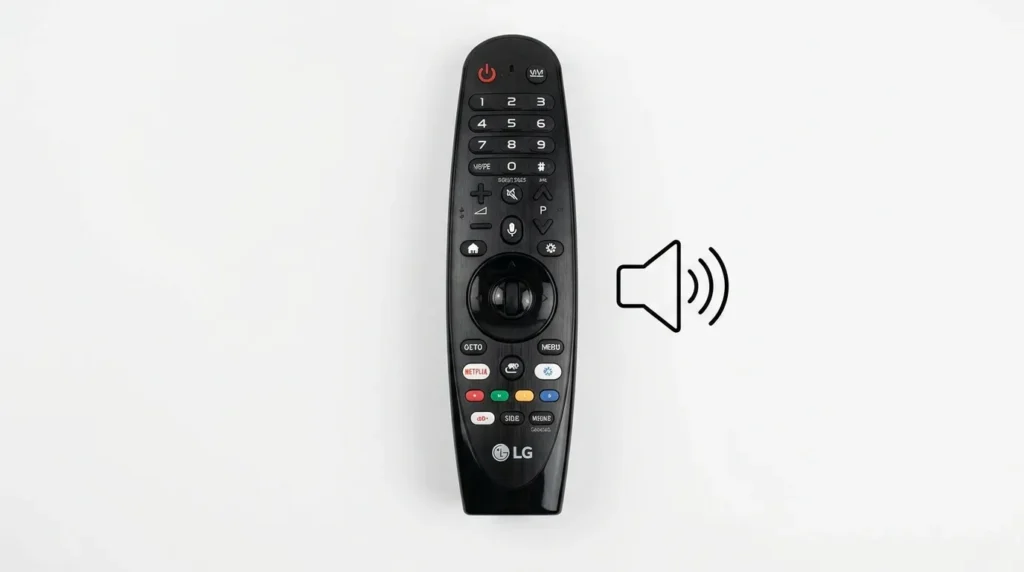
- Press the Mute button on your LG remote once. A muted TV shows a muted speaker icon on screen. Press it again to unmute.
- Press the Volume Up button on the remote and watch the on-screen volume bar. If the bar moves but sound doesn’t come out, the output is routed to an external device.
- Try the physical volume buttons on the side or bottom of the TV itself. If these work but the remote doesn’t, the issue is with the remote — not the TV.
- Switch to a different input. If sound works on one HDMI port but not another, the problem is port-specific (covered in Fix 5).
If your LG Magic Remote has stopped responding entirely, the LG Magic Remote not working fix covers that separately.
Fix 2 — Power Cycle the TV (Hard Reset)
This is the single most effective fix for LG TV sound issues caused by software glitches. Pressing the remote’s power button is not enough — that puts the TV into standby and preserves the error in memory.
Steps:
- Turn off the TV.
- Unplug the power cable from the wall outlet — not from the TV itself.
- Press and hold the physical power button on the TV (not the remote) for 10 seconds. This drains residual power from the capacitors.
- Wait a full 60 seconds.
- Plug back in and turn on.
This clears temporary memory corruption that standby mode never clears. Most users who try this after a failed remote restart immediately get sound back.
Fix 3 — Run the LG Sound Self-Diagnosis Test
LG builds a sound diagnostic directly into WebOS. This tells you in 30 seconds whether the speakers are physically working or whether the problem is in the software/settings.
The navigation path depends on your WebOS version:
- WebOS 24 / 23: Settings → All Settings → Support → Device Self-Care → Sound Self-Diagnosis
- WebOS 6.0: Settings → All Settings → Support → OLED Care → Device Self-Care → Sound Self-Diagnosis
- WebOS 5.0: Settings → All Settings → Support → Additional Settings → Sound Test
- WebOS 4.5 and older: Settings → All Settings → Sound → Sound Test
When the test runs, the volume automatically jumps to level 20. You’ll hear a short tone through the internal speakers.
If you hear the tone: The speakers and hardware are fine. The problem is a settings or software issue — keep going through the fixes below.
If you hear nothing: The problem may be hardware. Skip to the hardware section at the end of this guide.
Not sure which WebOS version your TV runs? Use the TV Model Number Decoder to identify your exact model details.
Fix 4 — Check the Sound Output Setting
LG TVs automatically switch audio output when they detect an external audio device. When that detection fails or misconfigures, the internal speakers go silent.
Steps:
- Press Settings on your remote.
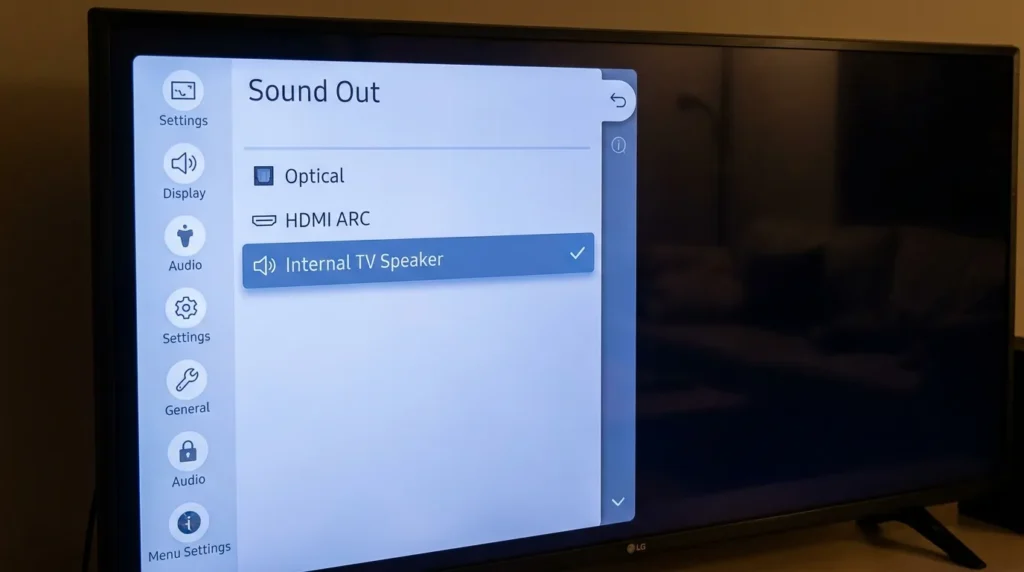
- Go to All Settings → Sound → Sound Out.
- Make sure Internal TV Speaker (or “TV Speaker”) is selected.
- If it shows “Optical,” “HDMI ARC,” “Bluetooth,” or any external option — that’s your problem. Switch it back to Internal TV Speaker.
Also check:
- Disable Smart Sound Mode if it’s on (Settings → Sound → Smart Sound Mode). This mode can misread content type and suppress audio.
- If Dolby Atmos is enabled and your content doesn’t support it, some LG models produce silence. Turn it off under Settings → Sound → Dolby Atmos.
Fix 5 — Fix HDMI Sound Issues (ARC, eARC, and Simplink)
If sound works on built-in apps (Netflix, YouTube) but not through an HDMI device, the issue is in the connection — not the TV itself.
HDMI-ARC and eARC issues:
HDMI-ARC (Audio Return Channel) and its upgraded version eARC let the TV send audio to a soundbar through a single HDMI cable. When the “handshake” between devices fails at startup, audio routing breaks completely.
Fix: Unplug the HDMI cable from both ends, wait 10 seconds, and reconnect. Then power cycle both the TV and the soundbar.
Simplink (LG’s HDMI-CEC) conflicts:
Simplink is LG’s implementation of HDMI-CEC. When enabled, it lets connected devices control each other. But it can also cause the TV to route audio to a device that isn’t actually ready.
Go to Settings → All Settings → General → Devices → HDMI Settings → Simplink (HDMI-CEC) and toggle it off, then back on. Sometimes simply toggling it resets the routing.
HDMI port-specific failure:
One real-world fix that competitors rarely mention: if sound works on HDMI ports 2, 3, and 4 but not port 1 specifically, the port itself may have failed. Test all ports before assuming the TV needs a board repair.
If you’re also experiencing HDMI-related picture issues, the guide on how to fix TV no picture covers the visual side of connection faults.
Use the TV HDMI Port Selector tool to identify which HDMI port and format is right for your audio setup.
Fix 6 — Run an AV Reset (Hidden Menu Trick)
This is different from a factory reset. An AV Reset only resets audio and video settings to factory defaults — it doesn’t touch your apps, accounts, or Wi-Fi.
Steps:
- With the TV on, press the Mute button 3 times quickly on your LG remote.
- A hidden menu appears on screen labeled “Select functions you want to access.”
- Select AV Reset and confirm.
This clears corrupted audio configuration files that accumulate over time and can cause sudden silence. It’s one of the fastest fixes when the power cycle doesn’t work.
If the menu doesn’t appear after pressing Mute 3 times, try pressing it faster. Some WebOS versions are timing-sensitive.
Fix 7 — Change the Digital Sound Out Format
This setting controls what audio format the TV sends to external devices. When set incorrectly, it causes silence — especially with soundbars connected via optical or HDMI-ARC.
Steps:
- Go to Settings → All Settings → Sound → Advanced Settings → Digital Sound Out.
- You’ll see three options:
| Setting | When to use it |
|---|---|
| Auto | Default — but causes silence if the soundbar doesn’t support the detected format |
| PCM | Use this if you’re experiencing silence. Works with every soundbar and receiver |
| Pass Through | Use with modern eARC soundbars that support Dolby Atmos or DTS:X natively |
If you’re troubleshooting right now: switch to PCM. It’s the most compatible format and will immediately confirm whether the format mismatch was causing the problem.
If sound returns on PCM, your soundbar may not support the format the TV was auto-detecting. Leave it on PCM or upgrade to a soundbar that supports Pass Through.
Fix 8 — Disable Quick Start+ (Streaming App Sound Fix)
This is the fix that almost no competitor guide mentions — and it specifically affects users who lose sound only on streaming apps like Netflix, Disney+, or YouTube, while HDMI devices work fine.
What’s happening: LG’s Quick Start+ feature keeps the TV in a partial-on state to boot faster. Over weeks of use, this causes memory fragmentation in WebOS. Audio processing for streaming apps gets corrupted while the HDMI audio chain remains unaffected.
Fix:
- Go to Settings → All Settings → General → Quick Start+.
- Turn it Off.
- Fully power off the TV (unplug from wall, wait 30 seconds, replug).
- Boot normally.
The TV will take 3–4 seconds longer to start. But the audio memory is now cleared fresh on every boot. Most users who had intermittent streaming app silence report it’s gone after this.
Fix 9 — Update LG TV Firmware
Outdated WebOS firmware is a documented cause of audio bugs on several LG models. LG releases firmware patches regularly, and some of these specifically fix audio routing and HDMI-ARC issues.
Steps:
- Go to Settings → All Settings → Support → Software Update → Check for Updates.
- If an update is available, select Download and Install.
- The TV will restart automatically after the update.
Make sure the TV is connected to Wi-Fi before checking. If your TV isn’t connecting, the guide on why Samsung TV won’t connect to Wi-Fi covers general smart TV Wi-Fi troubleshooting steps that also apply to LG.
Do not power off the TV while a firmware update is installing.
Fix 10 — Factory Reset (Last Software Resort)
If none of the above fixes worked, a factory reset will rule out every software and settings cause definitively. This erases all your apps, accounts, and configurations.
Steps:
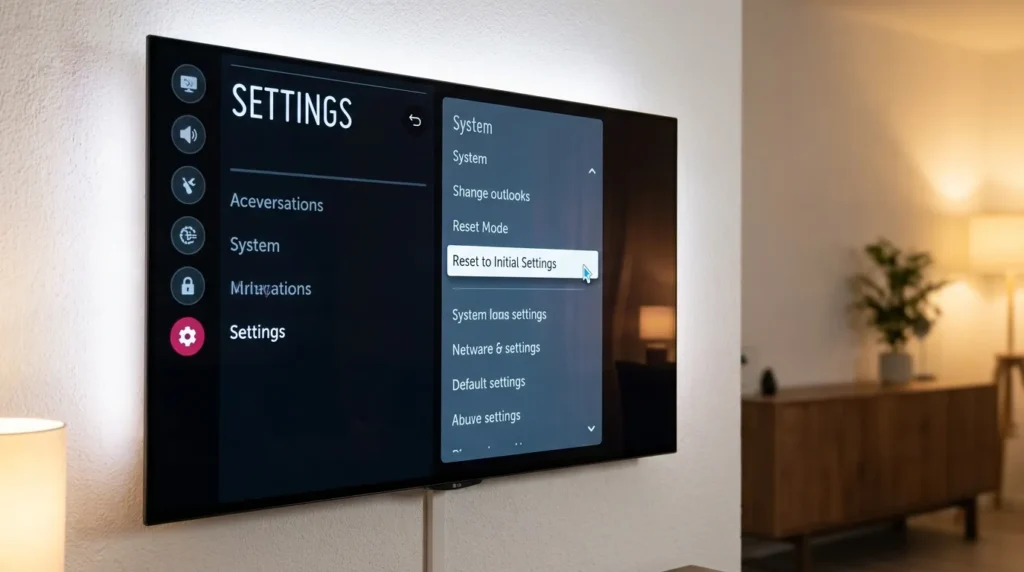
- Go to Settings → All Settings → General → Reset to Initial Settings.
- Enter your PIN (default is 0000 if you haven’t set one).
- Confirm the reset.
- The TV reboots to factory state.
After the reset, test the sound before reinstalling any apps or connecting any external devices. If sound works on the clean factory state, something in your previous configuration was causing the issue.
For reference, the process for a Samsung TV factory reset follows a similar logic — useful if you’re troubleshooting multiple TVs in a home.
When It’s a Hardware Problem
If sound is gone after running the Sound Self-Diagnosis test, completing a factory reset, and power cycling multiple times — the issue is physical.
Signs of hardware failure:
- Blown speakers: You may hear a faint crackling or static before silence. Individual speakers can blow on impact or age.
- Amplifier IC failure: The amplifier chip on the main board drives power to the speakers. When this fails, the sound diagnostic shows no output even though the firmware is intact. This requires a main board replacement or professional repair.
- Physical damage: If the TV took a fall or was exposed to moisture, internal components may have shorted.
At this point, contact LG’s 24/7 Chat Support or use the LG Request a Repair page to book a technician. Do not attempt to replace internal components unless you have electronics repair experience.
If you’re also dealing with a black screen alongside no sound, the LG TV black screen fix covers the hardware and software side of that combined failure.
LG TV Sound FAQs (2026)
Q: My LG TV has picture but no sound — what’s the fastest fix? A: Press the Mute button once to check for accidental mute, then unplug the TV from the wall for 60 seconds. This resolves over 60% of sudden audio loss cases.
Q: How do I run the LG TV sound test? A: On WebOS 23/24, go to Settings → All Settings → Support → Device Self-Care → Sound Self-Diagnosis. On older models, go to Settings → All Settings → Sound → Sound Test.
Q: What does AV Reset do on an LG TV? A: AV Reset restores all picture and sound settings to out-of-box defaults without deleting apps or accounts. Access it by pressing Mute 3 times quickly on the remote.
Q: Should I use PCM or Auto for LG TV digital sound? A: Use PCM if you’re troubleshooting. It’s compatible with every external audio device. Switch to Pass Through only if your soundbar supports eARC and Dolby Atmos natively.
Q: LG TV sound stops working after apps like Netflix — what causes this? A: This is usually caused by the Quick Start+ feature causing memory fragmentation in WebOS. Disable Quick Start+ in General settings, then fully power cycle the TV.
Q: My optical connection has no sound — what should I check? A: First, confirm the tiny plastic protective caps are removed from both ends of the optical cable. Second, change Digital Sound Out to PCM. Optical cables don’t support Dolby Atmos — if Auto is selected and the content is Atmos-encoded, the TV goes silent.
Q: Can I access the LG TV service menu to fix audio? A: The service menu is intended for technicians and carries risk if settings are changed incorrectly. If you need to explore it, the full LG TV service menu codes guide covers the codes and how to navigate safely.
Conclusion
LG TV sound issues are almost always fixable at home. Start with the power cycle — it solves the majority of cases. If that doesn’t work, run the Sound Self-Diagnosis to confirm whether the hardware is intact, then work through the settings fixes: Sound Out, AV Reset, Digital Sound Out format, and Quick Start+.
Hardware failure is rare and only relevant after every software fix has failed. Most people get their sound back before ever reaching that point.
If the problem came back after previously fixing it, the most likely culprits are Quick Start+ memory fragmentation or a firmware issue. Keep the firmware updated and disable Quick Start+ as a permanent precaution.


