

Your Samsung TV is acting up. Apps keep crashing, the screen froze, or you’re handing the TV off to someone else. Whatever the reason, this guide walks you through every reset method that exists — soft reset, Smart Hub reset, and full factory reset — for every Samsung TV model from 2016 through 2026.
Before you wipe anything, use the table below. Most problems get fixed with a soft reset or Smart Hub reset. A full factory reset is a last resort.
| Problem | Reset to use |
|---|---|
| TV frozen or slow | Soft reset |
| Apps crashing or not loading | Smart Hub reset |
| Selling or giving away TV | Factory reset |
| Major software fault after update | Factory reset |
| No remote available | Physical button method |
What a factory reset does (and what it doesn’t)
A factory reset on a Samsung TV restores all picture, sound, and system settings to their original defaults. Every app gets deleted. Every saved Wi-Fi password, account login, and custom setting gets erased.
What it does not erase: network settings are preserved separately on most models. You’ll still be connected to your Wi-Fi after the reset.
You cannot undo a factory reset once it completes. There’s no backup or recovery option. Make a note of every app login you’ll need to re-enter before you start.
Before you reset — do this first
1. Check for a software update. Many glitches come from a firmware bug that Samsung has already patched. Go to Settings → Support → Software Update → Update Now. If an update installs and reboots the TV, test it before resetting anything.
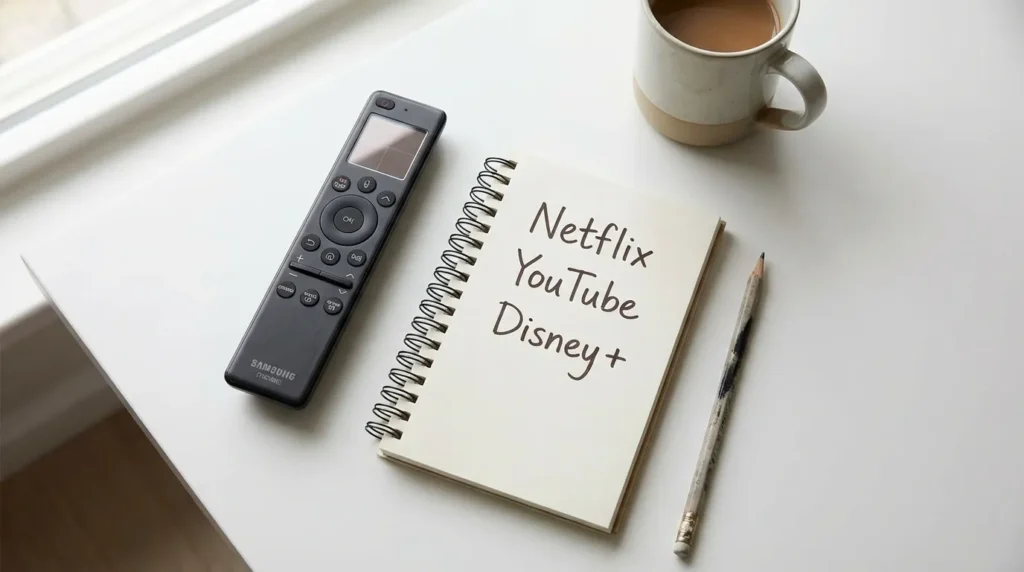
2. Write down your app credentials. After a factory reset, Netflix, YouTube, Disney+, and every other app will need to be signed in again from scratch. Samsung accounts, Google accounts — all of it.
3. Try a soft reset first. At least 8 out of 10 freezing and lagging issues on Samsung TVs get fixed with a simple power cycle. It takes 30 seconds and erases nothing.
If your Samsung TV won’t connect to Wi-Fi after a restart, that’s a separate issue covered in our guide on why your Samsung TV won’t connect to Wi-Fi — worth checking before you wipe the TV completely.
How to soft reset a Samsung TV
A soft reset clears the TV’s memory without touching any settings. Try this before anything else.
Method 1 — Hold the power button: Press and hold the power button on the remote for about 5 seconds until the TV turns off and reboots on its own. The Samsung logo will appear on a black screen during restart. That’s normal.
Method 2 — Unplug from the wall: Turn the TV off with the remote. Unplug the power cable from the wall outlet — not just from the TV. Wait a full 60 seconds. Plug it back in and power on. This forces a complete memory flush that the remote method sometimes doesn’t achieve.
How to factory reset Samsung TV — 2020 to 2026 models
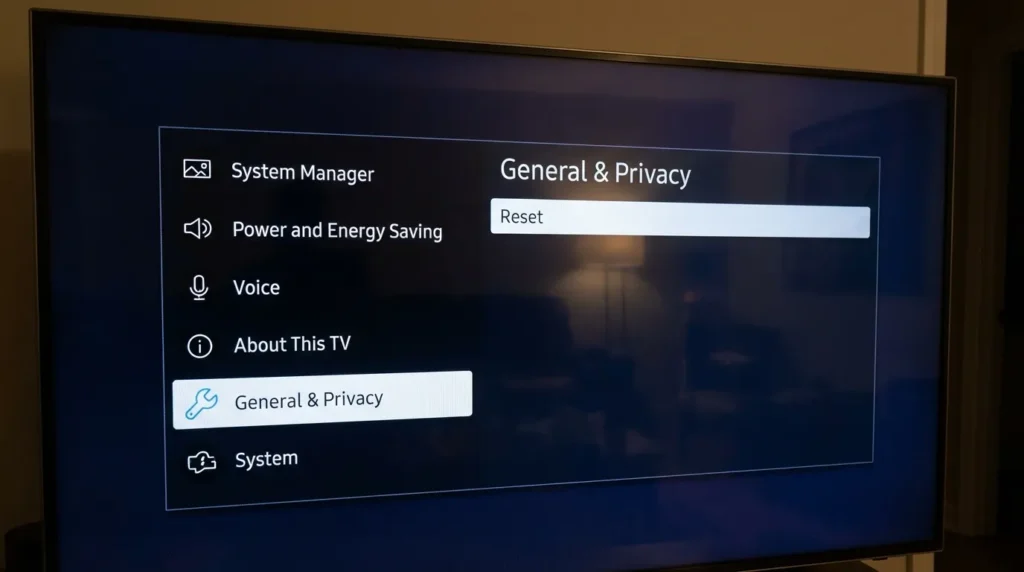
This applies to all QLED, Neo QLED, Crystal UHD, OLED, The Frame, and standard 4K/8K Samsung TVs from 2020 onward. These models run the updated Tizen OS menu structure.
- Press the Home button on your remote.
- Open Settings (the gear icon).
- Select General & Privacy.
- Scroll down and select Reset.
- Enter your PIN. The default PIN is 0000.
- Select Reset again to confirm.
- Select OK when prompted. The TV restarts automatically.
Initial setup will begin when the TV powers back on. This takes 2–3 minutes.
Note: If you’re currently inside an app like Netflix or YouTube, the Reset option will be greyed out. Exit to the home screen first.
Alternate path (some 2020–2023 models): If General & Privacy isn’t showing in your menu: Settings → Support → Self Diagnosis → Reset → Enter PIN → Reset
If you’re also having trouble with your Samsung TV’s volume controls around this time, see our fix guide for Samsung TV volume stuck or not working — that’s usually a separate settings issue unrelated to a reset.
How to factory reset Samsung TV — 2016 to 2019 models
Older Samsung TVs use a different menu structure. The Tizen OS interface looks slightly different but the reset function is in the same general area.
- Press the Menu button on your remote (or Home on newer remotes).
- Select Support.
- Select Self Diagnosis.
- Select Reset.
- Enter your PIN (default: 0000).
- Select Yes to confirm.
The TV will power off and restart. Initial setup runs automatically on reboot.
For a complete reference of Samsung TV service menu access codes and advanced diagnostic options, see the Samsung TV service menu codes guide — useful if you’re troubleshooting beyond a standard reset.
How to reset Samsung Smart Hub only
If your issue is limited to apps — they won’t load, logins fail, the Smart Hub screen is blank or stuck — you don’t need a full factory reset. Reset the Smart Hub only.
A Smart Hub reset erases all app data, Samsung account links, and Smart Hub service agreements. Picture settings, sound settings, and Wi-Fi connections stay intact.
- Open Settings.
- Select Support.
- Select Device Care. (On some models: Support → Self Diagnosis)
- Select Self Diagnosis.
- Select Reset Smart Hub.
- Enter your PIN (default: 0000).
- Select OK when complete.
You’ll need to re-sign into your Samsung account and all streaming apps after this.
If the Spectrum app specifically is acting up on your Samsung TV, there’s a targeted fix in the Spectrum app not working on Samsung TV guide — Smart Hub reset is often the solution there too.
How to factory reset Samsung TV without a remote
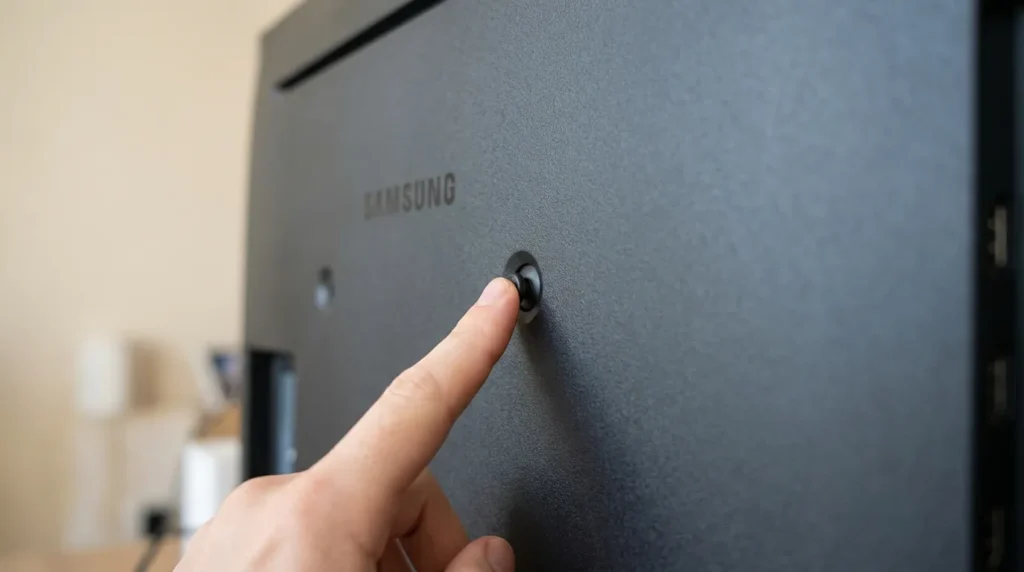
If your remote is missing, broken, or unresponsive, you can still factory reset using the physical buttons on the TV itself.
Most Samsung TVs from 2017 onward have a single Control Stick button on the back or underside of the panel. On some models there’s a row of 5 physical buttons on the underside.
Control Stick method:
- Press the Control Stick button to power on the TV.
- Hold it for 5 seconds to bring up the on-screen menu.
- Navigate to Settings using the stick (push up/down).
- Follow the factory reset path above.
Samsung SmartThings app (iOS or Android): If your TV is still connected to Wi-Fi, open the SmartThings app on your phone, select the TV, and use the virtual remote to navigate the reset menu. This is often easier than the physical button method.
If you’re dealing with a different brand without a remote, the same logic applies — see how to turn on a Roku TV without a remote or turn on a Vizio TV without a remote for brand-specific methods.
What to do if you forgot your Samsung TV PIN
The default Samsung TV PIN is 0000. Try that first. If the PIN was changed and you don’t know it, use the emergency reset sequence.
PIN recovery method (most Samsung TVs): While the PIN entry screen is showing, press these buttons on the remote in sequence:
Mute → 8 → 2 → 4 → Power
On some remotes without a Mute button, use Volume Down instead. The TV will reset the PIN back to 0000 and in some cases restart completely.
If this sequence doesn’t work on your model, contact Samsung Support. They can provide a model-specific unlock code if you verify ownership.
After the reset — what to do next
When the TV restarts, the Setup Wizard launches automatically. Here’s what to expect:
- Language and region selection — takes about 90 seconds to complete
- Network connection — connect to Wi-Fi or ethernet
- Samsung account sign-in — optional but needed for Smart Hub apps
- Software update check — let this run if it appears
- Channel scan — if you use an antenna, run a manual channel scan after setup: Settings → Broadcasting → Auto Program
App installations start automatically once you sign into your Samsung account. Allow 5–10 minutes for everything to download and appear on the home screen.
When factory reset doesn’t fix the problem
A factory reset addresses software issues. It doesn’t fix hardware faults. If the TV still has the same problem after a full reset, the issue is likely one of these:
- Backlight failure — horizontal or vertical lines, sections of the screen dark. See the guide on fixing a TV with no picture for diagnosis steps.
- Black screen fault — TV powers on but shows nothing. The Samsung TV black screen fix guide covers the most common causes.
- Display not filling the screen — if picture is there but incorrectly sized, check the Samsung TV not full screen fix.
- Dark or dim picture — unrelated to reset. See how to fix a dark TV screen.
- T-Con board failure — scrambled picture, color distortion
- Panel damage — dead pixels, physical cracks, burn-in on OLED panels
None of these improve with a software reset. At this point, check whether your TV is within its warranty period. Samsung TVs carry a standard 1-year manufacturer’s warranty in the US. QLED and Neo QLED models purchased through Samsung.com may have additional coverage under Samsung Care+.
Contact Samsung Support at samsung.com/us/support/contact or call 1-800-SAMSUNG. Have your model number (found on the back label or Settings → Support → About This TV) and purchase date ready.


