

Programming your Xfinity remote takes under two minutes once you have the right code and the right method for your specific remote model. Press and hold Setup until the LED turns green, enter your 5-digit TV brand code, then press Power to confirm. For newer XR15, XR16, and XR18 remotes, the process is different — there’s no Setup button. This guide covers all six Xfinity remote models, every TV brand code, and four programming methods including the Xfinity app and the auto-search fallback.
Which Xfinity Remote Model Do You Have?
Flip your remote over. The model number is printed on a sticker inside the battery compartment or on the back label.
XR2 and XR5
Older remotes with a physical Setup button at the top. No voice control. Used with older X1 and Legacy boxes. Programming requires manual 5-digit code entry.
XR11
A slim remote with a Setup button and a microphone for voice search. Works with X1 cable boxes. Uses both manual code entry and on-screen guided setup.
XR15 and XRA
No Setup button. Uses the Xfinity button + Mute combination to enter programming mode. Voice-enabled. Common with X1 and Flex boxes.
XR16
Compact voice remote. No Setup button. Pairs to the cable box via on-screen menu. Uses the Xfinity + Info button combo.
XR18 (Newest)
Backlit keypad, voice control, and Bluetooth. Released with the latest Xfinity X1 and XiOne equipment. Programs entirely through an on-screen guided menu — no manual code entry needed unless auto-setup fails.
Two Things to Know Before You Start
STB pairing vs. TV programming are different. Pairing your remote to your Xfinity cable box (the set-top box) is automatic or done once during setup — this makes the box respond to your remote. Programming for TV control is a separate step that lets the same remote also power your TV on/off and adjust volume. Most problems happen when people confuse these two steps or only do one of them.
Check your batteries first. Weak batteries cause failed code entry — the LED flashes red and the code won’t register. Use fresh AA or AAA batteries before you start programming.
Xfinity Remote Codes — Complete TV Brand List
These are 5-digit codes for all current Xfinity remotes. If the first code doesn’t work, try the next one in the list.
| Brand | Xfinity Remote Codes |
|---|---|
| Admiral | 10463, 10093 |
| Akai | 10030, 10098, 10672, 11207, 11385, 11676 |
| AOC | 11590, 11365, 10030 |
| Apex Digital | 10890, 11217, 10156, 10748, 10879, 10765 |
| Audiovox | 10875, 11284, 10003, 10451, 10180, 10092 |
| BenQ | 11032, 11315 |
| Bush | 10355 |
| Coby | 11531, 12017 |
| Daewoo | 10019, 11661, 10623, 10067, 10451, 10092 |
| Dell | 11178, 11403, 11264, 11080 |
| Denon | 10145, 10511 |
| Dynex | 11463, 11780, 11785 |
| Element | 11687 |
| Emerson | 10154, 10451, 10463, 10180, 10178, 11864, 10236 |
| Epson | 11122, 11290 |
| Fisher | 10154, 10159 |
| Fujitsu | 10179, 10186, 10683, 10853 |
| Funai | 10180, 10171, 10179, 11904, 11963 |
| GE | 11447, 10047, 10051, 10451, 10178, 10021, 10027 |
| Go Video | 10886, 11823, 11831 |
| Haier | 11034, 10178, 11265, 10768, 11009 |
| Hisense | 10748, 11660 |
| Hitachi | 11145, 10145, 11904, 11345, 10279, 10151, 10097 |
| Hyundai | 10849, 11219, 11294 |
| Insignia | 10171, 11780, 11892, 11204, 11326, 11517, 11641 |
| JVC | 10053, 10036, 10160, 10169, 10731, 11349, 11253 |
| Konka | 10628, 10632, 10638, 10707, 11385 |
| LG | 11265, 10178, 10700, 10442, 10856, 11178, 11530, 11637, 11758, 11934 |
| Magnavox | 11454, 11866, 10054, 10030, 10706, 11990, 11963 |
| Marantz | 10054, 10030, 10704, 10854, 10855 |
| Memorex | 10154, 10463, 10150, 10178, 10016, 10179 |
| Mitsubishi | 11250, 10093, 10150, 10178, 10014, 10019, 10098 |
| Motorola | 10093, 10055, 10835 |
| NEC | 10030, 10019, 10036, 10056, 10170, 10434 |
| Orion | 10236, 10463, 11463, 10179, 11905, 11911 |
| Panasonic | 10250, 10051, 10055, 10650, 11291, 11941 |
| Philips | 11454, 10054, 10037, 10690, 11483 |
| Pioneer | 10166, 10679, 10866, 10038, 10172 |
| Polaroid | 10765, 12063, 11991, 11687, 11565, 11538 |
| Proscan | 11447, 10178, 10047, 11347, 10747 |
| RCA | 11447, 10047, 11922, 11919, 11907, 10747, 10135 |
| Samsung | 10812, 10060, 10702, 10178, 10030, 11959, 11632, 11060, 10814 |
| Sanyo | 10154, 10088, 10146, 10159, 10232, 10484 |
| Sceptre | 10878, 11217, 11360, 11599 |
| Sharp | 10093, 10153, 10165, 10386, 11602, 10398 |
| Sony | 11100, 10000, 10011, 10273, 10353, 10834, 11317, 11400 |
| Sylvania | 11864, 10054, 10030, 10171, 11271, 10020 |
| TCL | 11756, 11758, 10864, 10885 |
| Toshiba | 10154, 11256, 10156, 11265, 10060, 10036, 10650 |
| Vizio | 11758, 10864, 10885, 11756 |
| Westinghouse | 10000, 10451, 10885, 10889, 10890, 11282 |
| Yamaha | 10030, 10019, 10797, 11407 |
| Zenith | 10017, 10463, 11265, 10178, 10092, 10016 |
For brands not listed here, visit xfinity.com/support/remotes and use the search tool — it pulls codes by remote model and brand. If you’re also using a GE universal remote or a Philips universal remote as a backup device, those have their own separate code sets.
Xfinity Soundbar and Audio Device Codes
Use these codes to add volume and mute control for your soundbar or AV receiver.
| Brand | Xfinity Remote Codes |
|---|---|
| Bose | 31517, 31775, 31576 |
| Harman/Kardon | 10054, 10078 |
| JBL | 10054 |
| LG Soundbar | 11265, 10700, 11530 |
| Polk Audio | 31517 |
| Samsung Soundbar | 10812, 10060, 10814 |
| Sony Soundbar | 11100, 10000, 11317 |
| Vizio Soundbar | 11758, 10885 |
| Yamaha Receiver | 10797, 11407, 10030 |
After programming the soundbar code, press and hold the Audio button for 5 seconds — this locks volume control to the soundbar instead of the TV.
How to Program XR2 and XR5 Remotes (Manual Code Entry)
The XR2 and XR5 use a physical Setup button and require direct 5-digit code entry. This is the classic method.
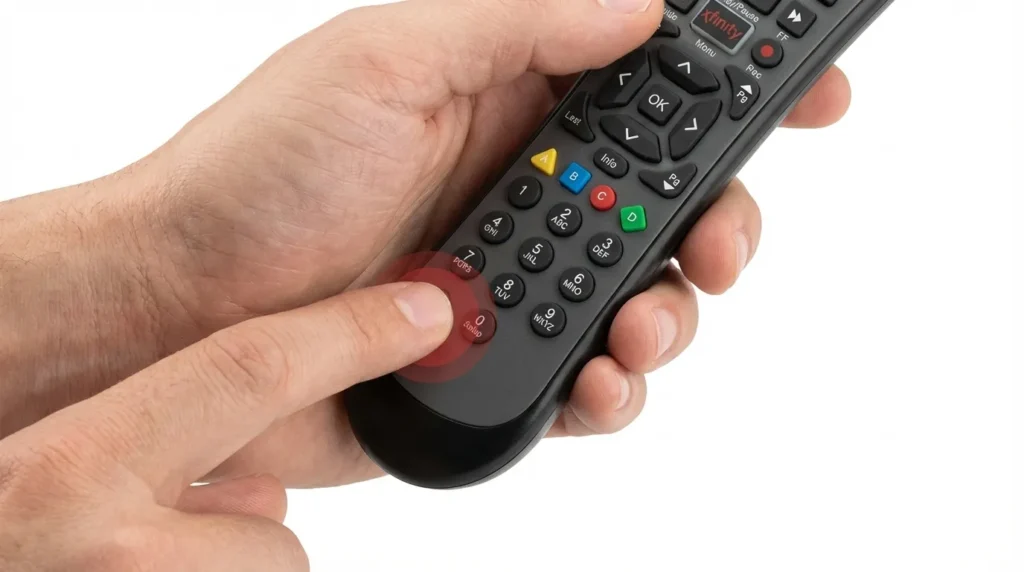
- Turn on your TV manually using the TV’s own power button.
- Press and hold the Setup button until the LED at the top changes from red to green.
- Using the number pad, enter the 5-digit code for your TV brand from the table above.
- Point the remote at the TV and press the TV Power button.
- If the TV turns off, the code worked. Press Setup once to lock it in.
- If the TV doesn’t respond, the LED will flash red twice. Repeat from Step 2 using the next code in the list.
Test all functions — power, volume up/down, mute, and input — before finishing. Some codes control power but not volume.
How to Program XR11 Remote
The XR11 has a Setup button and a microphone. It works with X1 cable boxes.
Step 1 — Pair to your cable box first:
- Press and hold Setup until the LED turns green.
- Enter 0000 on the number pad.
- Follow the on-screen pairing instructions that appear on your TV.
Step 2 — Program for TV control:
- Press and hold Setup again until the LED turns green.
- Press TV Power once — the LED will blink.
- Enter the 5-digit code for your TV brand.
- Press TV Power to test. If it turns off, press Setup to confirm.
- If not, repeat with the next code.
How to Program XR15 and XRA Remotes
The XR15 has no Setup button. Use the Xfinity + Mute combination instead.
- Turn on your TV.
- Press and hold the Xfinity button and the Mute button at the same time for 5 seconds.
- The LED will change from red to green.
- Enter the 5-digit code for your TV brand.
- If the LED flashes green twice, the code is accepted.
- Press TV Power to confirm the TV responds.
- If the LED flashes red, the code didn’t work — repeat from Step 2 with the next code.
How to Program XR16 and XR18 Remotes
These remotes use on-screen guided setup through the Xfinity menu.
On-screen guided method:
- Press the Xfinity button to open the main menu.
- Navigate to Settings → Remote Settings → Program Remote.
- Select TV (or soundbar/audio device).
- Follow the on-screen steps — the system will attempt to auto-detect your TV brand.
- If auto-detect succeeds, confirm when prompted.
Manual override (if auto-detect fails):
- At the brand selection screen, type your TV brand name using the on-screen keyboard.
- Select your brand from the list — the system will try codes automatically.
- Confirm when your TV responds.
The XR18 follows the same process. On-screen setup is mandatory for initial pairing; there’s no button-combination fallback.
How to Program Using the Xfinity App
The Xfinity My Account app (iOS and Android) can push remote programming settings to your cable box remotely. This is useful if on-screen navigation isn’t working or you’re setting up a second TV.
- Open the Xfinity app and sign in with your Xfinity credentials.
- Tap TV → Manage TV & Devices.
- Select the box associated with the remote you want to program.
- Tap Program Your Remote and select your remote model.
- Follow the guided steps — the app walks through TV brand selection and code testing.
- Confirm on your TV when prompted.
This method works for XR11, XR15, XR16, and XR18 remotes paired to active X1 or Flex boxes. If you’ve switched providers and need codes for a different remote system, the Spectrum universal remote codes and Spectrum TV remote codes guides cover that process separately.
Auto-Search Method — No Code Needed
If none of the listed codes work for your TV brand, use the auto-search function. The remote cycles through every code in its memory automatically.
For XR2 and XR5:
- Turn on your TV.
- Press and hold Setup until the LED turns green.
- Press TV Power once — the LED blinks.
- Now press TV Power repeatedly, once every 2 seconds. Each press tests the next code.
- When your TV turns off, stop pressing.
- Press Setup to lock in that code.
For XR11, XR15, XRA:
- Enter setup mode (Setup button or Xfinity + Mute).
- Press Channel Up once every 3 seconds — each press advances to the next code.
- Stop when your TV responds.
- Press Setup to confirm.
This method works through approximately 1,000 code combinations. It’s slower but reliable for obscure or off-brand TV models. The same auto-search logic applies to other universal remotes — the One For All universal remote codes guide explains how that system handles code scanning if you’re comparing methods.
HDMI-CEC Conflict: Why Volume Still Won’t Work
HDMI-CEC is a feature built into most modern TVs that lets one device control another over the HDMI cable. When it’s enabled, it can intercept volume commands from your Xfinity remote and route them to the wrong device — or block them entirely.
Symptom: TV power works but volume buttons do nothing, or volume controls the TV speakers even though you programmed the soundbar code.
Fix: Disable CEC in your TV’s settings menu.
- Samsung: Settings → General → External Device Manager → Anynet+ (HDMI-CEC) → Off
- LG: Settings → All Settings → Connection → Device Connector → Simplink (HDMI-CEC) → Off
- Sony: Settings → Watching TV → External Inputs → BRAVIA Sync Settings → Off
- Vizio: Menu → System → CEC → Off
After disabling CEC, re-enter your soundbar or TV code and test again. This fixes the issue in most cases.
Troubleshooting Xfinity Remote Problems
LED Flashes Red After Code Entry
The code is wrong for your TV model. Try the next code in the list. Some TV brands have 8–12 possible codes — work through all of them before moving to auto-search.
Remote Won’t Enter Setup Mode
Dead or weak batteries are the most common cause. Replace them first. If the LED won’t turn green after holding Setup (or Xfinity + Mute) for 5 seconds, the remote may need a factory reset.
Volume Controls Don’t Respond
Check three things: (1) The code you entered covers audio control — some TV codes only handle power. (2) CEC is disabled on your TV — see section above. (3) The Audio button is set to the correct device (TV vs. soundbar).
Remote Works on Box but Not TV
The TV code wasn’t programmed or didn’t save. Redo the programming steps. Make sure you’re pressing TV Power — not the All Power button — during the confirmation step.
How to Factory Reset Your Xfinity Remote
XR2, XR5, XR11: Press and hold Setup until the LED turns green. Enter 9-8-1 on the number pad. The LED will flash green 3 times — remote is reset.
XR15, XRA: Press and hold Xfinity + Mute for 5 seconds until the LED turns green. Enter 9-0-0-1. The LED flashes green 3 times.
XR16, XR18: Press and hold the Back and microphone buttons simultaneously for 5 seconds. Confirm the reset on the on-screen prompt.
After a factory reset, re-pair to your cable box first, then re-program for TV control. If you’re working with a completely different brand of universal remote, guides like Blackweb universal remote codes, ONN universal remote codes, or RCA universal remote codes cover reset procedures for those devices.
Frequently Asked Questions
How do I get a 3-digit pairing code for my Xfinity remote?
Some older Xfinity box setups use a 3-digit code for initial pairing. To retrieve it, press and hold Xfinity + Info (i) for 5 seconds until the LED turns green. A 3-digit code will appear on your TV screen. Enter it on the remote to pair.
Can one Xfinity remote control multiple TVs?
No. Each Xfinity remote is programmed for one TV at a time. If you store a new TV code, it overwrites the previous one. To control two TVs, you need two remotes paired to two separate cable boxes.
Do Xfinity remote codes work for DVD or Blu-ray players?
Yes. The code tables include codes for many DVD, Blu-ray, and AV receiver brands. The programming steps are the same — select DVD mode on the remote before entering the code if your model has an input mode selector.
My TV brand isn’t in the list — what do I do?
Use the auto-search method described above. If that also fails, check xfinity.com/support/remotes — Xfinity updates their full code database online and it includes codes not printed in standard guides. You can search by remote model and TV brand.
Why does my Xfinity remote work on the cable box but not control the TV after programming?
The most likely cause is that you pressed All Power during setup instead of TV Power. Redo programming and use only the TV Power button for testing and confirmation.
What if I need a universal remote that works without a cable box?
Several third-party options work independently of cable equipment. The Durabrand TV remote codes, Vivitar universal remote codes, and Huayu universal remote codes guides cover standalone universal remotes that pair directly to your TV without a cable box.


