

YouTube TV users sometimes run into a black screen that blocks video playback. This can happen on TVs, phones, or computers, often with sound still working. The good news is most cases stem from simple issues like connection problems or software glitches. This guide walks through proven steps to get things back on track, based on reliable advice from tech sites and official help pages.
Common Causes of the Black Screen Issue
Several factors can lead to this problem. Knowing them helps pinpoint the fix.
- Weak or unstable internet, especially speeds under 3 Mbps, which is the minimum for smooth streaming.
- Outdated versions of the app or device system that cause bugs in playback.
- Built-up cache files in the app that get corrupted over time.
- Temporary device errors or settings mismatches, like wrong location data.
- Interference from tools like ad blockers or VPNs that disrupt the signal.
- Rare server downtimes on YouTube’s end.
Start with Basic Checks
Begin here, as these often resolve the issue quickly without much effort.
Test Your Internet Connection
A poor link is a frequent culprit. Run a speed test on sites like Fast.com to confirm at least 3 Mbps. If it’s low, move closer to your router or switch to a wired setup if possible. Turn off other devices using bandwidth. If problems continue, reach out to your provider.
Restart Your Device
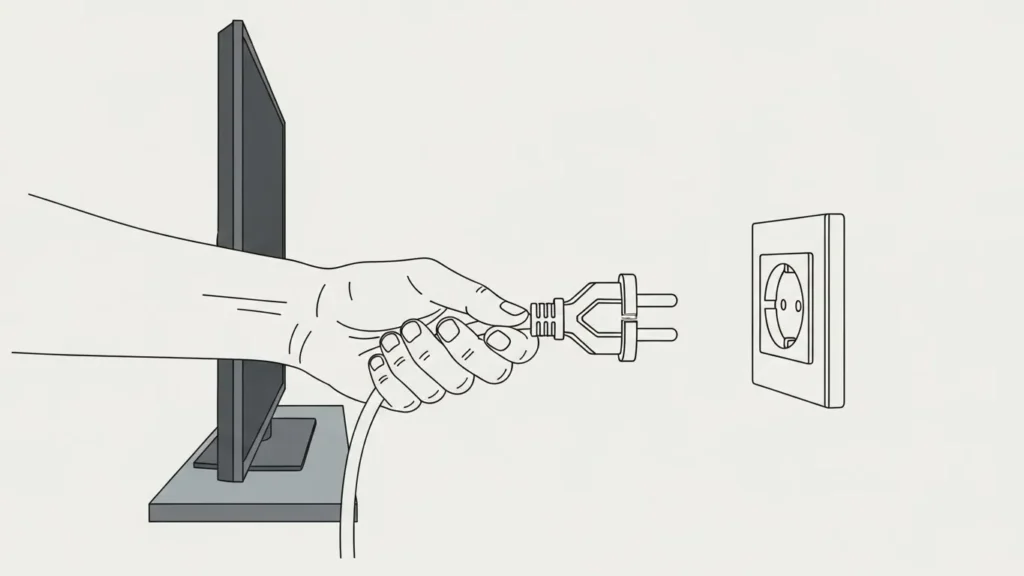
This clears minor glitches. For a smart TV or streaming box, unplug it from the wall for one to two minutes. If there’s a power button, hold it down for 30 seconds while unplugged. Plug back in and turn on. On phones or tablets, shut down fully, wait 30 seconds, then restart. For computers, use the start menu to reboot.
Reset Your Router
Unplug the router for 30 seconds, then plug it back in. Wait for it to reconnect fully before testing YouTube TV again. If that doesn’t help, press the reset button on the router with a pin for a full factory reset, but note you’ll need to set it up anew.
Try App-Related Fixes
If basics don’t work, focus on the YouTube TV app itself.
Clear the App Cache
Stored data can cause errors. On Android devices, go to Settings, then Apps, find YouTube TV, and select Storage to clear cache. For iOS, offload the app in General settings under iPhone Storage. On TVs, look for a reset option in the app’s menu or device settings.
Update the App and Device
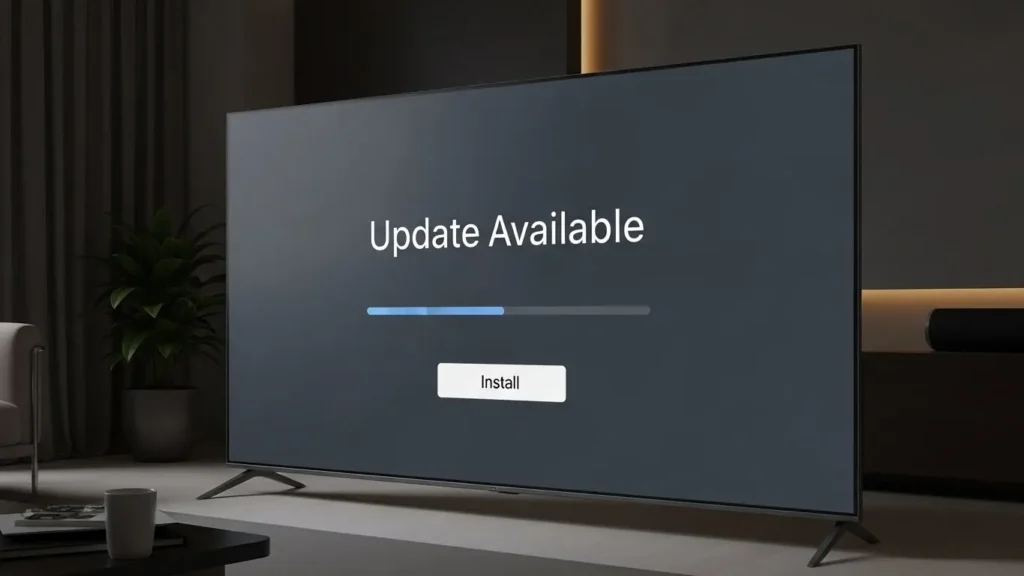
Check for updates in your app store or device settings. Install any available ones for YouTube TV or the system software. This addresses known bugs.
Log Out and Back In
Sign out from your profile in the app settings, close it, then reopen and log in again. This refreshes your session.
Reinstall the App
Uninstall YouTube TV completely, then download it fresh from the store. This removes any corrupt files.
Advanced Tips for Specific Devices
Some fixes depend on your setup.
- For Roku: Remove the channel from the home screen, restart the device, then add it back.
- On Fire TV: Toggle HDMI-CEC in settings under Display & Sounds, and adjust resolutions if needed.
- Sony TVs: Update firmware and do a power reset by unplugging for two minutes.
- Samsung: Use the app’s built-in reset and reconnect accounts.
- Check location: Update your home area or playback spot in app settings or on the website.
If Nothing Works
Contact YouTube TV support through their help site or chat. Provide details like your device and what you’ve tried. They can check for broader outages. Also, test other apps to see if it’s a device-wide problem, then reach out to the manufacturer.
With these steps, you should see your shows playing normally again. Regular updates and stable connections help prevent repeats.


