

Your Element TV is on, the power light is glowing, but the screen is completely black. This is one of the most common Element TV problems — and most of the time, it’s fixable without a repair technician.
This guide covers every fix, from the 30-second soft reset to hardware-level diagnosis. Work through them in order. Most people solve it within the first three steps.
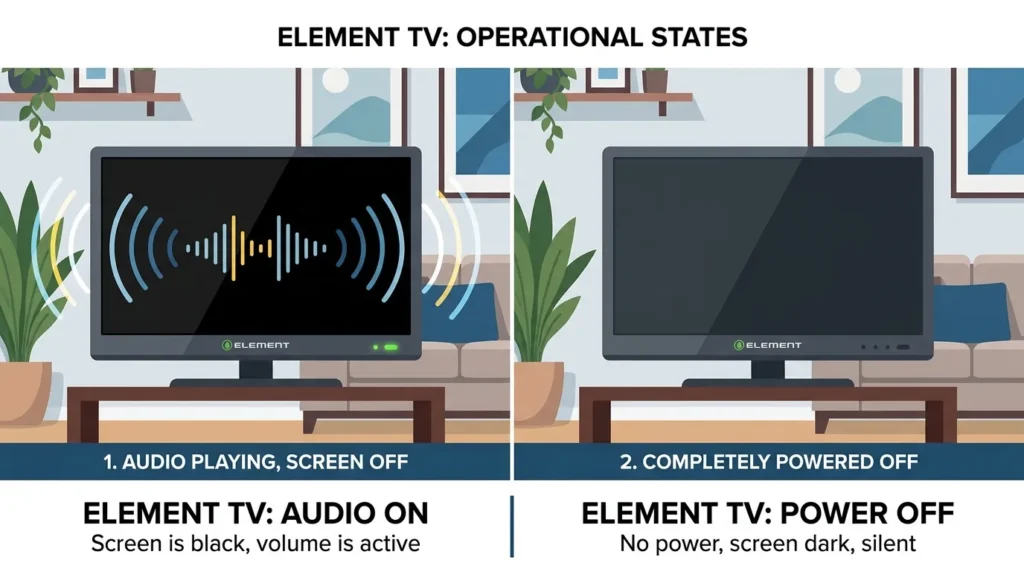
Quick Diagnosis: Sound or No Sound?
Before doing anything, check two things:
If you have sound but no picture — your backlight has likely failed. Skip to Fix 7 (Flashlight Backlight Test) first, then come back if needed. This same symptom also affects other brands — if you’ve ever dealt with an LG TV black screen with sound, the diagnosis process is nearly identical.
If the screen is completely dead with no sound and no picture — start with Fix 1. You’re dealing with a power or software issue, not a backlight failure.
If the screen goes black randomly or after a few minutes — Fix 6 covers sleep timers and power saving mode, which causes this exact pattern.
Fix 1 — Power Cycle Your Element TV
This clears temporary glitches stored in memory and fixes the black screen in a large percentage of cases.
Step 1: Turn off your Element TV and unplug it from the wall outlet. Not a power strip — directly from the wall.
Step 2: Find the power button on the TV itself (not the remote). On most Element models, it’s on the back panel or the bottom edge. Press and hold it for 30 seconds while the TV is unplugged. This drains any residual power from the capacitors.
Step 3: Wait a full 60 seconds before plugging back in.
Step 4: Plug directly into the wall and power on.
If the power button is not accessible on your model, simply leave the TV unplugged for at least 2 minutes before reconnecting.
Fix 2 — Reset the Remote Control
A stuck command from a frozen remote can cause the screen to go and stay black.
Remove the batteries from the remote. Hold the power button on the remote down for 30 seconds — this discharges any stored static. Insert fresh batteries. Try powering on the TV using the physical button on the unit first to confirm it’s the TV turning on, not just the remote failing.
If the TV powers on normally with the physical button but not the remote, the remote itself is the issue. Not sure what each button on your remote actually does? The remote control button explainer tool breaks down every function by model type.
Fix 3 — Check the Input Source
This is one of the most commonly overlooked causes. Your Element TV is on, but it’s sitting on an input with no signal — so the screen shows black.
Press the Input or Source button on your remote. Cycle through each input: HDMI 1, HDMI 2, AV, and so on. If a streaming device like a Fire Stick or Roku is connected, make sure it’s powered on and not frozen before assuming the TV is broken.
Also confirm the connected device is outputting video. If the Roku or Fire Stick itself is frozen, that device will show a black screen regardless of what the TV is doing. A frozen Fire TV Stick is a separate issue — see this guide on how to fix a Fire TV black screen if you suspect the stick rather than the TV.
Fix 4 — Check HDMI Cables and Ports
A failing HDMI cable produces a black screen or a screen that flickers and cuts out.
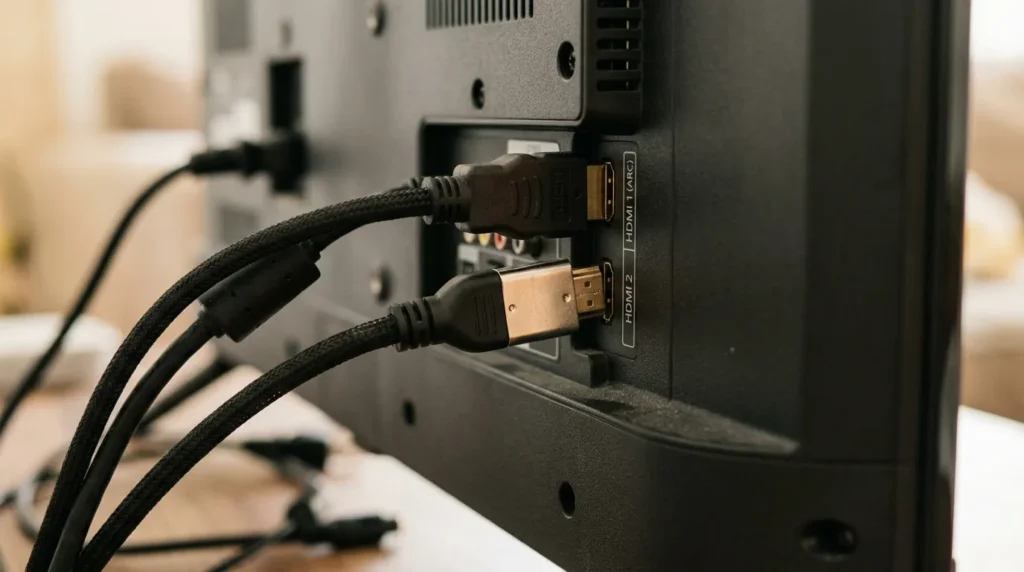
Unplug both ends of the HDMI cable and plug them back in firmly. If the problem continues, swap the cable for a different one. A cable that works for audio may still be causing video signal issues.
Also try switching to a different HDMI port on the TV. Some Element models have 2–3 HDMI ports, and a single port can fail while the others remain functional. If switching ports immediately restores the picture, that port is damaged. If you’re unsure which HDMI port to use for a specific device, the TV HDMI port selector tool can help you match devices to the right input.
Fix 5 — Check the Power Outlet
A power strip with insufficient output can starve an LED TV of stable voltage, causing the backlight to cut off while the mainboard continues running — which explains why you might hear sound with no picture.
Unplug the TV from any surge protector or power strip. Plug it directly into a wall outlet. Try powering on.
Press the Menu button on the remote. If the on-screen menu appears, the TV is working and the previous power source was the problem.
Fix 6 — Disable Sleep Timer and Power Saving Mode
Element TVs ship with a sleep timer and power saving mode enabled on some firmware versions. If activated — even accidentally — the screen goes black after a set interval.
Step 1: Press the HOME button on your remote.
Step 2: Navigate to Settings, then Timers.
Step 3: Select Sleep Timer and set it to Off.
Step 4: Return to Settings, find Power or Energy Saving, and turn that off as well.
If the remote batteries are dead, the sleep timer can trigger and the TV won’t respond to remote commands — leaving the screen stuck black. Replace the batteries first if the remote seems unresponsive.
Fix 7 — Run the Flashlight Backlight Test
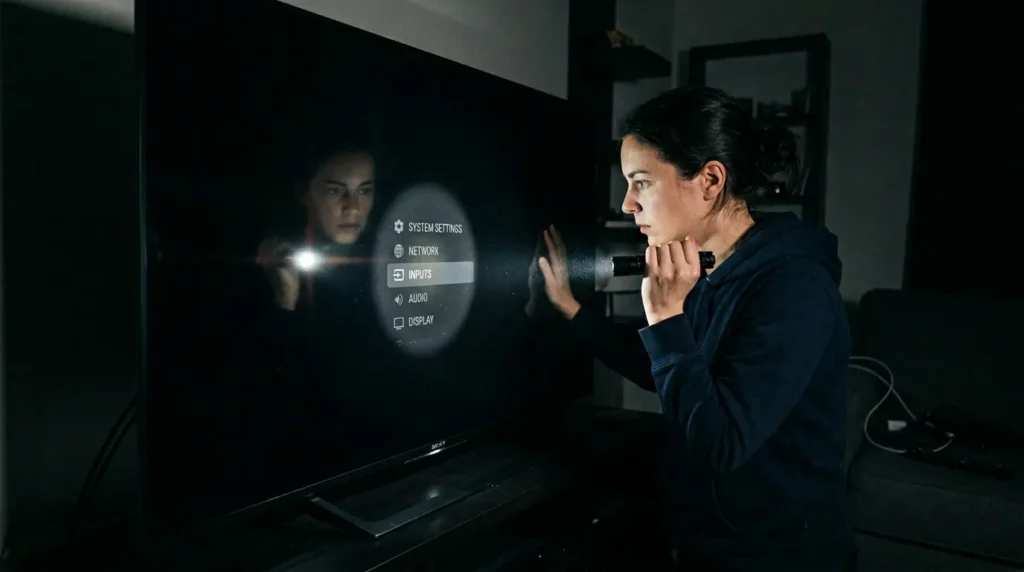
This test tells you in 10 seconds whether your backlight has failed.
Step 1: Turn on the TV and let it attempt to load normally.
Step 2: Turn off all lights in the room.
Step 3: Hold a flashlight about 2–3 inches from the screen surface. Angle it slightly.
Step 4: Look closely for any faint image on the screen — a menu, a logo, or a picture.
If you can see a faint image, the backlight has failed. The TV’s mainboard is working, sending video to the panel, but the LED strips behind the screen are not illuminating it. You have sound and a working picture — it’s just invisible without external light.
If you see nothing at all, it’s more likely a power supply or mainboard failure. For a broader look at this symptom across TV brands, the guide on how to fix a TV with no picture covers the same diagnostic process in more detail.
What to Do If the Flashlight Test Shows an Image
You have three options:
- Replace the LED backlight strips — costs approximately $20–$50 in parts plus 1–2 hours of labor. Requires opening the TV, which voids any remaining warranty. Feasible for a 43″+ TV where replacement is expensive.
- Have it repaired professionally — an authorized TV repair center can replace the backlight for $80–$150 depending on screen size.
- Replace the TV — for small Element TVs (32″ and under), replacement cost is often similar to repair cost. Compare before committing to repair.
Fix 8 — Factory Reset Your Element TV
If software corruption or a bad firmware update caused the black screen, a factory reset can resolve it.
Element Roku TV
Step 1: From the Home screen, go to Settings.
Step 2: Select System, then Advanced System Settings.
Step 3: Choose Factory Reset, then Factory Reset Everything.
The TV will restart and walk you through the setup process.
Standard Element TV (Non-Smart or Android TV)
Step 1: On the Home screen, select Settings.
Step 2: Navigate to Device and Software.
Step 3: Select Factory Reset and confirm.
Using the Pinhole Reset Button
If the screen is too dark to navigate menus, some Element models have a physical reset button. Look for a small pinhole labeled Reset on the back panel — usually located near or above the HDMI ports.
Insert a straightened paperclip and hold for 30–60 seconds. The TV will restart and reset to factory settings.
For advanced users, Element TVs also have a service menu that can be accessed for deeper diagnostics. You can find the full list of Element TV service menu codes if you need to go beyond a standard factory reset.
Fix 9 — Check for Dark Screen Settings
Sometimes the issue isn’t a true black screen — it’s a picture mode or brightness setting that’s been pushed to an extreme. This can happen after a firmware update resets display calibration.
Go to Settings → Picture and check that brightness, backlight, and contrast are not set to zero. Also disable any OLED auto-dimming or local dimming setting that may be suppressing the image in dark scenes.
If you’re unsure what picture settings work best for your room and lighting, the TV picture mode optimizer tool can recommend settings based on your setup. For a deeper look at why TV screens go dark, see this guide on how to fix a dark TV screen.
Hardware Components That Cause a Black Screen
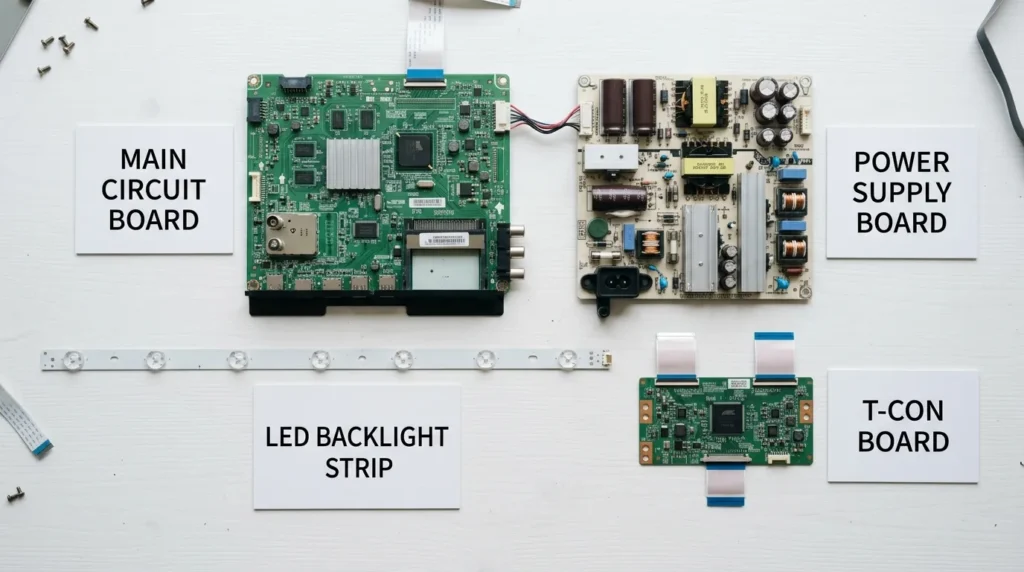
If none of the above fixes work, you’re dealing with a hardware failure. These are the four components that cause black screen on Element TVs.
Power Supply Board
This is the most common hardware failure on older Element sets. When the power supply board fails or degrades, it can no longer deliver stable voltage to the backlight or mainboard. Symptoms include a TV that clicks on and off, has sound with no picture, or powers on momentarily before going black.
Replacement power supply boards for Element TVs typically cost $25–$60 depending on the model.
T-Con (Timing Control) Board
The T-Con board sits between the mainboard and the LCD panel, controlling image timing signals. When it fails, you typically see a black screen, a half-image, or thin vertical lines before the screen goes fully dark. Unlike a backlight failure, the flashlight test will show no image if the T-Con board is the problem.
LED Backlight Strips
The LED strips run horizontally across the back of the panel. One or more strips can burn out — particularly in TVs that run 8+ hours daily. When individual LEDs fail, the screen darkens unevenly at first, then goes fully black. The flashlight test will show the picture clearly.
Element TVs use generic LED strips shared across many LCD panel manufacturers. Replacement strips for a 40″–50″ model run approximately $15–$40 from electronics parts suppliers.
Swollen Capacitors
A known failure point on Element TV power supply boards is electrolytic capacitors — specifically 450V 10µF units. When these fail, they visibly swell or bulge at the top. If you are comfortable opening the TV (unplug it first, and wait 30 minutes before touching the board), a visual inspection may reveal the failed component. Replacing individual capacitors costs under $5 in parts and requires basic soldering skills.
This repair is documented in detail on electronics repair forums such as Badcaps, where users have successfully repaired Element models including the E4AA70R and ELEFW328 with this exact component swap.
Should You Repair or Replace Your Element TV?
A useful rule: if the repair cost exceeds 50% of the TV’s current replacement value, replacement usually makes more sense.
For a 32″ Element TV — which retails for $120–$180 new — paying $100–$150 for a professional backlight repair doesn’t make financial sense. For a 55″ or 65″ model, the math changes significantly. If you’re weighing a new TV purchase, the TV lifespan and health estimator can help you assess whether your current set has enough life left to justify the repair cost.
Repair makes sense when:
- The TV is under warranty (contact Element support — see below)
- The fix is a $30 backlight strip you can replace yourself
- The TV is a 50″+ model with a retail value over $400
Replace when:
- The mainboard or T-Con board has failed on a small-screen TV
- The TV is more than 6–7 years old
- Repair quotes exceed $150 on a TV worth under $250
If you decide to replace and are considering a different brand, issues like Samsung TV black screen and Toshiba TV won’t turn on are common across budget-tier sets — the underlying causes are often the same.
Contact Element Electronics Support
If your TV is still under warranty or you want official repair options, contact Element Electronics directly.
- Website: elementelectronics.com
- Support portal: support.elementelectronics.com
- Phone support: listed on the official support page by model
Have your model number ready. It’s on the sticker on the back of the TV. If you’re unsure how to read your model number, the TV model number decoder translates the string into specs and production details. Element’s warranty covers manufacturer defects — a backlight failure in a 1-year-old TV is a strong warranty claim.
The black screen issue on Element TVs is almost always fixable. Start with the power cycle, check your input and cables, and run the flashlight test. Those three steps resolve the majority of cases. If you’ve confirmed a hardware failure, weigh repair cost against replacement value before committing.


