

Sony TVs freeze for six main reasons: app cache buildup, RAM saturation, outdated firmware, weak Wi-Fi, background process overload, or a corrupted app. In most cases, one of the eight fixes below will solve it. Start with Fix 1 — it takes 60 seconds and clears the majority of freezing complaints.
If you own a Bravia 7, Bravia 8, or Bravia 9 (XR70, XR80, XR90), Sony issued an official acknowledgment of a freezing bug affecting these models in late 2024. A firmware patch was released. Jump to Fix 4 first.
If you’re seeing error codes on screen alongside the freeze, use the TV error code lookup tool to identify what the code means before running through the fixes below.
Why Does Your Sony TV Keep Freezing?
The most common cause is RAM saturation combined with app cache buildup. Sony Bravia Google TV and Android TV models typically ship with 3GB of RAM. That’s enough for normal use, but streaming apps like Netflix, YouTube, and Prime Video are aggressive about staying active in the background. Over time, cached data piles up, free RAM drops, and the TV slows to a crawl or locks entirely.
Here are the six causes ranked by how often they’re responsible:
- App cache bloat — Netflix, YouTube, and Prime Video cache data grows over weeks. When cache files corrupt, the app stalls and can freeze the whole interface.
- RAM saturation — Multiple apps running in the background consume memory until none is left for the active app.
- Firmware bugs — Sony’s Bravia 7/8/9 series had a confirmed software defect that caused random freezing and reboots. Sony released a patch in the December 2024 firmware update.
- Weak or unstable Wi-Fi — 4K HDR streaming requires a sustained 25 Mbps minimum. If your signal drops below that, the buffer stalls and the screen freezes.
- Background process overload — Sony’s Android TV OS defaults to allowing 3 background processes. On lower-RAM models, this is too many.
- Corrupted app data — A single badly installed or partially updated app can crash the entire TV OS.
Fix 1 — Power Reset Your Sony TV
A power reset clears temporary memory and eliminates software glitches without affecting your settings. This fixes freezing caused by RAM saturation and minor firmware crashes. Do this first, every time.
Soft reset using the remote:
- Point the remote at the TV’s LED indicator light.
- Hold the Power button on the remote for 5 seconds.
- Select Restart when the option appears on screen.
- Wait about 60 seconds for the TV to fully reboot.
Hard power cycle (use this if the remote is unresponsive):
- Turn the TV off or leave it frozen as-is.
- Unplug the power cord from the wall outlet.
- Wait a full 60 seconds — not 10, not 30. This allows capacitors to discharge completely.
- Plug back in and power on.
If the TV was frozen on a black screen or a loading spinner, the hard cycle almost always clears it. If freezing returns within an hour, move to Fix 3.
Fix 2 — Check Your Internet Connection
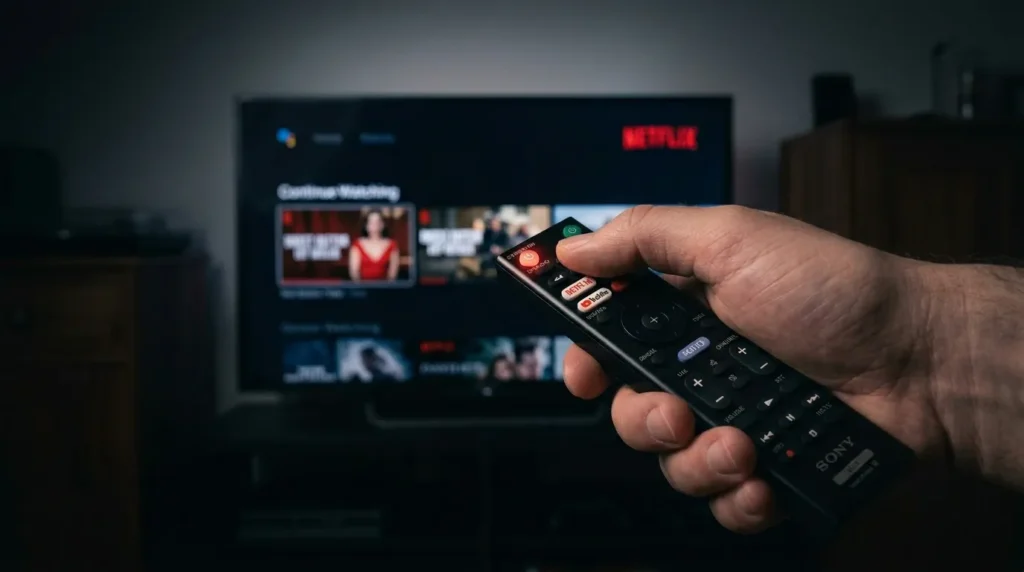
Sony TV freezing during streaming is almost always an internet speed or stability problem. 4K content on Netflix or YouTube requires at least 25 Mbps sustained. Standard HD needs 5 Mbps. If your connection drops below those thresholds mid-stream, the video buffer runs out and the screen freezes.
Test your speed directly:
- Open a browser on your phone or laptop connected to the same Wi-Fi network.
- Go to speedtest.net and run the test.
- If download speed is below 25 Mbps for 4K or below 5 Mbps for HD — your internet is the culprit.
Reset your router:
- Unplug your modem and router from the power outlet.
- Wait 60 seconds.
- Plug the modem back in first. Wait for it to fully connect.
- Then plug the router back in.
- Reconnect your Sony TV to Wi-Fi.
Two more quick fixes:
- If your router is dual-band, connect the TV to the 5GHz band instead of 2.4GHz. The 5GHz band offers faster speeds and less interference.
- Move the router closer to the TV or use an Ethernet cable if the TV has an Ethernet port. A wired connection eliminates Wi-Fi fluctuation entirely.
Not sure which streaming services are available in your area or want to see if a channel you watch requires a specific plan? The streaming service comparison tool can help you check what’s available before troubleshooting further.
Fix 3 — Clear App Cache and Data
Corrupted or oversized cache files in streaming apps are the second most common cause of Sony TV freezing. Clearing the cache forces the app to rebuild its data cleanly. This does not delete your accounts or watch history.
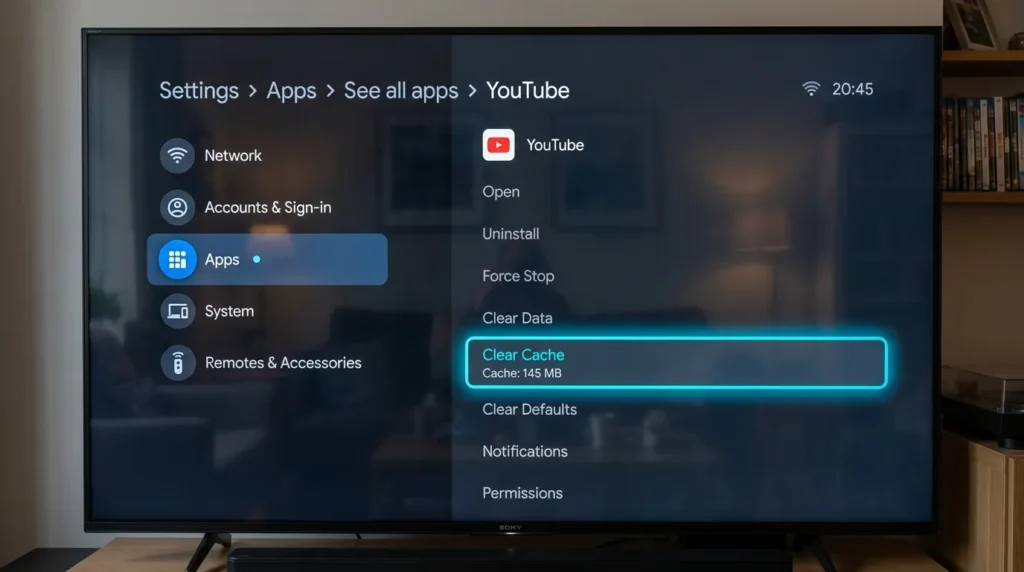
On Sony Google TV:
- From the Home screen, select your account icon (top right).
- Go to Settings → Apps → See all apps.
- Select the app that was running when freezing occurred (Netflix, YouTube, etc.).
- Select Clear Cache, then Clear Data.
On Sony Android TV:
- Press the Settings button on the remote.
- Go to Apps → See all apps → Show system apps.
- Select the problem app.
- Select Clear Cache, then Clear Data.
If freezing happens across multiple apps and not just one, clear the cache for each major streaming app individually. Start with Netflix, YouTube, and Prime Video — these three are responsible for the majority of app-caused freezing on Sony TVs.
Fix 4 — Update Your Sony TV Firmware
Sony releases firmware updates that fix bugs, including freezing issues. If you own a Bravia 7 (XR70), Bravia 8 (XR80), or Bravia 9 (XR90), the December 2024 update specifically addressed a confirmed freezing and random reboot defect. Install it immediately if you haven’t already.
On Sony Google TV:
- Press the Quick Settings button on the remote.
- Select the Settings gear icon.
- Go to System → About → System Software Update.
- Select Software Update if automatic updates are off.
On Sony Android TV:
- Press the Help button on the remote (or Home → Help if no Help button).
- Select Status & Diagnostics → System Software Update.
- Set Automatic Software Download to ON, or select Check for a System Software Update manually.
On older Sony TVs (non-Android, pre-2015):
- Press Home and go to Settings.
- Select Customer Support → Software Update → Network.
After the update installs, the TV will restart. Let it complete the reboot fully before testing.
For advanced Sony TV diagnostics beyond the standard menu, the Sony TV service menu codes page covers how to access deeper system information — useful if you want to verify firmware version manually or check hardware diagnostics after an update.
Fix 5 — Limit Background Processes (Developer Options)
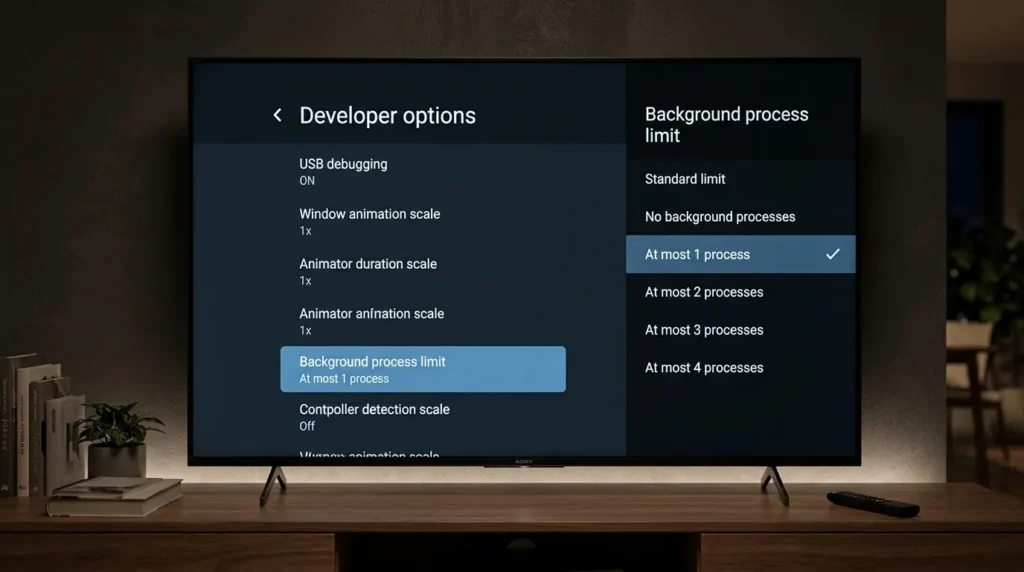
This fix directly addresses the RAM saturation problem. Sony’s Android TV OS allows up to 3 background processes by default. On a 3GB RAM device running heavy apps, that leaves almost no memory for the app you’re actively using. Limiting background processes to 1 makes a measurable difference — most users report the TV feels noticeably faster within minutes.
Step 1 — Enable Developer Mode:
- Go to Settings → System → About.
- Scroll to Android TV OS Build (or Build Number on some models).
- Press OK (or Enter) on that field 7 times in a row.
- You’ll see a message: “You are now a developer.”
Step 2 — Set background process limit:
- Go back to Settings. Scroll down to Developer Options (now visible).
- Scroll to Background Process Limit.
- Select 1 process (or No background processes for maximum performance).
This setting resets to default if you unplug the TV completely. Sleep mode preserves it. Set it once and leave the TV on standby rather than fully unplugging it nightly.
Fix 6 — Boot Into Safe Mode
Safe Mode starts your Sony TV with only the system’s core software running — no third-party apps. If the TV runs normally in Safe Mode, a downloaded app is causing the freezing. This is one of the most effective diagnostic steps, but almost no troubleshooting guides cover it.
How to enter Safe Mode on Sony Bravia (Android TV / Google TV):
- With the TV on, press and hold the Power button on the TV itself (not the remote) for 5–8 seconds.
- When the Power Menu appears, press and hold Power off on screen until you see the Safe Mode prompt.
- Select OK to restart in Safe Mode.
- “Safe Mode” will appear in the bottom-left corner of the screen.
Use the TV normally for 10–15 minutes in Safe Mode. If it doesn’t freeze, a third-party app is the cause. Exit Safe Mode by restarting the TV normally, then uninstall recently added apps one at a time until the problem stops.
Fix 7 — Force Stop or Uninstall Problem Apps
If freezing happens consistently inside one specific app, force stopping it resets its active process without clearing your login data.
Force stop an app:
- Go to Settings → Apps → See all apps.
- Select the problem app.
- Select Force Stop → OK.
If force stopping doesn’t help, uninstall and reinstall the app:
- Go to Settings → Apps → See all apps.
- Select the app → Uninstall → OK.
- Open the Google Play Store from the Home screen.
- Search for the app and reinstall it fresh.
This rebuilds the app’s install files from scratch and clears any corruption that a cache wipe alone wouldn’t fix. If you’re having similar slowdown or freezing problems on other TV brands, the same logic applies — Vizio TV running slow and LG TV black screen issues are often caused by the same app cache and RAM overload pattern.
Fix 8 — Factory Reset (Last Resort)
A factory reset erases all user data, installed apps, and settings, returning the TV to its original out-of-box state. Only do this after you’ve tried Fixes 1–7. It solves freezing caused by deeply corrupted system data that no other fix can clear.
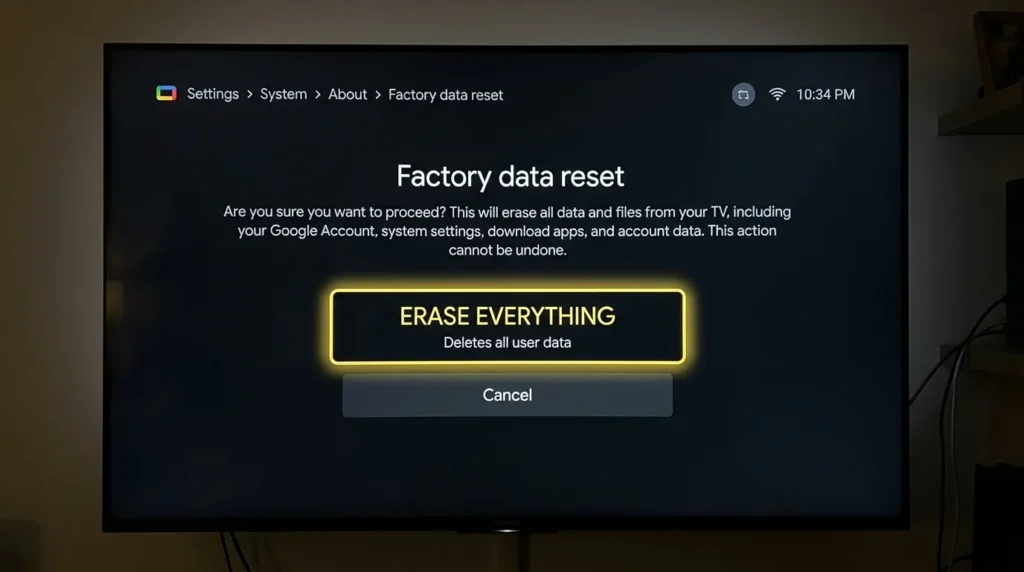
On Sony Google TV:
- Select your account icon → Settings → System → About.
- Choose Reset → Factory Data Reset → Erase Everything → Yes.
On Sony Android TV:
- Go to Settings → Device Preferences → Reset → Factory Data Reset → Erase Everything → Yes.
On older Sony Bravia (non-Android):
- Press Home → Settings → System → Customer Support → Factory Settings → OK.
The reset takes 5–10 minutes. The TV will restart with the first-time setup screen. Sign back into your Google account and reinstall your apps. If you’ve done a factory reset on a Samsung TV before, the process is similar — you can compare the steps in this Samsung TV factory reset guide.
When This Is a Hardware Problem
If your Sony TV freezes within minutes of completing a factory reset, the problem is hardware — not software. No amount of resets or updates will fix a failing component.
Signs you have a hardware issue:
- TV freezes on every input including HDMI, USB, and live TV (not just streaming apps)
- Screen freezes but audio continues playing
- Freezing started immediately after a power surge or outage
- Physical lines, artifacts, or discoloration appear alongside the freeze
If you’re also seeing a completely dark panel, check this guide on fixing a TV with no picture — a black screen that won’t respond is sometimes a backlight failure rather than a freeze.
At this point, contact Sony Support directly at support.sony.com. If your TV is within its warranty period (typically 1 year standard in the US, 2 years in the EU), Sony will repair or replace it at no cost.
For Bravia 7/8/9 owners still experiencing freezing after the December 2024 firmware update: Sony’s support teams have been handling these on a case-by-case basis. Document your serial number, purchase date, and the specific freeze behavior before calling. Users who reported the issue clearly and cited the known firmware defect had better outcomes in getting warranty service.
Not sure what your Sony model number actually means? The TV model number decoder breaks down what each part of the model string tells you about your TV’s specs and year — helpful when checking if your unit falls within an affected product range.
Final Word
Start with the 60-second power cycle. If freezing comes back, clear the cache on Netflix and YouTube. If you own a Bravia 7, 8, or 9, check firmware before anything else — the December 2024 patch fixes the core defect on those models. For persistent freezing across all apps, the background process limiter in Developer Options is the most underused fix and makes the biggest long-term difference on RAM-limited models.
Hardware failure is rare. In the vast majority of cases, one of these eight steps stops the freezing for good.


