

Your Fire TV Stick froze. The remote stopped working. Apps keep crashing. Whatever the reason, you need to reset it.
A factory reset wipes everything and returns your device to the state it was in when you first took it out of the box. You’ll lose all apps, settings, and login information. But you’ll get a fresh start.
This guide covers 7 different reset methods. Some need a working remote. Others don’t. Pick the one that matches your situation.
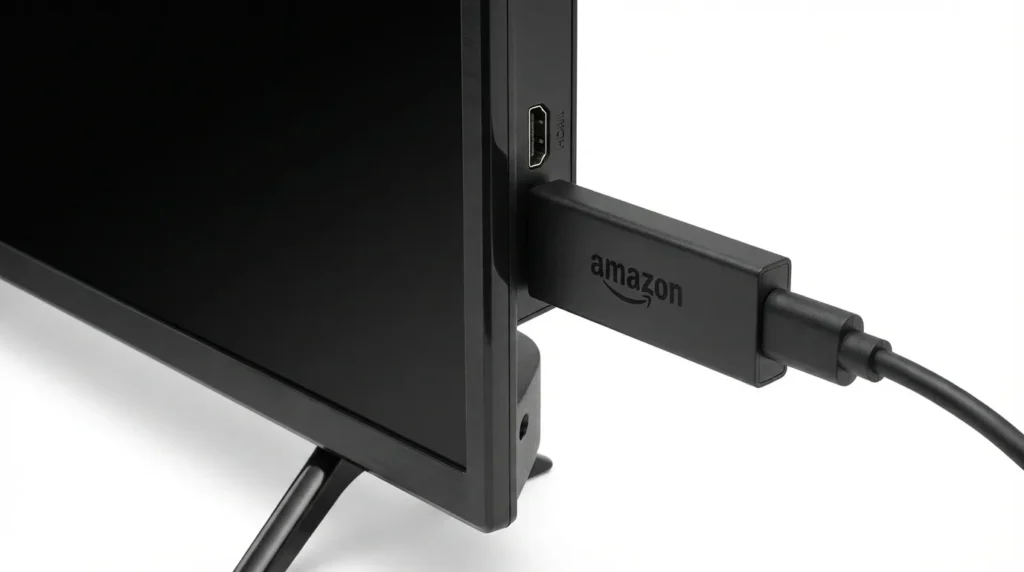
What Happens When You Factory Reset Your Fire Stick
Factory reset erases everything on your device.
All downloaded apps disappear. Netflix, Hulu, YouTube—gone. Your WiFi password gets deleted. Any parental controls you set up vanish. The device deregisters from your Amazon account.
The process takes 5 to 10 minutes. Your Fire Stick restarts multiple times. You’ll see the Amazon logo, then a loading screen, then the setup screen you saw when the device was brand new.
Nothing survives a factory reset. Not settings. Not downloads. Not preferences. The device becomes completely blank.
Your Amazon purchases stay safe in your account. You’ll need to reinstall apps and sign in again, but you won’t lose anything you bought.
Before You Reset: Important Things to Know
Don’t unplug your Fire Stick during the reset. You can damage the software. Let the process finish completely.
Write down your WiFi password before you start. You’ll need it to set up the device again.
If you use a VPN or special network settings, save that information. The reset deletes these configurations.
Game progress in apps gets lost unless the app saves to the cloud. Check if your apps back up data to your account.
Parental control PINs disappear. You’ll set up a new one during setup.
The reset takes between 5 and 10 minutes. Don’t interrupt it. The screen will show progress, go black, restart several times. This is normal.
Method 1: Reset Fire Stick Using Remote (Settings Menu)
This method works if your remote responds and you can navigate menus.
Press the Home button on your remote. The Home button has a house icon.
Navigate to Settings. It’s the gear icon on the far right of the home screen.
Scroll down and select My Fire TV. On older devices, this says Device or System.
Select Reset to Factory Defaults. It’s near the bottom of the list.
A warning appears. It says you’ll lose everything. Select Reset.
Another confirmation screen appears. Select Reset again.
Your Fire Stick restarts immediately. The screen goes black. The Amazon logo appears. Wait 5 to 10 minutes.
When the setup screen appears, your reset is complete.
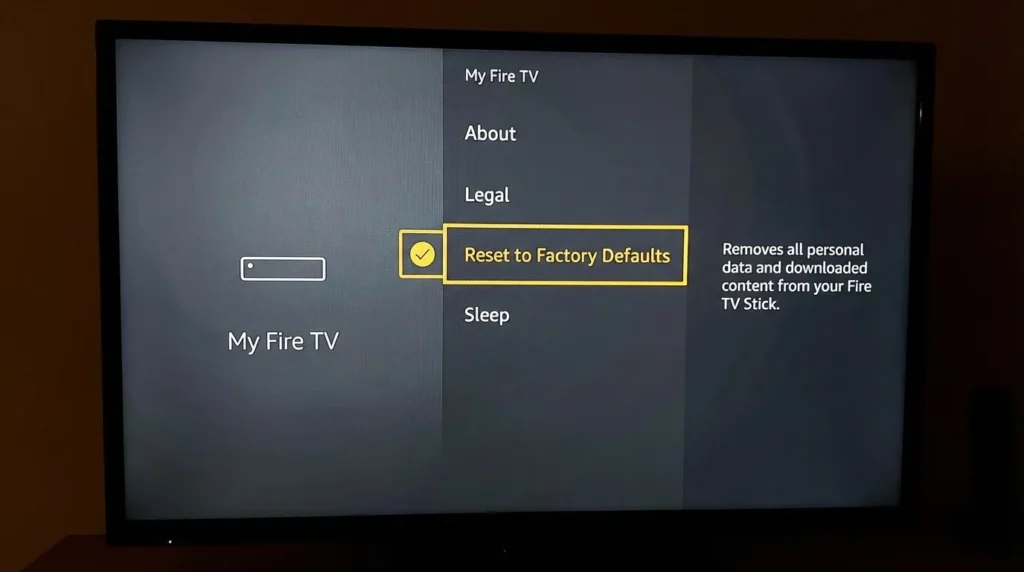
Method 2: Quick Reset Using Remote Buttons
This shortcut works even if your Fire Stick is partially frozen.
Make sure your Fire Stick is on. The screen doesn’t need to show anything specific.
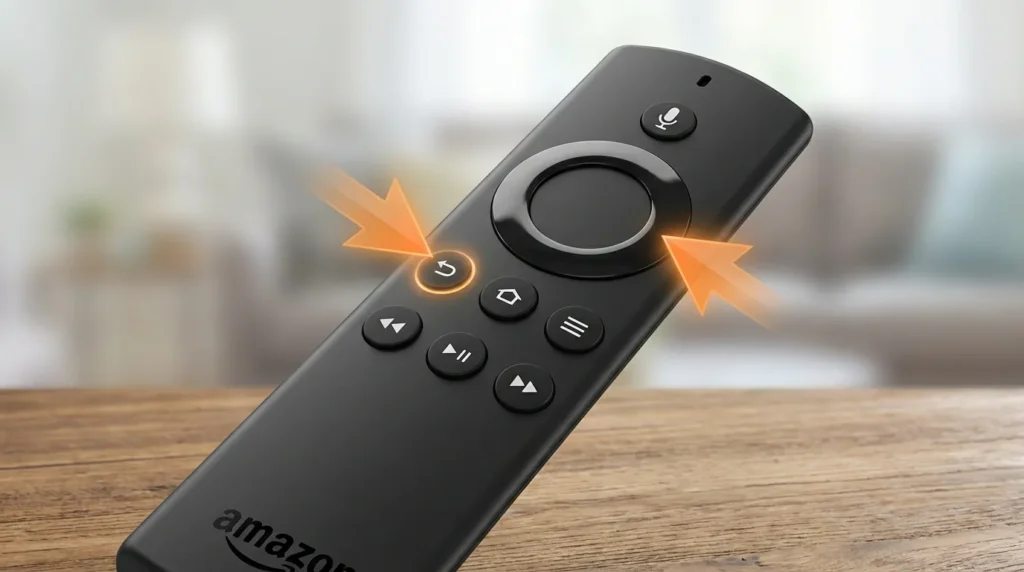
Hold the Back button and the Right button at the same time. The Back button is the curved arrow. The Right button is on the navigation circle.
Keep holding both buttons for 10 seconds. Don’t let go early.
A message appears on screen. It asks if you want to reset. Use your remote to select Reset.
If the message doesn’t appear after 10 seconds, try again. Hold the buttons for 15 seconds.
The device restarts and begins the factory reset process.
This method works on all Fire TV Stick models from 2016 onward. The 1st generation Fire Stick uses different buttons—hold Select and Play/Pause for 5 seconds instead.
Method 3: Reset Without Remote Using Fire TV App
Your remote broke or got lost. Use your smartphone instead. If your Fire Stick remote won’t pair, the mobile app provides an alternative control method.
Download the Amazon Fire TV app. It’s free on iOS and Android app stores.
Connect your phone to the same WiFi network your Fire Stick uses. This is critical. If they’re on different networks, the app won’t find your device.
Open the app. It searches for Fire TV devices automatically.
Select your Fire Stick from the list. The app connects within 10 seconds.
A navigation pad appears on your phone screen. Use it like a remote.
Navigate to Settings, then My Fire TV, then Reset to Factory Defaults.
Follow the on-screen prompts to confirm the reset.
This method only works if your Fire Stick has WiFi access. If your device can’t connect to WiFi, try Method 6 instead.
Method 4: Reset Without Remote or WiFi (HDMI-CEC Method)
HDMI-CEC lets your TV remote control devices connected through HDMI. Most TVs made after 2010 have this feature.
Different brands call it different names. Samsung calls it Anynet+. LG calls it SimpLink. Sony calls it Bravia Sync. Vizio calls it CEC.
Turn on HDMI-CEC in your TV settings. The exact location varies by brand.
Samsung: Settings > General > External Device Manager > Anynet+ (HDMI-CEC) > On. For detailed Samsung TV settings, check Samsung TV service menu codes.
LG: Settings > All Settings > Connection > HDMI Settings > SIMPLINK (HDMI-CEC) > On. Learn more about LG TV service menu options.
Sony: Settings > Watching TV > External Inputs > HDMI Setup > Control for HDMI > On. Advanced users can explore Sony TV service menu codes.
Vizio: Menu > System > CEC > Enable. For Vizio-specific troubleshooting, see Vizio TV service menu codes.
After enabling HDMI-CEC, your TV remote controls the Fire Stick. Use it to navigate to Settings > My Fire TV > Reset to Factory Defaults.
Some TV remotes don’t have all the buttons you need. If you can’t navigate properly, try Method 5 instead.
Method 5: Reset Using USB Keyboard or Mouse
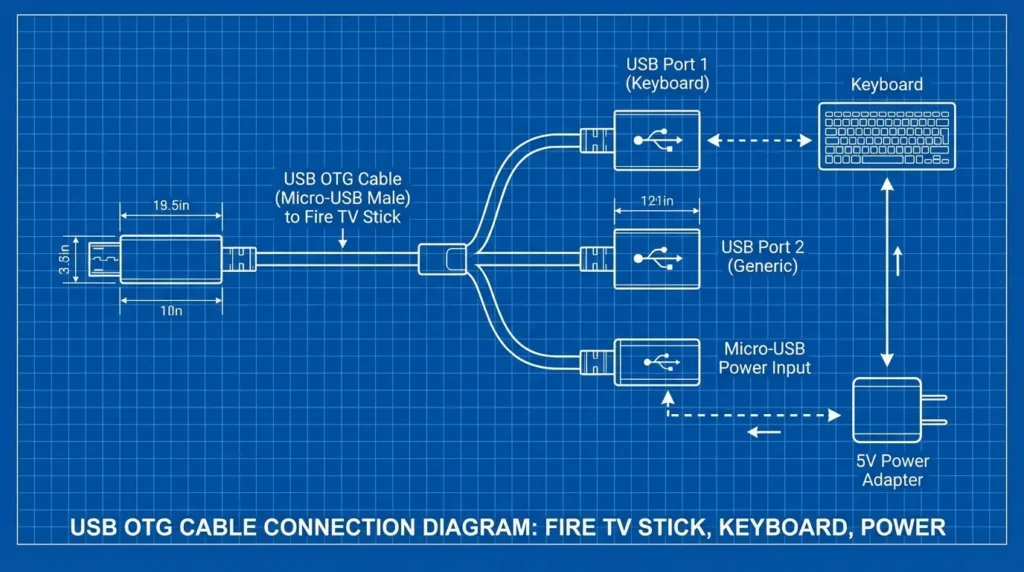
You need a USB OTG cable for this method. OTG cables cost $5 to $10 online.
The cable has three connections. One micro-USB port plugs into your Fire Stick. One regular USB port accepts your keyboard or mouse. One micro-USB port connects to your power adapter.
Plug the OTG cable’s micro-USB end into your Fire Stick’s power port.
Plug your keyboard or mouse into the OTG cable’s USB port.
Plug your Fire Stick’s power adapter into the OTG cable’s power port.
The keyboard or mouse works immediately. No pairing required.
With a keyboard, use arrow keys to navigate. Press Enter to select. Press Backspace to go back.
With a mouse, you won’t see a cursor. Click and move the mouse to navigate. This takes practice.
Navigate to Settings > My Fire TV > Reset to Factory Defaults.
Confirm the reset using your keyboard or mouse.
This method also works if you need to use Amazon Fire TV without a remote for regular navigation.
Method 6: Reset Without WiFi Using Mobile Hotspot Trick
Your Fire Stick remembers your old WiFi network, but you changed the network name or password. Your remote doesn’t work. You can’t access settings.
Create a mobile hotspot on one phone. Use the exact same network name (SSID) and password as your old WiFi network. Your Fire Stick connects automatically because it recognizes the credentials.
On an iPhone: Settings > Personal Hotspot > Turn on. Change the WiFi name and password to match your old network.
On Android: Settings > Network & Internet > Hotspot & Tethering > Wi-Fi Hotspot > Turn on. Change the name and password to match your old network.
Turn on the hotspot. Your Fire Stick connects within 30 seconds.
On a second phone, download the Amazon Fire TV app. Connect this phone to the hotspot you just created.
Open the Fire TV app. It finds your Fire Stick because they’re on the same network.
Use the app to navigate to Settings > My Fire TV > Reset to Factory Defaults.
After the reset completes, connect your Fire Stick to your actual WiFi network during setup.
Method 7: Reset Using Voice Commands (Alexa)
This method only works with Fire TV Stick 4K (2018 or newer) or Fire TV Cube. The remote must have an Alexa button.
The Alexa button is the blue button with a microphone icon.
Press and hold the Alexa button. Say “Go to Settings.”
Alexa opens the Settings menu.
Say “My Fire TV.”
Say “Reset to Factory Defaults.”
Alexa asks you to confirm. Say “Yes” or “Reset.”
The reset begins immediately.
Voice commands don’t work if Alexa is disabled in your settings. You’ll need a different method if voice features are turned off.
After Reset: Setting Up Your Fire Stick Again
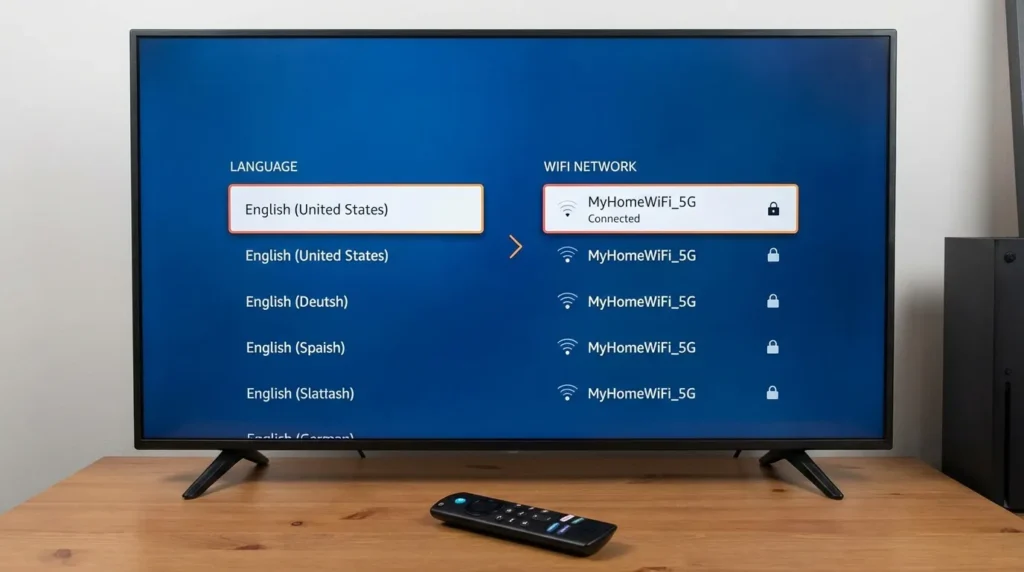
The Fire Stick restarts and shows a language selection screen.
Use your remote to select your language. Press the Select button.
The device searches for your remote. If using the original remote, press the Home button. The remote pairs automatically. This takes 10 seconds.
If you’re using a replacement remote, press and hold the Home button for 10 seconds. The remote enters pairing mode.
Select your WiFi network. Enter your password. The Fire Stick connects and downloads the latest software updates. This takes 3 to 5 minutes.
Sign in to your Amazon account. Enter your email and password using the on-screen keyboard.
The Fire Stick shows a registration confirmation. Select Continue.
Restore your apps. The Fire Stick asks if you want to restore apps from a previous device. Select Yes if you want your old apps back. Select No for a completely fresh start.
Apps begin downloading. You’ll see progress bars. Large apps like Netflix take 2 to 3 minutes each.
Set up parental controls if needed. Create a new PIN. This is optional.
Your Fire Stick is ready to use.
Troubleshooting Common Reset Problems
Reset won’t start: Hold the button combination for exactly 10 seconds. Try the Settings menu method instead. Check if your remote battery is dead.
Stuck on Amazon logo: Wait 15 minutes. The device might be installing updates. If nothing changes after 15 minutes, unplug the Fire Stick for 60 seconds, then plug it back in.
Remote won’t pair after reset: Replace the batteries. Hold the Home button for 20 seconds. Unplug the Fire Stick for 30 seconds, plug it back in, then try pairing again. For persistent issues, see our guide on fixing Fire Stick remote pairing problems.
No WiFi networks detected: Your Fire Stick might need a manual restart. Unplug it for 60 seconds. Plug it back in. Check if your router is broadcasting the network.
Keeps restarting during reset: Don’t use a USB port on your TV for power. Use the wall adapter that came with your Fire Stick. TV USB ports don’t provide enough power.
Reset completes but device still has problems: Contact Amazon support. Your device might have hardware damage. Amazon replaces defective devices under warranty.
Error code appears: Write down the code. Search “Fire TV error code [number]” on Amazon’s help site. Most error codes have specific fixes.
Black screen after reset: If your Fire Stick shows a black screen, check your HDMI connection and try a different HDMI port.
Apps not working after reset: Some apps like Paramount Plus may need additional troubleshooting after a factory reset.
Restart vs. Reset: What’s the Difference
A restart turns your Fire Stick off and on. Apps, settings, and accounts stay intact. Use this for minor glitches.
To restart, unplug your Fire Stick from power for 30 seconds. Plug it back in. Or go to Settings > My Fire TV > Restart.
A factory reset erases everything. The device becomes brand new. Use this for serious problems or before selling your device.
Restart first. Try a reset only if restarting doesn’t fix the problem.
Restart takes 60 seconds. Reset takes 5 to 10 minutes.
Similar to how you might perform a factory reset on Samsung TV, Fire Stick resets require careful consideration before proceeding.
Frequently Asked Questions
How long does a factory reset take? The actual reset process takes 5 to 10 minutes. Your Fire Stick restarts several times. If it takes longer than 15 minutes, something went wrong. Unplug the device and try again.
Will I lose my Amazon purchases? No. Movies, TV shows, and music you bought stay in your Amazon account. You’ll see them again after signing back in. App purchases like subscriptions also remain tied to your account.
Can I reset without a power button? Fire TV Sticks don’t have power buttons. They turn on when you plug them in. To reset, use any of the 7 methods above. They all work without a power button. This is different from devices like Roku TV which can be turned on without a remote or Vizio TV manual controls.
Does a factory reset fix all problems? Reset fixes software issues. Frozen menus, slow performance, app crashes—these usually get fixed. Hardware problems like broken HDMI ports or failed power supplies need physical repair or replacement. If your TV has other issues like no picture or black screen problems, the TV itself may need troubleshooting.
Can I undo a factory reset? No. Factory reset is permanent. You can’t recover deleted data. Set up your Fire Stick as a new device after reset.
Do I need to deregister my Fire Stick before resetting? No. The factory reset automatically deregisters the device from your Amazon account. You don’t need to do this manually.
Will the reset delete parental controls? Yes. Your PIN and all parental control settings disappear. You’ll create new ones during setup if needed.
Can I reset if I forgot my parental control PIN? Yes. Factory reset removes the PIN. You won’t need to enter it to perform the reset.
Conclusion
Seven methods give you options no matter your situation. Working remote? Use the Settings menu or button combination. No remote? Try the Fire TV app, HDMI-CEC, or USB keyboard. No WiFi access? The hotspot trick works.
Factory reset solves most Fire Stick software problems. The device runs like new after reset.
If reset doesn’t fix your issue, contact Amazon support. Hardware failures need professional help or replacement.


