

Hold the Home button on your Fire TV remote for 10 seconds while standing within 10 feet of the FireStick. If the LED blinks orange and pairing still fails, replace the batteries, then repeat the process. If that doesn’t work, do a full remote reset: hold Home + Back + Left for 12 seconds, then re-pair.
Most pairing failures come down to four things: dead batteries, the remote drifting out of Bluetooth range, too many devices already paired to the FireStick, or a firmware glitch that needs a reset to clear. None of these take more than two minutes to fix. Work through the steps below in order — the fastest fixes come first.
If you’re dealing with a separate issue — like a Fire TV black screen even after the remote connects — that’s a different problem worth checking after you’ve resolved the pairing.
Fix 1
Replace the Batteries
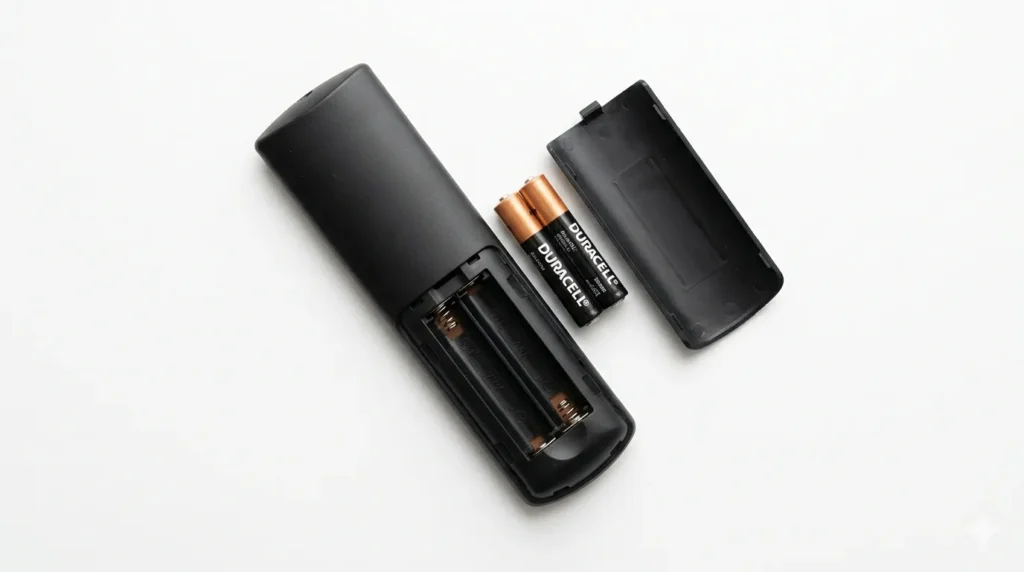
Dead or weak batteries cause most pairing failures. Even batteries that still power other devices may not have enough charge for Bluetooth. Don’t test this — just swap them.
What batteries to use
Use AAA alkaline batteries. Rechargeable NiMH batteries often output slightly lower voltage (1.2V vs 1.5V), which can cause intermittent pairing. Amazon’s own packaging recommends standard alkaline — stick to those.
Check the battery contacts
Pop the back off and look at the metal contact strips. If you see white or greenish residue, that’s corrosion from old batteries. Scrape it off gently with a dry cloth or the tip of a pen. Corrosion blocks the circuit even with fresh batteries installed.
Note: Both batteries go in facing the same direction — positive end toward the spring side. Misaligned batteries look fine but won’t work.
After inserting fresh batteries, hold the Home button for 10 seconds and check the LED. If it blinks orange, the remote is in pairing mode and searching for the device.
Fix 2
Manually Re-Pair the Remote
Fire TV remotes use Bluetooth Low Energy (BLE), not infrared. They need to actively pair with the FireStick, and that connection can drop after a firmware update, power outage, or long period without use.
Step-by-step pairing instructions
- Stand within 10 feet (3 meters) of your FireStick. BLE range is short — walls and other devices reduce it further.
- Make sure your FireStick is fully powered on and showing the Fire TV home screen on your TV.
- Press and hold the Home button (the house icon) for 10 seconds.
- Release the button. The LED on the remote should blink orange to indicate it’s in pairing mode.
- Wait up to 60 seconds. The FireStick scans for nearby remotes automatically. A successful pair turns the LED solid white briefly, then it turns off.
- If it fails after 60 seconds, repeat from step 3. Some units take 2–3 attempts after a firmware update.
Tip: Unplug any USB hubs, gaming controllers, or Bluetooth headphones from nearby devices before pairing. Extra Bluetooth activity in the room creates interference that disrupts the pairing handshake.
Not sure what all the buttons on your remote do? The remote control button explainer tool breaks down every key on common streaming remotes.
Fix 3
Full Remote Reset
A remote reset clears the remote’s pairing memory without touching your FireStick’s settings, apps, or account. This is different from a factory reset of the FireStick itself — your content, subscriptions, and preferences stay intact. If you ever do need to wipe the device completely, see our guide on how to reset an Amazon Fire TV Stick for the full process.
Reset button sequence
- Remove the batteries from the remote.
- Unplug your FireStick from the wall or TV USB port. Wait 30 seconds.
- Plug the FireStick back in. Wait for it to fully boot — this usually takes 25–30 seconds.
- Reinsert the batteries into the remote.
- Press and hold Home + Back + Left directional button simultaneously for 12 seconds.
- Release all buttons. The remote LED will blink several times.
- Wait 5 seconds, then press the Home button for 10 seconds to re-enter pairing mode.
This combination works on Alexa Voice Remote 2nd and 3rd generation, as well as Fire TV Stick Lite remotes. First-generation remotes use only the Home button hold — skip step 5 and go straight to step 7.
Fix 4
Restart the FireStick
A stuck Bluetooth stack is a known Fire OS bug — the device stops accepting new pairing requests without a full restart. Unplugging and replugging forces the system to reinitialize Bluetooth from scratch.
How to restart without a working remote
- Unplug the FireStick power adapter from the wall outlet (not just the HDMI from the TV).
- Wait a full 60 seconds. A shorter wait sometimes doesn’t clear Bluetooth memory.
- Plug it back in and wait for the home screen to load fully (30–45 seconds).
- Attempt to pair the remote immediately — within 2 minutes of boot, the FireStick is most receptive to new pairing requests.
If you have the Fire TV app on your phone (covered in Fix 6 below), you can also use it to navigate to Settings → My Fire TV → Restart without touching the remote at all. The same principle applies to other streaming devices — if you’ve ever needed to control a Roku TV without a remote, the app-based method works the same way.
Fix 5
Check Bluetooth Interference and the 7-Device Limit
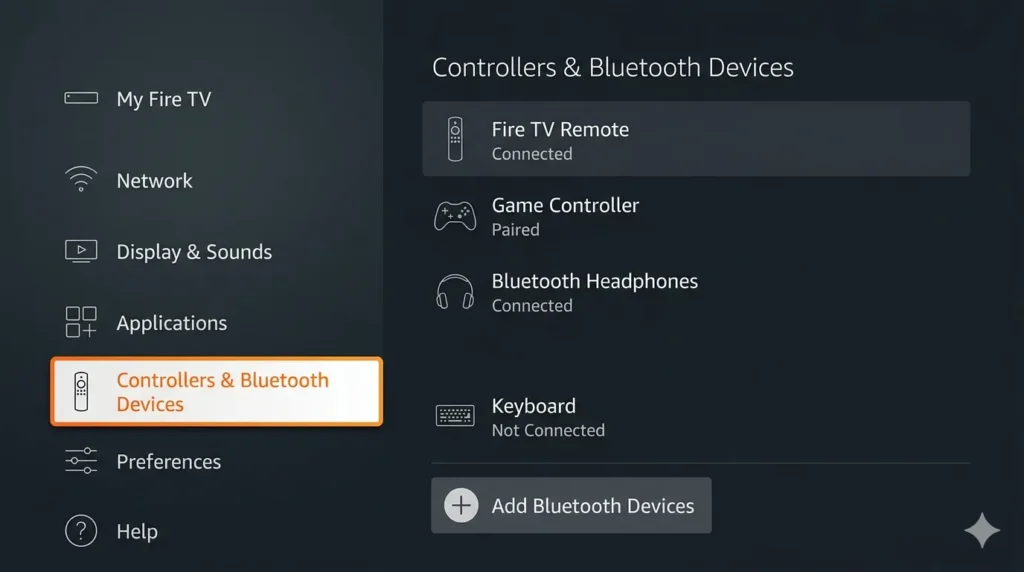
Every Fire TV device supports a maximum of 7 paired Bluetooth devices. If you’ve connected game controllers, headphones, keyboards, or multiple remotes over time, you may have hit that ceiling — and the new remote simply can’t register.
How to check and remove paired devices
- Use the Fire TV app (or a spare remote) to go to Settings → Controllers & Bluetooth Devices → Other Bluetooth Devices.
- Select any device you no longer use and choose Unpair.
- Remove at least one device to free up a slot.
- Attempt to pair the remote again using the Fix 2 steps above.
Other interference causes
Microwaves, 2.4 GHz Wi-Fi routers, and wireless baby monitors all operate on frequency bands that overlap with BLE. If your FireStick is close to any of these, move it or temporarily disable the interfering device during pairing. Once paired, the connection is usually stable enough to maintain through normal household interference.
Fix 6
Use the Fire TV App as a Temporary Remote
Amazon’s Fire TV app turns your iPhone or Android phone into a full remote. It works over Wi-Fi rather than Bluetooth, so it operates independently of whatever is causing the remote pairing failure — and it gives you access to settings to fix the underlying problem. For a full walkthrough of everything you can do without a physical remote, see our guide on how to use Amazon Fire TV without a remote.
How to connect the app
- Download the Amazon Fire TV app from the App Store (iOS) or Google Play (Android).
- Connect your phone to the same Wi-Fi network your FireStick uses.
- Open the app and tap the remote icon at the bottom.
- Your FireStick should appear in the list. Tap it.
- A 4-digit PIN will appear on your TV screen. Enter it in the app to confirm the connection.
- You now have full remote control via your phone.
Use the app to navigate into Settings and run through the restart or device-removal steps from Fix 4 and Fix 5. Once your physical remote is paired again, you can keep the app as a backup — it’s a useful tool even when the remote works fine.
🔧 If the Roku app is giving you similar trouble finding your device, our guide to fixing the Roku app not finding your device covers the same Wi-Fi isolation steps.
What the LED Light Colors Mean
The small LED near the top of your Fire TV remote communicates its exact state. Learning what each pattern means saves time when diagnosing a pairing failure.
| LED Pattern | What It Means | Action |
|---|---|---|
| Blinking orange | Remote is in pairing mode and searching for the FireStick | Normal — wait up to 60 seconds |
| Fast red blink (every 1 sec) | Battery critically low | Replace batteries immediately |
| Slow red blink (every 5 sec) | Remote is not paired to any device | Follow Fix 2 pairing steps |
| Solid white / brief flash | Successfully paired and registered | No action needed |
| Solid blue | Alexa is listening (microphone active) | Normal — speak your command |
| No light at all | Batteries are dead or contacts are broken | Replace batteries; check contacts |
Still Not Working? When to Get a Replacement Remote
If you’ve worked through all six fixes and the remote still won’t pair, the Bluetooth chip inside the remote is likely faulty. This happens more frequently on remotes that have been dropped, exposed to moisture, or are over 3 years old.
Amazon sells official replacement Alexa Voice Remotes that work with all Fire TV Stick models from 2017 onward. Verify your FireStick generation before buying — the 4K Max remote and standard Stick remote look identical but have slightly different button layouts. The compatible model is always listed in the product description.
Third-party universal remotes with Fire TV support exist but are inconsistent — some require a secondary IR dongle and don’t support Alexa voice commands. An official Amazon replacement remote is the cleaner option and usually costs under $35. If you go the universal route, the universal remote compatibility checker can help you confirm whether a specific model works with your Fire TV before you buy.
If you’re seeing other unusual behavior from your Fire TV — like Paramount Plus failing to load on your FireStick after the remote is fixed — those are separate app-level issues that are worth addressing next.
Final Word
The fix for most Fire TV pairing failures is a battery swap followed by a 10-second Home button hold. If that doesn’t work, a full remote reset with the Home + Back + Left sequence clears 90% of remaining cases.
The hidden cause most guides miss: the 7-device Bluetooth limit. If you’ve connected controllers, headphones, or keyboards to your FireStick over the years, check the paired device list before assuming the remote is broken.
When everything else fails, the Fire TV app on your phone gives you full control over the device while you troubleshoot — so you’re never completely locked out.


