

The Innovage Jumbo Universal Remote uses 3-digit RCA-based codes to control TVs, DVD players, VCRs, cable boxes, and satellite receivers. To program it, hold the CODE SEARCH button until the red LED stays solid, press the device button, enter your 3-digit code, and the LED will turn off when the code is accepted. If you don’t have a code, the remote can auto-scan through its entire library until it finds one that works.
This guide covers both programming methods, the complete code list for every supported brand, and a section for the variant that uses a Mute button instead of Code Search. If you’re also working with other remotes in your home, our guides on GE universal remote codes and RCA universal remote codes cover the same device families using a similar code structure.
Before You Start
What the Innovage Jumbo Remote Controls
The remote can be programmed for up to 8 devices. The device buttons on the face of the remote are: TV, VCR, DVD, CABLE, and SAT. Some models also include buttons for AUX devices. You program each one separately — one device at a time.
The remote measures roughly 11 inches long and 5 inches wide. It was built with large, clearly labeled buttons for people who have limited vision or reduced hand dexterity.
Which Variant Do You Have?
This is important. There are two main versions of this remote, and they program differently.
Version 1 — Has a CODE SEARCH button (upper left corner): This is the standard Innovage Jumbo, iWave, “Can You Imagine,” Harbor Freight model 66687, Sentry RMC10, and Sentry RMC20. It uses 3-digit RCA-based codes. The instructions in Methods 1 and 2 below apply to this version.
Version 2 — Has a MUTE button instead of CODE SEARCH: This includes the Harbor Freight Tools Item 61959 and the QFX REM-115. It uses 4-digit Philips-based codes and programs differently. See the dedicated section below. Our Philips universal remote codes guide has a full breakdown of 4-digit Philips codes if you need extra reference.
If you’re not sure which one you have, look at the top row of buttons. CODE SEARCH = Version 1. MUTE = Version 2.
Install Batteries
The remote takes 2 × AAA batteries. Install them before attempting any programming. Weak batteries are one of the most common reasons programming fails partway through — the LED dims and cuts out before the code saves.
Method 1 — Direct Code Entry (Fastest Method)
Use this first. It takes about 30 seconds if you have the right code.
Before you start: Turn on the device you want to program. Find your brand in the code table below and note the first code listed.
Step 1. Point the remote at your device.
Step 2. Press and hold the CODE SEARCH button for at least 3 seconds, until the red LED turns on and stays solid. Release the button.
Step 3. Press and release the device button for what you’re programming — TV, DVD, VCR, CABLE, or SAT. The LED will blink once, then stay solid red again.
Step 4. Using the number pad, enter the 3-digit code for your brand. Example: for Samsung code 005, press 0, then 0, then 5.
Step 5. If the code is recognized, the LED turns off. That means the code was accepted. Test the remote by pressing ON/OFF. If the device responds, you’re done.
Step 6. If the LED stays on, the code wasn’t recognized. Repeat from Step 2 using the next code in the list for your brand.
What the LED Tells You
| LED Behavior | What It Means |
|---|---|
| Stays solid red after CODE SEARCH | Programming mode is active |
| Blinks once after device button press | Device type selected, ready for code |
| Turns off after code entry | Code accepted and stored |
| Stays on after code entry | Code not recognized — try the next one |
| Flashes multiple times and shuts off | Low battery or no code match found |
Method 2 — Auto Code Search (No Manual Needed)
Use this when you don’t have the code, or when every code in the list has failed.
The remote will scan through its entire built-in library automatically. It can take a few minutes. Be patient.
Step 1. Turn on your device.
Step 2. Point the remote at the device and press and hold CODE SEARCH until the LED stays solid red. Release.
Step 3. Press and release the device button (TV, DVD, etc.). The LED blinks once, then stays solid.
Step 4. Press and release the ON/OFF button slowly, one press at a time. The LED will flash briefly with each press. Keep going. The remote is cycling through codes one by one.
Step 5. When the device shuts off, immediately press ENTER to lock in the code. The LED will turn off, confirming the code is saved.
Step 6. Press ON/OFF to turn the device back on. Then test other buttons — channel up/down, volume — to confirm full functionality.
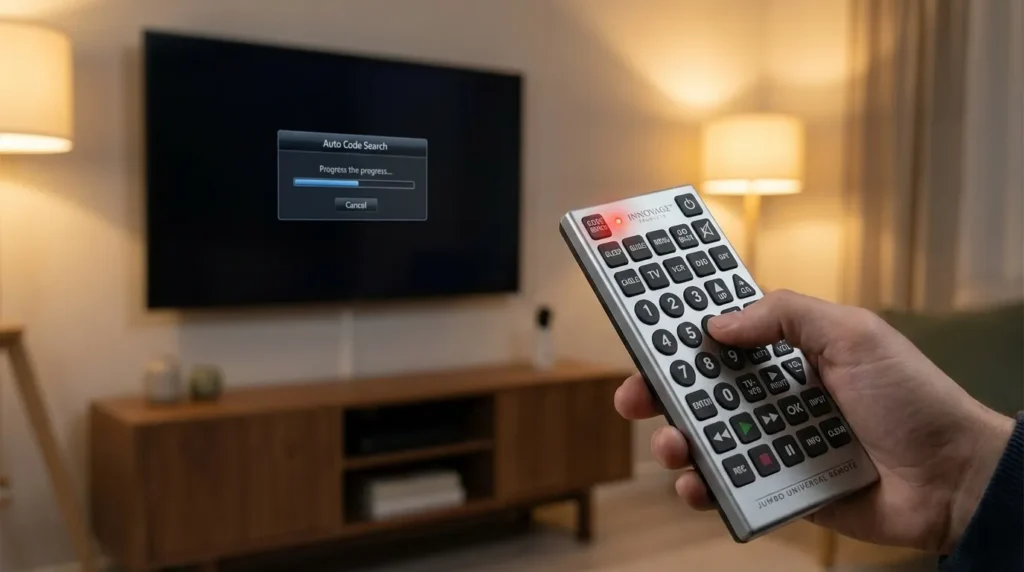
A few things to know about auto-search:
- It can take up to 300 presses of the ON/OFF button to cycle through all codes for some device categories. Don’t stop early.
- Press slowly. One press per second is a good pace. Pressing too fast can skip codes.
- You have a limited window after the device shuts off to press ENTER. Do it immediately — within 2 to 3 seconds.
- If the device turns off but the remote only controls power and nothing else, the code is a partial match. Go back to Step 2 and keep scanning for a better one.
Innovage Jumbo Remote Codes by Device
These are 3-digit codes for the CODE SEARCH button version. Try the first code listed for your brand. If it doesn’t work, try the next one.
TV Codes
| Brand | Codes |
|---|---|
| Admiral | 001, 173 |
| Aiwa | 195, 196 |
| Akai | 002 |
| AOC | 009, 014, 132, 156, 175 |
| Apex | 214 |
| Audiovox | 053 |
| Citizen | 009, 042, 053, 058, 105, 109, 177 |
| Craig | 042, 053 |
| Daewoo | 018, 019, 042, 058, 082, 085, 097, 100, 126, 127, 130, 138 |
| Emerson | 035, 036, 037, 038, 039, 040, 041, 042, 043, 045, 049, 051, 053 |
| Fujitsu | 051, 197 |
| Funai | 042, 051, 053, 155, 189, 198 |
| GE | 015, 022, 031, 044, 052, 054, 055, 087, 092, 103, 107, 125, 164 |
| Haier | 216, 217 |
| Hitachi | 001, 004, 009, 013, 059, 060, 061, 088, 091, 137, 139, 140, 141, 142, 143, 144 |
| Jensen | 004, 009 |
| JVC | 013, 054, 055, 060, 065, 067, 089 |
| LG | 005, 009, 044, 056, 057, 155, 156, 172 |
| Magnavox | 004, 008, 009, 062, 068, 069, 074, 075, 077, 089 |
| Memorex | 000, 001, 004, 009, 049, 051, 135 |
| Mitsubishi | 004, 005, 009, 022, 051, 081, 089, 132, 180 |
| NEC | 003, 004, 005, 009, 010, 085, 089, 095 |
| Panasonic | 003, 051, 055, 062, 070, 148, 170, 171 |
| Philips | 062, 068, 069, 074, 075, 077, 086, 087, 089, 163, 183 |
| Pioneer | 004, 009, 090, 179, 185 |
| ProScan | 000, 015, 031, 107 |
| Quasar | 003, 054, 055, 062, 070, 148, 170, 171 |
| RCA | 007, 009, 011, 015, 048, 082, 092, 094, 096, 098, 101, 102, 103, 107, 113 |
| Samsung | 004, 005, 009, 015, 104, 105, 106, 109, 172 |
| Sansui | 135, 136 |
| Sanyo | 004, 013, 049, 108, 110, 180, 209 |
| Sharp | 004, 009, 079, 095, 111, 112, 114, 122, 123, 124, 173 |
| Sony | 002, 006, 071, 128 |
| Sylvania | 004, 008, 009, 062, 068, 069, 074, 075, 077, 155, 161, 163, 189, 198 |
| Toshiba | 013, 049, 089, 105, 109, 117, 118, 120, 159, 178 |
| Vizio | 172, 178, 196 |
| Zenith | 000, 001, 004, 023, 038, 058, 059, 064, 073, 121, 135, 136 |
Most commonly confirmed working codes by real users:
- Samsung: 105 (confirmed for flat screens) — for more Samsung-specific codes see our Samsung TV remote codes guide
- LG: 009 (confirmed for 42-inch models)
- Sony: 002 (try first, then 006) — full list available in our Sony TV remote codes guide
- Toshiba: 013, 049
- Vizio: 172 (try first) — see our Vizio universal remote codes page for extended options
- Daewoo: 018 — more options in our Daewoo TV remote codes guide
DVD Player Codes
| Brand | Codes |
|---|---|
| Apex | 307, 313, 326, 329 |
| Emerson | 302, 311 |
| JVC | 303, 306, 309 |
| LG | 301, 302, 305 |
| Magnavox | 398, 408, 456 |
| Panasonic | 307, 329, 337, 437 |
| Philips | 307, 329, 340 |
| RCA | 302, 307, 312 |
| Samsung | 302, 307, 309 |
| Sony | 301, 302, 309, 312 |
| Toshiba | 302, 307, 312, 328 |
| Zenith | 301, 303, 307 |
VCR Codes
| Brand | Codes |
|---|---|
| Emerson | 201, 204, 211 |
| Fisher | 206, 216 |
| GE | 202, 208 |
| Hitachi | 203, 205 |
| JVC | 202, 207, 209 |
| Magnavox | 201, 204 |
| Panasonic | 202, 208, 210, 437 |
| RCA | 202, 208, 213 |
| Samsung | 202, 206, 211 |
| Sharp | 205, 210 |
| Sony | 201, 203, 212 |
| Toshiba | 204, 209, 213 |
| Zenith | 201, 207 |
Cable Box Codes
| Brand | Codes |
|---|---|
| General Instrument / Motorola | 400, 401, 402, 403 |
| Jerrold | 400, 401 |
| Pace | 404, 405 |
| Panasonic | 408, 409 |
| Pioneer | 404, 410 |
| Regal | 400, 402 |
| Samsung | 406, 407 |
| Scientific Atlanta | 400, 403, 411 |
| Zenith | 401, 406 |
Note: If your Comcast or Xfinity box is a Motorola model, try codes 400, 401, and 402 first. If you use Spectrum equipment, our Spectrum universal remote codes guide and Spectrum TV remote codes page have dedicated box codes that may also be useful.
Satellite (SAT) Codes
| Brand | Codes |
|---|---|
| DirecTV | 501, 502, 503 |
| DISH Network | 505, 506, 507 |
| Echostar | 505, 508 |
| GE | 504, 509 |
| Hughes | 501, 503 |
| Panasonic | 507, 510 |
| RCA | 501, 502, 504 |
| Sony | 503, 510 |
| Zenith | 504, 506 |
Programming the Mute-Button Variant (No Code Search Button)
If your remote has a MUTE button where CODE SEARCH would normally be, follow these steps instead. This applies to Harbor Freight Item 61959, QFX REM-115, and similar newer models.
These remotes use 4-digit Philips-based codes, not the 3-digit codes in the table above. For a broader 4-digit code reference, our One For All universal remote codes guide covers the Philips 4-digit protocol extensively.
Step-by-Step for Mute Variant — Direct Code Entry
Step 1. Turn on your device.
Step 2. Press and hold the device button (TV, DVD, etc.) until the LED turns on and stays solid red. This takes about 3 to 5 seconds.
Step 3. Enter the 4-digit code from the Philips code list using the number pad.
Step 4. If accepted, the LED turns off. Test the remote.
Step-by-Step for Mute Variant — Auto Scan
Step 1. Turn on your device.
Step 2. Press and hold the device button until the LED stays solid red.
Step 3. Press and release the CH+ button slowly and repeatedly. One press at a time. The remote cycles through codes with each press.
Step 4. When the device turns off, immediately press ENTER to lock the code. The LED will shut off.
Step 5. Test the remote. If only one or two buttons work, keep scanning — a better code match is still in the library.
This scan can take up to 300 presses for some devices. Stay patient.
How to Retrieve a Code Already Stored in Your Remote
If you programmed your remote and later forgot what code you used, you can retrieve it without reprogramming.
Step 1. Press and hold CODE SEARCH until the LED turns on and stays solid.
Step 2. Press the device button (TV, DVD, etc.) for the device whose code you want to find. The LED blinks once.
Step 3. Press the number buttons 0–9 one at a time. When the LED blinks, that’s the first digit of the stored code.
Step 4. Repeat for the second and third digits. The LED will blink once at the correct digit each time.
Step 5. Write the 3-digit code down. Once you press the third digit, the LED turns off.
Troubleshooting
LED Flashes Multiple Times and Shuts Off Immediately
This almost always means the batteries are weak. Even if the remote appears to work for basic functions, programming requires a stable power supply. Replace both AAA batteries before trying again.
Code Works But Only the Power Button Functions
You found a partial code match. The remote can turn the device on and off, but the protocol isn’t quite right for full control. Go back to Method 2 (auto-scan) and continue scanning past that point to find a better match. Press CH- to back up through codes if you overshoot.
Remote Won’t Respond At All
Check that the device button is selected correctly. If you want to control your TV, the TV button must be active. Press the TV button once, then try your commands. Also confirm the remote is aimed within about 20 to 30 feet of the device with no major obstructions.
Your Device Brand Isn’t in the List
Try codes from a closely related brand. Emerson, Funai, and Sylvania share a code base. Panasonic and Quasar share codes. If nothing works, run the full auto-scan — the remote may still have a matching code in its library even if the brand name isn’t listed. If you own a Hisense TV, check our Hisense TV remote codes guide — it covers codes that the Jumbo library sometimes misses. For Element TVs, our Element TV remote codes page has confirmed working codes as well.
Nothing Works — What to Do Next
Some TV models — particularly smart TVs released after 2015 — use IR protocols that older Jumbo remotes don’t support. The Innovage Jumbo was designed primarily for standard definition and early HD sets. If every code fails and the auto-scan produces nothing useful, the remote simply doesn’t have compatibility for that specific device. In that case, a big button universal remote for seniors with a larger, more modern code database is the most practical upgrade — especially if the Jumbo’s large-button format was the main reason for choosing it in the first place.
Frequently Asked Questions
Will Jumbo remote codes work with smart TVs?
Sometimes, for basic functions. The Jumbo remote can turn many smart TVs on and off and control volume using older IR codes. However, smart TV features — streaming menus, app navigation, voice control — require the original remote or a smartphone app. The Jumbo remote won’t access those functions. For a broader smart TV remote comparison, our Blackweb universal remote codes and ONN universal remote codes pages cover newer universal options worth considering.
What’s the difference between 3-digit and 4-digit codes?
3-digit codes (like 005, 104, 172) are based on the older RCA protocol. Most standard Innovage Jumbo remotes use these. 4-digit codes are based on the Philips protocol and are used in newer Jumbo variants with a MUTE button. Using the wrong code format for your remote model won’t work — the digits won’t register properly. Our Philips universal remote codes guide has a full 4-digit code library if your variant needs it.
Can one remote control multiple devices?
Yes. Each device button (TV, DVD, VCR, CABLE, SAT) stores its own code independently. Program each device separately using the steps above. Once all are set, pressing the TV button gives you TV control, pressing DVD switches to DVD control, and so on. Other multi-device remotes worth knowing about include the GE universal remote and the Byjasco universal remote, both of which use a similar device-button system.
What is the sleep timer function?
The Jumbo remote has a built-in sleep timer. Press and hold the SLEEP button until the LED stays on, then use the number pad to enter a 2-digit number for the number of minutes (01 to 99). The LED will turn off and the timer starts. To cancel it before it fires, press the POWER button once, or hold SLEEP until the LED flashes once.
Conclusion
The Innovage Jumbo Universal Remote programs through two methods: direct code entry using the 3-digit code for your brand, or auto-scan when you don’t have the code. The most important step is identifying which version of the remote you have — the CODE SEARCH model uses the RCA 3-digit codes in the tables above, while the MUTE button version needs 4-digit Philips codes and a different programming sequence.
Start with the direct code entry method. Try the first code listed for your brand. If the LED turns off after you enter it, the code took — test the remote immediately. If every code in the list fails, run the auto-scan and be patient. With up to 300 button presses possible, it takes a few minutes but it works for most devices.
For TVs that still won’t respond after all of this, the remote’s code library likely doesn’t include support for that specific model. At that point, a big button universal remote for seniors with a more current code database is the practical next step — it keeps the large-button format while adding compatibility for modern sets.


