

The service menu on a Changhong Ruba TV is a hidden diagnostic panel built into the firmware. It gives access to low-level settings that the standard user menu doesn’t show — things like white balance calibration, backlight levels, panel type configuration, and factory reset options. This guide covers every known access method, model-specific codes, navigation basics, and what to do if the code doesn’t work.
If you’re looking for service menu codes for other brands, the complete LCD/LED TV service menu codes list covers over 30 manufacturers in one place.
What Is the Service Menu on a Changhong Ruba TV?
The service menu sits behind the normal on-screen display. It was built for factory technicians and authorized repair shops — not for everyday users. That’s why there’s no visible option to open it.
Inside, you’ll find parameters that control picture calibration, audio output levels, panel initialization settings, and hardware diagnostics. Some users access it to fix picture problems that standard picture mode adjustments can’t solve. Others use it to perform a deep factory reset when the TV freezes in a bad state.
It is not the same as the standard factory reset option in the settings menu. The service menu goes deeper.
Important Warning Before You Enter
Wrong changes in the service menu can permanently damage your picture quality, audio output, or panel settings.
This is not an exaggeration. Some parameters — particularly white balance RGB drive levels and panel initialization values — are calibrated at the factory. If you change them without knowing the original values, restoring them becomes very difficult.
Follow these rules before entering:
- Write down any value before you change it
- Change only one setting at a time
- Do not press random buttons to explore
- Exit properly — do not power off mid-session
- If you are only doing a factory reset, only touch that option
If your TV has a dark or dim screen issue that you’re trying to fix, check whether a standard settings adjustment resolves it first. If your goal is a simple factory reset, most Changhong Ruba models also offer a standard reset inside Settings → System → Factory Reset. Try that before going into the service menu.
Changhong Ruba Service Menu Access Codes
There are three methods used across Changhong Ruba models. Which one works depends on your chassis and firmware version.
Method 1 — Remote Key Combination (Most Common)
This works on the majority of Changhong Ruba LED and LCD models.
- Turn the TV on and wait for the home screen to load fully
- Point your original Changhong Ruba remote at the TV
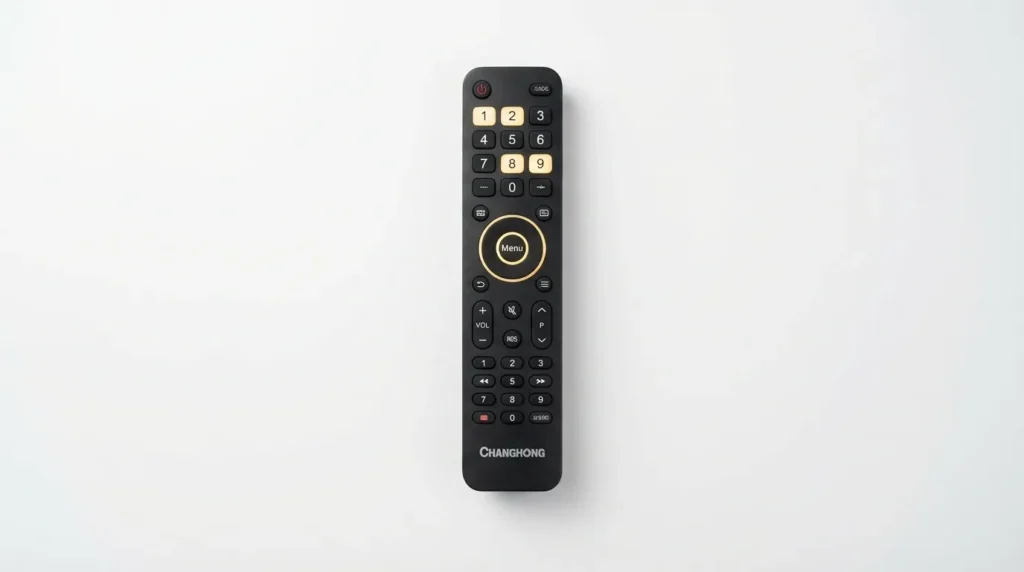
- Press: Menu → 1 → 9 → 9 → 8
- The service menu should appear within 2 seconds
If nothing happens, try these alternate sequences:
- Menu → 0 → 0 → 0 → 8
- Menu → 8 → 8 → 8 → 8
Some firmware versions respond to a slightly different input window. Press each button at roughly 1-second intervals — not too fast, not too slow.
Method 2 — Remote + Front Panel Button
This method is used when the remote-only sequence fails.
- Turn the TV on
- Press and hold the Volume Down button on the TV’s front panel or side panel
- While holding it, press Menu on the remote
- Hold both for 3–5 seconds
- Release when the service menu appears
On some models the Input button replaces Volume Down in this sequence.
Method 3 — Numeric Code Entry
A smaller set of Changhong Ruba models use direct numeric code entry.
- Press Menu on the remote to open the standard menu
- Without closing the menu, enter 1998 or 0008 using the number buttons
- The service menu overlays on screen
The code 1998 is the most widely confirmed numeric entry code across Changhong global and Ruba Pakistan variants.
Model-Specific Service Menu Codes
| Model / Chassis | Access Method | Code / Sequence |
|---|---|---|
| Changhong Ruba LED (general) | Remote combo | Menu → 1 → 9 → 9 → 8 |
| CKT1427 Chassis (CN-12C) | Remote combo | Menu → 1 → 9 → 9 → 8 |
| Changhong LCD older series | Numeric entry | 0008 |
| Ruba Smart LED (Android firmware) | Remote combo | Menu → 8 → 8 → 8 → 8 |
| Changhong global variants | Numeric entry | 1998 |
The CKT1427 chassis with the CN-12C board is one of the most documented Changhong platforms. It uses the standard Menu → 1 → 9 → 9 → 8 sequence. This chassis was also sold in some US-market variants under different brand labeling.
If you are unsure of your chassis, check the sticker on the back panel of the TV. It lists the model number, chassis code, and manufacturing date.
Other manufacturers use similar service menu logic. The Hisense TV service menu codes guide and the Skyworth TV service menu codes guide are useful references since both brands share Chinese manufacturing origins with Changhong.
How to Navigate the Service Menu
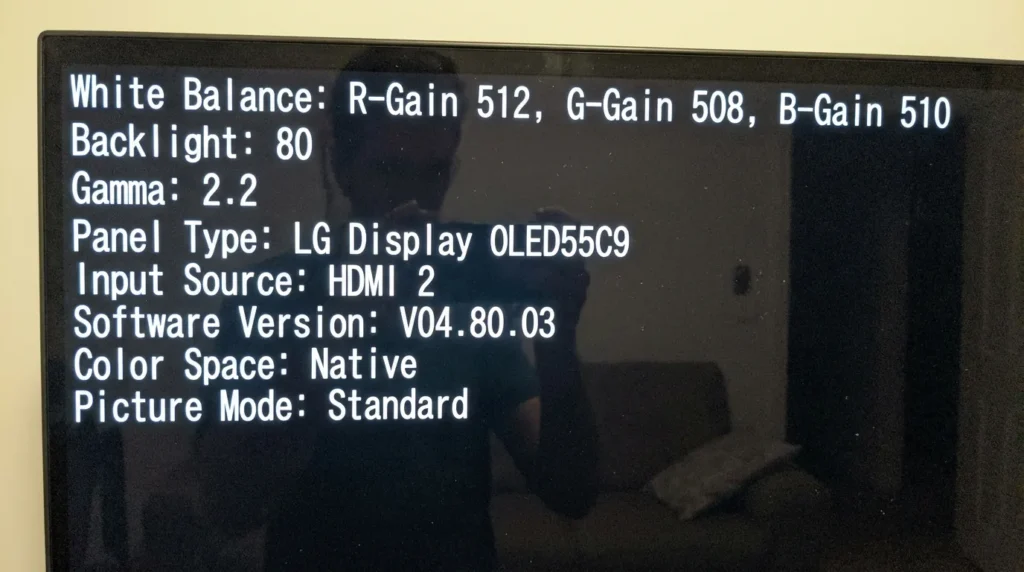
Once inside, the service menu looks different from the regular settings. It typically uses a plain text-based layout — no graphics, no icons.
Use the arrow keys on your remote to move between options. Use OK or Enter to select. Use the number keys to enter values where numeric input is required.
Key Parameters and What They Do
| Parameter | Function |
|---|---|
| White Balance (R/G/B Cut) | Controls color temperature at low brightness |
| White Balance (R/G/B Drive) | Controls color temperature at high brightness |
| Backlight | Sets maximum backlight output level |
| Gamma | Adjusts mid-tone brightness curve |
| ADC Gain | Calibrates analog signal input levels |
| Panel Type | Identifies the panel model to the firmware |
| Factory Reset | Restores all calibration to factory defaults |
| Hotel Mode | Enables or disables hotel TV restrictions |
| Software Version | Shows current firmware build number |
Do not adjust White Balance RGB values unless you have a colorimeter and calibration software. These values are set per-panel at the factory. Changing them blindly produces a tinted or washed-out picture that is hard to undo.
How to Save Changes
Most Changhong Ruba service menus save automatically when you change a value and move away from it. There is no separate “Save” button in most builds.
On some firmware versions, there is a Save & Exit or Write EEPROM option at the bottom of the menu. If you see it, use it before exiting.
Common Adjustments Made in the Service Menu
Factory Reset via Service Menu
This is the most common reason users enter the service menu. Locate the option labeled Factory Reset, Factory Default, or Initial Setting. Select it and confirm. The TV will reboot and restore all user and calibration settings to factory state.
If you’re performing a reset on a Samsung instead, the process is different — the Samsung TV factory reset guide walks through that separately.
Backlight and Brightness Calibration
If your TV’s picture looks too dim even at maximum brightness, the backlight value in the service menu may have been reduced. The typical range is 0–100 or 0–255 depending on the model. Set it to the manufacturer default — usually between 80 and 100 for home use.
A dim picture is one of the most common TV complaints. The TV no picture fix guide covers backlight failure and related hardware issues in more detail.
Audio Output Level
Some models have a service-level audio gain setting. This affects maximum output volume. If your TV suddenly sounds quieter than before a firmware update, this value may have shifted. For LG audio problems, the LG TV sound not working fix covers a similar diagnostic process that applies broadly.
Panel Type Setting
This matters after a panel replacement. The firmware needs to know the exact panel model to initialize it correctly. Wrong panel type settings cause flickering, incorrect color depth, or boot failures.
How to Exit the Service Menu Safely
Press the Menu button or the Exit button on your remote. On most models this closes the service menu and returns to the home screen.
Do not unplug the TV or press the power button while the service menu is open. On some chassis this can corrupt EEPROM calibration data. Always exit using the remote first, then power off normally if needed.
What to Do If the Code Doesn’t Work
Try Alternate Sequences
Start with Menu → 1 → 9 → 9 → 8, then try Menu → 0 → 0 → 0 → 8, then the panel + remote method. Some firmware updates change which sequence the TV responds to.
Check Your Remote
The sequence only works with the original Changhong Ruba remote supplied with the TV. Universal remotes and third-party remotes typically do not carry the correct IR codes for service menu access. If you’ve lost the original remote, a compatible Changhong replacement remote is required to proceed.
Firmware Version Differences
Changhong Ruba has released multiple firmware builds across its LED lineup. Newer Android-based smart TV firmware sometimes disables the standard service menu access sequence and replaces it with a different method — sometimes requiring a PC-side tool connected via USB. Check your exact firmware version in Settings → About TV before troubleshooting further.
If your TV won’t turn on at all and you can’t get to any menu, check the TV no picture troubleshooting guide before attempting service menu access.
Frequently Asked Questions
Will entering the service menu void my warranty? In most cases, yes. Changhong Ruba service centers can detect if service menu values have been altered. Do not enter the service menu on a TV still under active warranty.
Can I factory reset the TV from the service menu if the regular menu is frozen? Yes. If the standard user menu is unresponsive but the TV powers on, the service menu access sequence via remote often still works. Use the Factory Reset option inside.
What is the default password for the Changhong Ruba service menu? There is no separate password. The access code itself — 1998 or the key sequence — is the authentication method.
My TV entered service mode accidentally. How do I exit? Press Menu or Exit on your remote. Do not change anything. The TV returns to normal operation immediately.
Does the service menu differ between Changhong and Changhong Ruba models? The core menu structure is similar. Ruba is the Pakistan-market brand of Changhong. Most chassis codes and access sequences are shared, but firmware builds may differ slightly.
Do other brands use the same service menu code format? Many do. The Haier TV service menu codes, Daewoo TV service menu codes, and Videocon TV service menu codes guides show similar numeric entry patterns used across Asian-manufactured sets.
Conclusion
The service menu on Changhong Ruba TVs is accessible through a small number of key combinations — most reliably Menu → 1 → 9 → 9 → 8 on the original remote. The CKT1427 and CN-12C chassis follow this same sequence. Once inside, limit changes to what you specifically need, write down original values before touching anything, and always exit via the remote rather than cutting power. If the standard sequence fails, check your remote type and firmware version before assuming the menu is locked.
For service menu codes on other TV brands, the full LCD/LED TV service menu codes directory covers Sony, Samsung, LG, Philips, Panasonic, Toshiba, and dozens more.


