

Getting your universal remote to work with an Olevia TV requires specific codes that many remotes don’t list by default. The most successful code across all remote brands is 11610. If that doesn’t work, try 11144, 11240, or 11331 in that order.
Olevia televisions were manufactured by Syntax-Brillian Corporation until 2008. The company filed for bankruptcy and was later acquired by Emerson Radio Corp in 2009. Because of this history, Olevia TVs use a unique codeset that differs from standard universal remote libraries. Many owners struggle to find working codes because Olevia isn’t always listed as a brand option on newer remotes.
This guide provides every known working code organized by remote brand, three proven programming methods, and troubleshooting steps for when codes fail.
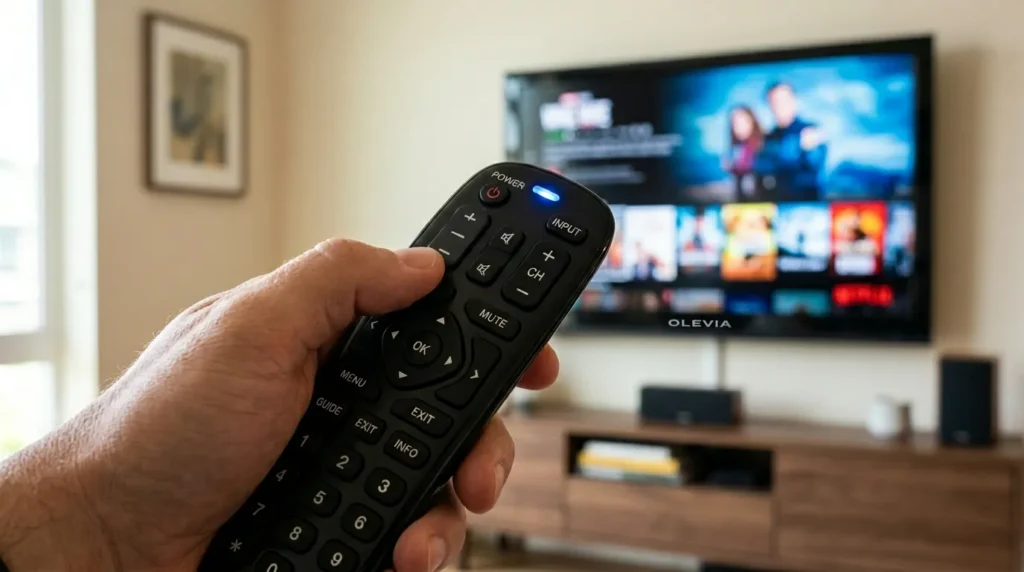
Quick Answer: Working Olevia TV Remote Codes
The primary code is 11610. This 5-digit code works with most universal remotes including DirecTV, Comcast, GE, and RCA models.
If 11610 fails, try these codes in order:
- 11144
- 11240
- 11331
- 10178
- 11331
- 11610
Some remotes use 4-digit codes. For those models, try 1610 or 1144.
Your remote’s instruction manual will specify whether it requires 3-digit, 4-digit, or 5-digit codes. Match the code format to your remote model.
Complete Olevia Remote Code List (All Brands)
DirecTV Remote Codes for Olevia
DirecTV remotes (models RC64, RC65, RC23, RC24, RC32, RC71, RC72, RC73) use 5-digit codes.
Primary codes:
- 11610
- 11144
- 11240
- 11331
Try 11610 first. It has the highest success rate with DirecTV equipment.
Comcast/Xfinity Olevia Codes
Comcast and Xfinity remotes accept 5-digit codes.
Working codes:
- 11610
- 11144
- 11331
- 10178
- 11240
Program using the remote’s Setup button. The LED will blink twice when the code is accepted.
GE Universal Remote Olevia Codes
GE universal remotes use either 4-digit or 5-digit codes depending on the model.
5-digit codes:
- 11610
- 11144
- 11331
- 11240
4-digit codes:
- 1610
- 1144
- 1331
Check your GE remote manual to confirm which format it requires.
RCA Universal Remote Olevia Codes
RCA remotes typically use 4-digit or 5-digit codes.
Primary codes:
- 11610
- 1610
- 11144
- 1144
- 11331
RCA remotes often require holding the Code Search button until the indicator light stays on.
Spectrum Remote Olevia Codes
Spectrum cable remotes use 5-digit codes.
Codes to try:
- 11610
- 11144
- 11240
- 10178
Most Spectrum remotes require entering the code while in TV mode. For detailed instructions on programming Spectrum TV remotes, refer to our complete guide.
Dish Network Olevia Codes
Dish Network remotes accept 3-digit codes.
Working codes:
- 627
- 654
- 720
Press and hold the TV button on your Dish remote before entering the code.
Cox Cable Olevia Codes
Cox remotes use 4-digit codes.
Primary codes:
- 1610
- 1144
- 1331
- 1240
Cox remotes typically require the Setup button pressed until the LED blinks twice.
AT&T U-verse Olevia Codes
U-verse remotes accept 4-digit codes.
Codes:
- 1610
- 1144
- 1331
Point the remote directly at the TV during programming.
One For All Olevia Codes
One For All universal remotes use 4-digit or 5-digit codes.
Try these:
- 1610
- 11610
- 1144
- 11144
One For All remotes have a Magic button that replaces the Setup button on other brands.
Philips Universal Remote Olevia Codes
Philips remotes require 4-digit codes.
Working codes:
- 1610
- 1144
- 1331
- 0178
Philips remotes use a Setup button located near the top of the device.
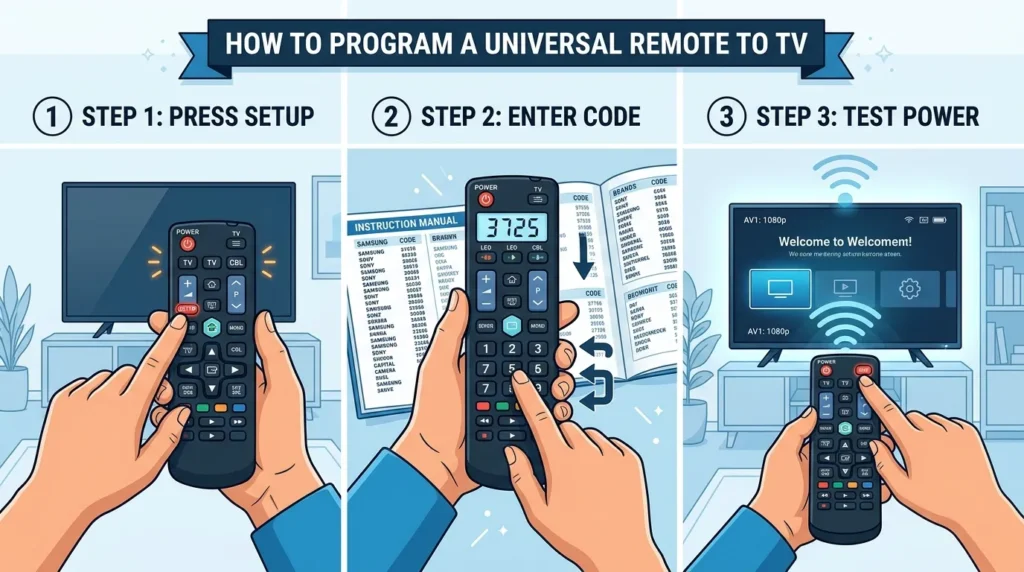
3 Programming Methods for Olevia TV
Method 1 – Direct Code Entry (Recommended)
This method takes 30 seconds and works best when you have the correct code.
Step 1: Turn on your Olevia TV manually using the power button on the TV itself.
Step 2: Press and hold the Setup button (or Code Search button) on your remote until the LED indicator light turns on or blinks twice. Some remotes require holding for 3 seconds.
Step 3: Press the TV button on your remote. The LED should blink once and remain on.
Step 4: Enter the 4-digit or 5-digit code using the number pad. For Olevia, start with 11610.
Step 5: The LED will turn off or blink twice if the code is accepted. If it blinks four times or stays on, the code failed.
Step 6: Test the remote by pressing the Power button. Your Olevia TV should turn off. Press it again to turn the TV back on.
Step 7: Test the Volume and Channel buttons to confirm full functionality.
If the code doesn’t work, repeat the process with the next code from your remote brand’s list.
Method 2 – Auto Code Search
Use this method when direct code entry fails. It takes 5-15 minutes because the remote cycles through every code in its database.
Step 1: Turn on your Olevia TV.
Step 2: Press and hold the Setup button until the LED indicator stays on.
Step 3: Press the TV button. The LED will blink once and stay on.
Step 4: Press the Power button repeatedly. Wait 2 seconds between each press. The remote sends a different code with each press.
Step 5: Watch your TV carefully. When it turns off, immediately press the Setup button (or Enter button) to save that code.
Step 6: Turn the TV back on manually and test the remote functions.
This method requires patience. You might press the Power button 50-100 times before finding the correct code.
Method 3 – Brand Code Search (Using Syntax)
Some universal remotes don’t list Olevia as a brand but include Syntax. Since Olevia TVs were manufactured by Syntax-Brillian, these codes often work.
Step 1: Turn on your Olevia TV.
Step 2: Press and hold Setup until the LED indicator stays on.
Step 3: Enter the code 9-9-1 (or 9-9-2 on some models). This activates brand code search mode.
Step 4: Press the TV button.
Step 5: Use the Channel Up button to cycle through brands. Count the number of times the LED blinks. Each blink represents a different brand.
Step 6: When you reach the brand count for Syntax (varies by remote model), press the Power button to test.
Step 7: If the TV turns off, press Setup to save the code.
Check your remote’s manual for the specific brand code number for Syntax.
Step-by-Step Programming Instructions by Remote Brand
Programming DirecTV Remote to Olevia TV
For DirecTV RC64, RC65, RC71, RC72, RC73:
- Press and hold Mute and Select together until the green LED blinks twice.
- Enter 9-9-1. The LED will blink twice.
- Press 1 to start code search mode.
- Press Channel Up repeatedly until the TV turns off.
- Press Select to save the code.
For DirecTV RC23, RC24, RC32:
- Press and hold Setup until the LED blinks twice.
- Enter 9-9-1.
- Enter the code 11610.
- The LED will blink twice if accepted.
Programming GE Universal Remote to Olevia TV
- Turn on the Olevia TV.
- Press and hold the Code Search button until the indicator light stays on.
- Press the TV button. The light will blink once and stay on.
- Enter 11610 (or 1610 for 4-digit models).
- The light will turn off if the code is correct.
- Test by pressing Power.
For more detailed programming instructions, check our complete GE universal remote codes guide.
Programming RCA Remote to Olevia TV
- Turn on your TV.
- Press and hold Code Search until the indicator light stays on (about 3 seconds).
- Press the TV button.
- Enter 1610.
- Point the remote at the TV and press Power.
- The TV should turn off. If it does, press Code Search to lock in the code.
Need help with other devices? Visit our RCA universal remote codes page for comprehensive instructions.
Programming Comcast Remote to Olevia TV
- Turn on the TV.
- Press Setup until the LED changes from red to green.
- Enter 9-9-1-5-1.
- Press the TV Power button. The LED will blink green twice.
- Enter 11610.
- Press the TV Power button again to test.
Why Olevia TVs Use Unique Remote Codes
Olevia televisions were manufactured by Syntax-Brillian Corporation from 2004 to 2008. The company specialized in LCD TVs and sold them primarily through retailers like Best Buy and Costco.
Syntax-Brillian filed for Chapter 11 bankruptcy in October 2008. Emerson Radio Corp acquired the company’s assets in 2009 but discontinued the Olevia brand. Production stopped entirely in 2009.
Because the brand was discontinued before universal remote manufacturers widely adopted its codes, many newer remotes don’t include Olevia in their databases. The codes that do work are often listed under “Syntax” instead of “Olevia.”
The 11610 code became the de facto standard because it was the last official code distributed by Syntax-Brillian to remote manufacturers. Older remotes may only have earlier codes like 1144 or 1331.
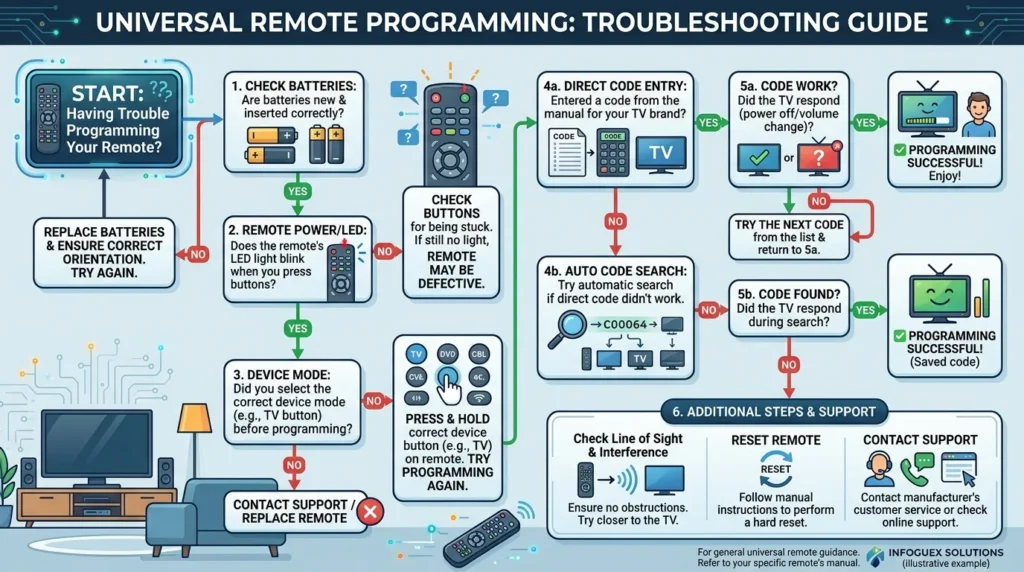
Troubleshooting: Remote Won’t Program to Olevia TV
Code Doesn’t Work – Try These Steps
Replace the batteries first. Weak batteries cause 40% of programming failures. Use fresh batteries and ensure they’re inserted correctly.
Verify TV power. The TV must be on during programming. Use the power button on the TV itself, not a remote.
Check line of sight. Point the remote directly at the TV’s infrared sensor during programming. Remove any obstacles between the remote and TV.
Try all codes for your remote brand. Don’t stop at the first code. Work through the complete list. Different Olevia TV models respond to different codes.
Use the auto search method. If manual code entry fails completely, auto search will find the code by testing every possibility.
LED Light Issues
LED doesn’t light up: Replace batteries or check battery contacts for corrosion.
LED blinks four times: The code was rejected. The remote doesn’t recognize that code number. Try a different code.
LED stays on after entering code: Press the Setup button to exit programming mode, then start over.
No LED on your remote: Some basic remotes don’t have LED indicators. Listen for beeps or watch the TV for response instead.
Remote Compatibility Problems
Not all universal remotes support Olevia codes. Budget remotes under $10 typically have limited code libraries.
Check remote compatibility before purchasing. Look for remotes that specifically list “Olevia” or “Syntax” in their brand compatibility list. Popular brands like ONN universal remotes and Insignia universal remotes offer broader code databases.
Learning remotes work best with Olevia. These remotes copy signals from your original Olevia remote. The TiVo GLO remote is a learning remote that works well with discontinued TV brands.
RF remotes won’t work. Olevia TVs use infrared (IR) technology only. Radio frequency (RF) remotes that don’t require line of sight won’t pair with Olevia TVs.
TV Not Responding
Test with the original remote. If the original Olevia remote also doesn’t work, the TV’s IR receiver may be faulty.
Check TV settings. Some Olevia models have a child lock or IR lock feature that disables remote control. You’ll need to disable this through the TV’s on-screen menu using the physical buttons.
Confirm remote mode. Make sure your universal remote is in TV mode, not DVD or Cable mode. Press the TV button before attempting any commands.
Alternative Solutions for Controlling Olevia TV
Learning Remotes
A learning remote copies infrared signals from your original Olevia remote and stores them. This bypasses the need for manufacturer codes entirely.
The TiVo GLO remote is a learning remote that works with Olevia TVs. Hold both remotes face-to-face and program each button individually. The process takes about 10 minutes but guarantees compatibility.
Other learning remotes include the Logitech Harmony series and URC Complete Control models. These cost $30-$150 but control multiple devices with full functionality.
Original Olevia Remotes
Replacement Olevia remotes are available on eBay, Amazon, and electronics parts websites. Prices range from $15-$40 depending on condition.
Search for “Olevia TV remote” plus your TV model number. Common Olevia models include 232-S13, 265T FHD, 247TFHD, and various 42-inch models.
Generic compatible remotes are also available. These are new remotes pre-programmed specifically for Olevia TVs and don’t require code entry.
Smart Home Integration
Connect a streaming device to your Olevia TV’s HDMI port. Devices like Roku, Fire TV Stick, or Apple TV come with their own remotes that control TV power and volume through HDMI-CEC.
This solution only works if your Olevia TV has HDMI ports with CEC support. TVs made after 2006 typically include this feature.
Frequently Asked Questions
What is the most common Olevia TV code?
The code 11610 works with most universal remotes including DirecTV, Comcast, GE, and RCA models. This 5-digit code has the highest success rate across all Olevia TV models manufactured between 2004 and 2008.
Why is my Olevia TV not responding to any code?
Three common reasons: your remote doesn’t have Olevia codes in its database, you’re using an RF remote with an IR-only TV, or the batteries are too weak to complete programming. Try auto code search as a last resort or consider purchasing a learning remote.
Can I use a Syntax TV code for Olevia?
Yes. Olevia TVs were manufactured by Syntax-Brillian, so Syntax codes work with Olevia TVs. If your universal remote lists Syntax but not Olevia, use the Syntax codes. The codes are identical.
Are all Olevia models compatible with the same codes?
Most Olevia models use the same primary codes, but some variations exist. The 11610 code works with 80% of Olevia TVs. Models from 2004-2005 may require older codes like 1144 or 1331. Try multiple codes if the first one fails.
What if my remote doesn’t have an Olevia option?
Use auto code search mode or look for Syntax in the brand list. If neither option exists, your remote’s code library may not include Olevia. Consider upgrading to a remote with a larger code database like Blackweb universal remotes or ByJasco universal remotes, or purchase a learning remote that copies your original Olevia remote’s signals.
Conclusion
Programming a universal remote for your Olevia TV starts with code 11610. This code works with most DirecTV, Comcast, GE, and RCA remotes. If it fails, work through the complete code list for your specific remote brand before trying auto code search.
Olevia’s unique position as a discontinued brand makes finding working codes more difficult than with active manufacturers like Samsung, Sony, Vizio, or Hisense. The TV’s reliance on infrared technology limits compatibility with newer RF remotes. When standard programming methods fail, learning remotes provide the most reliable alternative by copying signals directly from your original Olevia remote.
Test each code thoroughly by checking power, volume, and channel functions before concluding a code doesn’t work. Battery strength and line of sight are the most common causes of programming failure.
For other discontinued brands, you might find our guides on Zenith universal remote codes, Durabrand TV codes, Dynex TV codes, or Daewoo TV codes helpful.


