

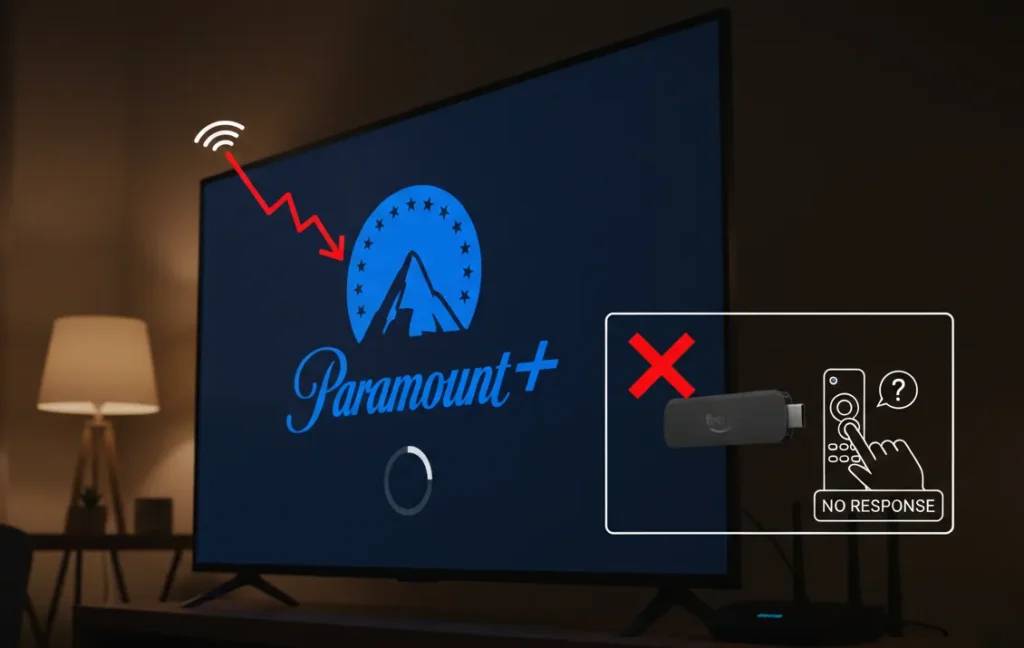
Paramount Plus stopped working on your Fire Stick right in the middle of your show. The app freezes. It buffers endlessly. Or it won’t even load past the black screen.
This happens more than it should. Fire Stick and Paramount Plus don’t always play nice together. The good news? Most issues take under 5 minutes to fix.
This guide walks through 15 proven solutions. Start with the 30-second fixes. Move to deeper troubleshooting only if needed. Each fix includes the exact steps, what it solves, and how long it takes.
By the end, you’ll have Paramount Plus streaming again.
Quick Fixes (Try These First)
Start here. These three fixes solve 70% of Paramount Plus problems on Fire Stick. They take under 2 minutes total.
1. Restart Your Fire Stick
Time: 30 seconds
A simple restart clears temporary glitches. Fire Stick builds up cached processes that slow apps down. Restarting wipes these and gives Paramount Plus a fresh start.
Steps:
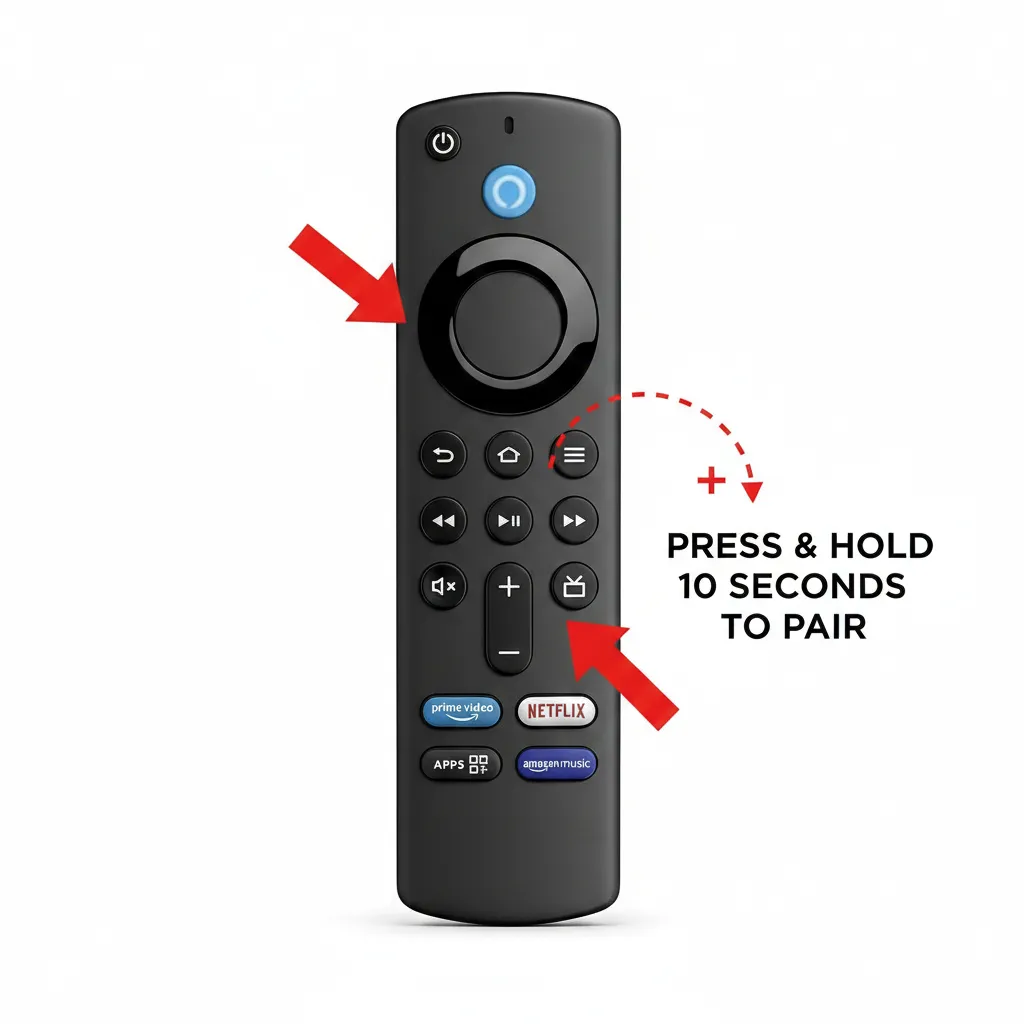
- Press and hold the Select button and Play/Pause button together for 5 seconds
- Your Fire Stick will restart automatically
- Wait for the home screen to load
- Open Paramount Plus
Or use the menu:
- Go to Settings
- Select My Fire TV
- Click Restart
- Confirm
The Fire Stick takes 45 seconds to reboot. This fixes freezing, slow loading, and minor crashes. If you need to control your Fire Stick without the remote, check out our guide on how to use Amazon Fire TV without remote.
2. Check Your Internet Connection
Time: 1 minute
Paramount Plus needs 4 Mbps minimum. HD streams need 5 Mbps. 4K content requires 25 Mbps. Slow internet causes buffering and failed loads.
Steps:
- Press Home on your remote
- Go to Settings
- Select Network
- Your Fire Stick shows connection status
Look for the Wi-Fi signal strength. If it shows one or two bars, the connection is weak.
Test your actual speed:
- Download the Fast Speed Test app from Amazon App Store
- Open it
- Wait 10 seconds for results
If speed is below 4 Mbps, restart your router. Unplug it for 30 seconds. Plug it back in. Wait 2 minutes for full restart.
3. Update the Paramount Plus App
Time: 2 minutes
Outdated apps crash. They have bugs that cause black screens and loading failures. Paramount Plus releases updates every 3-4 weeks.
Steps:
- Press Home
- Highlight the Paramount Plus app
- Press the Menu button (three horizontal lines)
- Select More Info
- If you see Update, click it
- Wait 30 seconds for install
- Click Open
If no update appears, your app is current.
These three fixes handle most issues. If Paramount Plus still won’t work, move to the diagnostic section below.
Common Paramount Plus Problems on Fire Stick
Recognize your exact problem. This tells you which fix to try next.
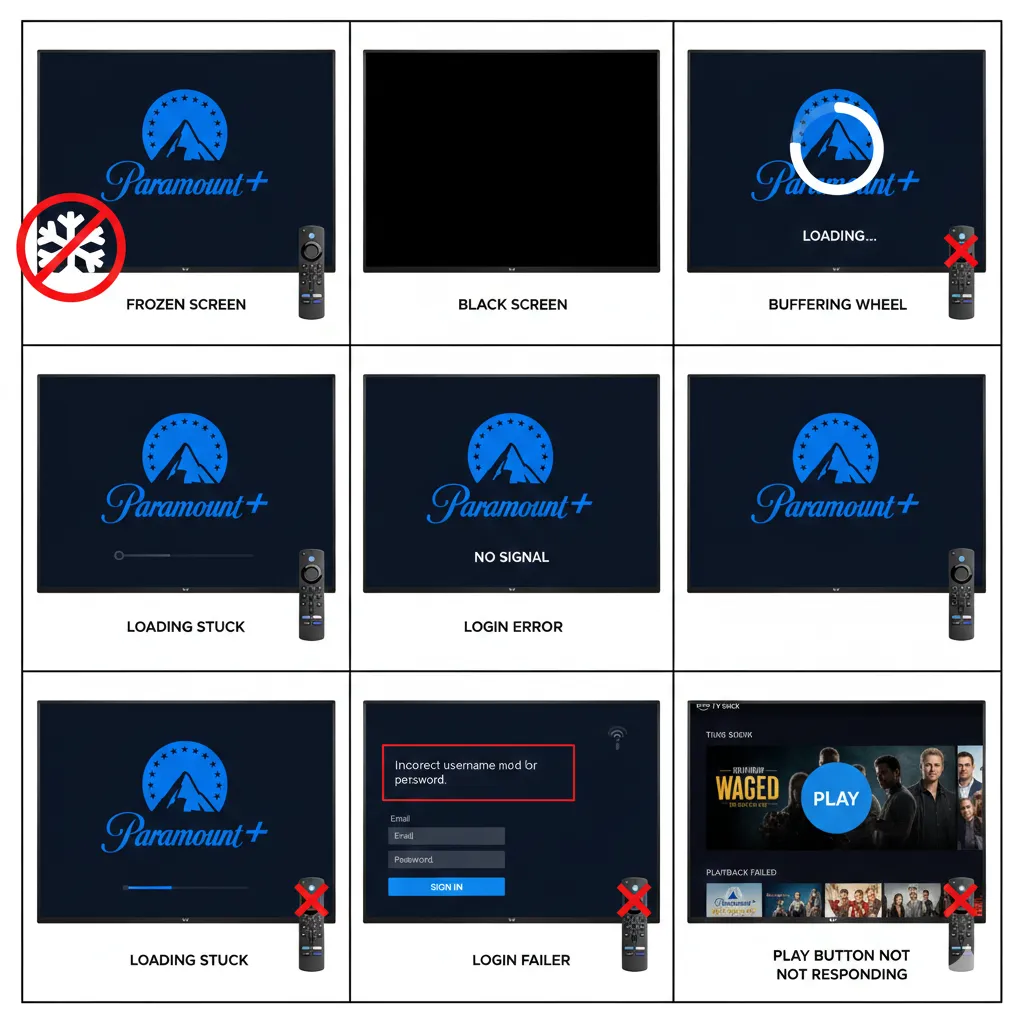
App freezing or crashing – Paramount Plus opens but freezes within 30 seconds. Or it crashes back to the Fire Stick home screen.
Black screen on launch – The app opens to a black screen. No loading icon. No error message. Just black. If you’re experiencing similar issues with other devices, our guide on how to fix Fire TV black screen may help.
Constant buffering – Video starts but stops every 10-15 seconds to buffer. The spinning wheel never stops.
App won’t load – Paramount Plus gets stuck on the loading screen. The logo appears but nothing happens.
Login errors – Can’t sign in. Password works on other devices but fails on Fire Stick.
Video won’t play – You can browse content. Select a show. Press play. Nothing happens.
Audio but no video – You hear sound but the screen stays black during playback.
Each problem has a specific cause. The sections below target each one.
Why Paramount Plus Fails on Fire Stick
Understanding the cause helps you pick the right fix.
Outdated App Version
Paramount Plus updates break compatibility with old versions. Fire Stick auto-updates are unreliable. Running version 6.1 or older causes crashes on Fire OS 7 and newer.
Corrupted Cache Data
Cache stores temporary files to speed up the app. After 2-3 weeks of use, this cache becomes corrupted. The app reads bad data and freezes.
Fire OS Compatibility Issues
Fire Stick runs Fire OS. It’s based on Android but modified by Amazon. Some Fire OS versions conflict with Paramount Plus. Fire OS 6 has known issues with the latest app updates.
Network Speed Problems
Streaming 4K on a 10 Mbps connection fails. The Fire Stick can’t download video fast enough. Buffering is constant.
Server Outages
Paramount Plus servers go down. Rare but it happens. When servers are offline, no fix on your end will work.
Device Overheating
Fire Stick 4K gets hot. Place it behind your TV where heat can’t escape. The processor throttles. Apps crash. Paramount Plus is resource-heavy and fails first.
Insufficient Storage
Fire Stick comes with 8GB storage. Apps and cache fill this up. When storage drops below 500MB, apps stop working properly.
4K Compatibility Issues
Fire Stick 4K Max tries to stream everything in 4K. Some Paramount Plus content isn’t optimized. The player crashes. Dropping to 1080p fixes this.
Now you know what’s breaking. Time to fix it.
Fire Stick Device Fixes
These solutions target the Fire Stick itself. Problems with Fire OS, storage, or settings get fixed here.
Fix 1: Clear Fire Stick Cache and Data
Time: 3 minutes
Clearing cache removes corrupted temporary files. This fixes 40% of freezing and crashing issues.
Steps:
- Press Home
- Go to Settings
- Select Applications
- Click Manage Installed Applications
- Scroll to Paramount Plus
- Select it
- Click Clear cache
- Wait 5 seconds
- Click Clear data
- Confirm
Clearing data logs you out. You’ll need to sign in again. But it gives Paramount Plus a completely fresh start.
Fix 2: Update Fire OS
Time: 5-8 minutes
Amazon releases Fire OS updates every 2 months. Updates fix bugs and improve app compatibility. Fire Stick doesn’t always auto-update.
Steps:
- Go to Settings
- Select My Fire TV
- Click About
- Select Check for Updates
- If an update exists, click Install Update
- Fire Stick will restart
- Wait 3 minutes for installation
Current Fire OS version as of 2026 is Fire OS 8.1. If you’re running 7.x or older, update immediately.
Fix 3: Restart Fire Stick (Full Reboot)
Time: 2 minutes
Different from the quick restart. This fully powers down the device.
Steps:
- Unplug the Fire Stick power cable from the wall
- Wait 60 seconds
- Plug it back in
- Wait for boot-up (90 seconds)
- Open Paramount Plus
Full power cycle clears everything from memory. It’s more effective than the restart button. For a complete reset, you can also learn how to reset Amazon Fire TV Stick.
Fix 4: Adjust Display Settings to 1080p
Time: 2 minutes
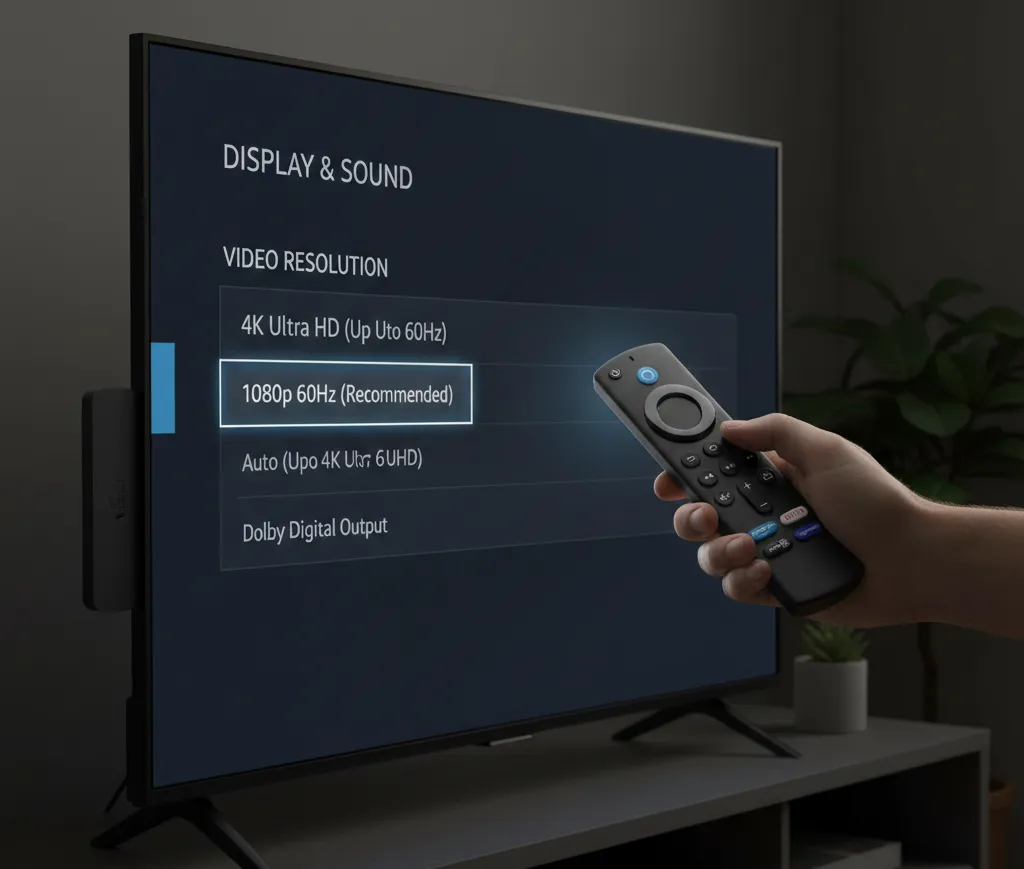
This fix is critical for Fire Stick 4K users. Paramount Plus has issues rendering some 4K content. The app crashes trying to process it.
Steps:
- Go to Settings
- Select Display & Sounds
- Click Display
- Select Video Resolution
- Change from Auto (4K Ultra HD) to 1080p 60Hz
- Confirm
You lose 4K quality. But Paramount Plus will work. Most content looks identical on a 50-inch TV anyway.
Fix 5: Check Fire Stick Storage Space
Time: 1 minute
Low storage kills apps.
Steps:
- Go to Settings
- Select My Fire TV
- Click About
- Select Storage
You need at least 500MB free. If you’re below that:
- Go back to Applications
- Select Manage Installed Applications
- Delete apps you don’t use
- Or clear cache on Netflix, Hulu, Prime Video
Each app cache can be 200-400MB.
Fix 6: Factory Reset Fire Stick
Time: 10 minutes
Nuclear option. Wipes everything. Only use this if nothing else worked.
Steps:
- Go to Settings
- Select My Fire TV
- Click Reset to Factory Defaults
- Confirm
- Fire Stick will restart
- Go through setup again
- Reinstall Paramount Plus
You’ll lose all apps and settings. But you get a clean device. This fixes deep system conflicts.
Paramount Plus App Fixes
These target the Paramount Plus app specifically. Use these when Fire Stick works fine but only Paramount Plus has issues.
Fix 7: Force Stop Paramount Plus
Time: 30 seconds
Force stop kills the app completely. It clears it from memory.
Steps:
- Press Home
- Highlight Paramount Plus
- Press Menu button
- Select Force Stop
- Confirm
- Wait 5 seconds
- Open the app again
Simple but effective for temporary freezes.
Fix 8: Clear Paramount Plus Cache and Data
Time: 2 minutes
Same process as clearing Fire Stick cache, but focused only on Paramount Plus.
Steps:
- Go to Settings
- Select Applications
- Click Manage Installed Applications
- Find Paramount Plus
- Select Clear cache first
- Then select Clear data
This removes login info. Have your password ready.
Fix 9: Uninstall and Reinstall Paramount Plus
Time: 4 minutes
Complete fresh install. Removes corrupted files that cache clearing misses.
Steps:
- Press Home
- Highlight Paramount Plus
- Press Menu
- Select Uninstall
- Confirm
- Press Home
- Go to Find menu
- Select Search
- Type Paramount Plus
- Select the app
- Click Download or Get
- Wait 90 seconds
- Open and sign in
You get the latest version. Fresh install. No corrupted files.
Fix 10: Check Paramount Plus Server Status
Time: 1 minute
If Paramount servers are down, nothing you do will work.
Steps:
- On your phone or computer, go to downdetector.com
- Search Paramount Plus
- Check the status graph
If the graph shows a spike in reports, servers are having issues. Wait 30 minutes and try again.
You can also check Paramount Plus Twitter (@ParamountPlus) for outage announcements.
Fix 11: Verify Your Subscription Status
Time: 2 minutes
Expired subscriptions cause login failures and playback errors.
Steps:
- On your phone, go to paramountplus.com
- Log in
- Click your profile icon
- Select Account
- Check Subscription section
Make sure it shows active. If it says “Expired” or “Payment Failed,” update your payment method.
As of 2026, Paramount Plus Essential costs $7.99/month. Paramount Plus with Showtime costs $12.99/month.
Network and Connectivity Fixes
Internet issues cause 30% of streaming problems. These fixes target your connection.
Fix 12: Test Your Internet Speed
Time: 2 minutes
Know your actual speed. The number your ISP promises doesn’t matter. Test what you actually get.
Steps:
- Download Fast Speed Test from Amazon App Store
- Open it
- Wait 10 seconds
Or on your phone:
- Go to fast.com
- Wait for results
Required speeds:
- SD quality: 4 Mbps
- HD quality: 5 Mbps
- 4K quality: 25 Mbps
If you’re below these, streaming will fail.
Fix 13: Restart Your Router and Modem
Time: 3 minutes
Routers accumulate connection errors. Restarting clears them.
Steps:
- Unplug your router power cable
- Unplug your modem power cable
- Wait 30 seconds
- Plug modem back in
- Wait 60 seconds for full connection
- Plug router back in
- Wait 90 seconds
- Check Fire Stick connection
Your Fire Stick should reconnect automatically.
Fix 14: Switch Between 2.4GHz and 5GHz Networks
Time: 2 minutes
Fire Stick supports both Wi-Fi bands. 5GHz is faster but has shorter range. 2.4GHz is slower but reaches farther.
If your Fire Stick is far from the router, 5GHz might drop packets. Switch to 2.4GHz.
Steps:
- Go to Settings on Fire Stick
- Select Network
- Choose your Wi-Fi network name
- Look for the 5GHz version (often has “5G” in the name)
- Try connecting to the other band
Some routers broadcast both. Pick the one that gives a stronger signal.
Fix 15: Use Wired Connection Instead of Wi-Fi
Time: 5 minutes (requires ethernet adapter)
Wi-Fi has interference. Walls, microwaves, other devices. Wired connection eliminates this.
Fire Stick doesn’t have an ethernet port. You need the Amazon Ethernet Adapter ($15).
Steps:
- Buy the Amazon Ethernet Adapter for Fire Stick
- Plug Fire Stick into the adapter
- Plug ethernet cable into adapter
- Connect cable to router
- Fire Stick auto-detects wired connection
Buffering drops to zero. Connection is stable.
Advanced Troubleshooting
Still not working? These are the final options.
Disable VPN or Proxy
VPNs slow connections. They also trigger Paramount Plus geo-restrictions. If you’re using a VPN on your router or Fire Stick, turn it off.
Adjust Video Quality in Paramount Plus
Force the app to stream at lower quality.
Steps:
- Open Paramount Plus
- Go to Settings in the app
- Select Video Quality
- Change to Medium or Low
Reduces strain on your connection.
Contact Amazon Support
If Fire Stick itself has hardware issues, Amazon support can help.
Steps:
- Go to amazon.com/support
- Sign in
- Select Devices
- Choose Fire TV
- Pick your issue
- Select Chat or Phone
Have your Fire Stick serial number ready (found in Settings > My Fire TV > About).
Contact Paramount Plus Support
For account or app-specific issues.
Steps:
- Go to support.paramountplus.com
- Select Contact Us
- Choose Chat or Email
- Describe your issue
Include your Fire Stick model and what you’ve tried already.
Preventing Future Issues
Stop problems before they start.
Update apps weekly – Check for Paramount Plus updates every Monday. Go to the app, press Menu, select More Info, update if available.
Clear cache monthly – Set a reminder for the 1st of each month. Clear Paramount Plus cache. Takes 30 seconds. Prevents buildup.
Maintain 6 Mbps minimum speed – Test your internet quarterly. If it drops below 6 Mbps, contact your ISP.
Keep Fire Stick ventilated – Don’t hide it behind the TV. Don’t stack devices on top. Heat kills performance.
Restart Fire Stick weekly – Every Sunday, do a full restart. Unplug for 60 seconds. This clears memory and prevents slowdowns.
Related Fire Stick and Streaming Issues
If you’re experiencing other Fire Stick problems, these guides can help:
- Remote not working? Learn how to fix Fire Stick remote not pairing
- Roku device issues? Check our guide on how to fix Roku app not finding device
- Streaming app problems on Samsung TV? See how to fix Spectrum app not working on Samsung TV
FAQs
Why does Paramount Plus keep buffering on Fire Stick?
Three main causes. Your internet is below 5 Mbps. Your Fire Stick is overheating and throttling. Or Paramount Plus cache is corrupted. Run a speed test first. If speed is fine, clear the app cache. If buffering continues, move your Fire Stick to a cooler spot.
How much does Paramount Plus cost in 2026?
Paramount Plus Essential is $7.99/month. You get access to the full library with ads. Paramount Plus with Showtime is $12.99/month. No ads, live sports, download capability, and Showtime content included.
What internet speed do I need for Paramount Plus?
4 Mbps for standard definition. 5 Mbps for HD streaming. 25 Mbps for 4K content. Fire Stick 4K needs the 25 Mbps minimum or videos will buffer constantly.
Can I watch Paramount Plus for free on Fire Stick?
No. Paramount Plus requires a paid subscription. They offer a 7-day free trial for new users. After that, you must pay $7.99 or $12.99 monthly. No free tier exists.
Why does Paramount Plus work on my phone but not Fire Stick?
Different devices, different software. Your phone runs native iOS or Android. Fire Stick runs Fire OS. Paramount Plus has separate apps for each. The Fire Stick version has more bugs. It’s also more demanding on hardware. Try reinstalling the Fire Stick app. Clear its cache. Update Fire OS.
Does Fire Stick generation matter for Paramount Plus?
Yes. Fire Stick 4K and 4K Max have more Paramount Plus issues. They try to force 4K playback even when content isn’t optimized. The standard Fire Stick HD has fewer problems. If you have a 4K model, switch display settings to 1080p.
Conclusion
Paramount Plus breaks on Fire Stick for fixable reasons. Start with the quick fixes. Restart Fire Stick. Check internet speed. Update the app. These solve most problems in under 3 minutes.
If issues persist, clear cache and data. Update Fire OS. Drop video quality from 4K to 1080p on Fire Stick 4K models.
Network problems need router restarts and speed tests. Get at least 5 Mbps for HD streaming.
Worst case, reinstall Paramount Plus or factory reset Fire Stick.
One of these 15 fixes will work. Paramount Plus will stream again.


