

You don’t need the original remote to use your Fire TV. Whether you lost it, it broke, or you’re setting up a new device, there are six working methods to get full control back — most of them free and available right now.
Method 1 — Use the Amazon Fire TV App on Your Phone
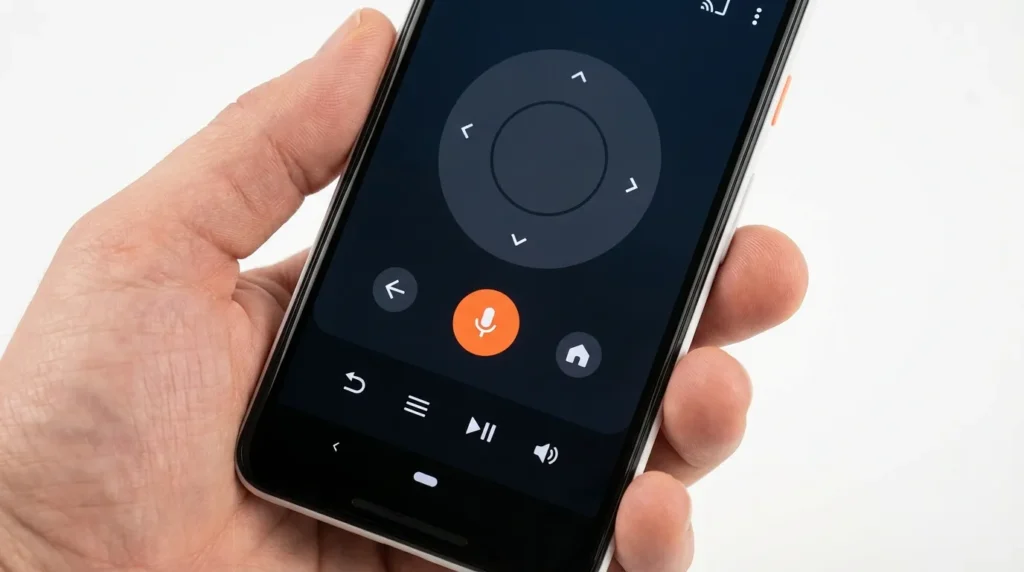
This is the fastest solution for most people. The Amazon Fire TV app turns your smartphone into a full remote, including a D-pad, voice search, and keyboard input.
Works on: Android and iOS Requirement: Your phone and Fire TV must be on the same Wi-Fi network
How to Set It Up
- Download the Amazon Fire TV app from the App Store or Google Play
- Open the app and tap the Remote icon at the bottom
- The app scans your network and lists nearby Fire TV devices
- Tap your device name — a 4-digit code appears on your TV screen
- Enter the code in the app to confirm pairing
- You now have full remote control from your phone
The app includes a microphone button for Alexa voice search, a touchpad for navigation, and a keyboard that pops up automatically when text input is needed.
If the App Can’t Find Your Fire TV
This is the most common problem people run into. Here’s what to check:
- Same network: Your phone must be on the exact same Wi-Fi network as the Fire TV — not a guest network, not a 5GHz band if Fire TV is on 2.4GHz
- App permissions: Allow the app to access your local network in your phone’s settings
- Fire TV discovery enabled: On Fire TV, go to Settings > Controllers & Bluetooth Devices > Amazon Fire TV App and make sure it’s set to ON
- Restart both devices: Power cycle your router, Fire TV, and phone, then try again
If the app still won’t discover your device, the same network-detection logic applies to other streaming apps too — see how the Roku app handles the same issue for additional troubleshooting steps that translate directly.
If your Fire TV isn’t connected to Wi-Fi yet (fresh out of the box), the app won’t work. Jump to Method 5 for that situation.
Method 2 — Control Fire TV With Alexa
If you have an Amazon Echo or any Alexa-enabled device on the same account, you can control Fire TV entirely by voice.
Works with: Echo Dot, Echo, Echo Show, Echo Studio, any Alexa device linked to the same Amazon account
Setup
Go to the Alexa app on your phone → Devices → Add Device → select your Fire TV. Once linked, Alexa handles navigation, playback, and app launching.
Voice Commands That Work
| Command | What It Does |
|---|---|
| “Alexa, open Netflix” | Launches the Netflix app |
| “Alexa, play Stranger Things” | Starts the show directly |
| “Alexa, pause” | Pauses current playback |
| “Alexa, go home” | Returns to Fire TV home screen |
| “Alexa, turn up the volume” | Adjusts Fire TV volume |
| “Alexa, go back” | Navigates back one screen |
Voice control works even when the Fire TV app can’t connect. It’s a reliable backup when Wi-Fi is working but app discovery fails.
If Paramount+ is one of your go-to apps on Fire TV, note that voice launching sometimes fails when the app itself isn’t loading correctly — fix that first, then Alexa commands work reliably.
Method 3 — Use Your TV Remote via HDMI-CEC
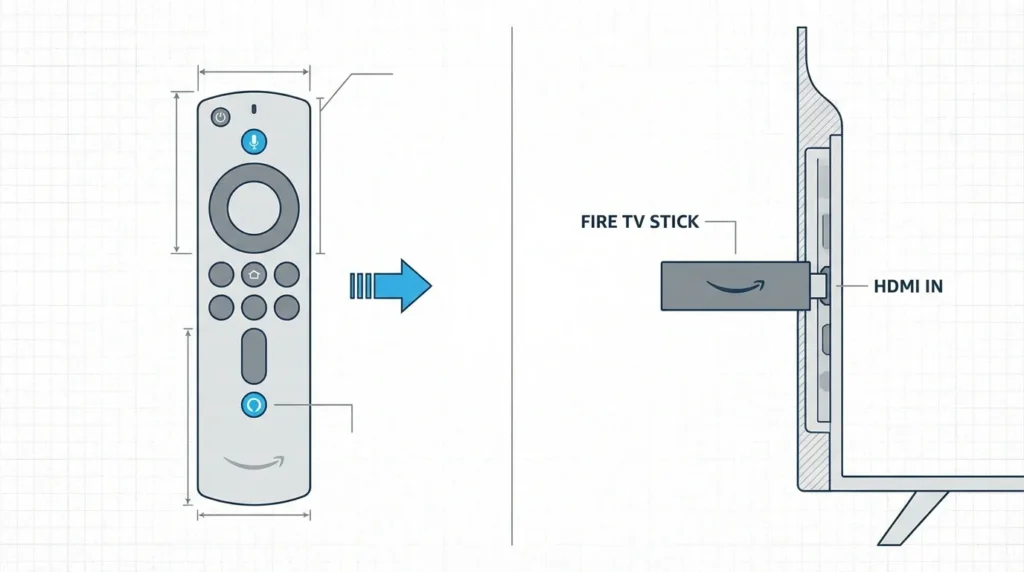
HDMI-CEC is a feature built into most modern TVs that lets one remote control multiple HDMI-connected devices. If your TV supports it, your existing TV remote can navigate Fire TV without any additional setup — once CEC is enabled.
What HDMI-CEC Is Called on Your TV
Every brand uses a different name for the same feature:
| TV Brand | CEC Name |
|---|---|
| Samsung | Anynet+ |
| Sony | Bravia Sync |
| LG | SimpLink |
| Panasonic | Viera Link |
| Sharp | Aquos Link |
| Toshiba | Regza Link |
How to Enable It
On your TV: Go into your TV’s settings menu and find the CEC or brand-specific option above. Enable it.
On Fire TV: Go to Settings > Display & Sounds > HDMI CEC Device Control → turn it ON.
Once both are enabled, your TV remote’s directional buttons, select, back, and home will control Fire TV directly.
The path to CEC settings varies slightly across TV brands. If you’re using a Panasonic TV and need to navigate deeper settings, the Panasonic TV service menu gives a complete map of advanced menu locations. For LG TVs, LG’s SimpLink and advanced settings are accessible through a similar path.
Limitations
CEC doesn’t give you full Fire TV control. You won’t get a microphone button, Alexa access, or app-specific shortcut buttons. It handles basic navigation well but falls short for voice search or detailed settings.
Method 4 — Use a Universal Remote
Most universal remotes released after 2019 include Fire TV compatibility through pre-programmed device codes.
Best options:
- Logitech Harmony series (supports Fire TV natively through the Harmony app)
- GE 4-Device Universal Remote (uses IR codes, works with most Fire TV Stick models)
- Sofabaton U1 (Bluetooth + IR, full Fire TV navigation)
How to Program It
For Logitech Harmony: Add your Fire TV device through the Harmony desktop app. It pulls the correct profile automatically.
For IR-based remotes (GE, RCA, etc.):
- Hold the Setup button until the LED stays on
- Enter the Fire TV device code — common codes are 2045, 2056, 2282 (check your remote’s manual for the full list)
- Point at Fire TV and test the directional buttons
Note: IR-based remotes require line-of-sight to the Fire TV Stick. If your stick is tucked behind a TV or inside a cabinet, IR signals won’t reach it. Bluetooth-based universal remotes don’t have this limitation.
If you’re also dealing with the Fire TV black screen issue while trying to set up a universal remote, resolve the display problem first — otherwise you won’t be able to confirm the remote is working.
Method 5 — Connect a USB Keyboard or Mouse via OTG Adapter
This method works even when your Fire TV has never been set up — no Wi-Fi, no remote, no problem. It’s the only option that gives you full control at the initial setup screen.
What you need:
- A USB keyboard (and optionally a USB mouse)
- A USB OTG (On-The-Go) adapter — Micro-USB or USB-C depending on your Fire TV model
Fire TV Stick / Stick 4K / Lite: Micro-USB OTG adapter Fire TV Stick 4K Max / Cube (2nd gen+): USB-C OTG adapter
How to Use It
- Plug the OTG adapter into the Fire TV’s power/data port
- Connect your USB keyboard to the adapter
- Power the Fire TV through its original power adapter (the OTG adapter takes over the USB port — use a USB hub if you need power + keyboard simultaneously)
- Use arrow keys to navigate, Enter to select, and Backspace to go back
This gets you through the full setup process including Wi-Fi password entry. Once Wi-Fi is configured, switch to the Fire TV app for easier day-to-day control.
Method 6 — Buy a Replacement Fire TV Remote
If you’ve tried the methods above and want a permanent physical remote back, replacements are straightforward.
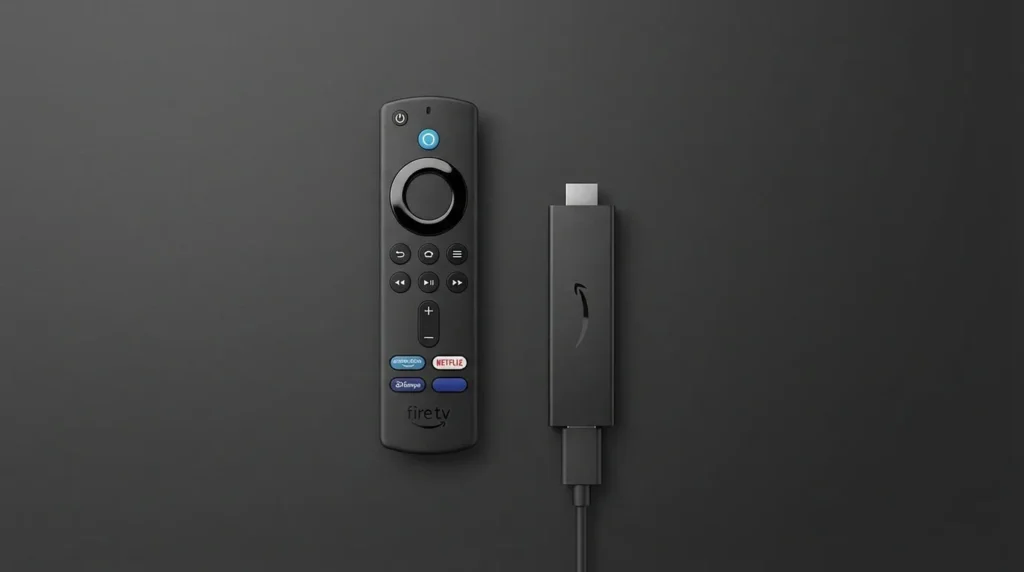
Official Amazon remotes work with all current Fire TV devices and include Alexa voice search. The Alexa Voice Remote (3rd Gen) is compatible with Fire TV Stick Lite, Fire TV Stick (2nd gen and later), Fire TV Stick 4K, Fire TV Stick 4K Max, and Fire TV Cube.
Third-party options are cheaper but vary in quality. Remotes sold as “replacement Fire TV remotes” on Amazon typically use Bluetooth and include the core navigation buttons — but many lack the Alexa microphone.
If you want to avoid buying a replacement altogether, fixing a Fire TV remote that won’t pair resolves most cases where the remote appears dead but is actually just unlinked. Worth checking before spending money.
If your remote is genuinely broken or lost, the Alexa Voice Remote (3rd Gen) for Fire TV is the most reliable replacement — it supports all Fire TV models from 2019 onward and pairs in seconds.
Frequently Asked Questions
Can I set up Fire TV for the first time without a remote?
Yes. Use a USB keyboard connected via an OTG adapter (Method 5). This gives you full navigation at the setup screen before Wi-Fi is configured. Once you complete setup and connect to Wi-Fi, the Fire TV app on your phone works as a permanent remote replacement.
Why won’t the Fire TV app find my device?
The most common cause is a network mismatch. Your phone and Fire TV must be on the same Wi-Fi network — not separate bands or a guest network. Also check that Amazon Fire TV App discovery is enabled under Settings > Controllers & Bluetooth Devices on your Fire TV. If it still fails, restart your router and both devices.
Does Fire TV work with Google Home?
No. Fire TV is an Amazon ecosystem device and doesn’t natively integrate with Google Home or Google Assistant. Alexa is the only voice assistant that controls Fire TV.
Can I use any Bluetooth remote with Fire TV?
Not every Bluetooth remote works. Fire TV uses Bluetooth LE pairing specific to Amazon’s protocol. Generic Bluetooth remotes often won’t pair. Stick to remotes listed as Fire TV compatible — Logitech Harmony and official Amazon remotes are the safest choices.
What if my Fire TV remote worked yesterday but stopped today?
Before trying any alternative method, check the batteries. Fire TV remotes drain batteries faster than most remotes due to Bluetooth. Replace them with fresh AA batteries and hold the Home button for 10 seconds to force re-pairing. This fixes the majority of “suddenly stopped working” cases. If re-pairing fails repeatedly, the full Fire TV remote pairing fix guide covers every known cause.
How do I reset Fire TV if I have no remote?
Once you have control via the app or Alexa, you can trigger a factory reset through Settings > My Fire TV > Reset to Factory Defaults. For a full walkthrough, the Amazon Fire TV Stick reset guide covers every reset method including button combinations.


