

Your Funai TV remote stopped working — or you’re trying to set up a universal remote and need the right code. The most reliable universal remote codes for Funai TVs are 0053, 0051, 0189, 0227, 0042, and 0456 for 4-digit remotes. For 5-digit remotes, start with 10171, 10180, 11271, and 11963.
This guide covers codes organized by remote brand, three programming methods that actually work, and what to do when no code responds. You can also use our universal remote compatibility checker to confirm your remote model works with Funai before entering codes.
Funai TV Universal Remote Codes — Quick Reference
The digit count depends on your remote, not your TV. Older universal remotes use 3-digit codes. Cable and satellite remotes usually need 5-digit codes. Most standalone universal remotes from GE, RCA, Philips, and One For All use 4-digit codes. If you’re unsure which buttons do what on your remote, the remote control button explainer tool breaks down every key by function.
3-Digit Codes
| Code | Code | Code | Code |
|---|---|---|---|
| 051 | 053 | 155 | 189 |
| 198 | 042 | 179 | 180 |
| 171 | 028 | 070 | 009 |
| 010 | 064 | 157 | 095 |
Start with 051, 053, and 189 — these have the highest success rate across older 3-digit universal remotes.
4-Digit Codes
| Code | Code | Code | Code |
|---|---|---|---|
| 0051 | 0053 | 0189 | 0227 |
| 0042 | 0456 | 0141 | 0179 |
| 0180 | 0171 | 0264 | 0701 |
| 0931 | 1711 | 1381 | 1941 |
| 2191 | 4731 | 4761 | 0445 |
| 1017 | 1044 | 1045 | 1046 |
| 1047 | 1036 | 1024 | 1022 |
| 0706 | 0520 | 0906 | 0324 |
| 0247 | 0805 | 0043 | 0044 |
| 0675 | 1163 | 1652 | 1281 |
Start with 0053, 0051, and 0189. These work across GE, One For All, and Philips remotes.
5-Digit Codes
| Code | Code | Code | Code |
|---|---|---|---|
| 10171 | 10180 | 11271 | 11963 |
| 11394 | 11864 | 10810 | 12337 |
| 11219 | 10000 | 10179 | 11904 |
| 11913 | 10264 | 12861 | 11027 |
| 10125 | 11595 | 10001 | 13311 |
| 12919 | 30675 | 11944 | 17000 |
| 11400 | 17111 | 19307 | 17342 |
| 13001 | 14102 | 12248 | 12270 |
For cable and satellite remotes, start with 10171 and 10180. Those two cover the majority of Funai TV models. Not sure which code format your remote uses? The remote code finder tool can identify the right format for your exact remote model.
Funai TV Remote Codes by Remote Brand
GE Universal Remote Codes for Funai TV
GE remotes come in multiple generations. The version number is printed on a sticker inside the battery compartment — look for CL3, CL4, CL5, or CL6. For the full GE code library across all TV brands, see the complete GE universal remote codes guide.
4-digit codes (GE V2/V4 — older models, manufactured around 2011–2012): 5001 · 5013 · 5038 · 5040 · 5041 · 5062 · 5141 · 5184 · 5193 · 5290 · 5309 · 5325
4-digit codes (GE V3/V5 — manufactured 2012–2013): 0701 · 0931 · 1381 · 1711 · 1941 · 2191 · 4731 · 4761
4-digit codes (GE CL3 — manufactured after 2013): 0141 · 0701 · 0931 · 1711 · 1381 · 1941 · 2191 · 4731 · 4761
4-digit codes (GE CL4 — manufactured after 2016): 0445 · 0141 · 0931 · 1711 · 1941 · 2191 · 4731 · 4761
4-digit codes (GE CL5/CL6 — manufactured after 2019): 0051 · 0189 · 0053 · 0227 · 0456 · 0042
Try 0051 first on any CL5 or CL6 GE remote. It covers the widest range of Funai TV models.
RCA Universal Remote Codes for Funai TV
4-digit codes: 1038 · 1046 · 1047 · 1189
5-digit codes: 10171 · 10180 · 11271 · 11963
RCA remotes respond fastest to 1038 on 4-digit models and 10171 on 5-digit models. The RCA RCRN04GR and RCR504BR models work well with 1047 or 1189 as backup. For the complete RCA code database across all device types, the RCA universal remote codes guide covers every model in detail.
Comcast / Xfinity Remote Codes for Funai TV
Comcast XR2, XR5, and XR11 remotes use 5-digit codes. The XR15 voice remote from 2023 onward also uses 5-digit IR codes in manual programming mode.
5-digit codes: 10171 · 10180 · 11271 · 11963 · 11904 · 11913
Start with 10171. If that fails, try 10180, then 11963. For the XR15, you may need to enable IR mode first — hold Setup until the LED blinks twice, then enter the code.
DirecTV Remote Codes for Funai TV
5-digit codes: 10171 · 10180 · 11271 · 11963 · 11394 · 11864
DirecTV Genie remotes and standard RC65/RC73 models both work with these codes. Try 10171 first. If using a Genie remote, press Mute + Select together for 3 seconds until the green LED blinks twice before entering the code — this confirms the remote is in IR programming mode.
Spectrum Remote Codes for Funai TV
Spectrum remotes vary by generation. Older silver Spectrum remotes use 3 or 4-digit codes. Newer black Spectrum remotes use 4 or 5-digit codes. For a full breakdown of every Spectrum remote model and compatible TV codes, see the Spectrum universal remote codes guide.
3-digit codes: 051 · 053 · 155 · 189
4-digit codes: 0051 · 0053 · 0189 · 0227
5-digit codes: 10171 · 10180 · 11271 · 11963
Try 0051 on a 4-digit Spectrum remote and 10171 on newer 5-digit models.
Dish Network Remote Codes for Funai TV
4-digit codes: 0227 · 0456 · 0051 · 0053
5-digit codes: 10171 · 10180 · 11271
Dish Network remotes typically need the TV mode button pressed before code entry. Hold TV until it blinks, then enter the code.
One For All Remote Codes for Funai TV
One For All remotes accept 4-digit codes on most models. The URC Smart Control and Evolve series also accept 5-digit codes. The One For All universal remote codes guide covers all TV brands compatible with One For All remotes.
4-digit codes: 0051 · 0189 · 0053 · 0227 · 0456 · 0042 · 0141 · 0701
5-digit codes: 10171 · 10180 · 11904
Philips Universal Remote Codes for Funai TV
4-digit codes: 0706 · 0520 · 0906 · 0324 · 0247 · 0805
Start with 0706. Philips SRP series remotes respond well to this code across standard Funai LED and LCD models. For codes covering other TV brands on Philips remotes, the Philips universal remote codes guide has the full library.
Cox, AT&T U-verse, and Magnavox Codes for Funai TV
Cox remote (4-digit): 0051 · 0053 · 0189 · 0227
AT&T U-verse (5-digit): 10171 · 10180 · 11271 · 11963
Magnavox (4-digit): 0043 · 0044
How to Program a Universal Remote to Funai TV
Method 1 — Manual Code Entry
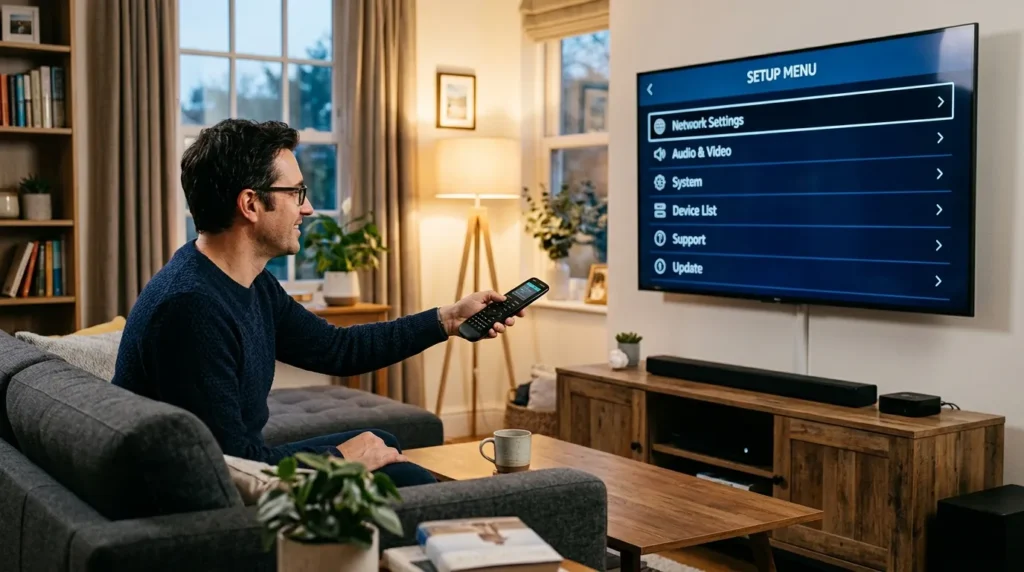
This is the fastest method when you already have the right code from the list above.
- Turn on your Funai TV.
- Press the TV button on your universal remote.
- Press and hold the Setup button until the LED flashes twice.
- Enter the 4-digit (or 5-digit) code using the number buttons.
- Point the remote at the TV and press Power.
- If the TV turns off, the code worked. Press Setup or Enter to save it.
- If nothing happens, repeat from Step 3 with the next code on the list.
Some remotes save the code automatically after a successful power-off. Others require you to press Enter or Setup to lock it in — check your remote’s manual if unsure.
Method 2 — Auto Search (Code Scanning)
Use this when you don’t want to try codes manually, or when no listed code works on the first pass.
- Turn on your Funai TV.
- Press and hold the Setup button until the LED blinks twice.
- Press 1 (on most GE and RCA remotes) to enter auto-search mode.
- Slowly press Power once every 3–5 seconds. The remote sends a different code each time.
- When the TV turns off, stop pressing.
- Press Enter or Setup to save the current code.
- Press Power to confirm the TV turns back on.
This method cycles through hundreds of codes. It takes 5–15 minutes on a full scan. Once the TV responds, save immediately or you’ll lose the position in the scan sequence.
Method 3 — Brand Search Mode
Available on GE CL4/CL5/CL6 and some Philips models. Instead of entering a code, you scroll through all codes assigned to Funai as a brand.
- Press and hold Setup until the LED blinks twice.
- Press 9, 9, 1 to enter brand search mode.
- Use Channel Up or Channel Down to step through codes.
- When the TV turns off, press Enter to save.
This approach works well if you’re not sure which GE remote version you have, since it tests all Funai-assigned codes in sequence.
Troubleshooting — Funai TV Remote Codes Not Working
Code entered but nothing happens
Check the obvious things first. Make sure the TV button (not AUX, CABLE, or SAT) was pressed before entering the code. Confirm the Funai TV is on and you’re pointing the remote directly at the TV sensor — not toward a wall or at an angle.
Weak batteries cause most programming failures. Replace batteries before trying again, even if the remote seems to work otherwise. Low power prevents successful code lock-in on many models.
If you entered a 4-digit code but your remote requires 5-digit codes (or vice versa), the code won’t register at all. Check your remote’s manual or look at the code format it accepted previously. The TV error code lookup tool can help identify whether your TV is showing any underlying fault code during the setup attempt.
TV turns off but volume or channels don’t respond
This means the code matched your TV’s power function but not the full command set. Try the next code on the list — a different code may match more functions.
On some remotes, volume is controlled through a separate AV receiver code. If your Funai TV is connected to a soundbar or receiver via HDMI-ARC, the volume buttons may route to that device instead. Use the soundbar compatibility checker to verify your audio setup is configured correctly.
Power works but channels don’t
Some universal remotes have a separate “input” or “channel” mode that needs to match the TV’s IR frequency. Try pressing TV again, then use the channel buttons. If it still doesn’t respond, try programming the remote while in Cable or AUX mode instead of TV mode — some users report this resolves partial function issues.
None of the codes work
First, try auto-search (Method 2). It scans codes your remote manufacturer may not have published in their printed list, including codes added in firmware updates.
If auto-search runs the full cycle with no response, your universal remote likely doesn’t include Funai in its codeset. This is common with older remotes manufactured before 2012, and some budget remotes with limited brand libraries.
At that point, a replacement universal remote for Funai TV is the practical fix. A current-year universal remote from GE (CL5 or CL6), One For All, or a Funai-compatible OEM remote will have updated IR codesets that cover Funai models.
About Funai TVs — Quick Background
Funai Electric Co. is a Japanese electronics manufacturer founded in 1961. It built TVs sold under its own name in North America and Europe, and also manufactured TVs for Emerson, Sanyo, Sylvania, Symphonic, and Magnavox as an OEM supplier.
This matters for remote codes because Funai-manufactured TVs sold under the Emerson or Sylvania brand often respond to Funai codes. If you have an Emerson or Sylvania TV and the Emerson/Sylvania code doesn’t work, try the Funai codes in this guide — they share the same IR codesets on many models produced between 2005 and 2019.
Funai exited the North American TV market in 2019. TV sets produced after that under the Funai name are uncommon in the US, but older Funai models remain in use and require the same IR codes covered here. If you own another budget TV brand from the same era, guides for Dynex TV remote codes, Durabrand TV remote codes, and Zenith universal remote codes follow the same format.
Frequently Asked Questions
What is the most common universal remote code for Funai TV? The most widely compatible 4-digit code is 0053. For 5-digit remotes, 10171 works across the broadest range of Funai TV models. Start with these two before trying alternatives.
Do Funai TV codes work for Emerson and Sylvania TVs? Yes, in many cases. Funai manufactured TVs sold under the Emerson, Sylvania, and Symphonic brand names. These sets often share the same IR codesets. If Emerson or Sylvania codes fail, try the Funai codes from this list.
Why does my remote turn the TV on and off but not change channels? The code matched the power function but not the full command library. Try the next code on the list for your remote brand. A different code in the same family will often unlock full control including volume, input, and channel navigation.
Do I need a different code for a Funai TV connected via HDMI? No. The remote code controls the TV itself regardless of how it’s connected. However, if your TV is set up with HDMI-CEC (also called ARC), your cable box remote may already control volume through the HDMI connection — in that case, you only need the code to control power and input switching. The TV HDMI port selector tool can help if you’re troubleshooting input switching issues on your Funai TV.
What if I can’t find my Funai TV’s model number? The model number is on a sticker on the back of the TV. You don’t need it to program a universal remote — the codes in this guide work by IR frequency, not model number. If you do need to decode the model number for warranty or parts purposes, the TV model number decoder can identify what the digits mean. Start with the recommended first-choice codes for your remote brand and work through the list.
Funai TVs respond to a wide range of universal remote codes, and most users get full control within a few minutes using the 4-digit or 5-digit codes listed above. Start with 0053 or 10171 depending on your remote type. If the first code doesn’t work, move down the list for your remote brand. Auto-search covers anything the printed list misses. If nothing at all responds after a full scan, the issue is the remote’s codeset — not the TV — and a newer universal remote will solve it immediately.


