

The Magnavox MC345 is a 4-device universal remote. To program it, you need the correct 4-digit code for your device brand, then enter it using the Code Search method. This guide has the full MC345 code list for TVs, DVD players, streaming devices, and VCRs — plus three programming methods and a troubleshooting section for when codes don’t work.
What Is the Magnavox MC345?
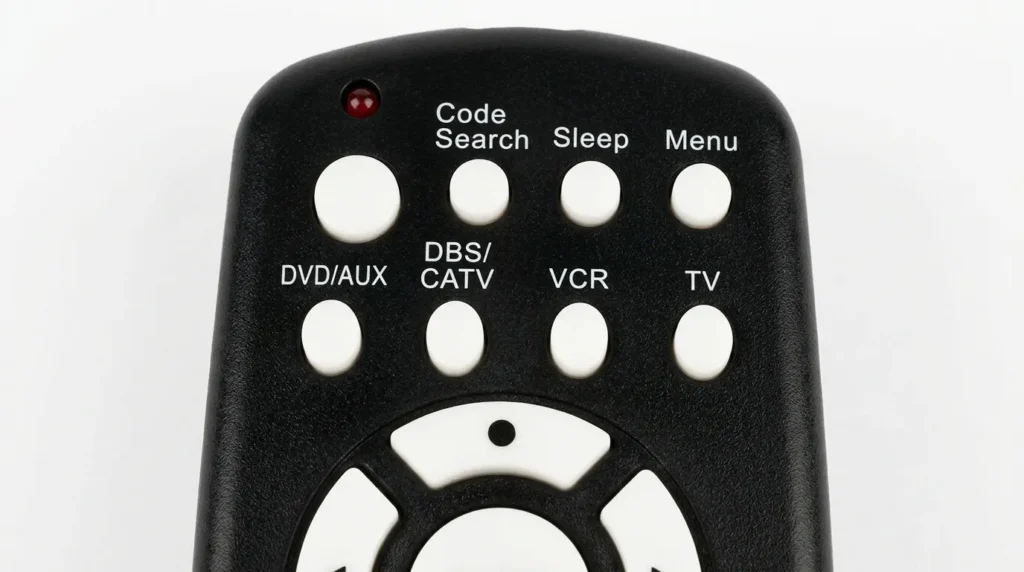
The MC345 controls up to 4 devices: TV, DVD, VCR, and AUX. It has a Code Search button at the top and an LED indicator that tells you whether a code entry worked or failed.
One thing to get straight before you start: the MC345 and MC348 are different remotes with different code sets. The MC348 controls 8 devices. If your remote has 8 device buttons across the top, you have the MC348 — stop here and check the Magnavox MC348 universal remote codes guide instead. If it has 4 buttons (TV, DVD, VCR, AUX), you have the MC345. Every code in this guide is for the MC345 only.
Magnavox MC345 Remote Codes — TV Brands
Start with the most common brands. Try each code listed. If the first doesn’t work, move to the next one.
Most Popular TV Brands — Try These First
| Brand | MC345 Codes |
|---|---|
| Samsung | 0102, 0132, 0034, 0038, 0047, 0095, 0031, 0032, 0033 |
| LG | 0103, 0122, 0124, 0038, 0017, 0021, 0026, 0027 |
| Sony | 0108, 0107, 0104, 0030, 0029, 0025 |
| Vizio | 0117, 0049, 0045, 0064, 0075, 0076, 0077, 0008 |
| TCL | 0037, 0049, 0133 |
| Hisense | 0133, 0069, 0097, 0016 |
| Philips | 0110, 0115, 0123, 0077, 0086, 0018, 0019 |
| Panasonic | 0105, 0106, 0109, 0126, 0053, 0007 |
| Toshiba | 0108, 0100, 0039, 0046, 0062, 0068, 0085 |
| Sharp | 0108, 0109, 0048, 0054, 0066 |
| Magnavox | 0110, 0115, 0116, 0123, 0126, 0040, 0044, 0058, 0086, 0091, 0018 |
Additional TV Brand Codes — A to Z
| Brand | MC345 Codes |
|---|---|
| Admiral | 0129, 0130 |
| Akai | 0102, 0117, 0034, 0090 |
| AOC | 0058, 0063, 0093, 0096, 0024 |
| Apex Digital | 0133, 0037, 0049, 0020 |
| Audiovox | 0127, 0044, 0080, 0081, 0087, 0099 |
| Coby | 0067, 0009, 0011, 0134, 0135, 0014 |
| Curtis | 0015, 0023 |
| Daewoo | 0127, 0041 |
| Dynex | 0042, 0094, 0002 |
| Element | 0073, 0088, 0001 |
| Emerson | 0114, 0127, 0130, 0038, 0040, 0041, 0059, 0070, 0091 |
| Funai | 0043, 0040, 0091 |
| GE | 0121, 0122, 0100, 0126, 0127, 0038 |
| Haier | 0078, 0079, 0010 |
| Hitachi | 0111, 0039 |
| Insignia | 0103, 0120, 0130, 0040, 0069, 0074, 0089, 0091, 0094 |
| JVC | 0130, 0035, 0051, 0065, 0082, 0007 |
| Mitsubishi | 0128, 0129, 0131, 0038 |
| Olevia | 0113, 0050, 0055 |
| Orion | 0130, 0042 |
| Polaroid | 0118, 0037, 0052, 0061, 0073, 0080, 0081, 0099 |
| Proscan | 0122, 0100, 0006 |
| RCA | 0121, 0122, 0100, 0126, 0129, 0041, 0083, 0003, 0005, 0022, 0028 |
| Sanyo | 0108, 0109, 0112, 0050, 0057 |
| Sylvania | 0115, 0123, 0040, 0058, 0070, 0091 |
| Westinghouse | 0073, 0088, 0092, 0001 |
| Zenith | 0103, 0124, 0038 |
MC345 Codes — DVD and Blu-ray Players
| Brand | MC345 Codes |
|---|---|
| Magnavox | 0422, 0490, 0056, 0000 |
| Samsung | 0490, 0741, 0573 |
| Sony | 0533, 0641, 0490 |
| LG | 0490, 0641 |
| Panasonic | 0490, 0422, 0533 |
| Philips | 0422, 0056 |
| Toshiba | 0490, 0533 |
| RCA | 0422, 0533, 0490 |
| Emerson | 0422, 0000 |
| Funai | 0422, 0000 |
MC345 Codes — Streaming Devices
The MC345 can control some streaming media players. These codes were verified in the MC345 code bank.
| Device | MC345 Codes |
|---|---|
| Roku (select models) | 0445, 0135 |
| Amazon Fire TV Stick | 0445 |
| Apple TV (2nd/3rd gen) | 0533 |
| Vizio SmartCast | 0049, 0045, 0075 |
Note: Streaming device control via universal remote is limited. You can typically power on/off and adjust volume. Full navigation requires the native app or original remote.
MC345 Codes — VCR and Auxiliary Devices
| Brand | MC345 Codes |
|---|---|
| Magnavox VCR | 0000, 0037 |
| Panasonic VCR | 0037, 0000 |
| RCA VCR | 0000, 0037, 0041 |
| Sony VCR | 0037, 0041 |
| JVC VCR | 0035, 0037 |
| Emerson VCR | 0038, 0041 |
How to Program the Magnavox MC345 Using a Code
This is the fastest method if you already have a code from the list above.
- Turn on the device you want to control.
- Find the 4-digit code for your device brand from the tables above.
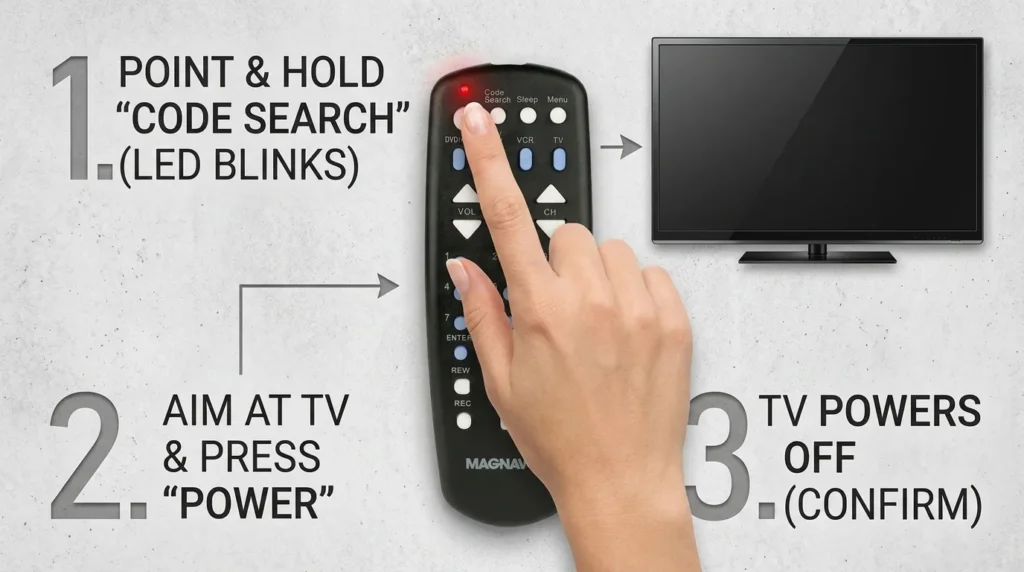
- Press and hold the Code Search button on the MC345 until the LED turns on. Then release it.
- Press the device button for what you’re programming — press TV for a TV, DVD for a DVD player, and so on.
- Use the number keys to enter the 4-digit code.
- If the LED turns off — the code is accepted. Test the remote.
- If the LED blinks 5 times — the code is wrong. Repeat from step 3 with the next code in the list.
Multiple codes are listed per brand because manufacturers change their IR signals between TV generations. Try every code listed before moving to the Auto Search method. This same code-entry process applies to other remotes like the GE universal remote and Philips universal remote — the logic is the same across most universal remotes.
How to Program the MC345 Without a Code — Auto Search
Use this when you don’t have a code or none of the listed codes worked.
- Turn on your device.
- Press and hold the Code Search button until the LED turns on. Release it.
- Press the device button (TV, DVD, VCR, or AUX) once.
- Point the remote at your device. Press the Power button slowly and repeatedly — once every 2 seconds.
- When your device powers off, immediately press Enter within 4 seconds.
- The LED turns off and the code saves automatically.
- Test basic functions: volume, channel, input.
If the device powers back on when you press Power during the test, the code is correct. If volume or channel buttons don’t respond, the remote found a partial match — go back and keep scanning.
Manual Code Search Method
This method works the same as Auto Search but gives you more control over the scan speed.
- Power on your device.
- Hold the Code Search button until the LED lights up.
- Press the device button (TV, DVD, etc.).
- Press and hold the Power button. The remote starts scanning through codes automatically — one per second.
- The moment your device powers off, release Power and press Enter within 4 seconds.
- Test all main functions before finishing.
The difference from Auto Search: you hold the Power button continuously here rather than pressing it repeatedly. Both methods scan the same code bank. Other universal remotes like the One For All universal remote and RCA universal remote use nearly identical auto-scan logic.
How to Confirm the Code Saved Correctly
A lot of people program the remote and assume it worked because the device powered on. That’s not enough. Run through these 4 tests:
- Power — turn device on and off
- Volume up/down — both directions respond
- Channel up/down (TV only) — switches channels
- Input/Source — changes input source
If all 4 work, the remote is fully paired. If some functions are missing — like volume works but channels don’t — try the next code in the list for that brand. Some codes give partial control only.
Troubleshooting — Magnavox MC345 Not Working
LED Blinks 5 Times
This means the code you entered is not recognized by the MC345. It did not save. Go back to the code list and try the next code for your brand. If you’ve exhausted every code in the list, switch to the Auto Search method.
Remote Doesn’t Respond at All
Check these before assuming the remote is broken:
- Batteries — replace with 2 fresh AA batteries. Weak batteries cause inconsistent LED behavior.
- IR path — make sure nothing is blocking the front of the remote or the device’s IR sensor.
- Distance — stay within 10 feet when programming and testing.
Your Brand Isn’t in the List
Not every brand has a code in the MC345 bank. If your TV brand doesn’t appear:
- Run the Auto Search method — it scans all 135+ codes in the MC345 bank regardless of brand.
- If Auto Search fails, the MC345 cannot control your device.
- At that point, a universal remote compatible with most TV brands may be the most practical fix.
Brands like Hisense, Dynex, and Sylvania sometimes need updated code sets found in newer universal remotes.
Code Works Then Stops Working
This usually means the batteries are low. Replace them first. If the problem continues after fresh batteries, repeat the programming steps — the code may have been wiped if the batteries fully died.
Frequently Asked Questions
What’s the difference between the Magnavox MC345 and MC348? The MC345 controls 4 devices and has 4 device buttons at the top. The MC348 controls 8 devices. The code sets are different — codes from this list only work with the MC345. For MC348 codes, see the Magnavox MC348 remote codes guide.
How many codes does the Magnavox MC345 support? The MC345 has over 135 codes in its bank, covering more than 100 TV brands and dozens of DVD and VCR manufacturers.
Can I use the Magnavox MC345 with a smart TV? Yes for basic functions — power, volume, and input switching. Full smart TV menu navigation requires the original remote or the TV’s mobile app.
Why does my TV turn off during Auto Search but the remote still doesn’t work afterward? You didn’t press Enter fast enough. The window is 4 seconds. Repeat the Auto Search and press Enter the moment the screen goes dark.
Can the MC345 control a soundbar? The MC345 doesn’t have a dedicated AUX button for soundbars in most configurations. Some soundbars respond to TV audio codes if connected via optical or HDMI ARC. Try TV volume codes pointed at the soundbar after pairing to the TV. For soundbar-specific setups, check guides for remotes like the Bose universal remote.
Does the MC345 work with Samsung and LG smart TVs? Yes. Samsung codes 0102, 0132, and 0047 cover most Samsung smart TV models from 2015 onward. LG codes 0103 and 0017 work with most LG smart TVs. See the full Samsung TV remote codes and LG TV remote codes pages for extended lists.


