

You have a Terk universal remote. Your TV, DVD player, or cable box won’t respond. You need the right code and the right steps — fast.
This guide covers every Terk universal remote code by brand, how to program the remote with a code, how to program it without one, and what to do if nothing works. All information is current for 2026.
Quick Answer – How to Program a Terk Universal Remote
With a code: Turn on your device → press and hold the device button on your Terk remote until the power LED lights up → enter the 4-digit code → if the power button stays lit, the code is accepted → test it.
Without a code: Turn on your device → press and hold the device button until the power LED lights → press and hold the power button until the LED turns off, then on again → press Play every 5 seconds until the device turns off → press Rewind every 2 seconds until it turns back on → press Stop to lock the code.
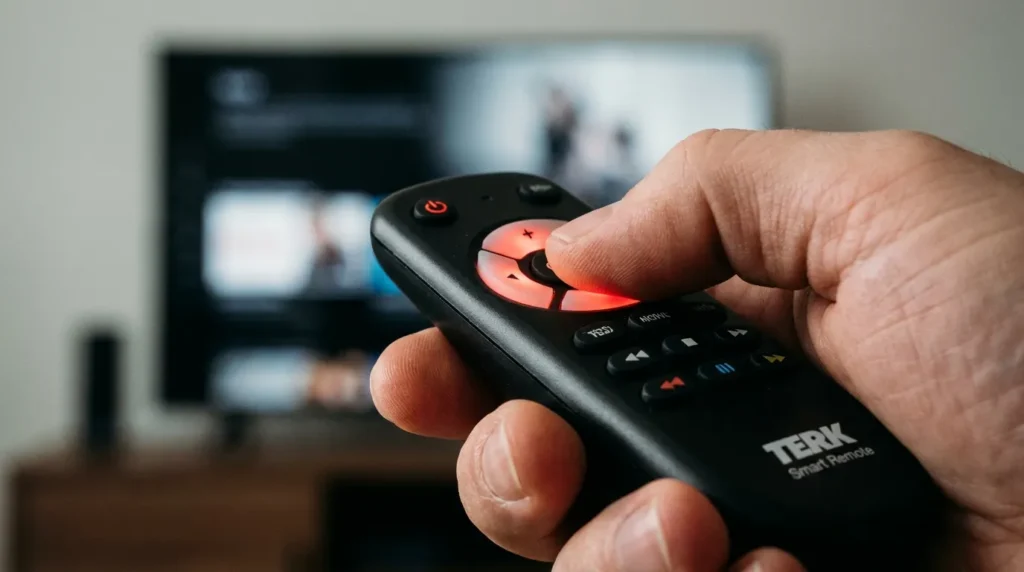
Terk Universal Remote Codes by Brand
These codes work with Terk universal remotes including the TKRTBL04B model. Try the first code listed for your brand. If it fails, move to the next one in the list.
Not sure which remote model you have? Check the label on the back of the remote or decode it using the TV model number decoder to identify compatible device specs.
Samsung
| Code |
|---|
| 1004, 1005, 1012, 1015, 1019, 1082, 1105, 1106, 1171, 1172, 1196 |
For a full breakdown of Samsung-specific programming, see the Samsung TV remote codes programming guide.
LG
| Code |
|---|
| 1005, 1082 |
Additional LG codes and setup steps are available in the universal remote control codes for LG TV guide.
Sony
| Code |
|---|
| 1002, 1205, 1216, 1218 |
See also: Sony TV remote codes for model-specific code lists.
Vizio
| Code |
|---|
| 1082, 1196 |
If these don’t work, the Vizio universal remote codes guide covers extended code lists.
Sharp
| Code |
|---|
| 1004, 1006, 1012, 1026, 1029, 1095, 1111, 1112, 1171, 1173, 1196 |
Panasonic
| Code |
|---|
| 1003, 1054, 1062, 1130, 1160, 1214, 1350, 1351 |
For more Panasonic codes, visit the Panasonic universal remote codes page.
Hisense
| Code |
|---|
| 1237 |
Hisense TVs have expanded in 2024–2026. If 1237 doesn’t work with your specific model, check the complete Hisense TV remote codes programming guide for updated entries.
TCL
TCL is not in the original Terk code database. Use the auto-scan method (without codes) described in the section below to program your Terk remote to a TCL TV.
Toshiba
| Code |
|---|
| 1049, 1071, 1072, 1073, 1105, 1109, 1117, 1118, 1160, 1283 |
RCA
| Code |
|---|
| 1000, 1003, 1004, 1005, 1006, 1007, 1019, 1082, 1096, 1098, 1099 |
For the complete RCA code list: RCA universal remote codes.
Philips
| Code |
|---|
| 1003, 1004, 1008, 1012, 1019, 1062, 1068, 1069, 1075, 1087, 1088 |
Extended Philips codes: Philips universal remote codes.
GE
| Code |
|---|
| 1000, 1003, 1004, 1006, 1022, 1052, 1054, 1087, 1100, 1165, 1166 |
Full GE remote compatibility: GE universal remote codes.
Sanyo
| Code |
|---|
| 1004, 1048, 1073, 1080, 1108, 1169, 1180, 1196 |
JVC
| Code |
|---|
| 1012, 1013, 1014, 1054, 1060, 1063, 1066, 1123, 1157, 1159 |
Extended JVC codes: JVC TV remote codes.
Hitachi
| Code |
|---|
| 1004, 1006, 1012, 1013, 1063, 1135, 1136, 1145, 1179, 1185 |
Magnavox
| Code |
|---|
| 1004, 1006, 1008, 1019, 1062, 1069, 1075, 1077, 1088, 1130 |
Sylvania
| Code |
|---|
| 1004, 1006, 1008, 1019, 1062, 1068, 1075, 1076, 1077, 1088, 1130 |
Additional codes: Sylvania universal remote codes.
Emerson
| Code |
|---|
| 1004, 1006, 1012, 1023, 1025, 1029, 1030, 1033, 1035, 1036, 1037 |
Zenith
| Code |
|---|
| 1004, 1083, 1151, 1152, 1154, 1196, 1210, 1217 |
Full Zenith list: Zenith universal remote codes.
Daewoo
| Code |
|---|
| 1004, 1005, 1006, 1017, 1018, 1082, 1171, 1196, 1202 |
More codes: Daewoo TV remote codes.
AOC
| Code |
|---|
| 1004, 1005, 1006, 1007, 1082, 1175, 1176, 1195, 1196, 1237 |
Full list: AOC TV universal remote codes.
Apex
| Code |
|---|
| 1236, 1240, 1241 |
Other Brands
| Brand | Codes |
|---|---|
| Admiral | 1001, 1083, 1173, 1211 |
| Aiko | 1016 |
| Akai | 1002 |
| Audiovox | 1038 |
| Broksonic | 1250, 1280 |
| Citizen | 1004, 1006, 1008, 1016, 1038, 1105, 1132, 1171, 1196 |
| Craig | 1038 |
| Curtis Mathes | 1000, 1004, 1006, 1015, 1049, 1073, 1105, 1171, 1196, 1212 |
| Daytron | 1004, 1006, 1171, 1196 |
| Envision | 1004, 1006, 1196 |
| Fujitsu | 1046, 1047 |
| Funai | 1038, 1046, 1047 |
| GoldStar | 1004, 1005, 1006, 1012, 1019, 1056, 1082, 1155, 1156, 1172, 1196 |
| Infinity | 1062, 1130 |
| Jensen | 1004, 1006, 1196 |
| Mitsubishi | 1004, 1005, 1006, 1022, 1051, 1064, 1079, 1080, 1082 |
| Motorola | 1003, 1173 |
| Onwa | 1038 |
| Philco | 1003, 1004, 1005, 1006, 1008, 1019, 1062, 1069, 1075, 1077, 1082, 1088 |
| Pioneer | 1004, 1006, 1136, 1179, 1185, 1196 |
| Proscan | 1000, 1100, 1181, 1212, 1233 |
| Proton | 1004, 1006, 1012, 1196 |
| Samsung | see above |
| Sansui | 1191, 1208, 1282 |
| Scott | 1004, 1006, 1012, 1035, 1038, 1046, 1047, 1196 |
| Signature | 1001 |
| Symphonic | 1033, 1038, 1189 |
| Teknika | 1001, 1004, 1005, 1006, 1008, 1013, 1014, 1016, 1038, 1046, 1047, 1063 |
| Yahama | 1004, 1005, 1006, 1019, 1082, 1196 |
| Aventura | 1174 |
You can also use Terk’s official remote code finder at terk.com/remote-code-finder for device-specific lookup. Alternatively, try the universal remote compatibility check tool to verify your remote works with your device before starting the setup.
How to Program a Terk Universal Remote With a Code
Before starting, insert batteries into the Terk remote and have your code list ready.
Step 1 – Turn on your device Power on the TV, DVD player, or other device you want to control.
Step 2 – Press and hold the device button On the Terk remote, press and hold the button matching your device — TV, DVD, AUX, etc. Hold it until the power button lights up. Keep holding.
Step 3 – Enter the 4-digit code While holding the device button, enter the 4-digit code. When you press the first digit, the power button light goes off. Keep entering the full code.
Step 4 – Check the result After the last digit, watch the power button. If it lights up — the code worked. If it blinks 4 times and turns off — the code is wrong or a step was missed. Repeat with the next code on the list.
Step 5 – Test the remote Point the remote at your device and press Power to toggle it off and on. Try volume and channel buttons to confirm full function.
If you’re not sure which buttons do what on your remote, the remote control button explainer tool can help you identify each function.
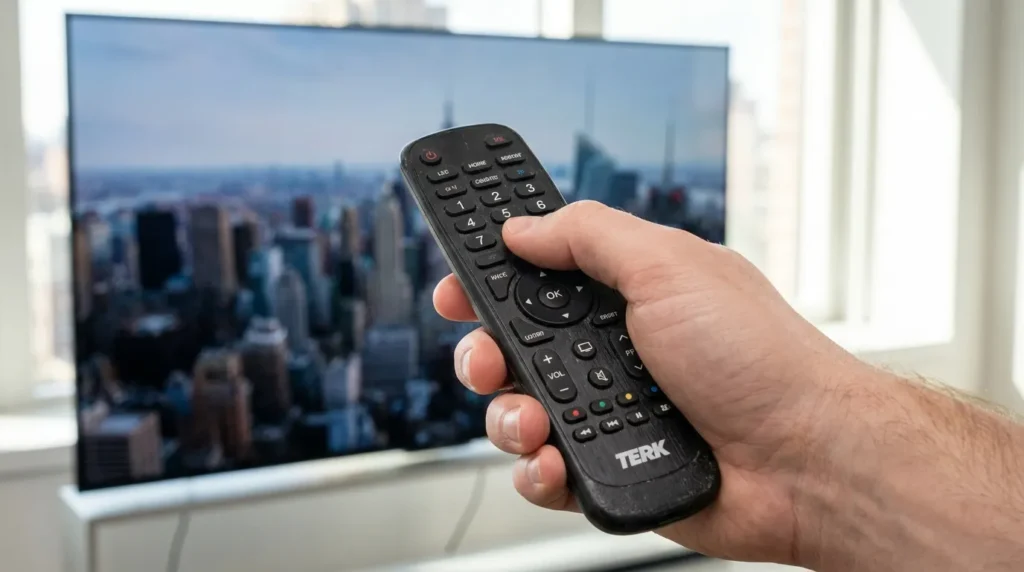
How to Program a Terk Remote Without a Code (Auto-Scan Method)
No code? No problem. The auto-scan method cycles through codes automatically until it finds the right one.
Step 1 – Turn on your device The device must be on for the remote to detect a successful signal.
Step 2 – Press and hold the device button Hold the device button (TV, DVD, etc.) until the power button lights up.
Step 3 – Press and hold the power button simultaneously With the device button still held, also press and hold the power button with your other hand. Keep both held until the power LED turns off, then turns back on and stays on.
Step 4 – Press Play every 5 seconds Aim the remote at your device and press Play. Wait 5 seconds. If the device turns off — great, move to Step 5. If not, press Play again and wait 5 more seconds. Repeat until the device turns off.
Step 5 – Press Rewind every 2 seconds Press Rewind and wait 2 seconds. If your device turns on — move to Step 6. If not, press Rewind again every 2 seconds until it powers on.
Step 6 – Press Stop to lock the code Once the device is on, press Stop immediately. This saves the code.
Terk Remote Not Working? Troubleshooting Guide
Code entered correctly but device won’t respond
Point the remote directly at the IR receiver on your device — usually located at the bottom front panel. Remove obstacles between the remote and the TV. Check that batteries have charge. Distance over 10 feet can reduce IR signal strength.
Power button blinks 4 times
Four blinks means the code was rejected. Either the code is wrong for your device, or you released the device button too early. Start over: hold the device button until the LED lights, then enter the full 4-digit code without releasing.
Remote works for power but not volume or channels
The code partially matches your device. Try the next code on the list for your brand — some brands have multiple protocols and only certain codes unlock full button functionality.
None of the codes work for my brand
Use the auto-scan method above. If that also fails, your device brand may not be in the Terk code database. In that case, a replacement universal remote with a wider code library may be needed.
You can also use the remote code finder tool to search for compatible codes across multiple remote brands.
Which Terk Remote Models Use These Codes?
The codes in this guide are verified for the Terk TKRTBL04B universal remote. Terk also produces the TKRTBL02B (2-device) and TKRTBL08B (8-device) models — programming steps are identical, but the number of device buttons differs.
The TKRTBL04B supports 4 device types: TV, VCR/DVD, cable/satellite, and AUX. Press the matching device button during programming.
If you’re looking at other universal remote brands for comparison, check guides for One For All universal remote codes, Blackweb universal remote codes, or Spectrum universal remote codes — all follow a similar code-entry programming process.
Frequently Asked Questions
What is the 4-digit code for a Terk universal remote? It depends on your TV brand. Samsung uses codes like 1004, 1005, and 1082. Sony uses 1002, 1205, 1216, or 1218. LG uses 1005 or 1082. Check the brand-specific table above for your device.
How do I reset my Terk universal remote? Remove the batteries, wait 30 seconds, reinsert them. This clears any stored codes and returns the remote to factory state. You’ll need to reprogram it from scratch after resetting.
Can a Terk remote control a streaming device? Terk remotes are designed for TVs, VCRs, DVD players, and cable/satellite boxes. They don’t natively support Roku, Fire Stick, or Apple TV via IR codes. For streaming setup help, the streaming service comparison tool can help you figure out what you need.
Where can I find more codes if my brand isn’t listed? Use the official Terk remote code finder at terk.com/remote-code-finder or the auto-scan programming method. For replacement remote options, a universal remote compatibility check can confirm which remotes work with your TV.
What if the Terk remote stopped working after it was already programmed? First, replace the batteries. If the remote was working before, low battery voltage is the most common cause of failure. If new batteries don’t fix it, reprogram using the steps above — stored codes can be lost if the battery compartment was opened.
Conclusion
Programming a Terk universal remote takes 2–3 minutes with the right code. Start with the code table above for your TV or device brand, follow the step-by-step instructions, and check the power LED after each code entry. If a code fails, move to the next one on the list. The auto-scan method covers every case where no code is listed for your brand.
Need to troubleshoot a deeper TV issue beyond the remote? The TV error code lookup tool and TV service menu code finder can help you diagnose device-level problems that a remote won’t fix.


