

Your Cox remote comes pre-programmed to control your cable box. To control your TV, soundbar, or other devices, you need to program it using a device code. This guide covers every Cox remote model, exact codes for all major TV brands, and step-by-step programming instructions. If one code doesn’t work, there’s an auto-search method that finds the right one automatically.
Identify Your Cox Remote Model First
Programming steps differ by model. Check the back of your remote — the model number is printed on a label inside the battery compartment or on the back casing.
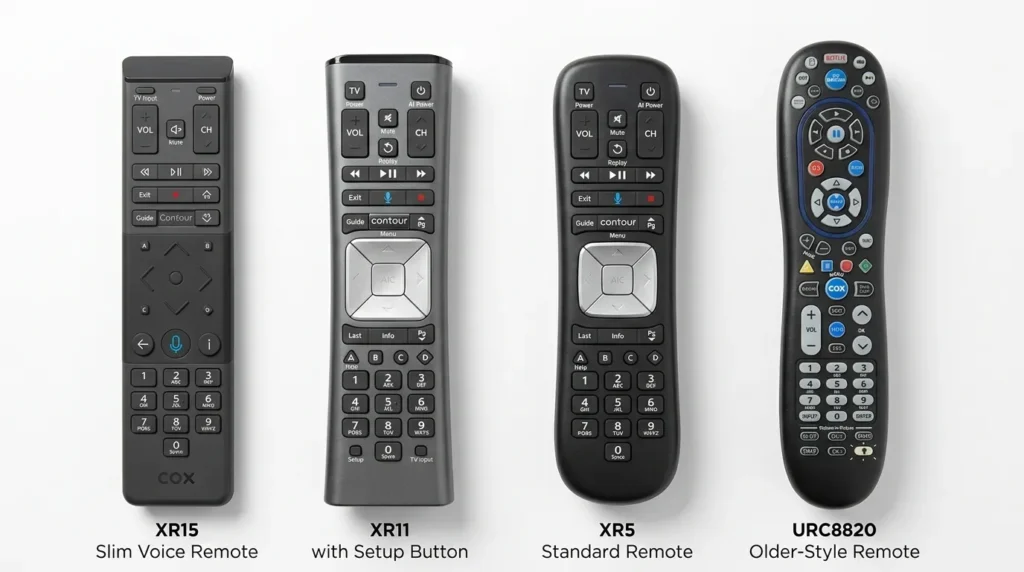
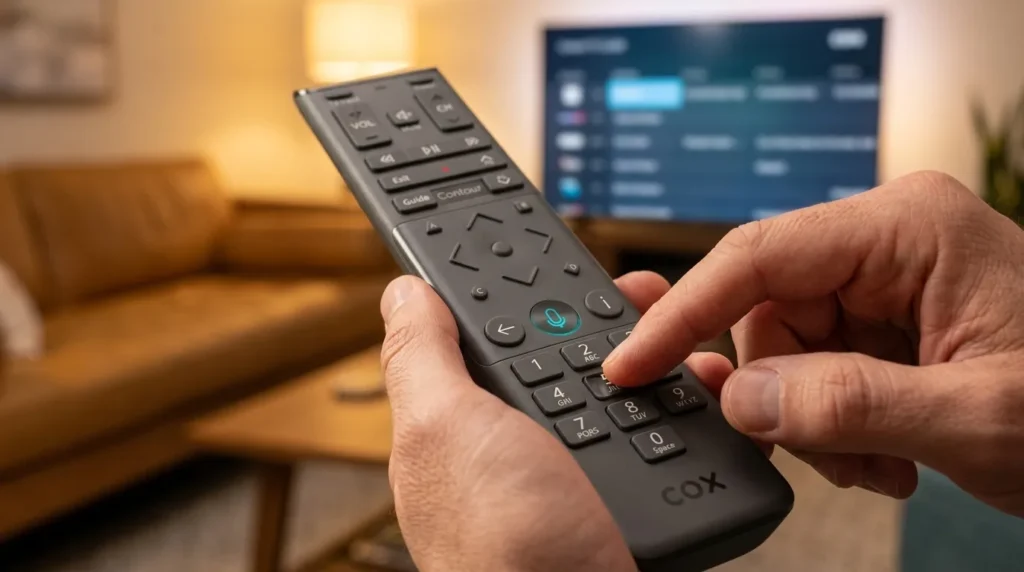
Cox Contour XR15 (Voice Remote) Slim design. No Setup button. Uses the Contour + Mute button combination to enter programming mode. Operates via RF, so it doesn’t need line-of-sight to your cable box. Uses 5-digit codes.
Cox Contour XR11 (Voice Remote) Has a physical Setup button at the top. Voice control built in. Works with Contour X1 cable boxes. Uses 5-digit codes.
Cox Contour XR5 Older Contour remote with a physical Setup button. No voice. Uses 5-digit codes.
Cox URC8820 / URC7820 Older-style universal remote with a physical Setup button on top. Uses 4-digit codes. Has dedicated AUX, DVD, and TV mode buttons.
Cox Mini Remotes — URC3220 (RF) and URC2220 (IR) Small remotes used with Cox DTAs (Digital Terminal Adapters). Has a Setup button. Uses a simplified 4-digit code entry system.
If you’re also trying to program a GE universal remote or a Philips universal remote, the code entry steps follow a very similar pattern to the Cox URC8820.
How to Program a Cox Remote — Step by Step
XR5 and XR11 (5-Digit Code Entry)
- Turn on the TV or device you want to control.
- Press and hold the Setup button until the status LED changes from red to green.
- Enter the 5-digit code for your TV brand (see table below). The LED should flash green twice — this means the code was accepted.
- Press TV Power or All Power. If the device turns off, programming is complete.
- Turn the device back on. Test VOL+ and VOL− to confirm volume control works.
If the LED flashes red or the device doesn’t respond, the code wasn’t accepted. Repeat from Step 2 with the next code on the list.
XR15 Voice Remote (Contour + Mute Method)
The XR15 has no Setup button. Use this instead:
- Turn on your TV.
- Press and hold the Contour button and the Mute button together for 5 seconds. The LED will shift from red to green.
- Enter the 5-digit code for your TV brand. Two green flashes mean the code is accepted.
- Press TV Power. If the TV turns off, you’re done.
- Turn the TV back on and test volume control.
Note: The XR15 uses RF (radio frequency), not IR (infrared). You don’t need to point it directly at your cable box during normal use — but during initial TV programming, aim it at your TV for the code entry to register correctly.
URC8820 / Older Cox Remotes (4-Digit Code Entry)
- Press and release the TV button (or AUX / DVD depending on the device).
- Press and hold Mute and Select at the same time until the selected mode key blinks twice. Release both buttons.
- Enter the 4-digit code for your brand.
- Press Power. If the device turns off, the code worked and was saved.
- If it doesn’t turn off, repeat the steps with the next code for your brand.
Cox Mini Remotes — URC3220 and URC2220
- Press and hold Setup until the Power button blinks twice.
- Enter the 4-digit code for your TV brand.
- Press Power. If the TV turns off, you’re done.
If you don’t have a code, hold the Select button until the TV turns off — this runs an auto-scan.
Cox Universal Remote Codes for TVs (By Brand)
5-Digit Codes — for XR5, XR11, XR15:
| Brand | 5-Digit Codes |
|---|---|
| Samsung | 10812, 10766, 10814, 11060, 11314 |
| LG | 11265, 10178, 10700, 10856, 11178 |
| Sony | 10000, 11100, 10810, 11685, 11910 |
| Vizio | 10864, 10885, 11756, 11758, 12512 |
| TCL | 11687, 12434, 11500, 12260, 11585 |
| Hisense | 10748, 11660, 12098, 12355 |
| Toshiba | 10156, 10845, 11156, 11585, 10055 |
| Panasonic | 10650, 11941, 10051, 10250 |
| Sharp | 10093, 11602, 10798, 10815 |
| Insignia | 10171, 11204, 11963, 12002 |
| Philips | 11454, 10054, 10030, 11706 |
| Sanyo | 10154, 10451, 10180, 11004 |
4-Digit Codes — for URC8820, URC7820, URC3220, URC2220:
| Brand | 4-Digit Codes |
|---|---|
| Samsung | 0812, 0702, 0766, 0814 |
| LG | 1423, 1447, 0017, 1265, 0178 |
| Sony | 0000, 0810, 0885, 1100 |
| Vizio | 1758, 0864, 0885, 1756, 2512 |
| Hisense | 0748, 1314, 1660, 2098, 2355 |
| Toshiba | 0156, 0154, 1343, 1585 |
| Panasonic | 0250, 0650, 0051 |
| Sharp | 0093, 0798, 0815 |
| Insignia | 1423, 1564, 0463, 2432 |
| Sanyo | 0154, 0451, 0180 |
| JVC | 0463, 0053, 0650, 0731 |
| Westinghouse | 1712, 0451, 0885, 0889 |
Always start with the first code listed. Work down the list if the first doesn’t work.
For dedicated brand code lists, see our full guides for Samsung TV remote codes, LG TV universal remote codes, Sony TV remote codes, Vizio universal remote codes, Hisense TV remote codes, Panasonic universal remote codes, and Insignia universal remote codes.
Cox Remote Codes for Soundbars & Audio Receivers
5-Digit Audio Codes (XR5 / XR11 / XR15):
| Brand | 5-Digit Codes |
|---|---|
| Samsung Soundbar | 31674, 32049, 33506 |
| LG Soundbar | 32183, 31693, 32434 |
| Sony AVR/Soundbar | 33533, 31178, 31687 |
| Vizio Soundbar | 32512, 31758, 31756 |
| Bose | 31517, 33533, 31672 |
| Yamaha AVR | 30030, 30769, 30797 |
| Denon AVR | 31030, 30145, 31765 |
| Onkyo AVR | 30030, 31275, 30834 |
For Bose-specific remote pairing, check our Bose universal remote codes guide. To program audio using the auto-scan method, enter 992 in Step 3 instead of 991.
Cox Remote Codes for DVD & Blu-Ray Players
4-Digit Codes (URC8820):
| Brand | Codes |
|---|---|
| Samsung | 0490, 0573, 0741 |
| Sony | 0533, 0573, 0741 |
| LG | 0741, 0490, 0834 |
| Panasonic | 0490, 0573, 0583 |
| Toshiba | 0490, 0834 |
| Philips | 0533, 0490 |
How to Program Without a Code (Auto-Scan Method)
Use this if your TV brand isn’t listed or none of the listed codes work.
For XR5 and XR11:
- Turn on your TV.
- Press and hold Setup until the LED turns green.
- Enter 991 (TV) or 992 (audio device). The LED flashes green twice.
- Press Channel Up once every 2 seconds. Each press tests the next code in memory.
- When the TV turns off — stop pressing.
- Press Setup to save that code. The LED flashes green twice to confirm.
- Press TV Power to verify. The device should turn back on.
For XR15:
Same process, but start by pressing Contour + Mute for 5 seconds instead of Setup.
For URC8820:
- Press a device key (TV, AUX, DVD).
- Hold Setup until the mode key blinks twice.
- Enter 9-9-1 (TV scan) or 9-9-2 (audio scan).
- Press Power, then Channel Up slowly — one press every 2 seconds.
- When the device turns off, press Setup to lock in the code.
This same scan method is used on most universal remotes. The RCA universal remote codes guide and One For All universal remote codes guide cover the auto-scan process in detail for those platforms if you’re switching remotes.
How to Reset a Cox Remote
If your remote is behaving oddly or you want to clear all programmed device codes, here’s the reset process.
XR5 and XR11: Press and hold Setup until the LED turns green. Enter 9-8-1. The LED will flash green 3 times — remote is reset.
XR15: Press and hold Contour + Mute for 5 seconds until the LED turns green. Enter 9-0-0-1. Three green flashes confirm the reset.
URC8820 / URC7820: Remove the batteries. Press and hold the Setup button for 10 seconds while batteries are out. Reinsert batteries. This clears all custom programming.
After a reset, your remote will still control your Cox cable box. Re-program your TV and audio devices using the steps above.
If none of the codes restore full functionality and your remote hardware itself seems faulty, a replacement Cox URC8820 universal remote is available on Amazon and restores everything out of the box.
Troubleshooting — When Programming Fails
Remote won’t enter programming mode
Check the batteries first. Weak batteries cause the LED to flicker instead of going green. Replace them and try again. On the XR15, make sure you’re pressing Contour and Mute simultaneously — pressing them one at a time won’t trigger setup mode.
LED blinks but device doesn’t respond
Two green flashes mean the remote accepted the code — not that it’s correct for your device. You still need to point the remote directly at the TV and press Power. If the TV doesn’t respond, try the next code. The XR15 needs to be aimed at the TV during programming even though it uses RF for cable box control.
Tried all codes — still nothing
Run the auto-scan method. The remote cycles through hundreds of codes and will find one that triggers your device. If auto-scan also fails, your TV may use a less common IR protocol. In that case, use Cox’s official code finder at remotes.cox.com — enter your remote model and TV brand for an updated code list.
If you’ve recently switched providers, the Spectrum universal remote codes guide and Comcast Xfinity universal remote codes guide cover similar programming steps for those remotes.
Volume won’t work after programming TV power
Some TVs respond to power codes but not volume. Try the next code in the list. Volume lock to TV audio requires a specific code for your exact TV series, not just the brand.
Frequently Asked Questions
Can I program a Cox remote to a smart TV? Yes. Samsung, LG, Sony, Vizio, TCL, and Hisense smart TVs all work with Cox remotes. Use the 5-digit codes for XR5, XR11, and XR15 models. The remote controls TV power and volume — it won’t control smart TV apps or streaming interfaces.
What if my TV brand isn’t in the list? Use the auto-scan method (code 991). It cycles through all codes in the remote’s memory. If that fails, visit remotes.cox.com and use the CodeFinder tool with your specific TV model number. If you’re using an older or budget TV like Sylvania, Sanyo, or Element TV, check those dedicated guides as well — they include extended code lists.
Does the XR15 need to point at the TV? During programming — yes. During normal use for cable box control — no. The XR15 uses RF for the cable box, so it works through walls and cabinets. For TV power and volume (which use IR), it needs a clear path to the TV.
Can I program both a TV and a soundbar into the same Cox remote? Yes. Program the TV first, then program the audio device. The remote will then control both simultaneously — TV Power button controls the TV, and VOL+/VOL− control your soundbar.
How do I know which code worked after using auto-scan? After the device turns off, press Setup to lock the code. To find the actual code number, re-enter setup mode, press Channel Up once, then hold Select for 3 seconds — on some models the LED will blink to indicate the code number.
Can I use a Cox remote without a cable box? The remote is designed to work with a Cox cable box as its primary function. You can still program it to control TV power and volume, but full TV remote functionality only works through the cable box signal.
Wrapping Up
Programming a Cox remote takes under 2 minutes once you have the right code and know which remote model you have. Start with the XR15 Contour+Mute method or the Setup button method depending on your model, enter the 5-digit or 4-digit code for your TV brand, and confirm with the Power button. If none of the codes work, the auto-scan method (code 991) will find the right one. For an updated code list specific to your TV model, use Cox’s official tool at cox.com.


