

Your Samsung TV worked fine yesterday. Today it won’t connect to WiFi. You’ve tried reconnecting three times. Nothing works.
This happens to thousands of Samsung TV owners every week. The good news? Most WiFi connection problems have simple fixes you can do yourself in under 10 minutes.
This guide covers the 5 most common reasons Samsung TVs lose WiFi connection and exactly how to fix each one. We’ll start with the easiest solutions and work up to hardware issues that might need professional help.
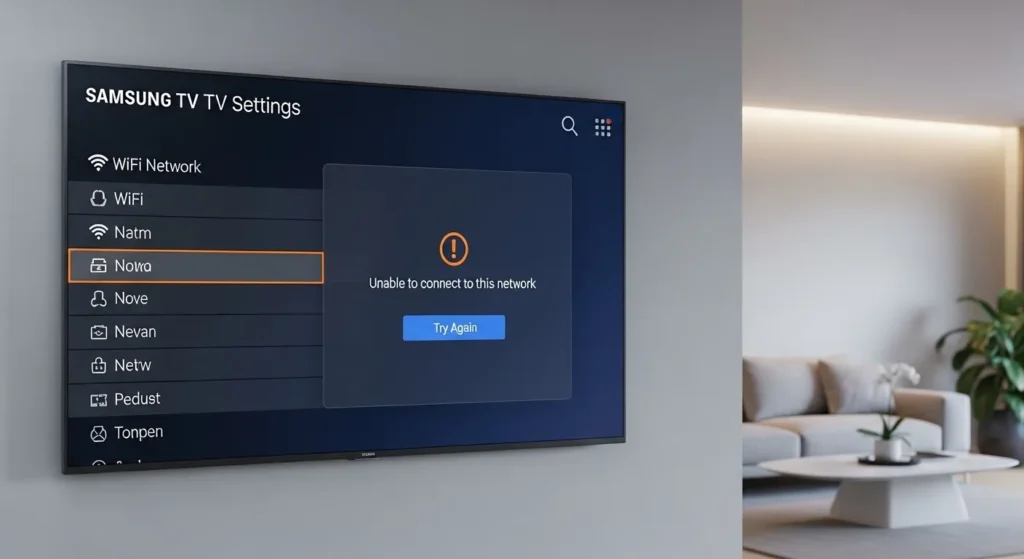
Quick Diagnostic: Identify Your WiFi Problem
Before you start troubleshooting, figure out which problem you’re dealing with:
Your TV doesn’t see your network at all → Skip to Reason 2 (signal issues) or Reason 3 (compatibility)
Your TV sees the network but won’t connect → Start with Reason 1 (password) or Reason 3 (settings)
Your TV connects but keeps dropping → Go to Reason 2 (signal) or check Reason 4 (software)
Most connection failures come from passwords, signal strength, or router settings. Hardware failure is rare but happens with older TVs.
1. Incorrect WiFi Password or Network Settings
This is the number one reason Samsung TVs won’t connect. It accounts for roughly 40% of all connection failures.
Why This Happens
WiFi passwords are case-sensitive. A single wrong character blocks the connection. Your TV won’t tell you which character is wrong. It just says “incorrect password” or “authentication failed.”
Other common mistakes: typing 0 instead of O, confusing 1 with l, or hitting an extra space at the end.
Some 2026 routers use WPA3 security. Older Samsung TV models from 2018-2020 only support WPA2. This creates an invisible compatibility issue that looks like a password problem.
How to Fix Password Issues
Step 1: Go to Settings on your Samsung TV remote.
Step 2: Navigate to Connection > Network > Open Network Settings.
Step 3: Select Wireless and find your network name.
Step 4: When the password screen appears, tap the “Show Password” option before you type. This lets you see each character as you enter it.
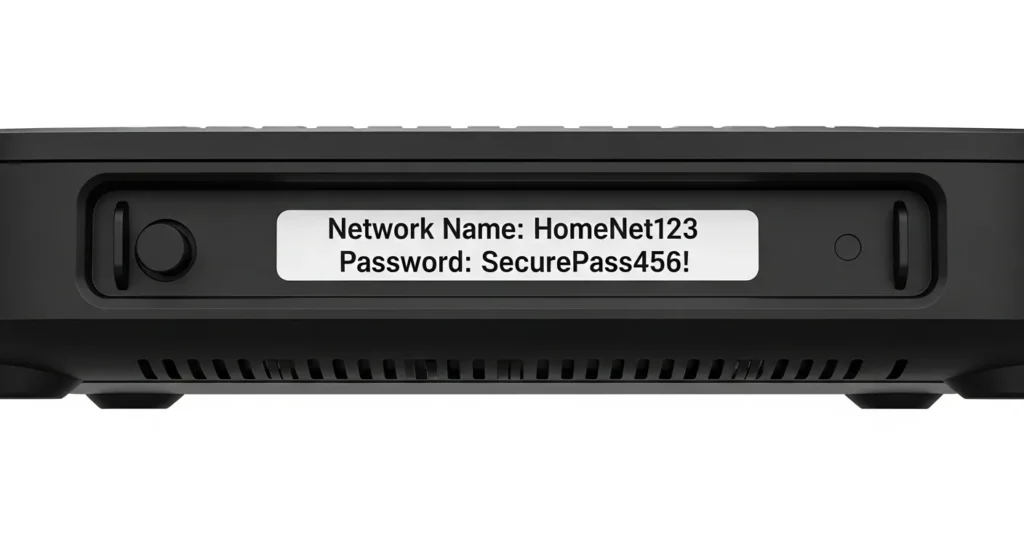
Step 5: Type your password exactly as it appears on your router. Check the router label on the bottom of the device if you haven’t changed the default password.
Step 6: Double-check for extra spaces before or after the password.
Step 7: Select Done and wait 15 seconds for the connection attempt.
If it still fails, try connecting another device like your phone to the same network with the same password. If your phone also fails, the password is definitely wrong. If your phone connects, the issue is with your TV’s settings or hardware.
Router label tip: Default passwords often use confusing characters. If you see “I1lO0” on the label, take a photo with your phone and zoom in to verify each character.
Hidden Network Solutions
Some routers hide the network name (SSID) from the available networks list. This is uncommon but happens with security-focused setups.
To connect to a hidden network:
Navigate to the end of your available networks list. Select “Add Network” or “Enter Network Name Manually.” Type your exact network name. Enter your password. Select the security type (usually WPA2-PSK).
Hidden networks require perfect spelling. One wrong letter and your TV won’t find it.
Better option: Unhide your network temporarily. Connect your TV. Then re-hide the network if you want. Most routers let you unhide networks in the wireless settings page at 192.168.1.1 or 192.168.0.1.
2. Weak WiFi Signal or Distance Problems
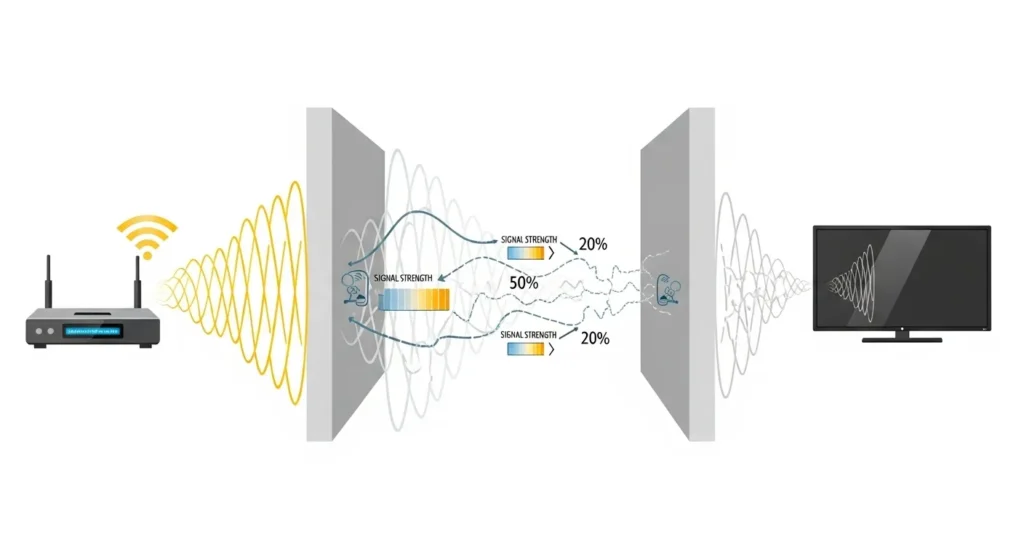
Your TV might see your network but can’t maintain a stable connection. Signal strength causes about 25% of Samsung TV WiFi issues.
Check Your Signal Strength (Exact Steps)
Step 1: On your TV, go to Settings > Connection > Network > Open Network Settings > Wireless.
Step 2: Look at your network name. You’ll see bars next to it (1-4 bars).
Step 3: If you see only 1 or 2 bars, your signal is too weak for reliable streaming.
Samsung TVs need at least 3 bars for stable connections. Smart TV features and 4K streaming require even stronger signals.
Quick signal test: Take your smartphone to where your TV sits. Connect to your WiFi. Check how many bars appear on your phone. If your phone also shows weak signal, the problem is definitely signal strength.
Optimal Router Placement Guidelines
WiFi signals weaken with distance and obstacles. Samsung TVs work best within 50 feet (15.2 meters) of your router with clear line of sight.
Things that block WiFi signals:
Thick walls reduce signal by 30-50%. Concrete and brick are worse than drywall. Metal objects (filing cabinets, refrigerators) block signals almost completely. Large aquariums weaken signals. Microwave ovens create interference when running.
Best router placement:
Put your router in a central location on the main floor. Elevate it 3-6 feet off the ground. Keep it away from walls and metal objects. Don’t hide it in a closet or cabinet.
Direction matters: Router antennas (if external) should point straight up for horizontal coverage or sideways for vertical coverage between floors.
When You Need a WiFi Extender
If you can’t move your router closer, get a WiFi extender or mesh network system.
WiFi extenders cost $30-80 and plug into an outlet halfway between your router and TV. They repeat the signal to extend range. Setup takes 5-10 minutes.
Mesh systems cost $150-400 for a 2-3 unit set. They create a seamless network throughout your home. Better for large houses or multiple floors.
2026 mesh options: Look for WiFi 6 mesh systems. They handle more devices and reduce congestion. Popular brands include Netgear Orbi, Google Nest WiFi, and Amazon eero.
One caveat: Extenders can reduce overall speed by 50%. If you’re streaming 4K, you might notice buffering even with stronger signal.
3. Router Configuration Blocking Your TV
About 20% of Samsung TV WiFi problems come from router settings that block or conflict with the TV.
2.4GHz vs 5GHz Compatibility (2026 Update)
Many Samsung TV models from 2018-2020 only support 2.4GHz WiFi. They cannot see or connect to 5GHz networks at all.
Models limited to 2.4GHz only:
- NU6*** series (2018)
- NU71** series (2018)
- NU72** series (2018)
- NU73** series (2018)
Most 2021-2026 Samsung TVs support both frequencies. Check your TV’s manual or look up your model in the Samsung TV service menu codes to verify specifications.
The modern router problem: New routers in 2026 often default to 5GHz only or combine both frequencies under one network name. Your old TV can’t detect the 5GHz band, so it appears like the network doesn’t exist.
How to fix this:
Log into your router settings (usually 192.168.1.1 or 192.168.0.1). Find the wireless settings page. Look for “band steering” or “smart connect” and turn it OFF. This separates 2.4GHz and 5GHz into two visible networks. Rename them differently (like “HomeWiFi-2.4” and “HomeWiFi-5”). Connect your TV to the 2.4GHz network.
If you don’t know how to access router settings, call your internet provider. They can make these changes remotely in 5 minutes.
MAC Address Filtering Issues
Every device has a unique MAC address. Some routers use MAC filtering to control which devices can connect.
Your TV shows “MAC address failed” or just won’t connect even with the correct password. This usually happens after a factory reset or firmware update that changes the TV’s MAC address registration.
Fix MAC address problems:
Find your TV’s MAC address (Settings > Support > About This TV). Write down the 12-character code. Log into your router settings. Find “MAC filtering” or “Access Control.” Add your TV’s MAC address to the allowed list. Save settings and reboot the router. Try connecting your TV again.
Nuclear option: Turn OFF MAC filtering completely. If your TV connects immediately, MAC filtering was blocking it. You can turn filtering back on after adding the TV to the approved list.
Change Your DNS Settings (Exact Values)
Samsung TVs sometimes fail to connect because your router’s default DNS servers have issues or respond slowly.
Switching to Google’s public DNS (8.8.8.8) solves roughly 15% of mysterious connection failures.
Step 1: On your TV, go to Settings > Connection > Network > Network Status.
Step 2: Select “IP Settings” at the bottom.
Step 3: Select “DNS Setting” and change it from “Obtain Automatically” to “Enter Manually.”
Step 4: Select “DNS Server” and enter: 8.8.8.8
Step 5: Select Done and try connecting again.
Alternative DNS options:
- Cloudflare DNS: 1.1.1.1
- OpenDNS: 208.67.222.222
Some users report faster streaming with Cloudflare. Try different DNS servers if Google’s doesn’t work.
4. Outdated TV Firmware or Software Glitches
Software issues cause about 10% of Samsung TV WiFi failures. Your TV’s operating system gets regular updates that fix bugs and improve connectivity.
Check for Software Updates (2 Methods)
Method 1: Over WiFi (if you have any connection)
Go to Settings > Support > Software Update. Select “Update Now.” Wait 5-15 minutes for the download and installation. Your TV will reboot automatically.
Method 2: USB Update (if WiFi completely fails)
Go to Samsung’s support website on your computer. Enter your TV’s model number. Download the latest firmware file (usually a .zip). Extract the files to a USB drive (root directory, not in folders). Plug the USB drive into your TV’s USB port. Navigate to Settings > Support > Software Update. Select “Update Now.” The TV will detect the USB update and install it.
Samsung releases major firmware updates 4-6 times per year. Minor patches come monthly for newer models.
2026 firmware note: Models from 2024-2026 support automatic updates overnight. Enable this in Settings > Support > Software Update > Auto Update.
Perform a Network Reset vs Factory Reset
Two different reset options fix different problems.
Network Reset clears only WiFi settings and saved networks. It doesn’t touch your apps, logins, or TV settings. This should be your first reset attempt.
To network reset: Settings > Connection > Network > Reset Network. Confirm the reset. Wait 30 seconds. Try reconnecting to WiFi.
Factory Reset wipes everything. Your TV goes back to out-of-box condition. You’ll lose all apps, accounts, and preferences. Use this only if network reset fails.
To factory reset: Settings > General & Privacy > Reset. Enter your PIN (default is 0000). Confirm the reset. Wait 2-3 minutes for completion. Set up your TV again from scratch.
Factory resets solve stubborn software glitches that network resets can’t fix. Success rate is about 70% for mysterious WiFi failures. For detailed instructions, check our guide on how to perform factory data reset in Samsung TV.
Power Cycle the Right Way
Most people unplug their TV and plug it back in. That’s not a proper power cycle.
Correct power cycle procedure:
Unplug your TV from the wall outlet. Unplug your router and modem. Wait 60 full seconds (this matters). Plug in your modem first. Wait until all lights stabilize (usually 30-60 seconds). Plug in your router second. Wait until WiFi light turns solid (30-60 seconds). Plug in your TV last. Turn on your TV and try connecting.
This sequence clears electrical charges and forces all devices to re-establish connections from scratch.
Why the order matters: Your modem connects to your ISP. Your router creates your home network. Your TV connects to the router. Each device needs the previous one ready before it powers on.
Skip this order and you might get partial connections or IP conflicts.
5. Failed WiFi Module (Hardware Issue)
Hardware failure accounts for roughly 5% of Samsung TV WiFi problems. It’s less common but frustrating because simple fixes won’t work.
Symptoms of WiFi Module Failure
Your WiFi module might be failing or dead if:
Your TV never detects any WiFi networks at all, even your phone’s hotspot. Connection worked yesterday but today nothing appears in the network list. The TV worked fine for 3-4 years then suddenly can’t see WiFi. Ethernet cable connection still works perfectly. Factory reset doesn’t help.
WiFi modules fail from heat exposure, power surges, and age. Samsung TVs from 2018-2020 have higher failure rates than newer models.
Quick hardware test: Turn on your phone’s hotspot. Stand next to your TV with the hotspot active. Check if your TV can detect the hotspot signal. If your TV sees absolutely zero networks (not even the hotspot), the WiFi module is probably dead.
Temporary Workarounds (Ethernet, Streaming Devices)
You don’t need WiFi to use your smart TV features.
Ethernet connection: Run an ethernet cable from your router to your TV’s LAN port. This gives you full internet access without WiFi. Cables up to 100 feet work fine. You can buy ethernet cables for $10-30 depending on length.
Streaming devices: Buy a Roku, Fire Stick, or Chromecast for $30-50. These plug into your TV’s HDMI port. They connect to your WiFi independently of your TV. You get all the same streaming apps and features. If you need help with Fire TV issues, see our guide on how to use Amazon Fire TV without remote.
Powerline adapters: If you can’t run ethernet cables across rooms, powerline adapters use your home’s electrical wiring to carry internet. They cost $40-80 for a pair. Plug one near your router, one near your TV, connect with short ethernet cables.
These workarounds cost less than WiFi module replacement and work just as well for streaming.
Repair vs Replacement Cost Analysis
WiFi module replacement cost: $150-250 for parts and labor at a repair shop. Samsung authorized repair might charge $200-300. The repair takes 1-2 hours.
New Samsung TV cost: Entry-level 43″ smart TV costs $250-350 in 2026. 55″ models cost $400-600. 65″ models start at $600-800.
Decision factors:
If your TV is less than 3 years old and cost over $800, repair makes sense. If your TV is 5+ years old or cost under $500, replacement makes more sense. Check if you have warranty coverage first. Samsung warranties cover 1 year from purchase.
DIY WiFi module replacement is possible but risky. YouTube videos exist for most models. Replacement modules cost $40-80 on Amazon. You void any remaining warranty. One wrong move damages the main board.
Advanced Troubleshooting Steps
Try these if basic fixes didn’t work.
Manual DNS Configuration (8.8.8.8)
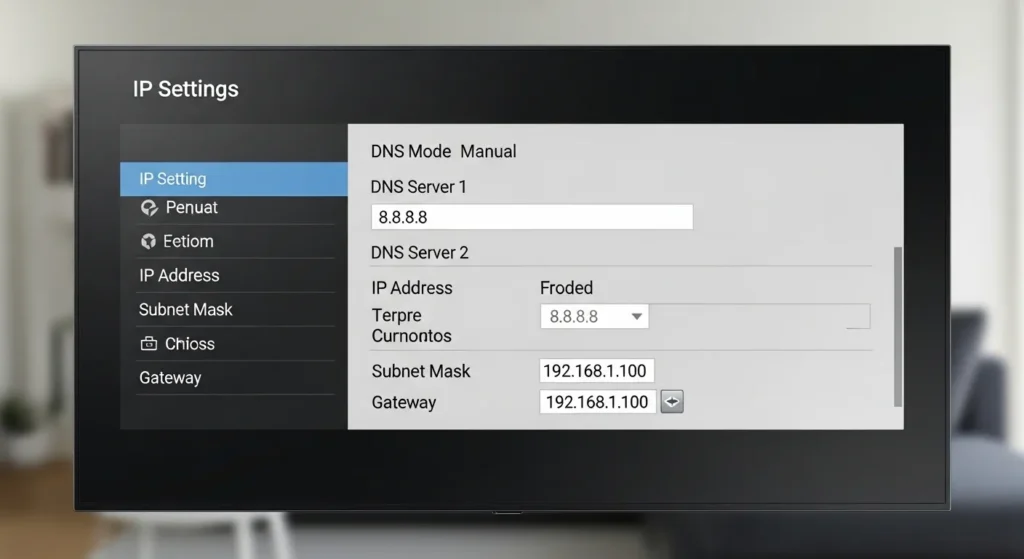
We covered basic DNS changes earlier. Here’s the complete manual IP setup that fixes stubborn connection issues.
Go to Settings > Connection > Network > Network Status > IP Settings. Change “IP Setting” from “Obtain Automatically” to “Enter Manually.” Enter these values exactly:
IP Address: 192.168.1.XXX (replace XXX with any number from 100-254 that’s not used by another device) Subnet Mask: 255.255.255.0 Gateway: 192.168.1.1 (or whatever your router’s IP is) DNS Server: 8.8.8.8
Select Done and test the connection.
This bypasses automatic configuration that sometimes assigns conflicting values.
Dealing with IP Address Conflicts
Two devices can’t use the same IP address. When they try, one gets kicked off the network.
Your TV shows “IP address 0.0.0.0” or connects then immediately disconnects. This happens when your router’s DHCP server assigns duplicate IPs.
Fix IP conflicts:
Reset your router to clear all IP assignments (hold reset button for 10 seconds). OR manually assign your TV a static IP address outside your router’s DHCP range (usually 192.168.1.200-254).
Log into your router settings. Find DHCP settings. Note the DHCP range (example: 192.168.1.2-192.168.1.100). On your TV, manually enter an IP outside that range, like 192.168.1.150.
Network Bandwidth Overload Solutions
Your TV connects but buffers constantly or kicks off periodically. You have 10+ devices connected to your router. Streaming quality drops during peak hours (6-10 PM).
This means your router can’t handle the device load or your internet plan doesn’t provide enough bandwidth.
Check your internet speed: Go to fast.com on your phone while connected to WiFi. 4K streaming needs 25+ Mbps. HD streaming needs 5+ Mbps. If you’re getting less, call your ISP about upgrading.
Router upgrade: 2026 routers should support WiFi 6 for better multi-device handling. Routers older than 5 years struggle with modern device loads. Budget $80-150 for a quality WiFi 6 router.
Disconnect unused devices: Old phones, tablets, and smart home devices stay connected even when idle. They consume bandwidth doing background updates. Remove devices you don’t actively use.
When to Contact Samsung Support
Contact professional support if:
You tried every solution in this guide and nothing worked. Your TV is under warranty (free repair). The WiFi module is definitely broken (no networks appear ever). Multiple Samsung TVs in your home have the same issue (suggests router incompatibility). You see error codes not explained here.
Prepare this information before calling:
Your TV model number (found on back of TV or Settings > Support > About This TV). Purchase date and warranty status. Exact error messages shown on screen. Which troubleshooting steps you already tried. Your router brand and model number.
Samsung support contact:
Phone: 1-800-SAMSUNG (1-800-726-7864) Hours: 24/7 support available Website: samsung.com/us/support Live chat available on support page
Average wait times: Phone support averages 10-15 minutes hold time. Chat support responds in 2-5 minutes. Service appointments book 3-7 days out depending on your area.
Warranty claims: If your TV is under warranty, Samsung covers parts and labor. They’ll either send a technician to your home or provide a shipping label for mail-in repair. Turnaround time is 7-14 days for mail-in service.
Frequently Asked Questions
Why did my Samsung TV suddenly stop connecting to WiFi?
The most common cause is a router firmware update from your internet provider. They push updates overnight that sometimes change security protocols or reset settings. Power cycle your router and TV to re-establish the connection. If that doesn’t work, check if your router switched from 2.4GHz to 5GHz-only mode.
Can a Samsung TV WiFi module be replaced?
Yes. WiFi modules are separate components that can be replaced. Cost runs $150-250 including labor at a repair shop. The module itself costs $40-80 if you buy the part and replace it yourself. Most repairs take 1-2 hours. Check if your TV is under warranty first.
Do Samsung TVs work better on 2.4GHz or 5GHz?
5GHz offers faster speeds but shorter range. 2.4GHz offers better range but slower speeds. For TVs in the same room as your router, use 5GHz. For TVs far from the router or through walls, use 2.4GHz. Most streaming works fine on either frequency.
How do I know if my Samsung TV supports 5GHz WiFi?
Check your TV’s manual or look up your model number on Samsung’s support site. Generally, Samsung TVs from 2021 or newer support both 2.4GHz and 5GHz. Models from 2018-2020 often support 2.4GHz only. The NU6, NU71, NU72, and NU73 series specifically only support 2.4GHz.
Will a factory reset fix my Samsung TV WiFi issue?
Factory reset fixes software-related WiFi problems in about 70% of cases. It won’t fix hardware issues like a broken WiFi module or router compatibility problems. Try a network reset first (Settings > Network > Reset Network) before doing a full factory reset since it preserves your apps and settings.
Why does my Samsung TV keep disconnecting from WiFi?
Intermittent disconnections usually indicate weak signal strength, interference from other devices, or router instability. Check your signal bars (should be 3-4 bars minimum). Move the router closer or get a WiFi extender. Make sure your microwave or baby monitor isn’t interfering. Some routers disconnect devices after periods of inactivity.
Can I use my Samsung TV without WiFi?
Yes. Connect an ethernet cable for internet access. Or use a streaming device like Roku, Fire Stick, or Chromecast that has its own WiFi connection. Or use antenna for broadcast TV channels. Or connect game consoles and Blu-ray players directly via HDMI. Smart features require internet connection though.
What does MAC address failed mean on Samsung TV?
This error means your router rejected your TV’s unique hardware identifier. It happens when MAC address filtering is enabled on your router. Solution: Find your TV’s MAC address in Settings > Support > About This TV. Log into your router and add this MAC address to the allowed devices list.
How far can a Samsung TV be from a WiFi router?
Maximum recommended distance is 50 feet (15.2 meters) with clear line of sight. This drops to 25-30 feet through walls. Concrete, brick, and metal significantly reduce range. You need at least 3 signal bars for stable streaming. Use a WiFi extender or mesh system for distances over 50 feet.
Does unplugging my Samsung TV reset the WiFi?
Simply unplugging doesn’t reset WiFi settings. It only clears temporary memory. To actually reset WiFi, go to Settings > Network > Reset Network. For a complete reset including WiFi, do a factory reset at Settings > General & Privacy > Reset. Always try network reset before factory reset.
Related TV Troubleshooting Guides
Having other TV issues? Check out these helpful guides:
- Fix Samsung TV black screen – Solutions for black screen issues on Samsung TVs
- Fix Samsung TV volume stuck or not working – Troubleshoot volume control problems
- Fix Samsung TV not displaying full screen – Correct aspect ratio and screen size issues
- Vizio TV not connecting to WiFi fixes – Similar WiFi solutions for Vizio TVs
- Fix LG TV sound not working – Audio troubleshooting for LG TVs
- All LCD LED TV service menu codes – Access advanced settings on various TV brands
Conclusion
Most Samsung TV WiFi problems come from five core issues: incorrect passwords, weak signals, router configuration conflicts, outdated firmware, or failed hardware.
Start with the easiest fixes first. Check your password carefully. Verify signal strength shows at least 3 bars. Power cycle your router and TV properly. Update your TV’s firmware.
If simple solutions don’t work, dive into router settings. Separate your 2.4GHz and 5GHz bands. Change DNS to 8.8.8.8. Check MAC address filtering.
Hardware failure is rare. If your TV can’t see any networks at all after trying everything, the WiFi module probably died. Use ethernet or a streaming device as a workaround.
About 80% of WiFi issues get solved with password checks, power cycling, and signal strength fixes. You’ll likely have your TV connected again in under 15 minutes.



AoA
Board T.MT5510S.82
Model L43G5Si Changhong Ruba
Smart LED
wifi not working; even after factory reset. No response No Signal and No MAC address in the system.
Software old hai aur boht c apps work nahi kr rahi na netflix chal rahi hai siwa e youtube k.
LAN se connect keya tha but wo b respond nahi hua lakin MAC address show ho raha hai.
Any suggession?
Also share your shop address in case of service from you.
Thanks