

Quick answer: The most commonly working Hyundai TV universal remote codes are 0030, 0093, 1093, 10030, and 11523. Use the direct code entry method below — point the remote at the TV, hold SETUP until the light blinks twice, press TV, enter the code, then press POWER. The TV should turn off. If it doesn’t, try the next code on the list. Not sure which remote you have? Use our universal remote compatibility checker to find codes by remote model.
What You Need Before You Start
Before entering any code, confirm two things. First, your remote must be a universal remote — not a manufacturer remote designed only for one brand. Second, the remote needs working batteries. Weak batteries are responsible for roughly 30% of failed programming attempts; the remote appears to function but can’t transmit a stable IR signal long enough to complete setup.
Keep the remote pointed directly at the TV’s IR sensor (usually on the bottom-center bezel) and stay within 10 feet. Obstacles between the remote and sensor will cause failures even with the correct code. If you’re unsure what each button on your remote does, the remote control button explainer tool breaks down the function of every key.
Hyundai TV Universal Remote Codes — 3-Digit
3-digit codes are used by older GE, RCA, and One-For-All remotes manufactured before 2010. If your remote has a 3-digit code library, try these first.
| Code | Compatible Remote Type |
|---|---|
| 003 | GE / One-For-All (older models) |
| 009 | RCA (older universal) |
| 013 | Philips (older series) |
| 030 | Generic universal (3-digit) |
| 093 | GE / RCA multi-brand |
| 108 | One-For-All |
| 208 | Universal remote multi-brand |
Hyundai TV Universal Remote Codes — 4-Digit
4-digit codes cover the majority of mid-range universal remotes sold between 2008 and 2020. These are the most widely used codes for Hyundai TVs. If you’re using a GE universal remote or an One-For-All remote, start with the codes in this section.
| Code | Compatible Remote Type |
|---|---|
| 0030 | GE / One-For-All (4-digit) |
| 0093 | RCA universal |
| 1093 | Philips / One-For-All |
| 1208 | GE 4-device universal |
| 1309 | RCA CRK76TE1 |
| 1394 | One-For-All URC series |
| 0463 | RCA universal (alternate) |
| 1204 | Chunghop universal |
| 4002 | GE 4-device slim remote |
| 0456 | Philips SRP series |
| 0135 | Universal multi-brand |
| 0864 | One-For-All Essence |
Hyundai TV Universal Remote Codes — 5-Digit
5-digit codes are used by cable and satellite provider remotes — Comcast Xfinity, DIRECTV, DISH Network, and AT&T U-verse. They’re also used in newer GE and RCA remotes from 2018 onward. For a full list of Xfinity-specific codes across all TV brands, see our Comcast Xfinity universal remote codes guide.
| Code | Compatible Remote |
|---|---|
| 10030 | Comcast Xfinity / GE (5-digit) |
| 11523 | DIRECTV RC series |
| 10463 | DIRECTV / Comcast alternate |
| 12093 | DISH Network |
| 11204 | DISH Network (alternate) |
| 12964 | AT&T U-verse |
| 11756 | Spectrum / Cox |
| 10171 | Verizon Fios |
| 13040 | RCA CRK series (5-digit) |
| 11930 | GE 5-device (newer models) |
Codes by Remote Brand
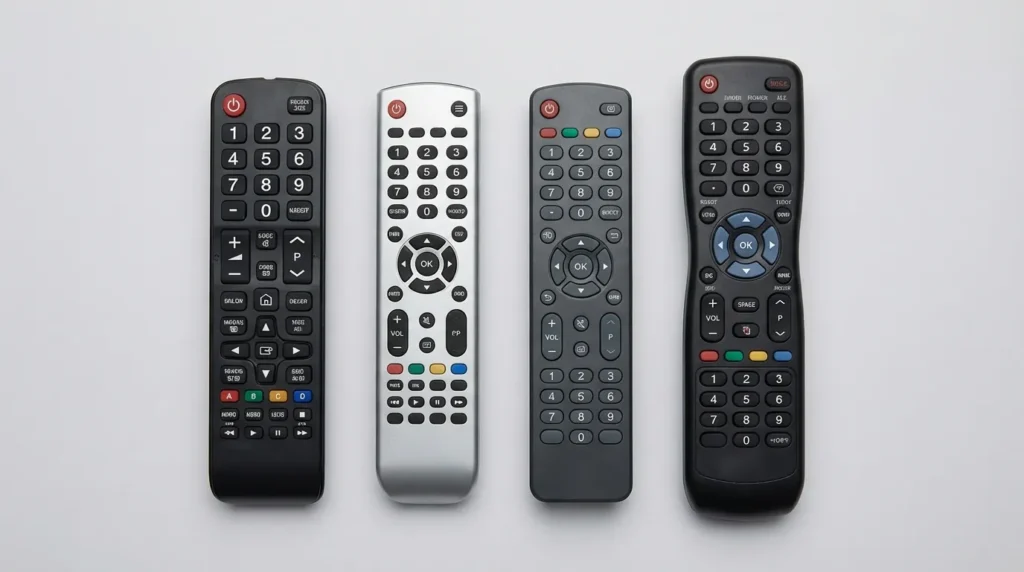
RCA universal remotes use 4 or 5-digit codes depending on the model. The most reliable codes for Hyundai TVs are 0093, 1309, 0463 (4-digit) and 13040 (5-digit). For the full RCA code library across all TV brands, see our complete RCA universal remote codes guide.
| Code | Format |
|---|---|
| 0093 | 4-digit |
| 1309 | 4-digit |
| 0463 | 4-digit |
| 13040 | 5-digit |
GE & One-For-All Remote Codes for Hyundai TV
GE and One-For-All remotes share overlapping code libraries. If you own a One-For-All URC series remote, the full setup process is covered in our One-For-All universal remote codes guide.
| Code | Format |
|---|---|
| 0030 | 4-digit |
| 1208 | 4-digit |
| 4002 | 4-digit |
| 10030 | 5-digit |
| 11930 | 5-digit |
| 1394 | 4-digit (One-For-All) |
| 0864 | 4-digit (One-For-All) |
Philips Remote Codes for Hyundai TV
Philips SRP remotes have moderate compatibility with Hyundai TVs. If none of these codes work, check our full Philips universal remote codes list for additional entries.
| Code | Format |
|---|---|
| 1093 | 4-digit |
| 0456 | 4-digit |
| 013 | 3-digit |
Comcast Xfinity Remote Codes for Hyundai TV
| Code | Format |
|---|---|
| 10030 | 5-digit |
| 10463 | 5-digit |
| 11756 | 5-digit (alternate) |
DIRECTV Remote Codes for Hyundai TV
| Code | Format |
|---|---|
| 11523 | 5-digit |
| 10463 | 5-digit |
DISH Network Remote Codes for Hyundai TV
| Code | Format |
|---|---|
| 12093 | 5-digit |
| 11204 | 5-digit |
AT&T U-verse Remote Codes for Hyundai TV
| Code | Format |
|---|---|
| 12964 | 5-digit |
| 10171 | 5-digit (Verizon Fios) |
How to Program a Universal Remote to a Hyundai TV (Direct Code Method)
Featured Answer To program a universal remote to a Hyundai TV: hold SETUP until the light blinks twice, press the TV button, enter your 4 or 5-digit code, then press POWER. If the TV turns off, the code is accepted. Press SETUP or OK to lock it.
This method works on GE, RCA, Philips, One-For-All, and most cable provider remotes. The exact button names may vary slightly — some remotes use “CODE SEARCH” instead of SETUP, and some use “MODE” instead of TV. If you’re not sure what your remote model is, the remote code finder tool can identify the right codes by remote brand and TV brand in one step.
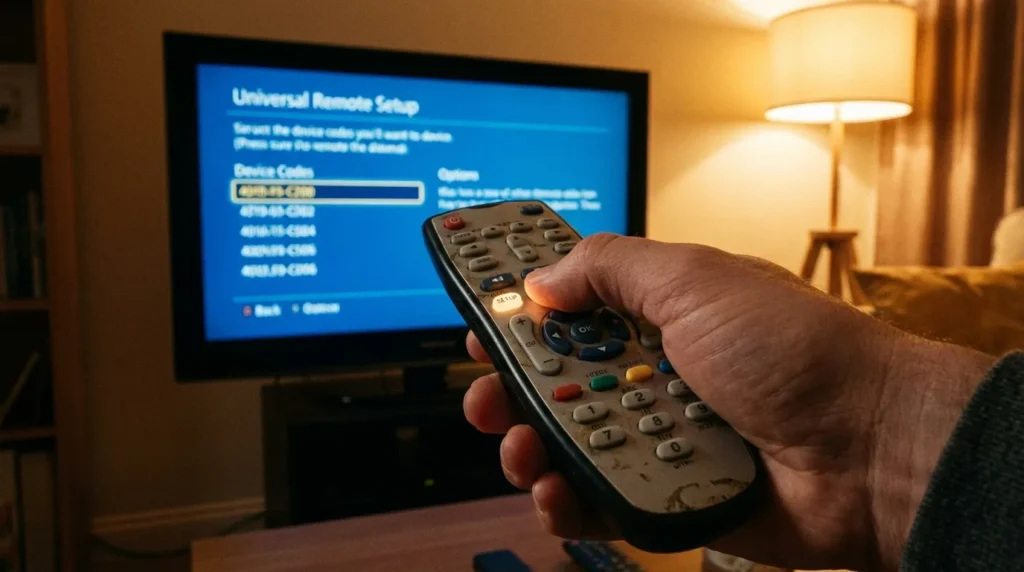
- Turn on your Hyundai TV manually using the power button on the TV itself.
- Press and hold the SETUP button on your universal remote until the indicator light blinks twice. Release the button.
- Press the TV button once. The light will blink once to confirm.
- Enter your 4 or 5-digit code using the number pad. Use the codes from the tables above that match your remote brand.
- Point the remote at the TV and press POWER. If the TV turns off, the code worked. Press SETUP or OK to save it.
- If the TV does not turn off, repeat from step 2 using the next code on the list.
Tip After saving your code, test volume up/down and input switching. Some codes accept POWER but fail on volume. If that happens, the code is only partially compatible — try the next one.
How to Program Without a Code (Auto-Search / Code Scan Method)
If none of the codes above work, the auto-scan method tests every code in the remote’s library automatically. This takes 3–8 minutes but doesn’t require knowing the right code in advance. This approach works the same way for Hisense TV remote programming and other brands that share similar OEM chipsets with Hyundai.
- Turn on the Hyundai TV manually.
- Press and hold SETUP until the light blinks twice.
- Press the TV button once.
- Press and hold the POWER button. Keep holding it.
- The remote will cycle through codes automatically. Watch the TV. Release POWER the moment the TV turns off.
- Press SETUP or OK immediately to lock the code in place.
Warning Do not release the POWER button too late. Once the TV turns off, you have about 2 seconds to press SETUP before the remote moves to the next code and the lock window closes.
Manual Learning Method (If Nothing Else Works)
Some universal remotes include a learning mode. This copies IR signals directly from your original Hyundai remote — so it doesn’t require a code at all. You need the original Hyundai remote for this. If you no longer have it, skip to the phone-as-remote section below.
- Place both remotes face to face, about 1–2 inches apart.
- On the universal remote, activate learning mode. This varies by brand — on GE remotes, hold SETUP + 9 simultaneously until the light blinks. On One-For-All, hold the button you want to program until it blinks.
- Press the button on the universal remote that you want to teach (e.g., POWER).
- Press the matching button on the original Hyundai remote. The universal remote will blink to confirm it received the signal.
- Repeat for each button you want to copy: volume, mute, input, channel.
- Exit learning mode according to your remote’s manual.
How to Test If Your Code Is Working
A code that only turns the TV on and off is not fully programmed. Run this 4-step test after saving any code:
- POWER: Turn the TV off and back on.
- VOLUME: Press VOL+ and VOL−. Confirm the TV’s volume changes.
- MUTE: Press MUTE. The TV should silence.
- INPUT: Press INPUT or SOURCE. The TV should cycle through HDMI ports and AV inputs.
If all four functions work, the code is fully compatible. If only POWER works, try the next code on the list — you’ll get better full-function coverage with a different code. If you’re switching inputs and want help identifying which HDMI port your device is connected to, the TV HDMI port selector tool can walk you through it.
Troubleshooting: Remote Still Not Working
Work through this checklist before giving up on a code.
- Replace the batteries. Use fresh AA or AAA batteries. Don’t test with batteries that have been in the remote more than 6 months.
- Check line of sight. Nothing should be between the remote and the TV sensor. Move objects on or near the TV stand.
- Reduce IR interference. Bright sunlight or fluorescent lighting near the TV can block IR signals. Try dimming lights or closing blinds.
- Confirm the TV’s IR receiver. Use your phone camera to test the original Hyundai remote — point it at the camera and press POWER. You should see a light flash on screen. If not, the original remote has a fault, not the TV.
- Reset the universal remote. Most GE and RCA remotes reset by pressing SETUP + 0 + 0 + 1. Check your remote’s manual for the exact reset sequence.
- Try multiple codes. Hyundai TVs were produced by several different OEM manufacturers. A Hyundai TV from 2018 may use a different chipset than one from 2022. Different chipsets respond to different codes — try every code in the table for your remote brand.
Tip If you have a Hyundai Smart TV made after 2021, it may also respond to codes from Samsung TV remote code libraries. Hyundai licensed panel technology from Samsung and LG during that period. Try Samsung universal remote codes (e.g., 0060, 10812) if Hyundai-specific codes all fail.
💡 Still stuck? Use the TV error code lookup tool if your TV is also displaying error messages, or the TV service menu code finder if you need to access the TV’s internal service settings.
How to Use Your Phone as a Hyundai TV Remote (No Hardware Needed)
If you don’t have a universal remote, your phone can replace it — provided the phone has a built-in IR blaster or you own a streaming stick with app control.
Option 1 — Phone with IR Blaster: Certain Android phones (Xiaomi, Huawei, Honor, some Samsung Galaxy models) include an IR blaster. Download the Mi Remote app or AnyMote Universal Remote from the Play Store. Select “Hyundai” from the brand list, and the app will send IR signals directly from your phone.
Option 2 — Hyundai Smart TV app (Wi-Fi): If your Hyundai TV is connected to Wi-Fi, it may support app-based control. Search “Hyundai TV Remote” on the Google Play Store or Apple App Store. The official app lets you control power, volume, input, and Smart TV menus over your home network — no IR required.
Option 3 — Streaming stick remote replacement: If you use a Roku, Fire Stick, or Chromecast plugged into your Hyundai TV’s HDMI port, the Roku or Amazon Alexa app on your phone can control the streaming device. For basic TV power and volume, enable HDMI-CEC on the Hyundai TV settings — this lets the Fire Stick or Roku remote also control TV power and volume. If you’re exploring what streaming services are available through these devices, the streaming service comparison tool can help you decide which platform suits your setup.
Which Universal Remotes Are Compatible With Hyundai TVs
Not every universal remote works reliably with Hyundai TVs. Here’s a practical breakdown based on code library coverage.
| Remote Brand | Compatibility | Best Code to Try First |
|---|---|---|
| GE 4-Device Universal | ✅ Good | 0030 |
| RCA 4-Device Universal | ✅ Good | 0093 |
| One-For-All URC series | ✅ Good | 1394 |
| Philips SRP series | ⚠️ Moderate | 1093 |
| Comcast Xfinity XR15 | ✅ Good | 10030 |
| DIRECTV RC73 | ✅ Good | 11523 |
| DISH 20.1 / 21.1 | ⚠️ Moderate | 12093 |
| Chunghop RM-133E | ✅ Good | 1204 |
| Spectrum SR-002 | ⚠️ Moderate | 11756 |
| AT&T S30 | ⚠️ Moderate | 12964 |
If you’re buying a replacement remote specifically for a Hyundai TV, the GE 4-Device Universal Remote or the One-For-All Essence 4 offer the best code coverage for this brand. Both retail under $15 and have verified Hyundai code entries in their libraries. You can also check whether your specific remote model is confirmed compatible using the universal remote compatibility checker.
Final Check
Most Hyundai TV programming issues resolve with one of the 4-digit codes in the tables above — start with 0030 or 0093 for general universal remotes. For cable boxes, try 10030 for Comcast and 11523 for DIRECTV. If codes fail across the board, use the auto-scan method — it’s slower but eliminates guesswork entirely. And if the remote situation is unrecoverable, your phone with an IR blaster app or the Hyundai Wi-Fi remote app will get you control back within minutes.
Programming methods are consistent across most modern TVs. If you also need codes for other brands, the same process applies to Hisense, Zenith, and Dynex TVs — each with their own code lists and brand-specific tips.


