

LG TV service menu codes are special passwords that unlock hidden factory menus on your television. The most common codes are 0000, 0413, 7777, 8741, and 8743. These codes give you access to advanced settings normally reserved for technicians, including picture calibration tools, USB playback enablement, and hardware diagnostics.
Service menus exist on every LG TV. The manufacturer hides them to prevent accidental changes that could damage your display. But if you know what you’re doing, these menus let you customize your TV far beyond what the standard settings allow.
This guide covers every working access method and password code for LG TVs from 2009 to 2026.
Understanding LG TV Service Menus
LG doesn’t use a single service menu. They built different menu types for different purposes. Knowing which menu you need saves time and reduces risk.
What is a Service Menu
A service menu is a hidden interface that controls factory-level settings. These menus let you adjust values the regular settings can’t touch. You can change panel voltage, modify color space parameters, enable region-locked features, and access diagnostic tools.
LG uses service menus during manufacturing to calibrate each TV before it ships. Technicians use them for repairs. The menus stay in the firmware but remain locked behind password codes.
EZ Adjust vs In-Start vs Factory Menu
LG TVs have three main service menu types.
EZ Adjust is the basic service menu. It shows up on most LCD and LED models from 2010-2020. This menu handles simple adjustments like USB settings, hotel mode, and basic picture tweaks. It’s the safest service menu to use.
In-Start is the installation menu. Technicians use it during initial setup. This menu controls network configuration, firmware updates, and region settings. It appears on newer models that block EZ Adjust access.
Factory Menu is the deep-level engineering interface. It exposes EEPROM values, panel controls, and hardware diagnostics. Making wrong changes here can permanently brick your TV. Only professional calibrators should use this menu.
Why These Menus Are Hidden
LG hides service menus because one bad setting can destroy your panel. Change the backlight voltage wrong and you’ll burn out LEDs. Mess up white balance values and colors go permanently off. Corrupt the EEPROM and the TV won’t boot.
The company also uses these menus to enforce region locks and disable features based on where you bought the TV. A US model might have DivX playback disabled even though the hardware supports it. Service menus let you override these restrictions.
Warranty concerns play a role too. LG can detect service menu access through diagnostic logs. If you brick your TV after changing factory settings, they may refuse warranty repair. Similar to Samsung TV service menu access, LG monitors unauthorized changes through internal logging systems.
LG TV Service Menu Password Codes (Complete List)
Different LG TV models use different password codes. Try these codes in order until one works.
Universal Codes That Work on Most Models
These five codes unlock service menus on roughly 80% of LG TVs:
0000 – Works on most 2009-2015 LCD models including LH, LD, and LK series. This is the default factory code.
0413 – The primary code for 2015-2020 models. Covers most webOS 2.0-4.5 TVs. Works on many OLED models too.
7777 – Alternative code for models that reject 0000. Common on European market TVs.
8741 – Used on select 2012-2016 LED models, particularly LW and LN series.
8743 – Backup code for newer models. Try this if 0413 fails.
Model Series-Specific Codes
Certain LG TV series need specific codes:
LW Series (LW5700, LW6500, LW9500): Use 0413 first, then try 8741.
LH Series (LH2000, LH3000, LH4000): Code 0000 works on 95% of these models.
LD Series (LD350, LD450, LD325H): Try 0000, then 0413 if that fails.
LK Series (LK540, LK430): Use 0000 for models before 2011, 0413 for 2011+.
LN Series (LN5400, LN5700): Code 8741 is most reliable.
LA/LN Series (2013 models): Password 0413 unlocks most units.
If you’re looking for codes for other TV brands, check out our comprehensive guide to all LCD LED TV service menu codes covering multiple manufacturers.
OLED-Specific Codes
OLED models use tighter security. Many newer OLEDs require a service remote instead of codes.
C6/E6 (2016): Code 0413 still works on most units.
C7/B7 (2017): Password 0413, but some firmware versions block it.
C8/C9/E9 (2018-2019): Code 0413 works if firmware is below 05.xx.xx. Newer firmware requires service remote.
CX/GX/BX (2020): Service remote required. Password codes disabled in firmware.
C1/G1 (2021+): Service remote access only. LG removed password-based access completely.
For 2020+ OLEDs, you need an authorized service remote or specific button combinations that vary by firmware version.
How to Access LG TV Service Menu (4 Methods)
The access method depends on your remote type and TV model year. Try these in order.
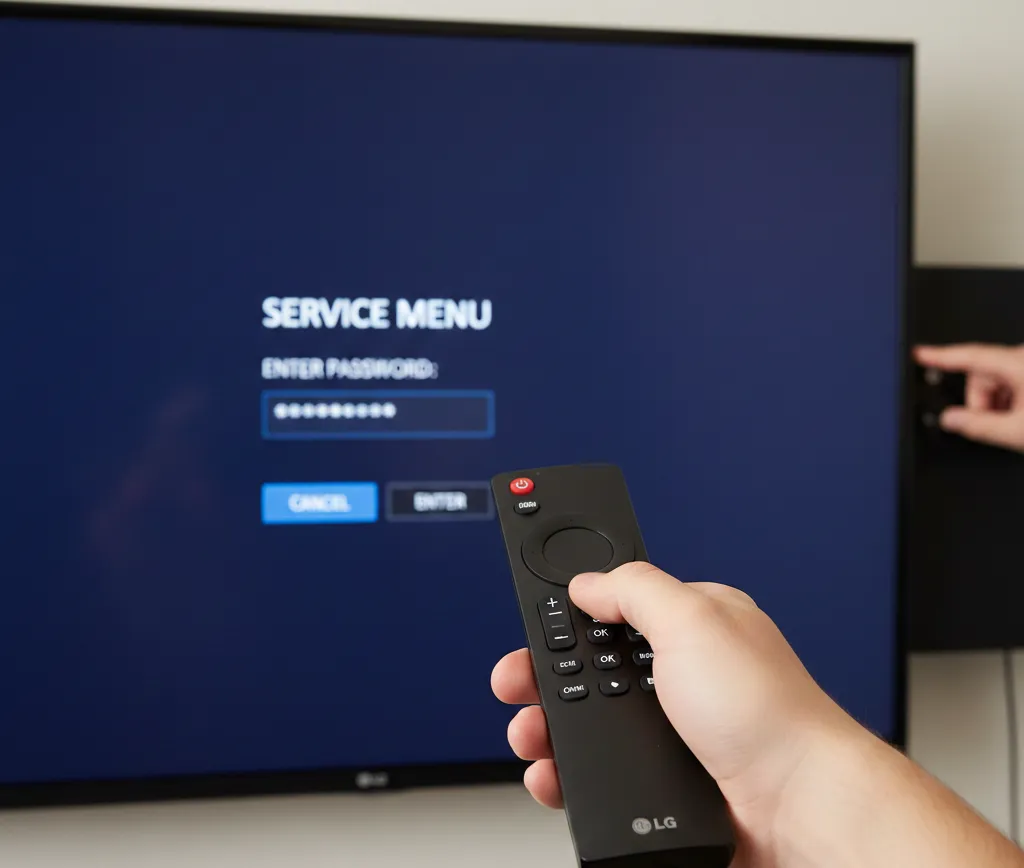
Method 1: Standard Remote Access
This method works on most 2009-2018 LG TVs with standard IR remotes.
Step 1: Turn off your TV using the remote. Don’t unplug it.
Step 2: Press and hold the OK button on your TV’s front panel. Keep holding it.
Step 3: While holding the panel OK button, press and hold the MENU button on your remote.
Step 4: Keep both buttons pressed for 5-8 seconds. A password prompt will appear on screen.
Step 5: Release both buttons. Use the remote number pad to enter a password code.
Step 6: Start with 0000. If that fails, try 0413, then 7777, 8741, and 8743.
The service menu opens immediately after entering the correct code. You’ll see options laid out differently than the normal menu.
Some models show the password prompt instantly. Others take up to 10 seconds of button holding. This button combination method is standard across most brands—similar techniques work for Sony TV service menu access and Toshiba TV service menus.
Method 2: Magic Remote Access (Multiple Techniques)
LG Magic Remotes use different access methods. These techniques work on 2015+ webOS TVs.
Technique A: Resolution Overlay
Press the GREEN button four times quickly, then press OK. A resolution overlay appears showing current signal specs. Press 1888 on the number pad. The service menu opens.
This works on webOS 2.0-3.5 models.
Technique B: HDMI Diagnostic
With an HDMI source active, press MUTE three times, then 1-1. An HDMI diagnostic screen appears. From here, press OK and BACK together for 5 seconds. Enter password 0413 when prompted.
Technique C: Statistics Menu
Press IN-START on the Magic Remote. If nothing happens, press and hold SETTINGS for 7 seconds while pointing the remote at the screen. A statistics page may appear. Navigate to the service menu option using arrow keys.
Magic Remote methods vary significantly between firmware versions. If one fails, try another. If your LG Magic Remote stops working during this process, troubleshoot the remote connectivity first before continuing.
Method 3: Service Remote Access
Professional service remotes bypass password protection entirely. LG requires these for 2020+ models.
You can buy service remotes on eBay for $30-80. Look for models labeled “LG Service Remote” or “Zenith Service Remote.” The remote must be IR-compatible with your TV series.
Using a Service Remote:
Point the remote at your TV. Press the SERVICE button. The service menu opens immediately without a password. Some service remotes have labeled buttons for specific menus like EZ ADJUST or IN-START.
Service remotes work when password codes fail. They’re essential for newer OLEDs.
Method 4: Universal Remote Programming
Some universal remotes can be programmed to send service menu codes.
Harmony 880/900 Series:
Program a custom button sequence: MENU (hold 3s) + OK + 0413. Save this as a macro. Execute the macro to trigger service menu access.
One For All Remotes:
Enter setup mode. Input code 0413 as a custom function. Map it to an unused button. Press the button while the TV is in standby mode, then power on.
This method is hit-or-miss. Success depends on the universal remote’s IR code database and your TV’s firmware version.
What You Can Change in LG Service Menus
Service menus expose dozens of settings. Focus on these commonly modified options.
USB and Media Playback Settings
Most LG TVs ship with certain media codecs disabled. The service menu lets you enable them.
DivX Playback: Navigate to USB settings. Change DivX support from OFF to ON. This enables playback of DivX-encoded video files.
USB Version: Some models default to USB 1.1 speeds. Change this to USB 2.0 for faster file transfers.
Supported Formats: You can enable MKV, XVID, and other containers that LG blocks by default.
After enabling these features, reboot your TV. Test with a USB drive to confirm the changes worked.
Picture Calibration Options
Professional calibrators use service menus to dial in perfect picture quality.
White Balance: Adjust RGB gain and offset values for each IRE level. This fixes color temperature across all brightness levels.
Gamma Curves: Modify gamma values to match BT.1886 standards. Better shadow detail and color accuracy result.
Color Gamut: Switch between BT.709, DCI-P3, and other color spaces. Useful for HDR content.
Backlight Control: Adjust local dimming zones individually on models with full-array backlighting.
These adjustments require a colorimeter and calibration software. Don’t change picture values without proper tools.
HDMI Input Configuration
Service menus let you modify HDMI behavior.
Deep Color: Force enable 10-bit or 12-bit color depth on specific HDMI ports.
HDMI 2.1 Features: Enable VRR, ALLM, or eARC on ports that have the feature disabled.
Input Naming: Change default input labels to custom names.
Resolution Override: Force specific resolutions or refresh rates on problematic sources.
These changes help with compatibility issues between your TV and external devices.
Network and Region Settings
You can modify network settings and region locks.
DNS Override: Enter custom DNS servers for better streaming performance or geo-unblocking.
Region Change: Switch your TV’s region code. This unlocks apps and features restricted to certain countries.
Firmware Server: Change the update server URL. Useful if you want to block automatic updates.
Changing regions may disable certain features or violate terms of service. Some streaming apps detect region mismatches.
Hotel Mode Controls
Hotel mode locks down TV features. Service menus let you disable it.
Disable Hotel Mode: Find the hotel mode setting. Change it from ON to OFF. This removes volume limits, input restrictions, and power-on controls.
Set Max Volume: In hotel mode settings, you can set a different maximum volume level.
Control Input Access: Choose which HDMI inputs are accessible.
Most consumer TVs don’t have hotel mode enabled. But if you bought a display-model TV or a unit meant for commercial use, this setting may be active.
Firmware Management
Service menus show detailed firmware information and update controls.
Current Firmware Version: View the exact build number and date.
Force Update: Manually trigger a firmware check even if auto-update is disabled.
Rollback Option: Some models let you revert to a previous firmware version. This option appears only if multiple versions are stored.
Update Server: View or change the server URL the TV contacts for updates.
Be cautious with firmware changes. A failed update can brick your TV permanently.
Model-Specific Access Instructions
Access methods vary significantly across model years. Here’s what works for major series.
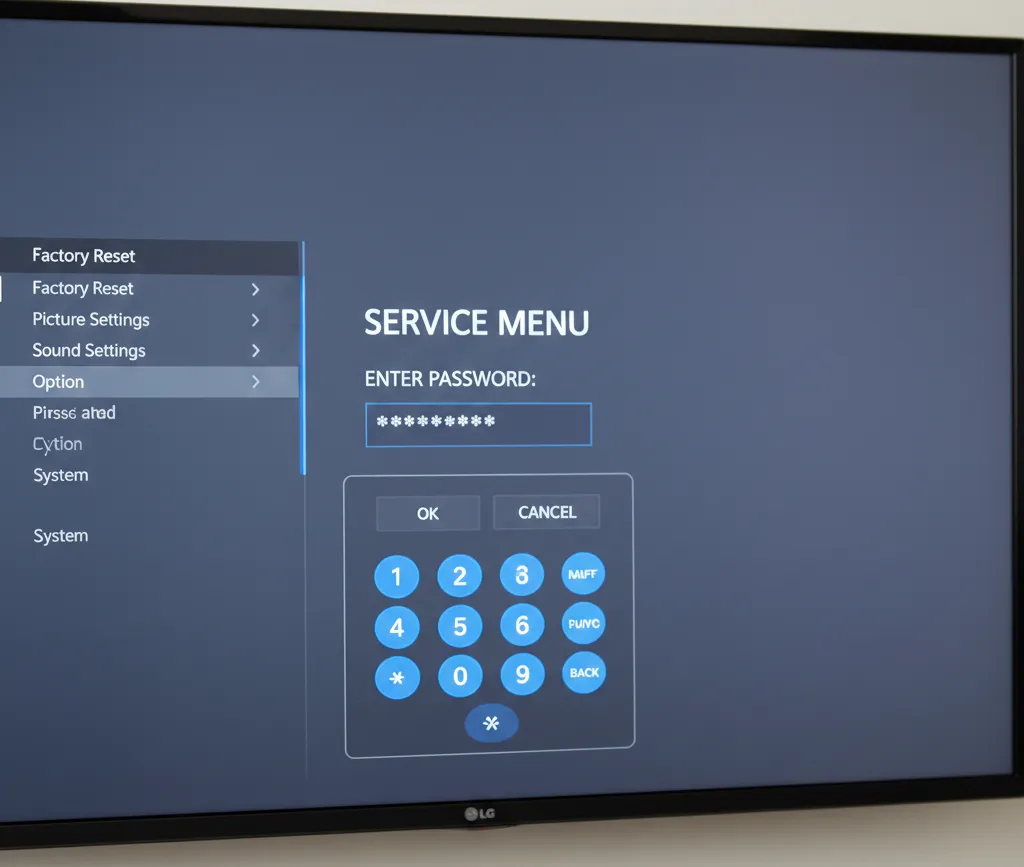
2015-2020 LCD/LED Models
These models use standard password access.
LA/LN Series (2013-2014): Turn TV off. Hold OK on panel + MENU on remote for 5 seconds. Enter 0413.
LF/LH Series (2015-2016): Same method. Password 0413 works on 90% of units. Try 7777 if 0413 fails.
UH/UJ Series (2016-2017): Magic Remote required. Use the resolution overlay method (GREEN x4 + OK + 1888).
UK Series (2018): Password 0413 still functional. Some firmware updates block it.
UM/SM Series (2019-2020): Password access phased out. Service remote increasingly required.
OLED Models (C/G/B Series)
OLED access tightened over time.
B6/C6/E6/G6 (2016): Password 0413 works reliably.
B7/C7/E7/G7 (2017): Password 0413 works on firmware below 04.30.xx. Later versions block it.
B8/C8/E8 (2018): Firmware-dependent. Early units accept 0413. Later firmware requires service remote.
C9/E9/W9 (2019): Service remote required for most units.
BX/CX/GX (2020+): Service remote mandatory. Password codes completely removed.
For blocked OLEDs, a service remote is your only option.
2021+ webOS Models
Newer webOS versions locked down service access.
C1/G1/A1 (2021): Service remote required. No password bypass exists.
C2/G2 (2022): Same as 2021 models. Service remote only.
C3/G3 (2023-2024): LG further restricted access. Even some service remotes fail on latest firmware.
B4/C4/G4 (2025-2026): Access extremely limited. Only authorized LG technicians can open service menus using proprietary tools.
If you own a 2021+ model and need service menu access, buying a service remote is mandatory. Even then, success isn’t guaranteed on the newest firmware.
Safety Precautions and Risks
Service menus can permanently damage your TV if misused.
Document Settings Before Changes
Before touching anything, photograph every screen.
Pull out your phone. Navigate through each service menu section. Take a clear photo of every setting and its current value. Save these photos somewhere safe.
If something goes wrong, these photos are your only way back. Most TVs don’t have a “reset service menu” button.
Write down the exact navigation path to each setting you plan to change. Note which menu level it’s in and what options surround it.
This documentation takes 10 minutes. It can save you from buying a new TV.
Settings That Can Brick Your TV
Certain settings cause permanent damage if changed incorrectly.
Panel Voltage Settings: These control power to the backlight and LCD panel. Change them wrong and you’ll burn out components instantly. Never touch voltage unless you have professional equipment.
EEPROM Write Operations: The EEPROM stores critical calibration data. If you corrupt it, your TV becomes unusable. The motherboard needs replacement to fix it.
Firmware Flash Options: Attempting manual firmware installation through the service menu can fail mid-flash. This leaves your TV in a non-bootable state.
Color Temperature Values: Extreme RGB gain/offset values can push colors beyond panel limits. This causes permanent color shifts that calibration can’t fix.
Stick to simple settings like USB enable/disable, region changes, and hotel mode. Avoid anything labeled “engineering,” “factory,” or “voltage.”
How to Exit Service Menu Safely
Exiting properly prevents corruption.
Press the BACK or EXIT button repeatedly until you return to the main service menu screen. From there, select EXIT or POWER OFF option if available.
Don’t just unplug the TV while in the service menu. This can corrupt settings currently being written to memory.
If the service menu freezes, wait 30 seconds. If it stays frozen, press and hold the TV’s power button for 10 seconds. This forces a hard reset.
After exiting, power cycle your TV completely. Unplug it for 60 seconds. This ensures all changes write to permanent memory.
Troubleshooting Access Problems
Password codes don’t always work. Here’s what to try.
When Password Codes Don’t Work
If 0000, 0413, and the other common codes fail, try these solutions.
Check Your Remote Batteries: Weak batteries cause missed IR signals. The code might transmit incompletely. Replace batteries with fresh ones.
Try a Different Remote: Some third-party remotes don’t send proper IR codes. Use the original LG remote if possible.
Update Firmware First: Older firmware versions are sometimes more permissive. But newer versions may have patches. Try both scenarios.
Look Up Your Exact Model Number: Search “[your model number] service menu code” online. Some models use unique codes like 3195 or 8878.
Verify Button Timing: Hold the buttons for different durations. Try 3 seconds, 5 seconds, 8 seconds, and 10 seconds. Some TVs are picky about timing.
Newer Models Requiring Service Remote
If your TV was made after 2020, password codes probably won’t work at all.
LG deliberately disabled password access in firmware updates. The service menu still exists, but only a service remote can open it.
You need to buy a compatible service remote. Search eBay or AliExpress for “LG service remote” along with your model year. Prices range from $30-100.
Verify the remote works with your TV series before buying. Sellers usually list compatible models. Some remotes work on 2016-2020 models but fail on 2021+ units.
Alternative Access Methods
A few obscure methods still work on select models.
Factory Reset Trick: On some 2018-2019 models, initiating a factory reset and then pressing MENU + OK together during the reset countdown opens the service menu. This doesn’t work on most units. If you need standard reset procedures, see our guide on how to perform factory data reset in Samsung TV—similar steps apply to LG models.
USB Firmware Method: Certain LG models accept specially crafted firmware files from USB that include service menu unlock scripts. This requires technical knowledge and carries high brick risk.
IR Blaster Apps: Android apps that control LG TVs can sometimes send service codes. Success rate is low but worth trying if you have an Android device.
If all methods fail and you really need service menu access, contact a local TV repair shop. Many technicians have service remotes and will open the menu for a small fee.
Frequently Asked Questions
Will using the service menu void my warranty?
Yes, probably. LG logs service menu access in diagnostic memory. If you submit a warranty claim and they check the logs, they’ll see you accessed restricted menus. They can deny warranty coverage. That said, many warranty claims never trigger a log check. It’s a risk.
Can I reset the service menu to defaults?
Most LG service menus have a “Factory Reset” or “Initialize” option. This resets service menu settings to factory values. It’s different from the consumer reset option in regular settings. Look for it in the main service menu screen.
What happens if I enter the wrong password too many times?
Nothing bad. LG TVs don’t lock out after failed password attempts. You can try unlimited codes. The worst that happens is the prompt closes and you have to start the button sequence again.
Why won’t my Magic Remote access the service menu?
Magic Remotes use Bluetooth, not IR. Service menu access requires IR signals in most cases. If the Magic Remote method fails, try the standard remote button combination or get a service remote.
Is it safe to enable DivX and other codecs?
Yes. Enabling media codec support is low risk. The hardware already supports these formats. LG just disables them in software for licensing reasons. Turning them on won’t damage anything.
How do I know which service menu I’m in?
The menu title appears at the top. EZ Adjust shows “ADJUSTMENT” or “EZ ADJUST.” In-Start shows “IN-START” or “INSTALLATION.” Factory menus often show “FACTORY MODE” or no title at all. The layout also differs. EZ Adjust uses simple lists. Factory menus show hex values and technical parameters.
Can I update firmware through the service menu?
Some service menus have a firmware update option. It works the same as the consumer update feature but shows more technical details. Unless you have a specific reason to use it, stick with the regular update method. Service menu firmware updates can fail in ways that brick the TV.
Will changing region unlock streaming apps?
Sometimes. Changing region from US to UK might unlock BBC iPlayer, for example. But many apps verify region through your internet connection, not the TV’s region code. A VPN is more reliable for accessing geo-restricted content.
What’s the difference between service menu and installation menu?
Installation menu (In-Start) is meant for initial setup. It covers network, region, and basic configuration. Service menu (EZ Adjust) handles calibration and feature enablement. Factory menu goes deeper into hardware control. They’re different access levels of the same system.
Can I recover from a bricked TV?
Sometimes. If you corrupted settings but the TV still powers on, you can try the factory reset option in the service menu. If the TV won’t boot, you need motherboard reprogramming. Some repair shops can reflash the EEPROM chip. Cost runs $100-300. If panel voltage damage occurred, the TV is usually beyond repair. For common power issues, check our troubleshooting guide for LG TV black screen problems which covers both service menu corruption and hardware failures.
Conclusion
LG TV service menu codes unlock powerful features hidden in your television’s firmware. The most reliable passwords are 0000 and 0413, though your specific model may need a different code. Access methods range from simple remote button combinations to specialized service remotes required for newer models.
These menus give you control over USB playback, picture calibration, network settings, and dozens of other options. But they also expose settings that can permanently damage your TV if misused. Always document your original settings before making changes, and stick to low-risk modifications unless you have professional training.
For 2020+ models, particularly OLEDs, you’ll likely need a service remote since LG removed password-based access. Older models remain accessible through the standard methods outlined in this guide.
If you work with multiple TV brands, explore service menu access for Philips TVs, Panasonic TVs, or Vizio TVs using similar techniques. For sound-related adjustments that don’t require service menu access, see our guide on fixing LG TV sound issues.
Use these tools carefully and your LG TV can do far more than LG intended.


