

Samsung TV volume getting stuck is more common than it should be. The volume bar freezes, the buttons stop responding, or the level locks at 0, 15, or 100 with no way to move it. Some users find the volume keeps creeping up or down on its own.
Most of the time, this is fixable in under 10 minutes. A power cycle clears it for many people. For others, the fix is a wrong Sound Output setting, a Smart Hub conflict, or a Tizen firmware bug — specifically one that’s been confirmed across AU8000 models in the Samsung community forums as recently as January 2026.
This guide walks through every fix in order, from the fastest to the most involved.
Why Samsung TV Volume Gets Stuck
Before jumping into fixes, it helps to know what’s actually causing it. There are six common reasons:
- Dead or weak remote batteries — the most overlooked cause. A remote with low charge sends inconsistent signals.
- Stuck or jammed volume button — debris under the button causes it to register as “held down,” making volume run continuously in one direction.
- Smart Hub conflict or app bug — a misbehaving app or the Smart Hub’s Autorun feature interferes with audio controls.
- Incorrect Sound Output setting — the TV is trying to send audio to an external device that isn’t connected, locking volume control.
- Outdated Tizen OS firmware — known bugs in older firmware versions directly affect volume responsiveness. Samsung’s 2026 lineup debuts Tizen 10, and some 2023 models are still waiting on the full Tizen 9.0 rollout.
- External device interference — a soundbar, Apple TV remote, or Fire Stick remote sending conflicting HDMI-CEC signals to your TV.
Hardware failure — a damaged IR sensor or faulty mainboard — is the least common cause, but it’s worth noting if every other fix fails.
Step 1 — Confirm Whether It’s the Remote or the TV
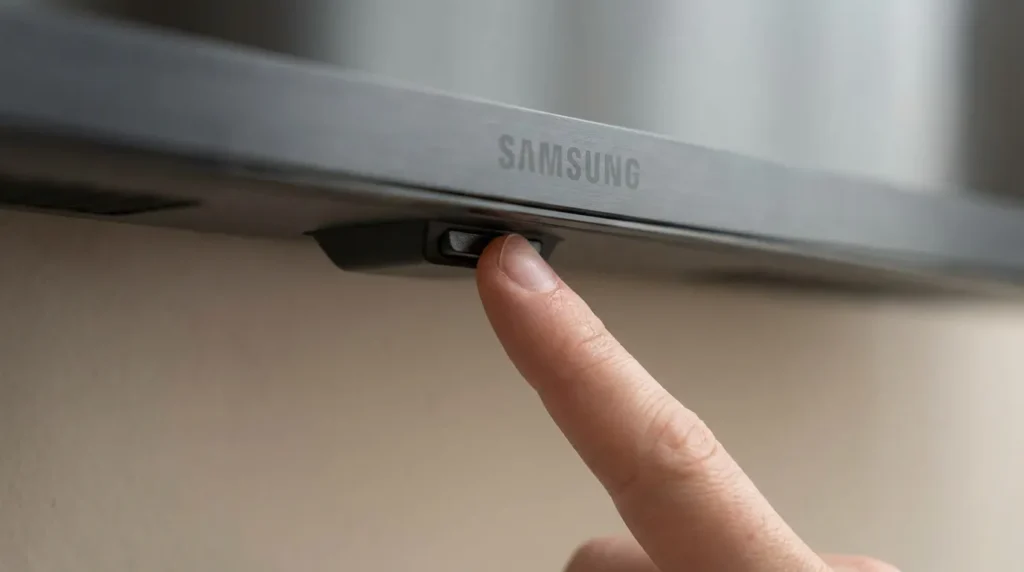
Don’t start resetting things until you know where the problem actually is — the remote or the TV itself.
Test with the TV’s physical button. Every Samsung TV has a control button built into the frame, usually on the underside or the back panel near the bottom-right corner. Press it to open an on-screen menu, then use it to adjust volume. If volume changes, the TV is fine — the remote is the problem.
Test with the SmartThings app. Download the Samsung SmartThings app on your phone, connect it to the same Wi-Fi as your TV, and use it as a remote. If volume works through SmartThings, you’ve confirmed the remote is faulty, not the TV.
IR test with a phone camera. If you’re using a standard infrared remote (not the slim solar-powered Samsung remote), point it at your phone’s front camera and press the volume button. You should see a light flash on the screen. No light means the remote isn’t transmitting — replace the batteries first.
If your remote checks out but volume still won’t budge, the fix is in the TV. Continue below.
Step 2 — Power Cycle the TV (Do This First)
This clears temporary memory glitches and fixes the volume issue for a large percentage of users.
- Turn the TV off using the power button on the TV — not the remote.
- Unplug the power cable from the wall outlet completely.
- Wait 60 seconds. Don’t skip this. Simply pressing power off and on doesn’t fully clear the memory.
- While it’s unplugged, press and hold the physical power button on the TV for 30 seconds. This drains residual capacitor charge.
- Plug the TV back in and turn it on.
- Test the volume.
If the volume works after this but the problem keeps returning every few days, that points to a firmware bug — jump to Step 6.
Step 3 — Check the Sound Output Setting
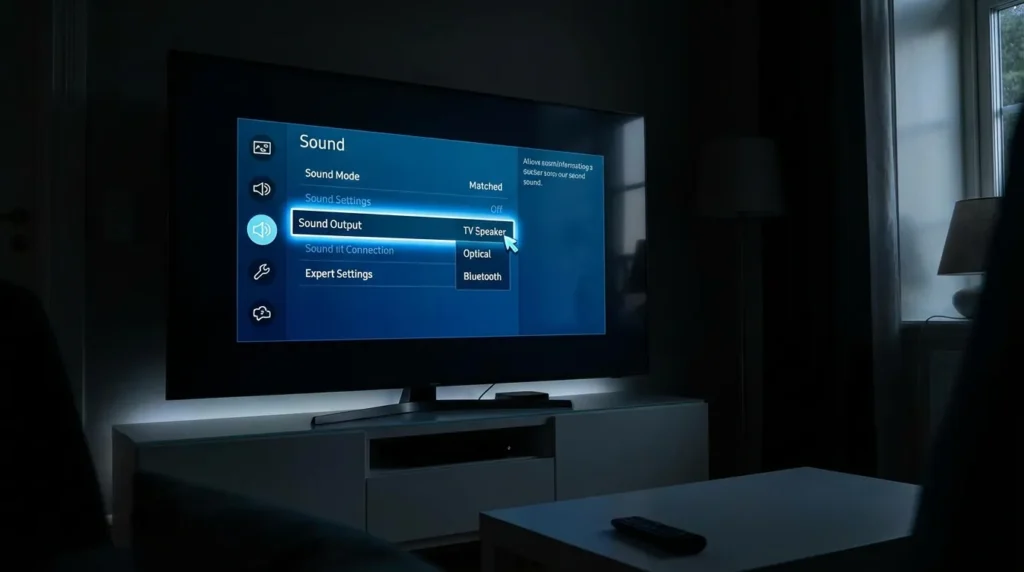
This is one of the most underdiagnosed causes. If your TV’s Sound Output is set to an external speaker or soundbar that isn’t currently connected, the TV’s internal volume controls stop responding.
How to fix it:
- Press Home on your remote (or use SmartThings if the remote isn’t working).
- Go to Menu > Settings > Sound > Sound Output.
- Make sure it’s set to TV Speaker.
- Test volume.
Check for HDMI-CEC (Anynet+) lock. If you have a soundbar or AV receiver connected via HDMI, Anynet+ may be handing volume control to that device — which then ignores your Samsung remote. To check: go to Settings > General > External Device Manager > Anynet+ (HDMI-CEC) and toggle it off temporarily. If volume starts working, Anynet+ was the culprit. You can re-enable it and configure your soundbar’s volume settings properly.
If you’re using a soundbar, the soundbar compatibility checker can help you confirm whether your setup is configured correctly for your Samsung TV.
Step 4 — Reset or Disable Smart Hub
Samsung’s Smart Hub has a known conflict with volume controls on several models. Resetting it clears corrupted data that can block audio functions.
To reset Smart Hub:
- Press Home on your remote.
- Go to Settings > Support > Self Diagnosis > Reset Smart Hub.
- Enter your TV PIN. The default PIN is 0000 if you haven’t changed it.
- Wait for the reset to complete and test volume.
Note: Resetting Smart Hub logs you out of your Samsung account and clears app data. Have your login credentials ready.
To disable Autorun Smart Hub (preventive fix):
Multiple Samsung users in community forums report that Autorun Smart Hub triggers the volume lock. Turn it off here:
- Go to Settings > General > Smart Features.
- Toggle Autorun Smart Hub to Off.
Step 5 — Run Samsung’s Built-In Sound Test
Samsung TVs include a self-diagnostic sound test that confirms whether the problem is software or hardware.
- Press Home on your remote.
- Navigate to Menu > Settings > Support > Device Care > Self Diagnosis.
- Select Sound Test.
The TV will play a short audio clip. If you hear the test audio clearly, the speakers and internal audio hardware are working. The problem is in the software or settings. If the test audio doesn’t play, there may be a hardware issue with the speakers or audio circuit — contact Samsung Support at that point.
If you’re dealing with a broader error you can’t identify, the TV error code lookup tool can help identify what your TV is reporting.
Step 6 — Update Tizen OS Firmware
Outdated firmware is a confirmed cause of volume issues on Samsung TVs. Samsung’s 2026 TV lineup launches with Tizen 10, while 2024 models received Tizen 9.0 starting mid-2025. Some 2023 models are still mid-rollout as of early 2026. If your TV’s firmware is behind, a known bug could be causing the volume lock.
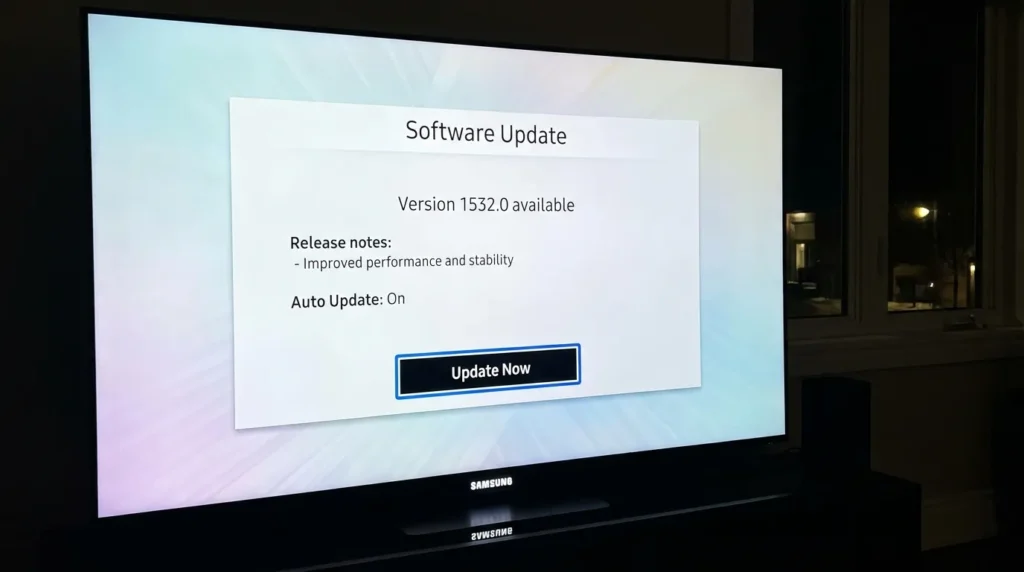
Wi-Fi update method (recommended):
- Press Home on your remote.
- Go to Menu > Settings > All Settings > Support > Software Update.
- Select Update Now.
- If an update is available, let it install fully. The TV will restart.
USB update method (if your TV isn’t connecting to the internet):
- Find your TV’s exact model number (on the back label or under Settings > Support > About This TV).
- Visit Samsung’s Download Center (samsung.com/support) on a computer.
- Search your model, download the firmware file, and copy it to a USB drive formatted as FAT32.
- Insert the USB into your TV. The TV will detect the update automatically.
If your Samsung TV is having trouble connecting to the internet to download updates, the guide on why Samsung TV won’t connect to Wi-Fi can help you resolve that first.
Step 7 — Reset Sound Settings to Default
If the volume controls work but the audio behavior is still off — stuck at wrong levels, not responding to fine adjustments — resetting the Sound settings can clear any misconfiguration.
- Press Home on your remote.
- Go to Menu > Settings > Sound > Expert Settings.
- Select Reset Sound, then confirm.
This returns all audio settings to factory defaults. It won’t erase app data or your Wi-Fi settings.
Step 8 — Check for External Device Interference
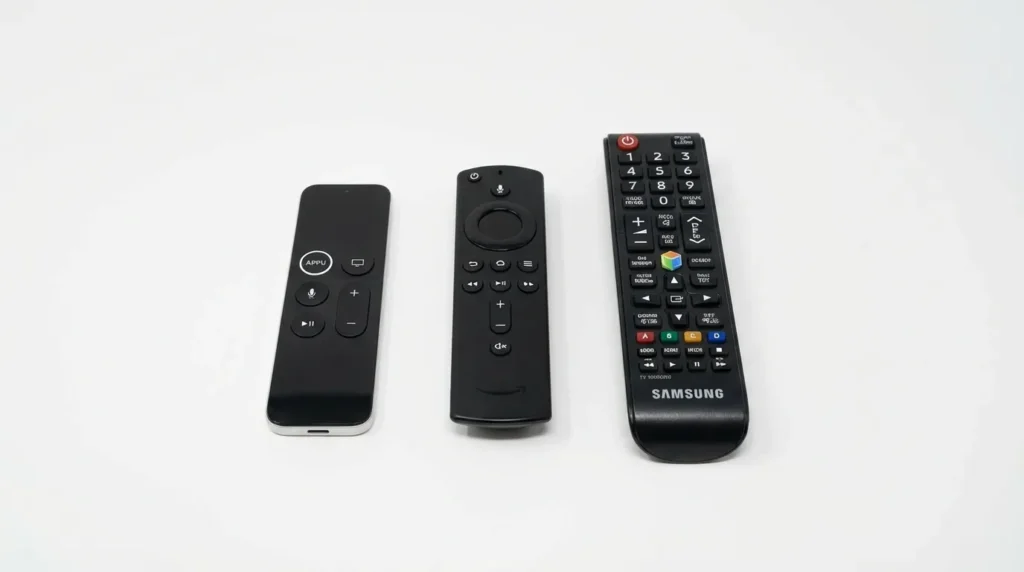
Two specific scenarios cause volume to move on its own or lock up completely:
Third-party remotes. An Apple TV remote, Amazon Fire Stick remote, or Roku remote sitting nearby can send signals to your Samsung TV, especially if HDMI-CEC is enabled. One confirmed case in the Samsung EU community forum had a user’s volume stuck running continuously in one direction — solved by hard-resetting their Apple TV remote.
Check for other remotes in the room. Remove their batteries temporarily and test whether your Samsung TV volume starts responding normally.
If you’re having Fire Stick remote issues as well, see the fix for Fire Stick remote not pairing.
Soundbar or external speaker sending conflicting signals. If your soundbar is connected via HDMI ARC, it may be overriding volume commands. Temporarily disconnect the HDMI or optical cable from the soundbar and test with TV speakers only.
Step 9 — Factory Reset (Last Resort)
A factory reset wipes all settings, installed apps, Wi-Fi passwords, and account data. Only do this after the previous eight steps have failed.
For a full walkthrough with screenshots, see the guide on how to perform a factory data reset on Samsung TV.
Quick path:
- Press Home on your remote.
- Go to Settings > General > Reset.
- Enter your PIN (default: 0000).
- Confirm the reset and wait for the TV to restart.
After a factory reset, re-run the volume test before restoring any apps or settings.
When Nothing Works — Contact Samsung Support
If volume is still stuck after all nine steps, there are two likely explanations:
Known firmware bug (AU8000 and similar models). Multiple Samsung AU8000 owners in the US community forums — with posts as recent as January 2026 — report that no amount of resets permanently fixes the volume issue. The problem reappears after the TV is turned off and back on. Users confirm it’s not the remote — three different remotes produce the same result. The root cause appears to be a software bug introduced via a firmware update. Samsung has not issued a permanent patch as of early 2026.
If this matches your situation, contact Samsung support directly and reference the AU8000 volume control issue. Escalate if they offer only basic troubleshooting.
Hardware fault. If the sound test (Step 5) failed, or if volume buttons on both the remote and the TV panel don’t respond, the IR sensor or the TV’s mainboard may be damaged. A Samsung-authorized technician can diagnose this. Repair cost varies — for older budget models, a replacement TV may be more cost-effective than a mainboard repair.
You can also check Samsung TV service menu codes for deeper diagnostic access, though this is intended for experienced users.
Frequently Asked Questions
Why is my Samsung TV volume stuck at 0 or 100? Volume stuck at 0 or 100 usually means the TV is receiving a continuous signal from a jammed remote button or an external device via HDMI-CEC. Check for stuck buttons on the remote, disconnect external devices temporarily, and run a power cycle.
Why does my Samsung TV volume keep going up or down by itself? This is almost always caused by a stuck volume button on the remote, or a second remote (Apple TV, Fire Stick, universal remote) sending signals to the TV. Remove the batteries from all remotes except the Samsung original and test.
Can a firmware update cause the volume to stop working? Yes. This is confirmed. Samsung AU8000 owners report volume stopping after a firmware update, with the issue persisting through multiple resets. If this applies to you, contact Samsung support and request escalation — this is a known software defect, not a user error.
How do I control Samsung TV volume without a remote? Use the physical control button built into the TV frame (usually on the underside or rear bottom-right). Alternatively, download the Samsung SmartThings app on your phone and use it as a full remote replacement over Wi-Fi. If you need help controlling a different TV brand without a remote, guides for Roku TV and Vizio TV are also available.


