

You can turn on a Roku TV without the remote by using the official Roku mobile app, a hidden physical button on the TV itself, HDMI-CEC from another connected device, or a voice assistant like Alexa or Google Home. At least one of these methods will work on every Roku TV model available in 2026.
Start with the physical button if you’re in a hurry. If the TV is already in standby mode, the Roku app is the fastest option. If neither works, HDMI-CEC or a voice assistant will get the job done.
Method 1 — Find the Hidden Physical Button on Your Roku TV
Every Roku TV has at least one physical button. Manufacturers hide it to keep the bezel clean, so it’s rarely obvious. Here’s where to look by brand.
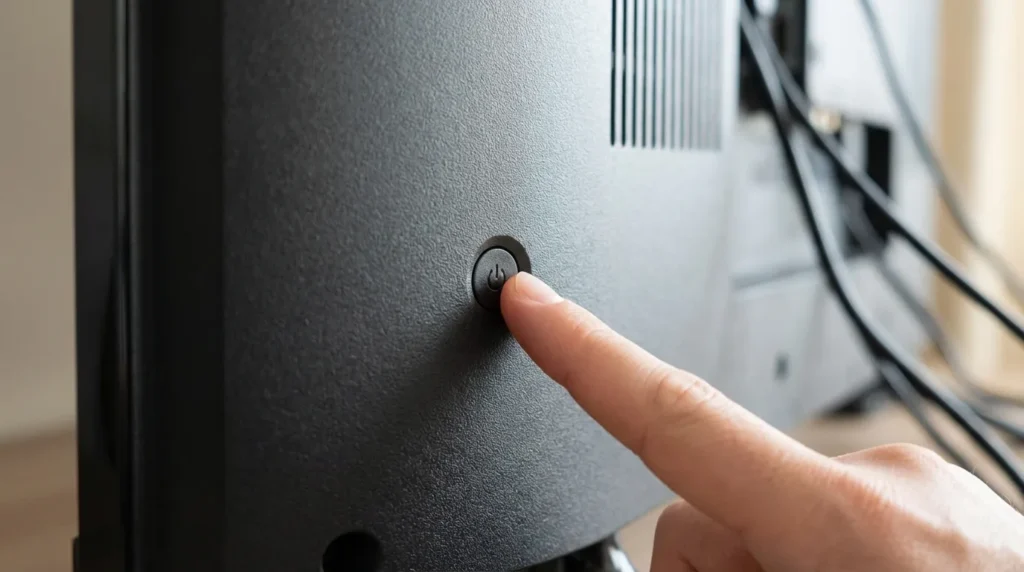
TCL Roku TV
On most TCL Roku TVs, the power button sits on the back panel, bottom-left corner. It’s a small circular button, sometimes recessed. Some newer TCL models moved it to the bottom-center edge of the frame. Press and hold for 3 seconds.
If your TCL TV isn’t responding to the button at all, check the fix TCL TV not turning on guide for hardware-level causes.
Hisense Roku TV
Hisense places the button on the back panel, center-right side, roughly halfway up the TV. On smaller 32-inch models, check the bottom edge, near the center. Press once — Hisense buttons are typically momentary, not hold-to-activate.
Onn Roku TV (Walmart)
Onn TVs have a joystick-style button on the back panel, center-bottom. Push it inward to power on. The same button lets you navigate the menu and adjust volume without the remote. If your Onn TV still won’t respond, the fix Onn TV won’t turn on guide covers the most common causes.
Insignia Roku TV
Insignia models place a multi-function button on the bottom-center edge of the bezel, facing down. It’s flush with the frame and easy to miss. Press it once to power on, press and hold for 3 seconds to access input switching. For Insignia-specific startup problems, see fix Insignia TV won’t turn on.
Other Brands
- Westinghouse — back panel, bottom-right corner
- RCA — bottom edge, left side of center. If pressing it does nothing, see RCA TV won’t turn on fixes
- Hitachi — back panel, right side, near the bottom
- JVC — bottom-center edge, similar to Insignia. Persistent issues? Check fix JVC TV won’t turn on
- Philips — side panel, right edge, near the bottom. See Philips TV won’t turn on fixes if there’s no response
- Magnavox — back panel, bottom-left
If you can’t find it, run your fingers slowly along every edge and the full back panel. The button is usually smaller than a pencil eraser.
Method 2 — Use the Official Roku App to Turn On Your TV
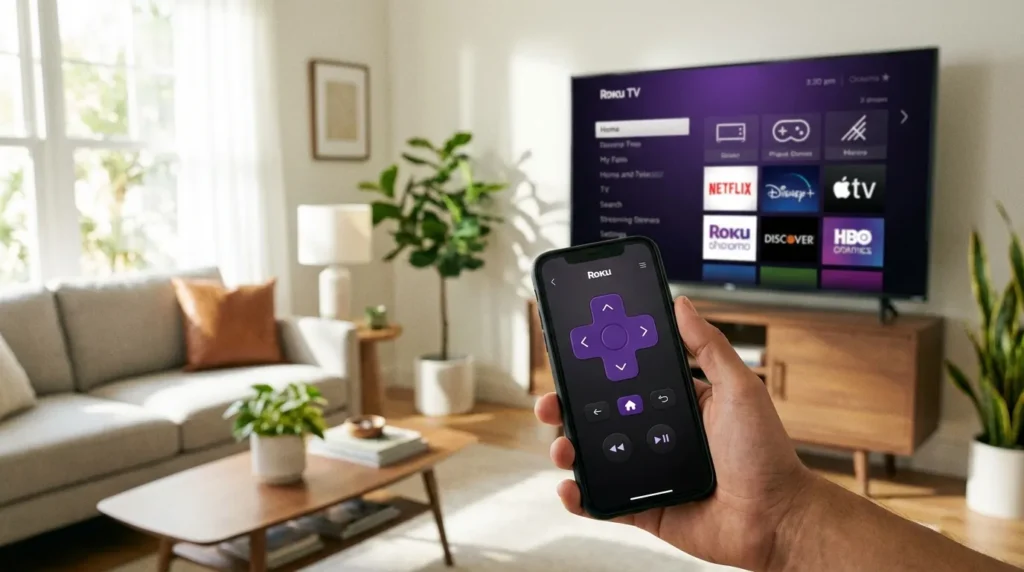
The Roku mobile app works as a full remote replacement. It’s free, available on iOS and Android, and connects over Wi-Fi.
Step-by-Step Setup
- Download the Roku app from the App Store or Google Play
- Make sure your phone and Roku TV are on the same Wi-Fi network
- Open the app and tap Remote at the bottom of the screen
- The app will scan for available Roku devices
- Tap your TV’s name when it appears
- Tap the power button on the app remote to turn the TV on
If the TV shows up and responds — you’re done. Keep the app as a permanent backup.
Why the App Sometimes Can’t Find or Wake Your TV
This is the part most guides skip.
The Roku app can only communicate with your TV when the TV is in standby mode — a low-power state where the Wi-Fi chip stays active. If your TV is in deep sleep (full power-off state), the Wi-Fi chip shuts down completely. The app has no way to reach it.
Deep sleep kicks in automatically after a long period of inactivity, or if the TV was hard-powered off — unplugged, switched off at a power strip, or power was cut.
To wake a TV from deep sleep: press the physical button (Method 1) or unplug the TV for 30 seconds, plug it back in. It will restart in standby mode, and the app can then control it.
If the app still won’t detect your TV after these steps, the fix Roku app not finding device guide covers every network-level cause including router band mismatches and firewall conflicts.
Enable Fast TV Start to Fix the Wake Problem Permanently
Fast TV Start is a Roku feature that keeps the TV in standby instead of entering deep sleep. With it on, the Roku app can always find and wake your TV.
To enable it:
- Go to Settings → System → Power
- Select Fast TV Start
- Toggle it On
You’ll need the remote or physical button to do this once. After that, the app will work reliably every time.
Note: Fast TV Start uses slightly more standby power — roughly 1–2 watts more than deep sleep mode.
Method 3 — Use HDMI-CEC to Power On with Another Device
HDMI-CEC lets connected devices control each other over the HDMI cable. When it’s enabled, pressing Play on a PlayStation or Nintendo Switch can automatically turn on your Roku TV.
How to Enable HDMI-CEC on Roku (Exact Menu Path)
- Open Settings
- Go to System
- Select Control other devices (CEC)
- Enable 1-touch play — this allows connected devices to turn on the TV
- Enable System audio control if you want volume control too
Using a Gaming Console or Other Device
PlayStation 4 / PS5: Go to Settings → System → HDMI Device Link → Enable. When you turn on the PS4/PS5, it will send a CEC signal that wakes the Roku TV automatically.
Nintendo Switch: Go to System Settings → TV Settings → Match TV Power State → On. Docking the Switch or pressing the home button will power on the TV.
Amazon Fire Stick / Apple TV / Blu-ray player: All support CEC. Check the device’s HDMI settings and enable the power-link or CEC option. The label varies by manufacturer.
If you’re using a Fire Stick and it’s not responding as expected, the fix Fire TV black screen guide covers HDMI signal problems that can prevent CEC from working.
HDMI-CEC Brand Name Reference
Different manufacturers call CEC something different. If you’re using a display connected to another brand’s device, match the name here:
| Brand | CEC Name |
|---|---|
| Samsung | Anynet+ |
| LG | SimpLink |
| Sony | Bravia Sync |
| Philips | EasyLink |
| Panasonic | VIERA Link |
| Sharp | Aquos Link |
| Toshiba | Regza Link |
Method 4 — Use a Voice Assistant
Both Amazon Alexa and Google Home can power on a Roku TV if they’re linked to your Roku account.
Amazon Alexa Setup
- Open the Alexa app
- Go to Skills & Games → search “Roku”
- Enable the Roku skill
- Link your Roku account
- Say: “Alexa, turn on [your TV name]”
Your Roku TV name is whatever it’s labeled in the Roku app under My Devices. Use the exact name for reliable results. If the Fire Stick remote that came with your Echo setup is also giving trouble, see the fix Firestick remote not pairing guide.
Google Home Setup
- Open the Google Home app
- Tap the + icon → Add device → Works with Google
- Search for Roku and link your account
- Say: “Hey Google, turn on [your TV name]”
Important for both: The TV must be in standby mode, not deep sleep, for voice commands to work. Enable Fast TV Start (covered in Method 2) to ensure this.
Method 5 — Get a Replacement Remote (Permanent Fix)
If you’ve lost the remote entirely, a replacement is the cleanest long-term solution. Roku uses a standard remote protocol — any official Roku replacement remote will pair with any Roku TV regardless of brand.
The Roku Voice Remote works on all Roku TV models. It pairs in under 30 seconds and includes a headphone jack for private listening. It’s available on Amazon for under $20 and is the most reliable permanent fix if your original remote is gone for good.
For a one-remote-controls-everything solution, a quality universal Roku-compatible remote handles Roku TVs plus all other devices in one place.
Nothing Is Working — Troubleshooting Checklist
Work through these in order:
- TV is fully unplugged? Plug it in. Wait 60 seconds. It will start in standby, not deep sleep.
- App can’t find the TV? Check that your phone and TV are on the same network. If your router broadcasts 2.4GHz and 5GHz on separate bands, make sure both devices are on the same one.
- App finds the TV but won’t power it on? The TV is in deep sleep. Use the physical button (Method 1) to wake it once, then enable Fast TV Start.
- HDMI-CEC not working? Confirm CEC is enabled on both the Roku TV and the connected device. Some cheap HDMI cables don’t carry CEC signals — swap the cable first.
- Voice commands not working? Confirm the TV is in standby, the Roku skill is enabled in the assistant app, and the TV name in your command matches the Roku account name exactly.
- Black screen even after powering on? The TV may have a display fault rather than a power issue. Check how to fix a dark TV screen and fix TV no picture for diagnosis steps.
- Physical button broken or missing? Use any working method above to power on, then order a replacement remote.
Also worth checking: if the TV was recently moved or the power outlet is shared with other devices, a Samsung TV won’t connect to Wi-Fi situation can affect app-based control on any brand — the network troubleshooting steps apply universally.
FAQ
Where is the power button on a Roku TV? It depends on the brand. TCL puts it on the back panel, bottom-left. Hisense puts it on the back panel, center-right. Onn uses a joystick button on the back center. Insignia and JVC place it on the bottom edge of the bezel. Run your fingers along all edges and the full back panel — the button is always there, just small.
Can the Roku app turn on the TV when it’s completely off? Only if the TV is in standby mode, not deep sleep. In standby, the TV’s Wi-Fi chip stays active and the app can reach it. In deep sleep, the chip is off and the app can’t communicate. Enabling Fast TV Start keeps the TV in standby permanently, so the app works every time.
Does every Roku TV support HDMI-CEC? Yes. All Roku TVs manufactured since 2015 support HDMI-CEC. It’s in the Settings menu under System → Control other devices (CEC). It may be disabled by default and needs to be turned on manually.
What is Fast TV Start on Roku? Fast TV Start is a power setting that keeps the Roku TV in low-power standby instead of entering deep sleep after inactivity. It allows the TV to respond to the Roku app, voice assistants, and HDMI-CEC commands at any time. Found under Settings → System → Power → Fast TV Start.
Will any Roku remote work on my Roku TV? Any official Roku remote will pair with any Roku TV — TCL, Hisense, Onn, Insignia, or any other brand. The remote doesn’t need to match the TV’s brand. Third-party universal remotes with Roku support also work.


