

What Is the Samsung TV Service Menu?
The Samsung TV service menu is a hidden diagnostic interface built into every Samsung television. Samsung puts it there for technicians — not everyday users. It sits behind a specific button sequence on your remote, out of reach during normal use.
Inside, you get access to settings that don’t exist anywhere in the standard menu. Picture calibration, factory reset options, hotel mode controls, white balance adjustments, firmware details. The kind of stuff a repair technician checks when your TV comes into a shop.
You don’t need a technician to access it. But you do need to know what you’re doing before you change anything. If you’ve already tried the standard settings and hit a wall, this guide covers everything — codes by remote type, what each section does, and exactly what to leave alone.
Other TV brands use a similar system. If you’re troubleshooting a different brand, the same concept applies — see the LG TV service menu codes or Sony TV service menu codes guides for those specific sequences.
Samsung TV Service Menu Codes by Model Type
There is no single universal code that works on every Samsung TV. The correct button sequence depends on your remote type and your TV’s production year.
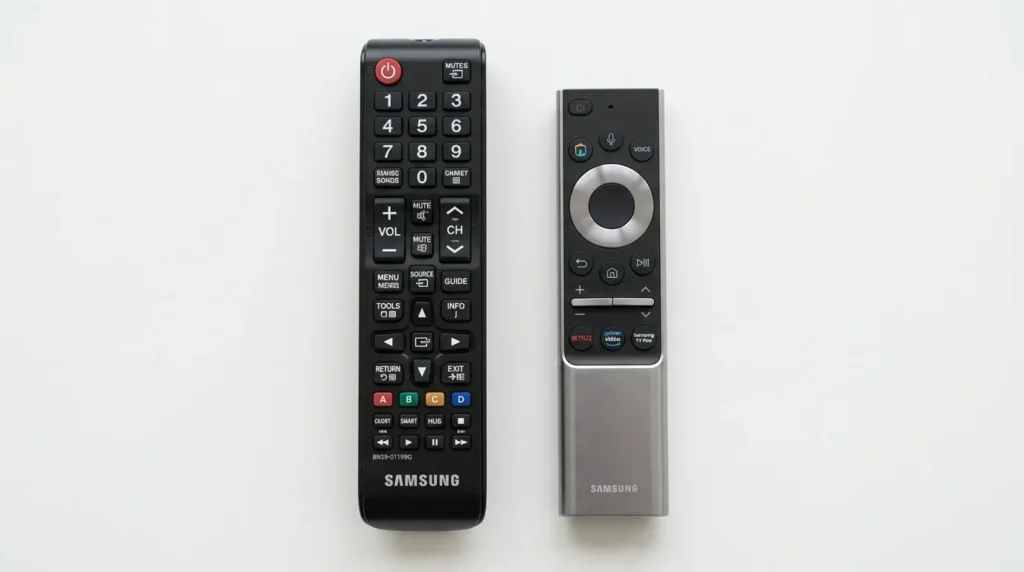
Standard IR Remote (Most Models, Pre-2016)
These are the older rectangular remotes with a full button layout including a dedicated Mute key.
Service menu code: Mute → 1 → 8 → 2 → Power
Press each button in sequence. The TV screen will flicker or go black for a second, then the service menu appears. On some older models the sequence is:
Info → Menu → Mute → Power
Both sequences work depending on exact model year. If the first fails, try the second.
Smart Remote / OneRemote (2016–Present)
Samsung’s newer slim remotes removed most physical buttons. The Mute key no longer exists in the same form. The access method changed.
Method 1 — On-screen remote:
- Press Home on your physical remote
- Open Settings
- Navigate to Support → Self Diagnosis
- From here, certain diagnostic functions are accessible without the full service menu
Method 2 — With remaining buttons: Some 2018–2023 models respond to: Mute (hold 3 seconds) → 1 → 8 → 2 → Power
On OneRemote models where Mute is accessed by holding the Volume button — hold Volume until mute activates, then enter the number sequence using the on-screen remote or a connected keyboard.
Method 3 — USB keyboard: Plug a USB keyboard into the TV. Press the key sequence using the keyboard’s number row combined with the physical remote’s Power button.
Hospitality and Hotel Mode Models
Samsung manufactures a separate line of hospitality TVs used in hotels. These run modified firmware. The standard service menu code often won’t work.
For hospitality models, the code is typically: Menu → 2 → 0 → 1 → 5 (or current year)
Some Samsung hotel TVs use: Menu → 0 → 1 → 1 → 9
If neither works, the hotel TV may be locked by the property management system. That requires a master remote or a Samsung hospitality reset tool — not a standard consumer fix. For a full walkthrough of the factory reset process on Samsung TVs, the Samsung TV factory data reset guide covers the additional steps in detail.
How to Open the Samsung Service Menu — Step by Step
Before you start, point your remote directly at the TV sensor. Distance matters. Stay within 10 feet.
- Turn the TV on and wait for the home screen to fully load
- Point the remote at the TV from about 3–6 feet away
- Press Mute, then quickly press 1, 8, 2, then Power
- The screen will briefly go black
- The service menu appears — usually a grey or black overlay with white text
The whole sequence takes about 2 seconds. Don’t rush it. Don’t pause too long between presses either — most TVs have a 1–2 second window for the full sequence to register.
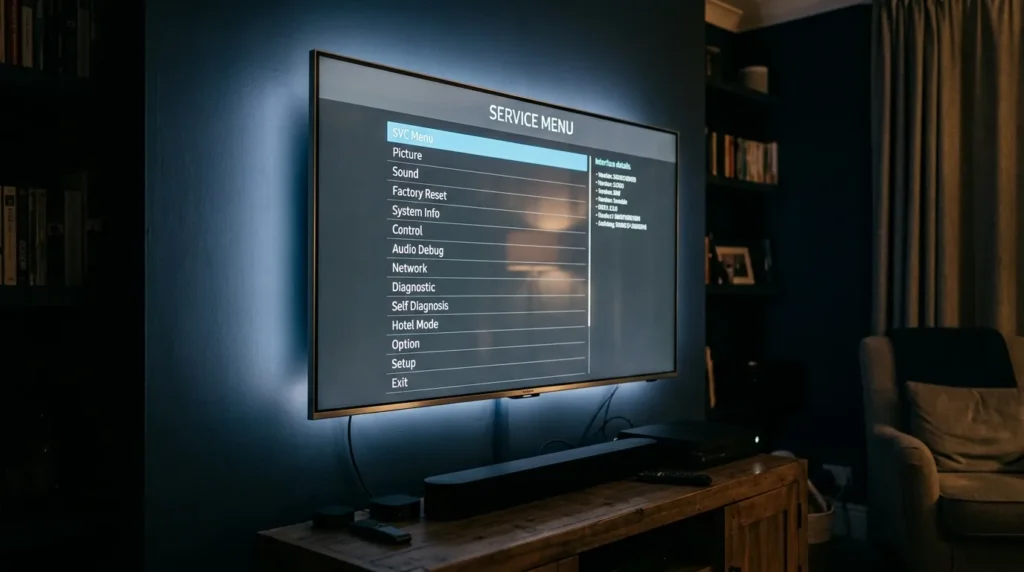
If the Menu Won’t Open
Several things can block access:
- Wrong remote type — the Mute-1-8-2-Power sequence only works on IR remotes with a physical Mute button
- TV not fully booted — try again after waiting 60 seconds on the home screen
- HDMI-CEC interference — disconnect all HDMI devices and try again
- Hospitality firmware — if the TV was previously used in a hotel, it may run locked firmware
- Regional firmware differences — some Samsung TVs sold in certain markets disable service menu access entirely
If none of those apply and it still won’t open, try the Info → Menu → Mute → Power sequence as an alternative. If your Samsung TV also has connectivity issues during this process, the Samsung TV WiFi fix guide can rule out network-related firmware problems.
What’s Inside the Service Menu
The service menu is divided into sections. Each controls a different part of the TV’s hardware or software behavior.
Picture and Display Settings
This section controls low-level picture parameters. You’ll find:
- Overscan on/off — removes the cropped edge on older broadcast content
- Backlight level — sets the physical panel brightness independent of picture mode
- Color temperature offset — shifts white balance toward warm or cool
- Aspect ratio lock — forces specific output dimensions
These are safe to adjust if you know the starting values. Write them down before touching anything. If your picture problems go deeper than calibration — no image at all — the TV no picture fix guide is a better starting point before going into the service menu.
Factory Reset Options
Two types of reset appear in the service menu:
SVC Reset — resets picture and sound settings to factory defaults. Doesn’t affect apps, accounts, or network settings.
Initialization (EEPROM reset) — wipes everything. Accounts, network settings, installed apps, all calibration data. This is what a technician runs before sending a TV back to a customer. It’s permanent and immediate.
Do not run an EEPROM reset unless you want a fully wiped TV.
Hotel Mode and Clone Settings
Hotel mode locks the remote, limits channel access, and prevents users from changing inputs or volume beyond set limits. If you bought a second-hand TV that’s stuck in hotel mode, this is where you turn it off.
Toggle location: SVC Menu → Hotel Mode → Off
Clone menu lets you copy TV settings to a USB drive and push them to multiple units. Useful for technicians setting up 50 hotel room TVs. Not relevant for home use.
ADC and White Balance
ADC (Analog-to-Digital Converter) calibration controls how the TV processes input signal levels. White balance settings let you adjust the RGB gain and offset independently at 2-point or 10-point intervals.
These are professional calibration tools. Adjusting them incorrectly produces permanent color distortion. Leave them alone unless you’re running a proper calibration with a colorimeter.
Common Fixes Using the Service Menu
Fixing overscan: If your TV cuts off the edges of the picture — common on 1080i broadcast — go to Picture Settings in the service menu and set Overscan to Off. This is also the fix when your Samsung TV isn’t displaying full screen.
Disabling hotel mode: Second-hand TVs from hotels often arrive locked. Open the service menu, find Hotel Mode under the SVC section, and toggle it off. The TV will reboot and behave like a standard consumer unit.
Checking firmware build info: The service menu displays the exact software version, panel type, and production date. Useful when contacting Samsung support or confirming whether a firmware update applied correctly.
Running a controlled factory reset: Use SVC Reset instead of the full EEPROM wipe when you only want to restore picture settings without clearing everything else. If the TV shows a Samsung TV black screen after changes, an SVC reset from the service menu is the first recovery step to try.
If volume controls have stopped responding alongside other issues, the Samsung TV volume stuck fix covers whether that’s a remote problem or a deeper firmware issue worth addressing before entering the service menu.
Settings You Should Not Change
Some sections of the service menu can damage your TV permanently if adjusted incorrectly. Avoid these unless you are a trained technician:
- EEPROM Write — directly rewrites hardware memory. Wrong values can corrupt the TV’s core firmware
- ADC Calibration — requires professional equipment to set correctly. Random changes destroy color accuracy permanently
- Panel Drive Settings — controls voltage levels to the display panel. Incorrect values shorten panel lifespan or cause immediate damage
- Micom settings — low-level microcontroller parameters. Not adjustable without hardware knowledge and test equipment
If you see something you don’t recognize, don’t touch it. If the TV is already showing hardware symptoms before you’ve entered the service menu — like a dark TV screen with no apparent settings cause — diagnose that first rather than going into service menu adjustments blind.
How to Exit the Service Menu
Press the Exit button on your remote. On smart remotes, press the Back or Return button several times until the menu closes.
If the service menu freezes or the remote stops responding, unplug the TV from the wall. Wait 30 seconds. Plug it back in. The TV will reboot normally and no settings will have saved unless you explicitly confirmed changes.
Changes in the service menu often save automatically on exit. This is why writing down original values before adjusting anything matters.
Frequently Asked Questions
Will accessing the service menu void my warranty?
Samsung’s official position is yes — accessing the service menu and making changes can void your warranty. Simply entering the menu without changing anything is a grey area, but Samsung can check access logs in some firmware versions.
Is the Samsung service menu the same on all models?
No. The menu structure, available options, and access codes differ between model series, production years, and regional firmware versions. A QN-series QLED from 2022 has a different menu layout than a UN-series LED from 2014.
Can I brick my TV through the service menu?
Yes. An incorrect EEPROM write or wrong panel drive setting can render the TV non-functional. This is not common with basic adjustments, but it is possible with the wrong changes in the wrong sections.
What if I changed something and the picture looks wrong?
Run an SVC Reset from within the service menu. That restores picture settings to factory defaults without affecting your apps or network configuration.
Do other brands use a similar service menu system?
Yes. Most TV manufacturers build in a hidden technician menu. If you work across brands, the Panasonic TV service menu codes, Philips TV service menu codes, and Hisense TV service menu codes follow a similar concept with different key sequences. A full cross-brand reference is available in the all LCD/LED TV service menu codes guide.
Final Word
The Samsung TV service menu gives you real control over your TV — the kind most users never see. The access codes are straightforward once you know which remote type you have. The risks are real but avoidable if you stick to the sections covered here and leave the hardware-level settings alone.
Write down every original value before changing it. Exit cleanly. And if the menu won’t open, check your remote type before assuming something is wrong with the TV.



Thank you very much for this useful information.
Nice work
Merci beaucoup thanks you very much
I have a Samsung n5003 model 32 inch Led tv.cant seem to get it into service menu
what is the service mode of ua32t4050 ?