

Your Insignia TV has a solid red light — or maybe no light at all — and pressing power does nothing. Before you assume the worst, most of these failures come down to 4 or 5 causes. Most are fixable in under 10 minutes without tools. This guide walks you through every fix in order, starting with the simplest, ending with the hardware-level diagnosis.
What the Red Light on Your Insignia TV Actually Means
The red light is the first clue. Don’t skip this step.
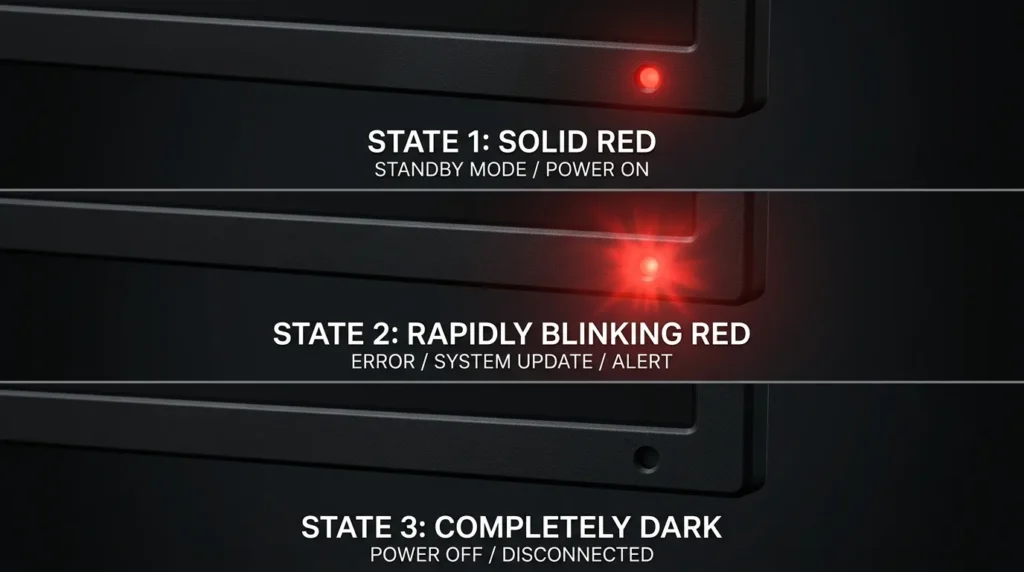
Solid red light: The TV is in standby mode. It has power. The problem is something stopping it from turning on — not a dead TV.
Blinking red light: The TV is signaling a fault. Count the blinks before each pause. Different models use different codes, but the most common patterns are:
- 2 blinks: Overcurrent protection triggered — usually a short on the power board
- 3 blinks: Backlight failure or inverter fault
- 5 blinks: Main board error or failed boot sequence
- 6–8 blinks: Power supply voltage fault
- 9+ blinks: T-con board failure or panel issue
Write down the exact blink count. It tells a technician — or you — exactly which board failed, and cuts diagnostic time significantly. If you’re unsure how to interpret your specific model’s error code, the TV Error Code Lookup tool can help you decode it by model number.
No light at all: Power is not reaching the TV. The issue is upstream — the outlet, the cord, the surge protector, or the internal power supply has completely failed.
The Power Cycle — Fix This First (Solves ~80% of Cases)
This resets the TV’s internal memory and drains residual voltage from the capacitors. It takes 2 minutes and it works surprisingly often — even when the TV looks completely dead.
Steps:
- Unplug the TV from the wall. Not the surge protector — the wall outlet directly.
- Find the physical power button on the TV itself (not the remote).
- Hold that button down for 60 seconds. Keep holding even if nothing happens.
- Release the button. Wait another 30 seconds.
- Plug the TV back into the wall.
- Press the physical power button on the TV to turn it on.
If the TV powers on, you’re done. If it doesn’t, keep going.
Step-by-Step Troubleshooting
Work through these in order. Each step rules out one possible cause.
1. Test the Power Outlet
Plug something else into the same outlet — a lamp, phone charger, anything. If that device doesn’t work, the outlet is the problem, not the TV. Try a different outlet or reset the tripped breaker.
If you’re using an extension cord, bypass it. Plug the TV directly into the wall. Some extension cords can’t deliver adequate amperage for a TV.
2. Test the Remote Control
A lot of “TV won’t turn on” problems are actually remote problems. The TV is fine — the signal never arrived.
Replace the batteries first. Even batteries that work in other devices can be too weak to consistently trigger the IR signal.
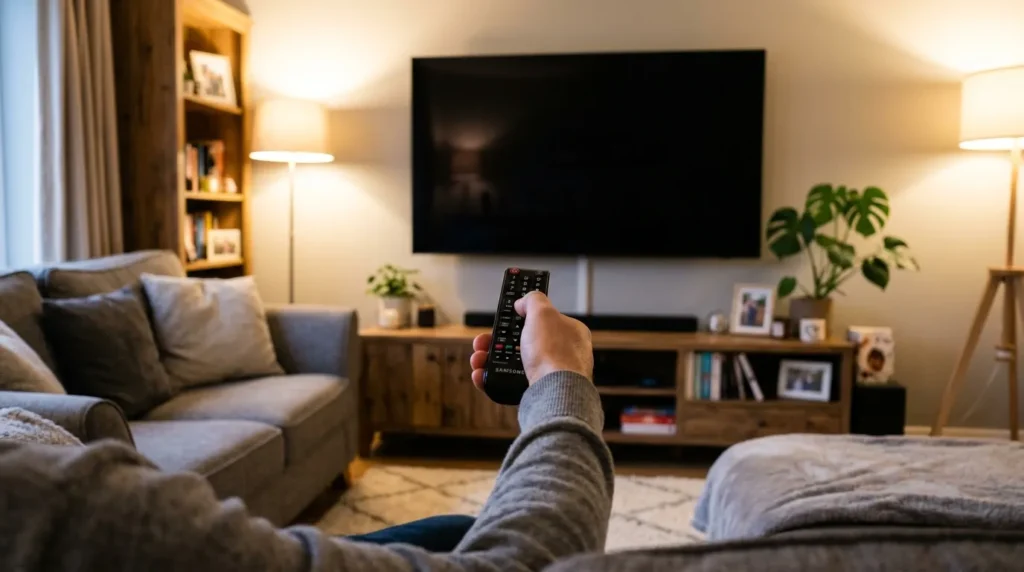
Then test without the remote: use the physical power button on the TV body. On most Insignia models it’s on the back-right panel or the bottom edge. If the TV turns on with the button but not the remote, the remote is faulty — not the TV. You can use the Remote Control Button Explainer to identify all the buttons on your specific Insignia remote, or check our Remote Code Finder if you’re setting up a replacement.
You can also test the remote using your smartphone camera. Point the remote at your phone camera and press power. If you see a white or purple flash on screen, the IR sensor is working. No flash means dead remote.
3. Remove the Surge Protector
Surge protectors develop internal faults over time, especially after a power surge. They can cut power to devices while appearing to work normally.
Unplug the TV from the surge protector and plug directly into the wall. This eliminates the strip as a variable.
If your area had a recent storm or power outage, your surge protector likely absorbed the hit. Many strip models have a sacrificial fuse that blows permanently — they won’t pass power after that even though the outlets look fine.
4. Disconnect All External Devices
Unplug every HDMI cable, USB device, gaming console, streaming stick, and soundbar from the TV. A faulty connected device can occasionally prevent a TV from completing its boot sequence.
After disconnecting everything, attempt to power on. If it works, plug devices back in one at a time until you find the one causing the issue. Our TV HDMI Port Selector can help you identify which port each device should reconnect to once the TV is back up.
5. Check the Input Source
If the TV powers on but shows a black screen, you may simply be on the wrong input. The screen can look completely off when it’s actually displaying an inactive HDMI port.
Press the Input or Source button on the TV or remote and cycle through available inputs until you find the active one.
Insignia Fire TV and Roku TV — Platform-Specific Power Issues
If your Insignia TV runs Fire TV or Roku TV, there are two additional failure modes that standard guides miss entirely.
Insignia Fire TV — Boot Loop or Power Freeze
Fire TV Edition models can enter a power loop after a failed firmware update. The TV tries to boot, fails, shuts off, and repeats. You may see the Amazon Fire logo appear briefly before the screen goes dark.
Fix: Hold the Back button + Right directional button + Menu button simultaneously for 10 seconds while the TV is plugged in. This initiates a factory reset from the boot screen without needing the TV to fully load. Some models require the Fire TV remote to be paired — if yours isn’t, use the physical buttons only.
For more on navigating Fire TV without a working remote, see How to Use Amazon Fire TV Without a Remote and How to Reset Amazon Fire TV Stick.
Insignia Roku TV — Won’t Turn On After a Software Update
Several Insignia Roku TV models running firmware version 12.x experienced power failures after automatic updates in 2024 and 2025. The TV would download the update overnight, attempt to install, and fail to boot on the next power-on.
Fix: With the TV unplugged, hold the Reset button (small pinhole on the back panel) for 15 seconds using a paperclip. Then plug in while still holding the button for another 5 seconds. This forces a recovery boot. The Roku OS will reinstall from internal storage.
If this doesn’t work and the Roku recovery logo doesn’t appear, the firmware corruption is beyond a soft fix — the mainboard needs reflashing or replacement. If your Roku TV needs to be operated without a remote during this process, our guide on How to Turn On a Roku TV Without a Remote or Power Button covers your options.
Backlight Test — Is the Screen On But Invisible?
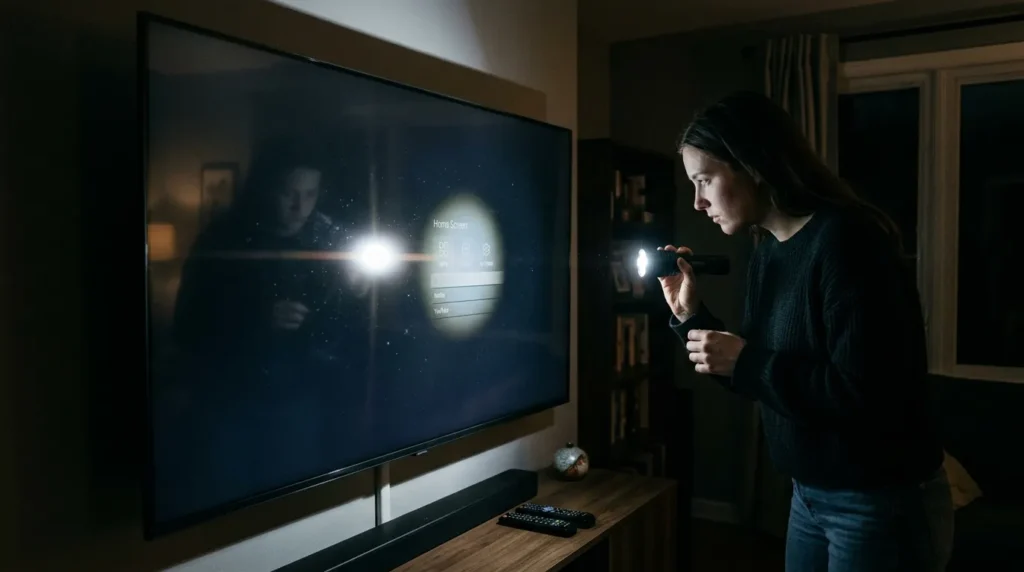
This is a quick test that catches a common fault. Sometimes the TV is actually running but the backlight has failed, making the screen appear completely black even though it’s producing a picture.
How to test:
- Turn off all lights in the room.
- Attempt to turn on the TV.
- Hold a flashlight 2–3 inches from the screen at an angle.
- Look closely for a faint image — a menu, a home screen, anything.
If you can see a dim picture, the TV’s main board and software are working fine. The backlight LED strips or the power rail feeding them have failed. This is a hardware repair — backlight strips typically cost $10–$40 in parts. Labor from a repair shop adds $60–$120 depending on screen size. For more help diagnosing a completely dark panel, see our guide on How to Fix a Dark TV Screen and How to Fix TV No Picture.
Advanced Fixes — Hardware Level
If none of the above worked, the fault is inside the TV. These steps are for people comfortable opening electronics.
Factory Reset Using Physical Buttons (No Remote Needed)
Most Insignia models have a reset pinhole on the back panel. Use a straightened paperclip to press and hold it for 10–15 seconds while the TV is powered. This wipes the firmware configuration and forces a fresh boot.
Alternatively, on some models you can access the service menu by holding the Volume Down + Power buttons simultaneously for 8 seconds while plugged in. For model-specific service menu codes, see the Insignia TV Service Menu Codes page or use the TV Service Menu Code Finder to look up your exact model.
Power Supply Board Failure
The power supply board is the most common hardware fault on Insignia TVs — especially on units 3–6 years old. The board converts AC wall power to the DC voltages the TV needs. When it fails, the TV either shows no standby light or shows a solid light but won’t respond to power commands.
Visual inspection: Remove the back panel (typically 10–14 Phillips screws). Look at the power supply board — usually the largest board near the power cord input. Inspect the capacitors. Bulging tops, brown staining around the base, or white residue on the board all indicate failed capacitors.
Replacement power supply boards for common Insignia models run $15–$45 on ShopJimmy.com or eBay. Match your model number exactly — power boards are model-specific. Use the TV Model Number Decoder if you’re unsure how to read your Insignia model string.
Before touching any internal components: Unplug the TV and wait at least 5 minutes. Power supply capacitors store charge even after unplugging. Large capacitors on the primary side can hold 300–400V long enough to cause serious injury if shorted or touched directly.
Capacitor Replacement
If the board itself is intact but individual capacitors have failed, you can replace them rather than the full board. Cost: $3–$8 for a set of capacitors.
One important detail most guides skip: use 105°C-rated capacitors, not 85°C. TV power supplies run hot. 85°C capacitors are why the originals failed in the first place. Match the capacitance (µF) and voltage rating exactly, but upgrade the temperature rating.
EEPROM Fault (Advanced)
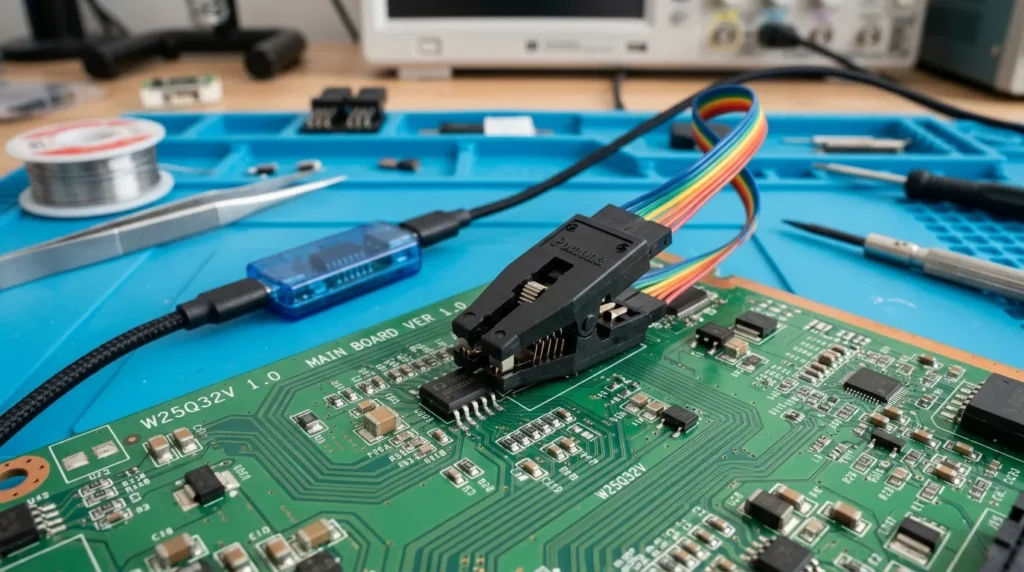
On some Insignia models, specifically several NS-39 and NS-42 series units, the firmware stored on the EEPROM chip (often a 25Q32BSIG) becomes corrupted. The TV shows a solid red standby light but never responds to power commands — identical symptoms to a power board failure.
A CH341A USB programmer can read and rewrite the EEPROM chip for around $8. This requires desoldering the chip or using a SOIC8 clip, which is solidly in DIY electronics territory. If you’re confident with a soldering iron, the Badcaps forum has model-specific firmware files and step-by-step flash guides.
Repair vs. Replace — The Decision Framework
| Fault | Parts Cost | Labor Cost | Worth Repairing? |
|---|---|---|---|
| Capacitors only | $3–$8 | $0 (DIY) / $60–$80 (shop) | Yes, if under 32″ |
| Full power supply board | $15–$45 | $60–$100 | Yes, under 55″ |
| Backlight strips | $10–$40 | $60–$120 | Yes, under 50″ |
| Mainboard | $40–$90 | $80–$120 | Marginal — depends on TV age |
| T-con board | $20–$50 | $60–$80 | Yes, if TV is under 3 years old |
| Panel (screen itself) | $150–$300+ | $100+ | No — buy a new TV |
General rule: if the repair cost exceeds 50% of what a comparable new TV costs today, replace it. A 43-inch Insignia retails for $180–$250 in 2026. A mainboard replacement at $90 parts + $100 labor gets close to that threshold fast.
Not sure how much longer your TV is likely to last even after a repair? The TV Lifespan & Health Estimator can help you decide whether a repair investment makes sense based on your model’s age and fault history.
If you do decide to replace it, check out the similar issue on Fix ONN TV Won’t Turn On, Fix TCL TV Not Turning On, or Fix JVC TV Won’t Turn On for reference if you’re evaluating other budget TV brands.
Contacting Insignia Support
Insignia is a Best Buy house brand. Support goes through Best Buy directly.
Warranty: Most Insignia TVs carry a 1-year limited warranty. If your TV is under 12 months old from purchase, don’t attempt DIY repair — it voids the warranty. Contact Best Buy support at 1-888-BEST-BUY or start a claim at BestBuy.com.
Geek Squad: If the TV is out of warranty but you purchased a Geek Squad Protection Plan, that covers most hardware failures including power supply issues. Check your purchase receipt or Best Buy account.
Most commonly affected models: NS-24ER310NA17, NS-39D220NA16, NS-42D510NA15, NS-32D220NA16 — these appear most frequently in repair forums for power-on failures due to capacitor issues on the power supply board. Use the TV Model Number Decoder to confirm your exact model variant before ordering any replacement parts.
Conclusion
A solid red light means the TV has power — start with the 60-second power cycle before assuming anything is broken. Work through the outlet, remote, and input checks before opening anything. If you’re past those steps and the TV still won’t turn on, the power supply board is the most likely culprit, and it’s a straightforward fix on most Insignia models. Only consider replacement when the repair cost crosses 50% of what the same screen size costs new today.


