

Your TCL TV won’t turn on. The screen is black, the remote does nothing, and you’re not sure if it’s a $0 fix or a trip to the repair shop. In most cases, it’s the former. This guide walks through every fix in order — from the simplest checks to hardware-level diagnosis — so you can stop guessing and get your TV back on.
Read Your TCL TV’s LED Light First
Before touching anything, look at the small LED indicator on the front of the TV. It tells you exactly what stage the problem is at.
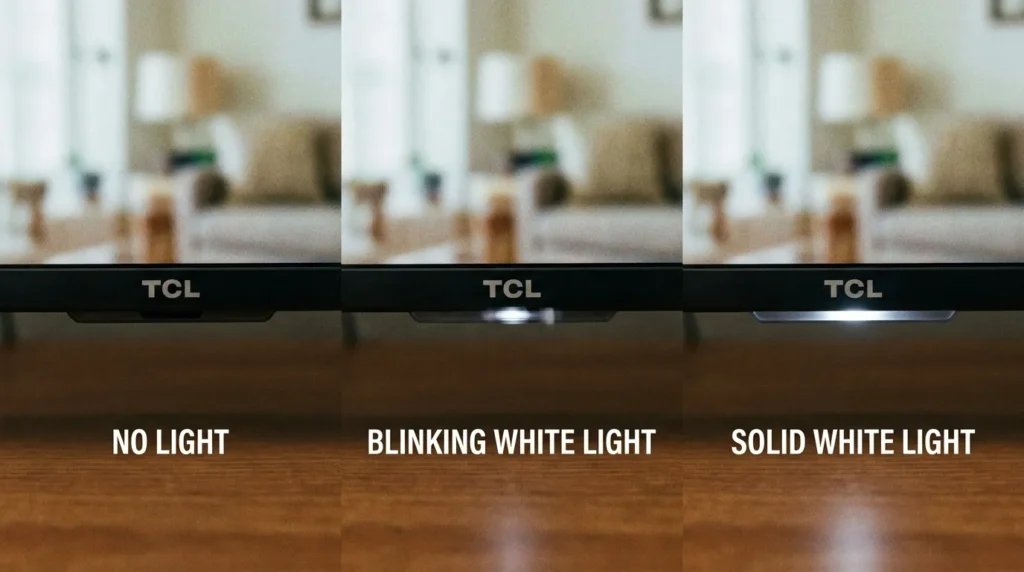
| LED State | What It Means |
|---|---|
| No light at all | TV is getting no power — check outlet, cable, and surge protector |
| Blinking light | TV is stuck in standby mode — software glitch or remote interference |
| Solid light, no picture | TV has power but isn’t booting — firmware hang or backlight failure |
Keep this table in mind as you go through the fixes. It helps you skip steps that don’t apply to your situation.
Fix 1 — Check the Power Source
Start here. Around 30% of TCL TV power complaints trace back to a bad outlet, a tripped surge protector, or a loose cable.
- Unplug the TV completely from the wall.
- Plug a phone charger or lamp into the same outlet. If it doesn’t power on, the outlet is the problem — not the TV.
- If you’re using a power strip or surge protector, bypass it entirely and plug the TV directly into a wall outlet.
- Inspect the power cable end-to-end. Look for fraying, kinks near the connector, or burn marks. A damaged cable can deliver inconsistent voltage, which prevents startup.
- Make sure the cable is pushed firmly into the back of the TV. On some TCL models, it can look connected while being slightly loose.
If the LED light turns on after this, move to Fix 3. If there’s still no light at all, the problem is almost certainly in the power supply chain — outlet, cable, or internal power board.
Fix 2 — Power Cycle the TV (The Right Way)
A power cycle is not the same as turning the TV off and on. You need to drain the capacitors inside the TV to clear a stuck software state. Most users skip the 60-second wait — that’s why it doesn’t work for them.
- Unplug the TV from the wall outlet.
- Wait a full 60 seconds. Don’t rush this step.
- While the TV is still unplugged, press and hold the physical power button on the TV itself for 30 seconds. This drains residual power from the internal components.
- Release the button. Wait another 10 seconds.
- Plug the TV back directly into a wall outlet — skip the power strip for now.
- Press the physical power button on the TV to turn it on.
This fix resolves the majority of “stuck in standby” situations, particularly when the LED is blinking. If it works, your TV may need nothing more than this.
Fix 3 — Rule Out the Remote
A faulty remote is more common than most people expect. A stuck button on the remote can send a continuous signal to the TV, which keeps it locked in a standby loop.
- Remove the batteries from the remote entirely.
- Press every button on the remote twice to discharge any stuck button contacts.
- Hold the remote’s power button down for 45 seconds with no batteries inside.
- Insert fresh AA or AAA batteries — use new ones, not batteries from another device.
- Try turning the TV on using the remote.
If the TV still won’t respond, press the physical power button on the TV itself. The button location varies by model — it’s usually under the TCL logo, on the bottom edge, or on the back-right side. If the TV turns on with the button but not the remote, the remote is the problem, not the TV.
Not sure which buttons do what on your TCL remote? The Remote Control Button Explainer tool breaks down every function by model type.
Fix 4 — Disconnect All HDMI and External Devices
Connected devices can prevent a TCL TV from booting. A malfunctioning HDMI device, game console, or soundbar can hold the HDMI handshake in an incomplete state, which stops the TV from displaying a picture.
- Unplug every HDMI cable, USB device, soundbar, and AV cable from the TV.
- Leave only the power cord connected.
- Try turning the TV on.
If the TV starts, plug devices back in one at a time until you find the one causing the conflict. For ARC-connected soundbars, try disabling CEC (Consumer Electronics Control) on the external device and retest.
This is also relevant if your TCL TV shows a black screen after switching inputs. If that’s your situation, the TV HDMI Port Selector tool can help identify which port and input combination to use.
Fix 5 — Run the Flashlight Backlight Test
This test tells you whether your TV’s panel and software are actually working, even if the screen looks completely black.
- Turn the TV on (or attempt to).
- Shine a bright flashlight directly at the screen from about 2–3 inches away.
- Look closely for any faint image — menus, text, shapes, or movement.
If you see a faint image: The TV is booting normally, but the backlight has failed. This is a hardware repair — LED backlight strips or the backlight driver circuit need replacing. Repair costs typically run $120–$200 at a local shop.
If you see nothing at all: The TV isn’t displaying any output. Continue with the reset steps below.
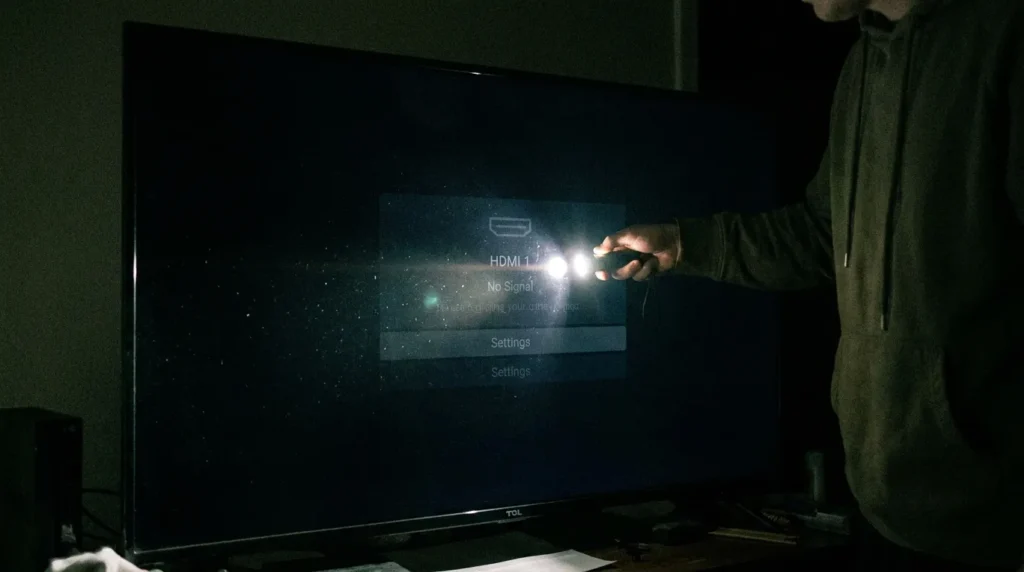
This test alone can save you hours of troubleshooting by separating a software issue from a display hardware problem.
Fix 6 — Factory Reset Using the Pin Button
If the TV has power but won’t respond through the menu, use the hardware reset button. This bypasses the software entirely.
- Find a paperclip or SIM ejector tool.
- Locate the reset pinhole on your TCL TV. It’s typically on the back panel near the HDMI and USB ports, labeled “Reset.” On some models, it’s on the side or bottom edge.
- Insert the paperclip and press firmly.
- Hold for 10–20 seconds until the TV restarts.
- Release and wait for the startup sequence to complete.
The TV will return to factory settings. You’ll need to set up Wi-Fi and apps again. This is expected — it’s not a sign that something went wrong.
If the reset button doesn’t trigger a restart after 20 seconds, try holding it for a second attempt. On some older TCL models, the reset button requires firm, sustained pressure to register.
For similar no-power issues on other brands, the process is comparable — see how it’s handled in guides like fixing an Insignia TV that won’t turn on or fixing an ONN TV that won’t turn on.
Fix 7 — OS-Specific Reset Paths
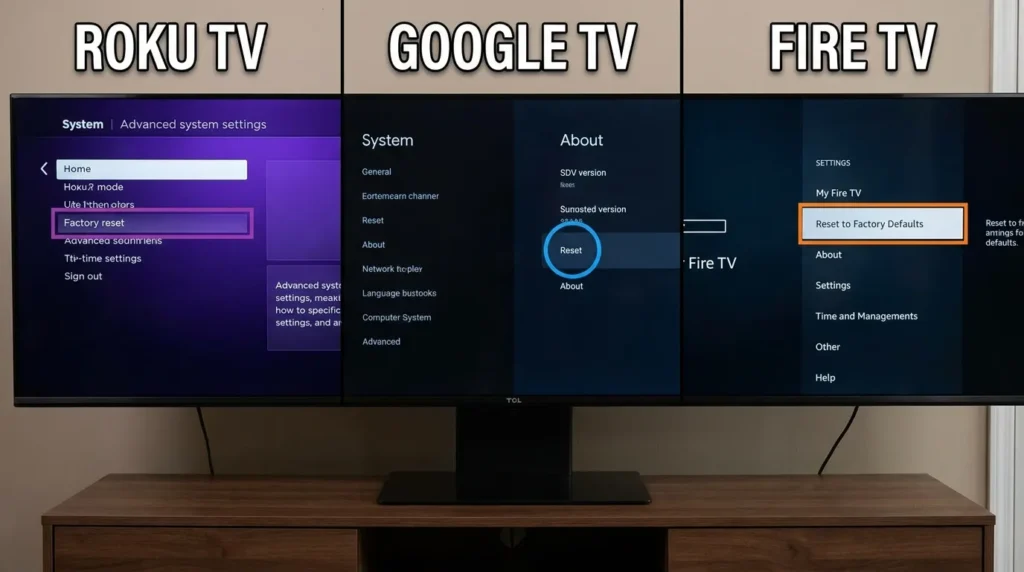
If the TV is partially booting — you can see a logo or get partway into a menu — use the menu-based reset for your specific TCL operating system. Each platform has a different path.
TCL Roku TV
Settings → System → Advanced System Settings → Factory Reset → Factory Reset Everything
If the menu is inaccessible, use the Roku remote shortcut: press Home 5 times, Up 1 time, Rewind 2 times, Fast Forward 2 times in sequence. This triggers a factory reset without navigating menus.
TCL Google TV
Settings → System → About → Reset → Factory Reset
If the TV powers on intermittently, check for updates first: Settings → System → About → System Update. An interrupted firmware update is a known cause of boot failure on TCL Google TV models.
TCL Fire TV / Android TV
Settings → Device & Software → Reset to Factory Defaults
For Fire TV remotes, try holding Select + Play/Pause for 5 seconds to force a restart. Alternatively, hold Back + Right on the directional pad for a reset prompt.
If you’re having trouble with a Fire TV remote separately, this Fire TV remote pairing fix guide covers pairing issues step by step.
When It’s a Hardware Problem
If none of the fixes above work, the problem is likely internal. Here’s how to identify it before calling a technician.
Recognizing Power Board or Capacitor Failure
Signs that point to a failing power supply board or blown capacitor:
- LED light flickers briefly when plugged in, then goes dark
- TV worked fine, then stopped turning on after a power surge or outage
- You hear a faint click when trying to power on, but nothing happens
- The TV was completely unresponsive even with a new power cable and verified outlet
A power board repair typically costs $80–$150 in parts if you DIY with experience. A professional repair shop charges $225–$250 on average, including labor. Some shops offer a free diagnosis.
Repair Cost vs. Replacement
Here’s a simple decision rule:
- TV is under 3 years old + under warranty → Contact TCL support. Standard warranty is 1 year. Some retailers offer extended coverage.
- Repair estimate is over 50% of a comparable new TV’s price → Replacement makes more financial sense.
- TV is 6+ years old → Other components are likely aging. Repair costs may recur within 12–18 months.
Use the TV Lifespan & Health Estimator to get a quick read on whether your TCL model is worth repairing based on age, type, and usage.
If you’re troubleshooting a black screen issue that’s separate from power — where the TV turns on but shows no image — the TV no picture fix guide covers that scenario in detail.
Contact TCL Support & Warranty
If the TV won’t respond after everything above, contact TCL directly before paying for a repair.
TCL Support: support.tcl.com Phone (US): 1-877-300-8837 Standard Warranty: 1 year from date of purchase (US market)
Have these ready when you call:
- Model number (on a sticker on the back of the TV)
- Serial number (same sticker)
- Proof of purchase
TCL support can tell you whether your model has any known firmware bugs causing boot failure, whether a replacement part can be shipped, and whether the TV qualifies for a warranty repair or replacement.
To recap: Start with the LED light table to narrow down the fault. Power cycle correctly, rule out the remote, and disconnect HDMI devices before attempting any reset. If the flashlight test shows a faint image, the backlight is the issue — not the software. If nothing works after a pin reset, you’re likely looking at a power board or mainboard fault that needs a technician or a replacement decision.


