

You can’t find your Vizio remote. You look for the power button on your TV. Nothing. You check the sides, the front, even underneath. Still nothing.
This happens more than you’d think. Vizio hides their buttons well, and remotes disappear at the worst times.
You have 7 ways to turn on your Vizio TV right now. Some take 30 seconds. Others need a quick app download or a $15 purchase. One method uses a device you already own.
This guide covers every method that works in 2026. You’ll learn where Vizio actually puts their buttons, how to use your phone as a remote, and what to do when nothing else works.
Most people solve this in under 5 minutes using methods 1 or 2.
Why Can’t You Find the Power Button on Your Vizio TV?
Vizio makes the buttons hard to find on purpose.
Design Philosophy (Minimalist Aesthetics)
TV manufacturers want clean front designs. Visible buttons break the seamless look buyers expect. Vizio takes this further than most brands.
The buttons exist. They’re just tiny, recessed, or tucked in spots you wouldn’t normally check.
Model Year Changes (2012-2026)
Vizio changed button placement twice in the last 14 years.
2012-2014 models had buttons on the side panel or bottom bezel. These were easier to find. Some models used touch-sensitive buttons on the front lower corner.
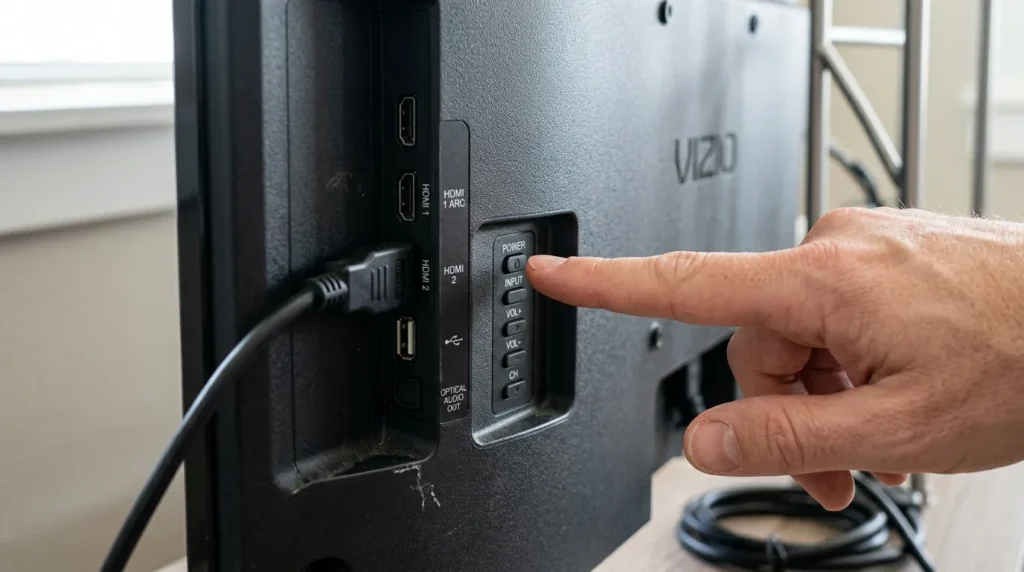
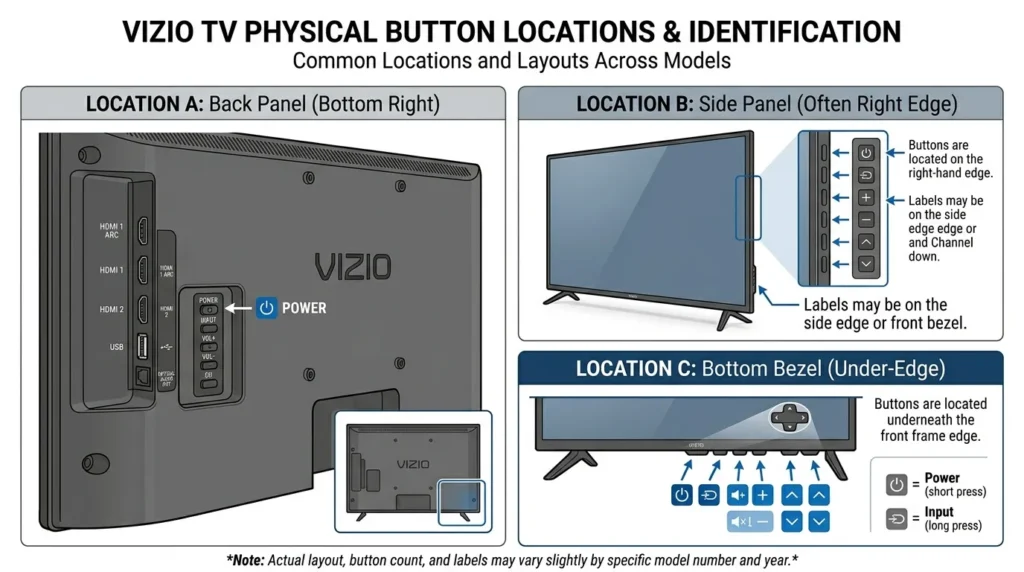
2015-2026 models moved buttons to the back panel. They sit in the bottom right corner, usually underneath or beside the HDMI ports. You can’t see them from the front.
The switch happened because buyers complained about visible buttons. Vizio responded by hiding them completely.
Button vs. No-Button Models
Every Vizio TV has at least one physical button. Federal regulations require a manual power control.
Some 2022-2024 models use a single multi-function button. You press it once for power, press again for menu, hold for 3 seconds to cycle inputs.
No Vizio TV is completely button-free. The button just might be the size of a pencil eraser.
Method 1: Locate and Use Physical Buttons on Vizio TV
This method takes 30-60 seconds once you know where to look.
Button Locations for 2015-2026 Models
Stand behind your TV. Look at the back panel on the right side.
The buttons sit in the bottom right corner, 2-4 inches from the bottom edge. On most models, they’re directly underneath the HDMI ports.
You’ll find 3-5 small buttons arranged vertically or horizontally:
- Power (top or leftmost)
- Menu
- Input/Source
- Volume Up
- Volume Down
The power button sometimes has a circle with a line through the top. Other times it’s unmarked.
For 55-inch and larger models: The buttons are 6-8 inches from the right edge, near the center of the back panel.
For V-Series (2024-2026): Check directly below the HDMI 1 port. The buttons are recessed about 1/8 inch into the plastic.
For M-Series (2023-2026): Look beside the power cable input. The button cluster sits within 3 inches of where the cord plugs in.
Button Locations for 2012-2014 Models
Older Vizio TVs put buttons in easier spots.
Right side panel: Run your hand along the right edge while facing the TV. You’ll feel 4-6 buttons about halfway down the side.
Bottom bezel: Some D-Series models from 2013-2014 have touch-sensitive buttons on the front lower right corner. They only appear when you touch them. Press firmly in the area 2 inches from the right edge.
Back right corner: A few 2014 E-Series models used this location before Vizio standardized it for 2015.
Types of Buttons (Physical vs. Touch)
Physical buttons click when pressed. You feel them move. These are more common on 2012-2021 models.
Touch buttons don’t move. They sense finger contact. You need to press firmly for 1-2 seconds. A small LED usually lights up when activated. Found on 2022-2026 models.
Touch buttons fail if your fingers are wet or if you press too lightly.
Step-by-Step Instructions
- Unplug any devices blocking the back right area of your TV.
- Use a flashlight or phone light. Shine it on the back right section while looking for small circular or rectangular buttons.
- Feel with your fingers if you can’t see clearly. Buttons are usually raised 1-2mm above the surface.
- Press the top button or leftmost button firmly. Hold for 2-3 seconds.
- Watch for the power LED on the front of the TV. It should change from red to white or blue.
- Wait 5-10 seconds. The Vizio logo will appear on screen.
- Use the other buttons to navigate. Menu button opens settings. Input button changes HDMI sources.
What If You Still Can’t Find Buttons?
Try these locations:
Under the TV stand base: Some 2016-2018 models hide a single power button underneath the center support.
Left side instead of right: A few E-Series models from 2015 used left-side placement.
Behind cable management cover: Newer models have a snap-on cover hiding the ports. Remove it by pulling gently from the bottom edge.
Take a photo of your TV’s back panel and model number. Search “[model number] button location” for model-specific guides. If you need access to advanced settings, you can explore Vizio TV service menu codes for technical adjustments.
Method 2: Use Vizio SmartCast Mobile App
The official Vizio app gives you full remote control from your phone. No additional hardware needed.
Requirements (WiFi, Compatible Phone)
You need:
- iPhone (iOS 13 or newer) or Android phone (Android 8.0 or newer)
- WiFi network (2.4GHz or 5GHz)
- Your TV must already be connected to the same WiFi network
The problem: If your TV isn’t on or isn’t connected to WiFi, this method won’t work initially. You’ll need to use the physical buttons first to connect to WiFi, then the app works forever after. If you’re experiencing connectivity issues, check out our guide on fixing Vizio TV not connecting to WiFi.
Downloading the App (iOS/Android)
For iPhone:
- Open the App Store.
- Search “Vizio SmartCast Mobile.”
- Download the app (72MB download size as of 2026).
- Open it.
For Android:
- Open Google Play Store.
- Search “Vizio SmartCast.”
- Install the app (85MB download size).
- Launch it.
The app is free. No in-app purchases or subscriptions.
Pairing Process (Step-by-Step)
- Open SmartCast Mobile app.
- Tap “Get Started” on the welcome screen.
- The app searches for Vizio devices on your network. This takes 10-30 seconds.
- Your TV appears as “[Model Number] Living Room” or similar. Tap it.
- A 4-digit PIN appears on your TV screen.
- Enter the PIN in the app within 30 seconds.
- Tap “Pair.”
- The app connects. You see a virtual remote interface.
If the TV doesn’t appear:
- Confirm your phone and TV use the same WiFi network (not guest network).
- Restart your router.
- Use the physical buttons to go to Menu > Network > Manual Setup and reconnect WiFi.
Using the Virtual Remote
The app gives you every button your physical remote had:
D-pad navigation at the center for scrolling menus.
Power button at the top right.
Volume controls on the right side.
Input/Source button to change HDMI ports.
Number pad for channel entry (if you use antenna TV).
Apps shortcuts at the bottom for Netflix, Hulu, Disney+, etc.
You can also type using your phone’s keyboard instead of clicking through on-screen letters. This makes password entry 10x faster.
Additional App Features
The app does more than replace your remote:
Screen mirroring: Send photos and videos from your phone to the TV. Tap the cast icon in the top right.
Voice control: Tap the microphone icon and speak commands like “Open Netflix” or “Volume 50.”
Multiple TV control: If you own 2+ Vizio TVs, switch between them from the device menu.
Smart home integration: Control TV from Alexa or Google Home routines.
Troubleshooting Connection Issues
App says “No devices found”:
- Check if your phone’s WiFi is enabled and connected.
- Verify TV is powered on and shows the home screen.
- Disable VPN on your phone. VPNs block local network discovery.
PIN entry times out:
- Use physical buttons to go to Menu > System > Reset Pairing.
- Try pairing again.
App controls are laggy:
- Move closer to your router. Weak WiFi causes delays.
- Close other apps using your phone’s network.
- Update the SmartCast app to the latest version.
TV connected to WiFi but app won’t find it:
- Check if your router has “AP Isolation” enabled. This blocks devices from seeing each other. Log into router settings and disable it.
Method 3: Third-Party Universal Remote Apps
These apps work similarly to Vizio’s official app but add support for other TV brands. If you have multiple TVs from different manufacturers, you might also want to check out remote solutions for Samsung TVs, Sony TVs, or LG TVs.
WiFi-Based Remote Apps
Universal TV Remote by BoostVision is the most reliable option for Vizio TVs in 2026.
Setup:
- Download “Universal TV Remote” from App Store or Google Play.
- Open the app and tap “Add Device.”
- Select “Vizio” from the brand list.
- The app scans your network for 15-20 seconds.
- Your TV appears. Tap it.
- A test screen appears. Tap “Power” to verify connection.
- The TV turns on or off. If it works, tap “Yes, this works.”
The app remembers your TV. Next time you open it, controls appear immediately.
Other options:
- SURE Universal Remote: Works with 2020-2026 Vizio SmartCast models. Free version has ads every 3-4 commands.
- TV Remote Control: Best for controlling multiple TV brands. Supports Vizio, Samsung, LG, Sony in one app.
IR Blaster Apps
These apps send infrared signals like a physical remote. Your phone needs a built-in IR blaster.
Phones with IR blasters in 2026:
- Samsung Galaxy S24 (optional accessory)
- Xiaomi Redmi Note 13 Pro
- Huawei P60 Pro
- Realme GT 3
Most iPhones and Google Pixels don’t have IR blasters.
If your phone has IR:
- Download “IR Remote – TV Remote for All” (Android only).
- Open the app and select “Vizio” from the brands.
- Point your phone’s top edge at the TV.
- Tap “Power.”
- The TV should respond immediately.
IR apps work without WiFi. You just need line-of-sight to the TV.
App Comparison
| App | WiFi Required | Cost | Works Offline | Setup Time |
|---|---|---|---|---|
| Vizio SmartCast | Yes | Free | No | 2 min |
| Universal TV Remote | Yes | Free (with ads) | No | 3 min |
| IR Remote Apps | No | Free | Yes | 1 min |
WiFi apps offer more features. IR apps are simpler but require specific phone hardware.
Method 4: HDMI-CEC Device Control
This method lets a gaming console or streaming device turn on your TV automatically.
What is HDMI-CEC?
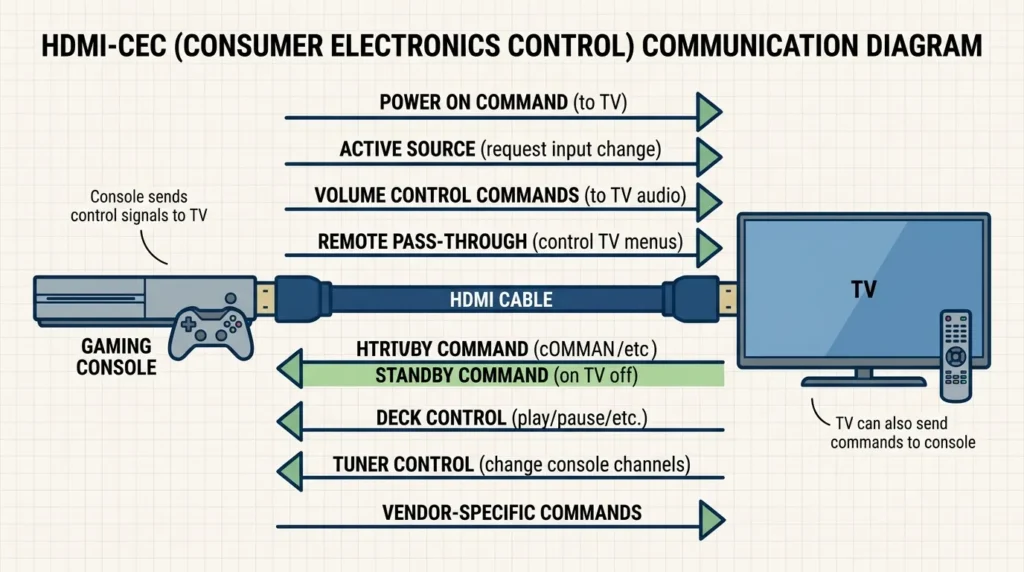
HDMI-CEC stands for Consumer Electronics Control. It’s a feature built into HDMI cables that lets devices communicate.
When you turn on a PlayStation, it sends a signal through the HDMI cable telling the TV to power on and switch to the correct input. No remote needed.
All Vizio TVs made after 2013 support HDMI-CEC. Vizio calls it “CEC” in the settings menu.
Compatible Devices
Gaming Consoles:
- PlayStation 4, PlayStation 5
- Xbox One, Xbox Series X/S
- Nintendo Switch
Streaming Devices:
- Roku (all models 2015+)
- Amazon Fire TV Stick 4K, Fire TV Cube
- Apple TV 4K (2017+)
- Google Chromecast with Google TV
- NVIDIA Shield TV
Blu-ray Players:
- Most Sony, Samsung, and LG Blu-ray players from 2015+
The device must support CEC and be connected via HDMI to your Vizio TV.
Enabling HDMI-CEC on Vizio TV
You need to turn this on once using the physical buttons or a remote.
- Press the Menu button (physical or app-based).
- Navigate to System.
- Select CEC.
- Set CEC to “Enabled.”
- Exit the menu.
Some Vizio models from 2022-2026 have CEC enabled by default.
Setting Up Each Device Type
For PlayStation 4/5:
- Connect PlayStation to any HDMI port on your Vizio TV.
- On PlayStation, go to Settings > System > HDMI.
- Enable “Enable HDMI Device Link.”
- Turn off PlayStation using the controller.
- Wait 10 seconds.
- Press the PlayStation button on your controller.
- The TV and PlayStation both turn on. The TV switches to the PlayStation’s input automatically.
For Xbox One/Series X/S:
- Plug Xbox into HDMI port.
- On Xbox, go to Settings > General > TV & display options > Device control.
- Enable “HDMI-CEC.”
- Turn off Xbox.
- Press the Xbox button to turn it back on.
- TV powers on and switches to Xbox input.
For Roku:
- Connect Roku to HDMI port.
- Roku devices have CEC enabled by default.
- On Roku home screen, go to Settings > System > Control other devices > System audio control.
- Set to “Enabled.”
- Turn off TV using physical buttons.
- Press Home button on Roku remote.
- TV turns on.
Similar to Vizio, if you have issues with your Roku remote, our guide on how to turn on Roku TV without remote offers additional solutions.
For Fire TV Stick:
- Plug Fire TV Stick into HDMI port.
- Go to Settings > Display & Sounds > HDMI CEC Device Control.
- Enable it.
- Power off TV.
- Press any button on Fire TV remote.
- TV powers on and shows Fire TV home screen.
If your Fire TV remote stops working, check out our fix for Fire Stick remote not pairing.
For Apple TV:
- Connect Apple TV to HDMI port.
- On Apple TV, go to Settings > Remotes and Devices > Control TVs and Receivers.
- Enable it.
- Turn off TV.
- Press any button on Apple TV remote.
- TV turns on automatically.
Limitations and Considerations
CEC works 80-90% of the time but has quirks.
Common issues:
- Some HDMI ports don’t support CEC. Try HDMI 1 or HDMI 2 first. These ports have better CEC compatibility.
- CEC only works when the device is plugged in and receiving power. Unplugged devices won’t turn on your TV.
- Multiple CEC devices can conflict. If you have 3 devices connected, they might fight for control.
- Cheap HDMI cables sometimes drop CEC signals. Use HDMI cables that explicitly list CEC support.
CEC won’t help if:
- Your TV is completely unplugged.
- The HDMI device needs to be turned on first, but you don’t have its remote either.
This method works best as a long-term solution after you’ve turned on the TV once using another method.
Method 5: Purchase and Program a Universal Remote
A universal remote costs $10-80 and controls any TV brand including Vizio.
Best Universal Remotes for Vizio (2026)
Budget Option: GE Universal Remote 4-Device ($12-15)
- Controls TV, DVD, streaming box, and audio device.
- Uses manual code entry.
- Batteries included.
- Works with all Vizio models 2010-2026.
Mid-Range: Sony RM-VZ320 ($28-35)
- Backlit buttons for night use.
- Learning function copies your original remote.
- Supports 8 devices.
- Better button quality than budget options.
Premium: Logitech Harmony Elite ($250-300)
- Touchscreen display.
- Smartphone app control.
- Controls smart home devices.
- One-touch activity macros (press “Watch Movie” and it turns on TV, receiver, and streaming box automatically).
- Overkill for most users but ideal for complex home theater setups.
Best Value: Philips 8-Device Universal Remote ($22-28)
- Auto-search function finds the right code automatically.
- Ergonomic design.
- Works with 90% of Vizio TVs without manual programming.
Buy from Amazon, Walmart, Target, or Best Buy. All carry these models in 2026.
Universal Remote Codes for Vizio
You’ll need one of these codes during setup.
4-digit codes:
- 1758 (works with 60% of Vizio TVs)
- 0178
- 1756
- 0117
- 1017
- 1004
5-digit codes:
- 11756 (most reliable for 2015-2026 models)
- 10864
- 10885
- 11758
Try them in order. The first code that makes your TV respond is the right one.
For advanced remote programming or if you need to access technical menus, explore universal remote codes for other brands like RCA TVs, Toshiba TVs, or Panasonic TVs.
Manual Programming Method
- Turn on your TV using the physical button.
- Press and hold the “Code Search” button on the universal remote until the LED light stays on. This takes 3-5 seconds.
- Press the “TV” button once. The LED blinks once and stays on.
- Enter the 4-digit code (try 1758 first).
- Point the remote at the TV and press “Power.”
- If the TV turns off, the code worked. Press “Code Search” again to lock it in. The LED turns off.
- If the TV didn’t respond, repeat steps 2-6 with the next code from the list.
This process takes 2-5 minutes.
Auto-Search Programming Method
Auto-search cycles through all possible codes automatically. Use this if manual codes don’t work.
- Turn on your TV using the physical button.
- Point the universal remote at the TV.
- Press and hold “Code Search” until the LED stays on.
- Press the “TV” button.
- Press “Power” repeatedly. Wait 2-3 seconds between each press.
- The remote sends a different code with each press. Eventually your TV will turn off.
- When the TV turns off, immediately press “Enter” or “Code Search” to save that code.
- Turn the TV back on using the remote to verify it works.
Auto-search takes 5-15 minutes but finds the code for 95% of Vizio TVs.
Where to Buy
Physical stores:
- Walmart (electronics section, near remotes and cables)
- Target (electronics department)
- Best Buy (ask for universal remotes in accessories)
Online:
- Amazon Prime delivers universal remotes in 1-2 days.
- Vizio’s official store sells their own universal remote for $20.
Avoid ultra-cheap remotes ($5-8). They use low-quality IR transmitters that have weak range. You’ll need to point them directly at the TV from 5 feet away.
Method 6: Alternative Control Methods
These methods solve edge cases when standard options fail.
USB Keyboard Connection
Vizio TVs have USB ports on the back panel. A USB keyboard plugs in and lets you navigate menus.
Setup:
- Find a USB Type-A keyboard. Wired keyboards work best. Wireless keyboards need their USB receiver plugged into the TV.
- Plug the keyboard into any USB port on the back of the TV.
- Wait 5 seconds. The TV recognizes the keyboard automatically.
- Press the spacebar or enter key on the keyboard. A cursor appears on screen.
- Use arrow keys to navigate menus. Press Enter to select. Press Backspace to go back.
Limitations:
- Keyboards can’t turn on a TV that’s already off. You need to power it on first using physical buttons or another method.
- Not all menu options work with keyboards. App navigation is clunky.
- Good for one-time setup tasks like connecting to WiFi, then switch to a better long-term method.
Voice Assistants (Alexa/Google Home)
If you own an Amazon Echo or Google Home device, you can control your Vizio TV with voice commands.
For Alexa:
- Open the Alexa app on your phone.
- Tap “More” then “Skills & Games.”
- Search “Vizio SmartCast.”
- Enable the skill.
- Link your Vizio account (the same one used in the SmartCast Mobile app).
- Say “Alexa, turn on the TV.”
For Google Home:
- Open the Google Home app.
- Tap “Add” then “Set up device.”
- Select “Works with Google.”
- Search “Vizio.”
- Link your Vizio account.
- Say “Hey Google, turn on the living room TV.”
Voice control requires:
- Your TV was already connected to WiFi.
- Your Vizio SmartCast account is set up.
- Alexa or Google Home is on the same network as your TV.
Voice commands work for power, volume, input changes, and launching apps. You can’t navigate detailed menus by voice.
Screen Mirroring via HDMI Adapter
Connect your phone directly to the TV using an HDMI adapter. Your phone screen appears on the TV.
For iPhone:
- Buy a Lightning to HDMI adapter ($15-45 from Apple or third-party brands).
- Plug the adapter into your iPhone’s charging port.
- Connect an HDMI cable from the adapter to your TV’s HDMI port.
- Turn on the TV using physical buttons and select the correct HDMI input.
- Your iPhone screen mirrors to the TV.
For Android:
- Buy a USB-C to HDMI adapter ($12-30).
- Plug it into your phone.
- Connect HDMI cable to TV.
- Power on TV and select input.
- Android screen displays on TV.
This doesn’t control the TV. It just shows your phone’s display. You still need physical buttons to turn the TV on initially and select the HDMI input. Similar to using Amazon Fire TV without a remote, you can leverage screen mirroring as a temporary solution.
Mobile Hotspot for WiFi
Your TV needs WiFi for the SmartCast app to work. If your home WiFi is down, use your phone as a hotspot.
- On your phone, enable Mobile Hotspot in settings.
- Set a simple password.
- Use the physical buttons on your TV to go to Menu > Network > Available Networks.
- Select your phone’s hotspot name.
- Enter the password using the on-screen keyboard.
- The TV connects to your phone’s internet.
- Now open the SmartCast Mobile app on the same phone.
- It detects the TV and gives you remote control.
Warning: Video streaming uses 2-5GB per hour. Don’t watch Netflix this way unless you have unlimited data.
This method helps you set up the SmartCast app for the first time when your router is broken or your WiFi password changed.
What If None of These Methods Work?
You’ve tried every method. The TV still won’t turn on or respond.
Checking Power Supply
The TV might have a power issue, not a control issue.
- Unplug the TV from the wall outlet.
- Wait 60 seconds. This drains residual power from the capacitors.
- Press and hold the power button on the TV for 30 seconds while it’s unplugged. This fully discharges the internal components.
- Plug the TV back in.
- Press the power button.
- Look at the LED light on the front.
If the LED is red: The TV has power but is in standby mode. Try pressing the power button again.
If the LED is off: Check the power outlet with another device. Try a different outlet. Check if the power cable is firmly connected at both ends.
If the LED blinks red multiple times: This indicates a hardware error. Count the blinks. 2 blinks means backlight failure. 3 blinks means power board failure.
If you’re experiencing persistent power issues, our comprehensive guide on fixing TVs with no picture covers common display and power problems across multiple brands.
Factory Reset Options
A factory reset erases all settings and might fix software issues preventing the TV from responding to controls.
Without a remote:
- Unplug the TV.
- Press and hold the Input and Volume Down buttons simultaneously (on the back panel).
- While holding both buttons, plug the TV back in.
- Keep holding for 10-15 seconds.
- Release the buttons when you see the Vizio logo.
- The TV boots into factory reset mode.
- Use the physical buttons to navigate to “Reset to Factory Defaults.”
Not all models support this method. E-Series and M-Series from 2018-2026 have this feature. Older models might not. For detailed reset procedures on other brands, check out our guide on performing factory data reset in Samsung TV or how to reset Amazon Fire TV Stick.
Warning: Factory reset deletes all apps, WiFi passwords, and settings. You’ll need to set up the TV from scratch.
Professional Repair
If the TV won’t turn on even with physical buttons, you likely have a hardware failure.
Common failures:
- Power supply board ($80-150 to replace)
- Main board ($100-200 to replace)
- Backlight inverter ($60-120 to replace)
Where to get repairs:
- Best Buy Geek Squad (free diagnosis in-store)
- Local TV repair shops (search “TV repair near me”)
- Vizio authorized service centers (find them at vizio.com/support)
Repair costs vary. For TVs older than 5 years, replacement might cost less than repair.
If your Vizio TV has more complex issues like slow performance or not finding cable channels, these guides provide additional troubleshooting steps.
Buying Replacement Remote
Genuine Vizio remotes cost $15-35 depending on model.
Where to buy:
- Vizio.com (official store, guaranteed compatibility)
- Amazon (search your TV model number + “remote”)
- eBay (used remotes for $8-15)
You need the exact model number of your TV. Find it on the sticker on the back panel or in Menu > System > System Information.
Original remote model numbers for common Vizio TVs:
- XRT140 (2020-2022 V-Series, M-Series)
- XRT136 (2018-2020 D-Series, E-Series)
- XRT122 (2015-2018 SmartCast models)
Third-party replacement remotes cost $10-15 but might miss some buttons like voice control or dedicated app shortcuts.
Comparison: Which Method is Best for You?
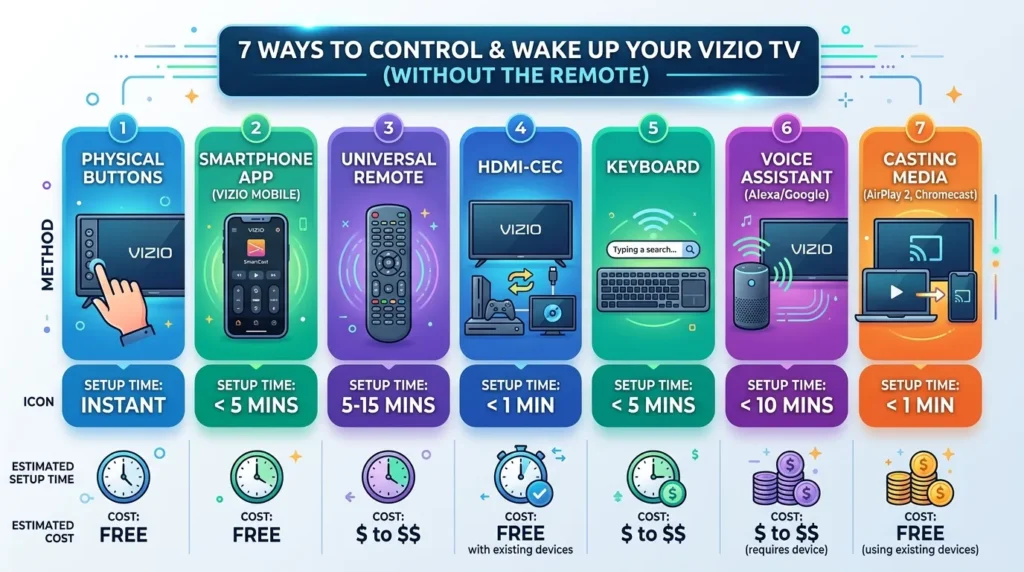
| Method | Setup Time | Cost | Difficulty | Long-Term Use | Best For |
|---|---|---|---|---|---|
| Physical Buttons | 30 seconds | Free | Easy | Limited menu control | Immediate power on |
| SmartCast App | 3 minutes | Free | Easy | Full control | Daily use, no cost |
| Third-Party Apps | 3 minutes | Free | Easy | Full control | Multi-brand control |
| HDMI-CEC | 5 minutes | Free | Medium | Automatic power | Gaming/streaming setups |
| Universal Remote | 5-10 minutes | $12-35 | Easy | Full control | Traditional remote feel |
| USB Keyboard | 1 minute | $10-20 | Medium | Menu navigation only | One-time WiFi setup |
| Voice Control | 5 minutes | $30-100 | Medium | Basic commands | Smart home users |
If you need the TV on right now: Use physical buttons (Method 1).
If you want a permanent free solution: Install SmartCast app (Method 2).
If you have a gaming console or streaming device: Enable HDMI-CEC (Method 4).
If you prefer traditional remotes: Buy a universal remote (Method 5).
If nothing else works: Check power supply and consider repair or remote replacement.
Frequently Asked Questions
Can a Vizio TV really have no power button?
No. Every Vizio TV has at least one physical button. Federal regulations require manual controls. The button might be tiny, recessed, or in an unexpected location, but it exists. Check the back panel bottom right corner first. Run your hand along the edges slowly. You’ll feel it.
How do I turn on Vizio TV without remote if WiFi is not connected?
Use the physical buttons to turn on the TV. Press the Menu button to access settings. Navigate to Network > Available Networks using the Input and Volume buttons to move up/down and left/right. Select your WiFi network and enter the password using the on-screen keyboard. Once connected, download the SmartCast Mobile app on your phone and pair it. Now you have a working remote.
What’s the quickest method to turn on my Vizio TV?
Physical buttons take 30 seconds. If you already have the SmartCast app paired, opening the app and tapping power takes 5 seconds. HDMI-CEC is even faster—your TV turns on automatically when you power on your PlayStation or Roku.
Do all HDMI devices support CEC?
No. Budget streaming devices and older DVD players often skip CEC to cut costs. Gaming consoles from PlayStation 4 onwards support it. Roku, Fire TV, and Apple TV all support it. Check your device’s settings menu for “HDMI-CEC,” “Device Control,” or “HDMI Device Link.” If that option exists, your device supports it.
Can I use my old remote from another TV?
Not directly. TV remotes use brand-specific IR codes. A Samsung remote won’t control a Vizio TV. However, if your old remote is a universal remote, you can reprogram it using Vizio codes (1758, 0178, 1756). Follow the programming steps in Method 5.
How much does a replacement Vizio remote cost?
Official Vizio remotes cost $15-35 on vizio.com. Third-party replacements cost $10-15 on Amazon. Used original remotes sell for $8-12 on eBay. Universal remotes that work with Vizio cost $12-30. All options work equally well for basic TV control.
Will these methods work on all Vizio models?
Physical buttons work on every Vizio TV ever made. The SmartCast app requires models from 2016 or newer with SmartCast software. HDMI-CEC works on 2013+ models. Universal remotes work on all models. Check your TV’s model number on the back sticker. Models starting with D, E, M, P, or V from 2016 onwards support SmartCast.
Can I navigate menus without a remote?
Yes. Use the physical buttons. The Input button moves right, Volume Up moves up, Volume Down moves down, and the Menu button selects items. It’s slower than a remote but works for accessing settings. A USB keyboard offers better menu navigation. The SmartCast Mobile app gives you the fastest menu control.
For troubleshooting other common TV issues beyond remote control problems, explore our comprehensive collection of TV repair guides covering brands like Insignia, Toshiba, RCA, Philips, and more.
Conclusion
You have 7 proven ways to turn on your Vizio TV without the original remote or power button access.
Start with the physical buttons on the back panel bottom right corner. That solves the immediate problem in under a minute.
For long-term control, install the Vizio SmartCast Mobile app. It’s free, gives you full remote functionality, and you always have your phone nearby.
If you own a gaming console or streaming device, enable HDMI-CEC. Your TV turns on automatically when you start gaming or watching shows.
Universal remotes cost $12-35 and work forever. They’re the best option if you prefer traditional remotes over smartphone apps.
Lost remotes happen. Hidden buttons frustrate everyone. These methods ensure you can always control your TV no matter what fails.
Pick the method that fits your situation and budget. Most people solve this problem in under 5 minutes.
For more TV troubleshooting guides and technical support across all brands, browse our complete collection of TV service menu codes and repair tutorials.


