

The Skyworth TV service menu gives you access to settings that don’t appear anywhere in the standard on-screen menu. Technicians use it to calibrate picture quality, fix tuning problems, reset factory parameters, and adjust system-level configurations.
This guide covers every known access method, explains what the settings inside actually do, and tells you how to exit safely without corrupting your TV’s configuration.
What Is the Skyworth TV Service Menu?
The service menu — sometimes called factory mode or factory menu — is a hidden diagnostic interface built into every Skyworth TV. It sits below the regular settings layer and gives direct access to hardware-level parameters.
The standard settings menu controls user preferences. The service menu controls the TV itself.
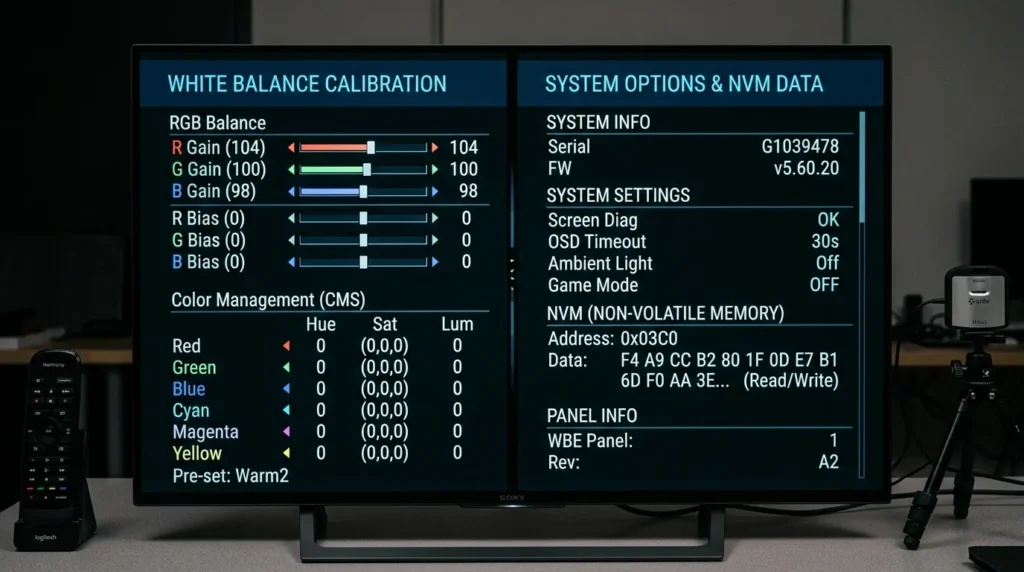
Inside it, you can adjust white balance, color temperature, RF signal gain, system broadcast standards, and NVM (non-volatile memory) values. You can also enable or disable hotel mode and shop mode.
Skyworth TVs run on their own platform in budget and mid-range models, and on Android TV in their newer OLED and QLED lines (S series, Q series, E series). The service menu structure differs slightly between these platforms, but the access methods below cover both.
If you work with service menus across brands, the complete LCD/LED TV service menu codes reference covers all major manufacturers in one place.
Before You Start — Read This First
The service menu is not designed for everyday users. One wrong change can produce a black screen, distorted color, silent audio, or a TV that won’t boot.
Do not adjust any setting you don’t recognize. Browsing is fine. Changing unknown values is not.
Before touching anything:
- Take a photo of the current screen with your phone before making any change.
- Note the current value of any setting before you adjust it.
- If something goes wrong, “Initialize NVM from ROM” (if visible in your menu) restores factory defaults for most parameters.
If you’re trying to fix a specific TV problem — bad picture, no sound, signal issues — only touch the settings directly related to that issue. If your TV has a completely dark screen before you even reach the service menu, check this TV no picture fix guide first.
How to Enter the Skyworth TV Service Menu
There are six documented access methods. Method 1 works on most models produced from 2015 onward. If it fails, work through the list in order.
Method 1 — Source + 3 + 1 + 9 + 5 (Most Common)
This is the standard method for the majority of Skyworth LCD, LED, and Smart TV models.
- Turn the TV on.
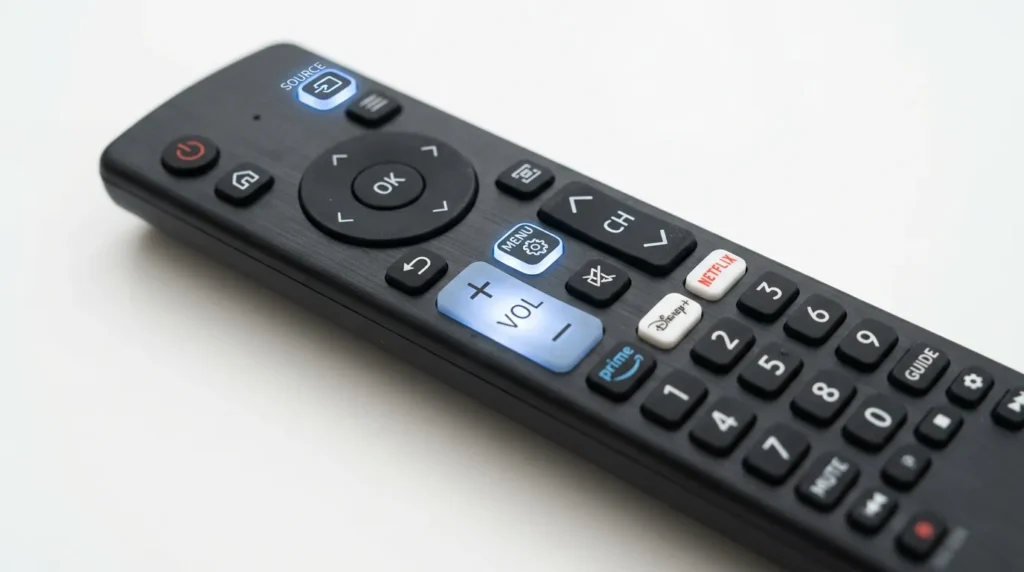
- On the remote, press Source, then 3, 1, 9, 5 in sequence.
- The service menu will appear on screen.
Press each button with a short pause between them — roughly half a second. If you press too fast or too slow, the sequence won’t register.
Method 2 — Menu + Sound + Set-Up + Volume → 9 + 5 + 2 + 7
This method is used on older Skyworth models with a physical sound and setup button on the remote.
- Turn the TV on.
- Press Menu, then Sound, then Set-Up, then Volume (up or down).
- Then press 9, 5, 2, 7.
- The service menu opens.
This method works on models including the 32LS16 series and several OEM variants sold under the Luxor and Erisson brand names in Europe. The same button-sequence logic applies to Changhong Ruba TV service menu codes, as both brands share chassis designs.
Method 3 — Volume 0 → Menu + Brightness + 2 + 6 + 4 + 8
- Turn the TV on.
- Press Volume Down until volume reaches 0.
- Then press Menu, Brightness, 2, 6, 4, 8 in sequence.
- Service menu opens.
This method is documented for mid-range Skyworth models with a dedicated brightness button on the remote.
Method 4 — Front Panel Buttons (No Remote)
If your remote is lost, broken, or unresponsive, some Skyworth TVs allow service menu access through physical buttons on the TV body.
- Power the TV on using the front panel power button.
- Press and hold the Menu button on the TV panel for 5–8 seconds.
- On some models, press Menu + Volume Down simultaneously and hold for 5 seconds.
- The service menu may appear depending on model year.
This method is model-dependent and not guaranteed on all units. It works most reliably on 2016–2020 production models. If you need a general method for operating a TV without its remote, the guide on how to turn on a Vizio TV without a remote demonstrates the same front-panel logic used across most TV brands.
Method 5 — Balance → 9 + 8 + 8 + 3 (Older LCD Models)
- Turn the TV on.
- Open the standard Menu, navigate to Sound, then Balance.
- While the Balance option is highlighted, press 9, 8, 8, 3 on the remote.
- Service menu opens.
This code is specific to early Skyworth LCD models (pre-2015) and some rebadged units in certain markets.
Method 6 — Menu → 1 + 9 + 9 + 9 (26L121W and Similar)
- Turn the TV on.
- Press Menu to open the standard menu.
- While the menu is open, press 1, 9, 9, 9 on the remote.
- Service menu opens.
Documented on the Skyworth 26L121W, 22L21W, and several 19-inch models from the 2012–2016 production range.
Key Settings Inside the Skyworth Service Menu
Most users enter the service menu to fix one specific problem. Here’s what the main settings actually control.
RF AGC — Signal and Tuning Issues
RF AGC (Automatic Gain Control) adjusts how the TV handles incoming antenna or cable signal strength. If your TV shows a weak signal, pixelation on certain channels, or no channels after a scan, the RF AGC value is the first place to look.
Typical range: 0–63. Higher values increase sensitivity. Start by raising the value by 5 increments, then run a new channel scan to test.
White Balance / Color Temperature
These settings control the red, green, and blue output levels independently. If your picture has an unusual tint — too yellow, too blue, too red — adjustments here fix it.
Skyworth service menus typically break this into:
- R-Drive / G-Drive / B-Drive — gain controls (overall intensity)
- R-Cut / G-Cut / B-Cut — offset controls (floor levels)
Each value is usually in a range of 0–255. Changing Drive values affects the bright areas; Cut values affect dark areas. If adjustments here don’t resolve a persistent dark or dim image, this dark TV screen fix guide covers additional hardware-side causes.
System Options — PAL / NTSC / SECAM
This setting determines which broadcast standard the TV decodes. It should match your region.
- PAL — UK, Europe, Australia, most of Asia, Africa
- NTSC — USA, Canada, Japan, parts of Latin America
- SECAM — France, Russia, parts of Africa and the Middle East
If this is set incorrectly, channels may appear in black and white or show unstable color. On most Skyworth models this is auto-detected, but it can be overridden manually in the service menu.
NVM Edit / Initialize NVM from ROM
NVM (Non-Volatile Memory) stores the TV’s calibration data. “Initialize NVM from ROM” wipes any changes made to NVM and restores the original factory values burned onto the ROM chip at the factory.
Use this only if you’ve made changes you can’t undo, or if the TV is behaving abnormally after previous service menu adjustments. It resets picture and audio calibration values — it does not factory reset the TV’s channel list or user settings.
Hotel Mode / Shop Mode
Hotel Mode disables certain features — remote control functions, input changes, volume limits — typically used in hospitality installations. If your TV seems locked with limited functionality, this may be enabled.
Shop Mode enables demo loops and brightness boosts designed for retail display. It increases power consumption and can cause faster backlight wear over time. Most users should have this set to Off.
How to Navigate and Exit Safely
Inside the service menu:
- Use the Up / Down arrow keys to move between options.
- Use Left / Right arrow keys or numeric keys to change values.
- Some menus require you to press OK or Enter to confirm a selection.
To exit without saving changes: Press the Exit or Return button on the remote. On most models, changes to individual parameters save automatically when you navigate away from them — so if you changed something, that change is already active whether you press exit or not. The exception is NVM operations, which typically require a separate confirmation step.
To exit after making intentional changes: Navigate back to the main service menu screen and press Exit. The TV will return to normal viewing mode with your changes applied.
If the screen freezes or becomes unresponsive inside the service menu, hold the power button on the TV panel for 10 seconds to force a hard restart. If that produces a black screen after restarting, the steps in this TV black screen fix guide apply to most brands including Skyworth.
Code Not Working? Try These Steps
Several things can prevent a service menu code from registering.
1. Button timing is off. Each key press needs a deliberate pause — about 0.3 to 0.5 seconds between buttons. Too fast and the TV misses the sequence. Too slow and it times out.
2. Wrong remote. Some Skyworth codes only respond to the original OEM remote. Universal remotes or smartphone IR apps may not send the correct IR signal format. Try the original remote if available.
3. Wrong method for your model. The 2022–2026 Skyworth Android TV models (S7 Pro, Q20, 8M26S) use different access sequences than older LCD models. If Method 1 fails, test Methods 2 through 6 in order.
4. Service menu is locked by firmware. Some retail and hospitality units ship with the service menu password-protected. In this case, the standard codes won’t work. You’ll need the model-specific unlock code from Skyworth service documentation, or contact Skyworth support directly.
5. Firmware update as an alternative fix. If your goal was to fix a software bug — apps crashing, slow interface, signal scan failure — a firmware update via USB may resolve the problem without needing the service menu at all. Skyworth publishes firmware updates on their regional support pages. Download the file for your exact model number, copy it to a USB drive, and install via the TV’s standard menu under System > Firmware Update.
Frequently Asked Questions
Is it safe to open the Skyworth service menu? Opening it is safe. Changing settings you don’t understand is risky. Entering the menu without adjusting anything carries no risk.
Will opening the service menu void my warranty? In most regions, simply accessing the service menu does not automatically void the warranty. However, making changes that damage the TV’s operation likely will. Check your specific regional warranty terms.
What do I do if my picture turns black after service menu changes? Use the “Initialize NVM from ROM” function if it’s still accessible. If the screen is completely black, try a hard reset: unplug the TV, hold the panel power button for 30 seconds, then reconnect power. This clears residual charge and may restore the display.
Does the Skyworth service menu work on Android TV models? Newer Skyworth Android TV models (2022 onward) have a service menu, but the layout differs from older LCD models. Method 1 (Source + 3-1-9-5) still works on most of these models. Some may prompt for a PIN — try 0000 or 1234 as defaults.
How do I reset just the picture settings without using the service menu? Go to Settings > Picture > Reset Picture Settings in the standard menu. This resets user-level picture settings without touching service-level calibration data.
Can I use these codes on Skyworth TVs sold under other brand names? Yes. Skyworth manufactures TVs sold under the Coocaa, Changhong, Erisson, and Luxor brand names in certain markets. Methods 1 and 2 are confirmed to work on these OEM variants.
Last updated: 2026. Codes verified against Skyworth LCD, LED, and Android TV production models from 2012 to 2026.


