

The Vizio service menu is a hidden diagnostic interface built into every Vizio TV. It contains panel calibration settings, white balance controls, firmware version info, and a factory reset option that goes deeper than the standard user menu. You can’t access it through normal settings — it requires a specific button combination on your remote or the TV itself.
This guide covers every known working code, organized by series and model year, including updated methods for 2022–2025 models with SmartCast remotes. If you’re also troubleshooting other brands, we have a full all LCD/LED TV service menu codes reference that covers dozens of manufacturers in one place.
What Is the Vizio Service Menu?
The service menu is a manufacturer-level settings panel. It’s separate from the standard Settings menu you use every day. Technicians use it after board replacements, panel swaps, and display calibration. Some owners use it to reset stuck picture modes or check the firmware version string.
It’s not designed for casual use. Most settings inside have no on-screen explanation and incorrect changes can cause display problems that aren’t reversible without another factory reset.
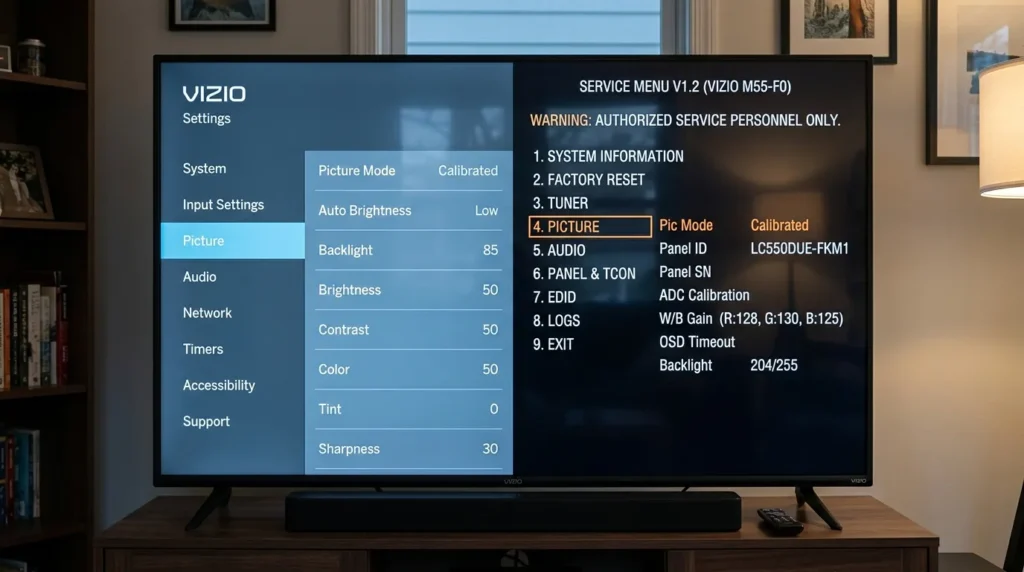
Factory Menu vs. User Menu
The user menu (Settings → System → Reset) performs a soft factory reset. The service menu goes deeper — it can reset panel-level parameters, restore LVDS timing defaults, and clear calibration data set at the manufacturing stage. They are not the same.
If all you need is a standard reset, check our guide on how to perform a factory data reset on a Samsung TV to see how the process differs across brands. For Vizio-specific slowness or software issues that don’t require service menu access, fixing a slow Vizio TV is worth reading first.
Before You Start
Check Your Remote Type
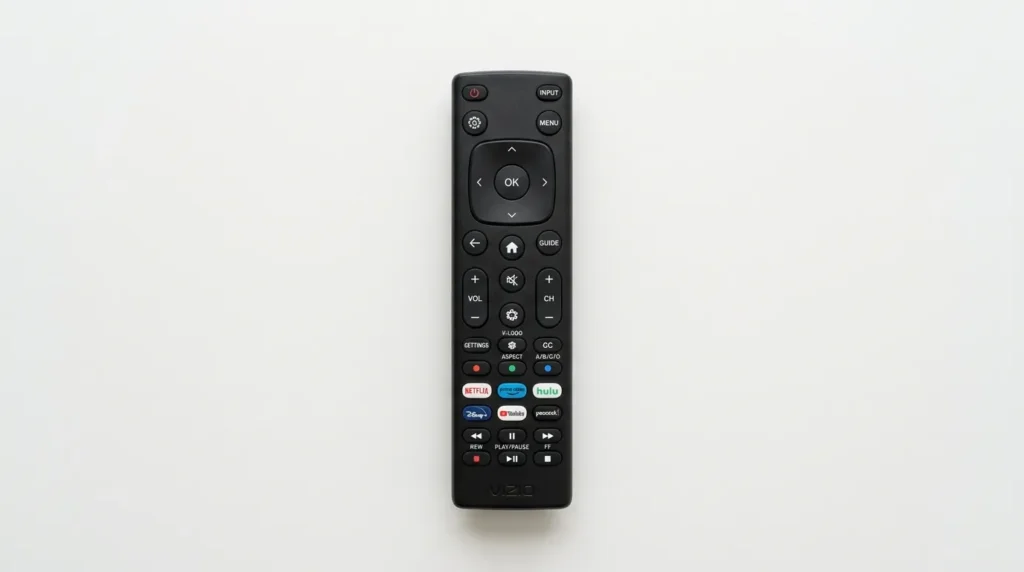
Vizio has used two distinct remote layouts across its product generations.
Older remotes (pre-2022): Include a physical Menu button. Most classic service menu codes rely on this button.
SmartCast remotes (2022–present): Feature a Gear icon (⚙) instead of a Menu button. Codes written for the Menu button will not work on these remotes. You’ll need the updated key sequences covered under Method 6 below.
If you’re not sure which remote you have, look for the word “MENU” printed on a button. If it isn’t there, you have a SmartCast remote. If you’ve lost your remote entirely, read our guide on how to turn on a Vizio TV without a remote or power button before continuing — you’ll need the remote to enter most service menu codes.
Identify Your Model Series
Your model number is printed on the back of the TV. It follows a format like:
- D55f-J09 → D-Series, 2022 (J suffix = 2022)
- V505-G9 → V-Series, 2019 (G suffix = 2019)
- M652i-B2 → M-Series, 2014 (B suffix = 2014)
The letter suffix after the dash tells you the model year:
| Suffix | Year |
|---|---|
| B | 2014 |
| C | 2015 |
| E | 2016 |
| F | 2017 |
| G | 2018–2019 |
| H | 2020 |
| J | 2021–2022 |
| K | 2023–2024 |
| L | 2025 |
Vizio Service Menu Codes by Series
Older Models — E-Series, M-Series, P-Series (pre-2018)
These are the most documented Vizio models. Three codes are widely confirmed to work.
Code 1 — CH+/CH- + Power + Menu (Most Common)
- Turn the TV off (standby, not unplugged)
- On the TV panel, press and hold CH+ and CH- simultaneously
- While holding both, press Power on the TV panel
- Release all three buttons
- On your remote, press Menu
- A blue or grey overlay screen labeled “F” in the corner should appear
If you see an “F” in the bottom-right corner of the screen, you’re in the factory/service menu.
Code 2 — Menu + 1-9-9-9 + Return
- Press Menu on your remote
- Navigate to any menu item
- Press 1, 9, 9, 9 in sequence
- Press Return (Back)
- The service menu should overlay the current screen
Code 3 — Menu + 2-4-8-9
- Press Menu on your remote
- Press 2, 4, 8, 9 in sequence
- No navigation step needed — works from the home screen on some E-Series models
The methods above share overlap with entry methods on other brands. If you’re also working on a related brand, the RCA TV service menu codes and Hisense TV service menu codes pages use similar CH+/CH- techniques.
D-Series, V-Series (2018–2021, G/H/J suffix)
Code 4 — Menu + 1-1-9-5
- Turn the TV on
- Press Menu on the remote
- Press 1, 1, 9, 5 in sequence
- The service menu overlay appears
Code 5 — Exit Hold + 1-2-3
- Press and hold Exit on the remote for 5 seconds
- Release
- Press 1, 2, 3 in sequence
- Service menu activates
This method is confirmed working on several V-Series (V505-G9, V655-G9) and select D-Series G-suffix models.
D-Series 2022–2025 (J/K/L suffix — SmartCast Remote)
These models use the SmartCast remote with the Gear icon. Older codes requiring a Menu button will fail. Use this updated method.
Code 6 — Gear + 4-2-1-0
- Turn the TV on
- Press the Gear (⚙) button on the SmartCast remote
- Press 4, 2, 1, 0 in sequence
- Service menu should appear within 3 seconds
This is the primary confirmed method for the D40f-J09, D24f-J09, D50x-J09, and other 2022 J-suffix D-Series models, as documented by AVS Forum members in extended testing threads.
Alternative — Gear + 2-4-8-9 Some 2023 K-suffix models respond to this variant instead of 4-2-1-0. Try this if the first sequence doesn’t work.
M-Series 2022–2025
Important note: Several Vizio M-Series models from 2021 onward have a locked or inaccessible service menu at the software level. Vizio confirmed in support documentation that some SmartCast-only M-Series panels removed traditional service menu access. If no code produces any result after 4–5 attempts across multiple methods, the service menu may not be accessible on that unit without manufacturer tooling.
If you’re troubleshooting an M-Series 2022+ unit and need panel-level calibration, a Vizio-authorized service center is the only path forward. In the meantime, if your TV won’t connect to channels or WiFi, check our guides on Vizio TV not finding cable channels and Vizio TV not connecting to WiFi — those issues don’t require service menu access to fix.
Legacy and Plasma-Era Models (pre-2013, SV/VW/VP series)
For models like the M550SV, VW37L, or VP50 series:
Code 7 — CH+ + Power + Menu (TV Panel Only)
- With TV in standby, hold CH+ on the TV body
- Press Power on the TV body
- Release CH+
- On the remote, immediately press Menu
These older models used a different LVDS configuration and the service menu layout looks significantly different from modern Vizio panels — typically plain text on a black background.
What’s Inside the Vizio Service Menu
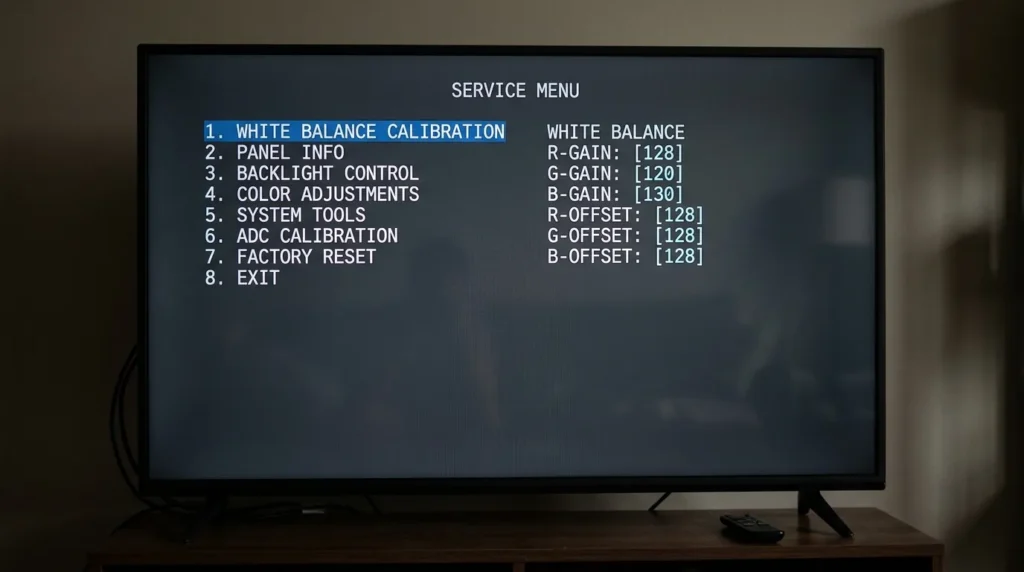
Once you’re in, you’ll typically see categories like:
- Panel Info — Displays model number, firmware version, and manufacture date
- White Balance — Adjusts color temperature at the hardware level (R/G/B gain and offset values)
- Backlight Control — Panel-level backlight calibration, separate from user brightness settings
- Factory Reset — A deeper reset than the user menu option; clears calibration data
- LVDS Settings — Panel timing and signal interface configuration
- Aging Mode — Activates a burn-in pattern used during quality testing
Settings You Should Not Touch
LVDS Settings — Changing these on the wrong panel type can produce a blank or distorted image that requires a full service reset to fix.
Aging Mode — This puts the display in a test loop. Exit it immediately if you accidentally activate it.
White Balance R/G/B Offset — These affect every picture mode globally. Write down existing values before changing anything.
If you’ve already encountered a dark or distorted picture on your Vizio after adjustments, our guide to fixing a dark TV screen and the general TV no picture fix cover the most common recovery steps.
Service Menu Not Working? Try This
The code isn’t producing any result:
- Confirm you’re using the original Vizio remote, not a universal remote
- Check that you’re pressing CH+ and CH- on the TV panel, not the remote
- Some models require the TV to be in standby (red light), not fully powered off (unplugged)
- SmartCast remote users: Older Menu-button codes will never work. Use Code 6 (Gear + 4-2-1-0)
The service menu flashes and disappears:
- You pressed an invalid key after entering. Restart the sequence from the beginning.
No CH± buttons on your TV panel: Some slim 2020–2022 Vizio models have only a single multi-function button or a joystick on the back panel. In this case, CH+/CH- panel methods won’t work. Use remote-only codes (Code 2, Code 4, or Code 6).
Nothing works at all:
- Try a fresh set of batteries in the remote
- Confirm your model isn’t in the locked M-Series category described above
- Check AVS Forum and Badcaps.net threads for your specific model number — community members often post confirmed working codes for niche models
If your Vizio TV itself won’t respond to power commands, that’s a separate issue. See our Vizio TV not turning on fix for power-related troubleshooting.
Other TV Brand Service Menu Codes
If you’re working on a different TV brand, these guides follow the same format:
- Sony TV service menu codes
- LG TV service menu codes
- Samsung TV service menu codes
- Philips TV service menu codes
- Panasonic TV service menu codes
- Toshiba TV service menu codes
- Hisense TV service menu codes
- Insignia TV service menu codes
- Hitachi TV service menu codes
- JVC TV service menu codes
- Element TV service menu codes
- Haier TV service menu codes
- RCA TV service menu codes
Frequently Asked Questions
Will entering the service menu void my Vizio warranty? Vizio’s warranty covers manufacturing defects, not software changes. However, if a service center determines that changes made inside the service menu caused your issue, they may decline the repair claim. If your TV is still under warranty, use the standard Settings menu instead.
How do I exit the service menu safely? Press Menu or Exit on your remote. On SmartCast remotes, press the Back arrow or Gear button. Do not unplug the TV while inside the service menu — this can occasionally corrupt display settings and cause issues on restart.
My remote has a Gear button but no Menu button — which codes work? Use Code 6 (Gear + 4-2-1-0). This is the confirmed method for all 2022–2025 SmartCast remote users. If that fails, try Gear + 2-4-8-9 for 2023–2024 K-suffix models.
Can I use a universal remote to access the service menu? Most universal remotes do not transmit the exact IR frequency and timing that Vizio service menus respond to. Use the original Vizio remote that came with the TV. If you’ve lost it, a replacement OEM Vizio remote is the most reliable option — see the affiliate note below.
Is the Vizio service menu the same as a factory reset? No. The user menu factory reset (Settings → System → Reset & Admin → Reset TV to Factory Settings) resets user preferences and app data. The service menu factory reset goes deeper — it restores panel calibration values and clears hardware-level settings. Only use the service menu reset if you have a specific reason to, such as after a main board replacement.


