

Your Toshiba TV has power going to it. Nothing happens when you press the button. No picture, no sound, maybe a blinking light — or nothing at all.
Most of the time, this isn’t a hardware failure. It’s a frozen processor, a drained capacitor, or a remote that stopped working. The fixes below are ordered from fastest to most involved. Work through them in sequence before assuming the worst.
What the Standby LED Is Telling You
Before trying anything, look at the small LED light on the front of your TV. It tells you a lot.
| LED Status | What It Means |
|---|---|
| No light at all | No power reaching the TV — check outlet, cable, power board |
| Solid red | TV is in standby — normal. Remote or button issue likely |
| Solid green / white | TV thinks it’s on — signal, backlight, or main board issue |
| Blinking red (2x) | Internal fault — power cycle first, may need service |
| Blinking red (5–8x) | Hardware fault — power supply or main board failure |
| Blinking continuously | Firmware crash or overheating — let it cool, then reset |
Note which state your TV is in before moving to the fixes. If your TV shows an error code on screen before going dark, use the TV error code lookup tool to identify it instantly.
Fix 1 — Power Cycle the TV (Solves Most Cases)
This clears frozen processor states and drains residual charge from the capacitors. It works on Toshiba Fire TV, Android TV, and older models.
Steps:
- Unplug the TV from the wall outlet
- Wait a full 60 seconds — not 5, not 10. Sixty.
- While it’s unplugged, press and hold the physical power button on the TV (not the remote) for 30 seconds
- Release the button
- Plug the TV back in
- Press the physical power button once
If the TV turns on, you’re done. This works in roughly 7 out of 10 cases reported in Toshiba community forums.
If nothing changes, continue to Fix 2.
Fix 2 — Rule Out the Remote
A dead remote is one of the most common reasons people think their TV is broken.
Check the batteries first. Replace them with fresh AA or AAA batteries — even batteries that work in other devices may be too weak for a TV remote’s IR signal.
Then test the TV directly:
- Find the physical power button on the TV itself (usually on the back lower-right panel, or underneath the screen on the bottom bezel)
- Press it once
If the TV turns on with the button but not the remote, your TV is fine. You need a replacement remote. Toshiba remotes are model-specific — check your model number (printed on the back label) before buying. Not sure what your model number means? The TV model number decoder breaks it down for you.
If the TV doesn’t respond to the physical button either, move on.
Fix 3 — Check the Power Outlet and Cable
Test the outlet:
Plug something else into the same outlet — a lamp, a phone charger, anything. If that device also doesn’t work, your outlet is the problem, not the TV.
Try plugging the TV into a different wall outlet. If you’re using a power strip or surge protector, bypass it and plug directly into the wall. Surge protectors wear out and can stop passing power even when they appear fine.
Inspect the power cable:
Look for visible damage — kinks, fraying, scorch marks near the connector. If the cable detaches from the TV (some Toshiba models use a removable IEC cable), swap it with another standard figure-8 or C7 cable.
Fix 4 — Disconnect All External Devices
HDMI-connected devices — gaming consoles, soundbars, streaming sticks, cable boxes — can lock a TV into an error state on startup.
Unplug every HDMI cable, USB device, and accessory. Then try powering the TV on with nothing connected.
If it starts up clean, reconnect devices one at a time to find the one causing the conflict. A firmware mismatch between the TV and a connected device is more common than most people expect. If you’re unsure which HDMI port to use when reconnecting, the TV HDMI port selector tool can help you identify the right input for each device.
Fix 5 — Check for Overheating
Toshiba TVs have a thermal protection circuit. If the TV overheats, it shuts down and refuses to restart until it cools.
Signs of overheating shutdown:
- TV was on for several hours before it stopped responding
- The back of the TV feels warm or hot
- Vents on the back or sides are blocked by a wall, cabinet, or other objects
Move the TV somewhere with clear airflow on all sides. Wait 15–20 minutes. Then try powering it on.
If this keeps happening, the internal cooling is struggling. Make sure there’s at least 4 inches of clearance behind the panel and the vents aren’t clogged with dust.
Fix 6 — Factory Reset Your Toshiba TV
If the TV powers on but gets stuck on a black screen, a loading logo, or keeps shutting off, a factory reset often clears the issue.
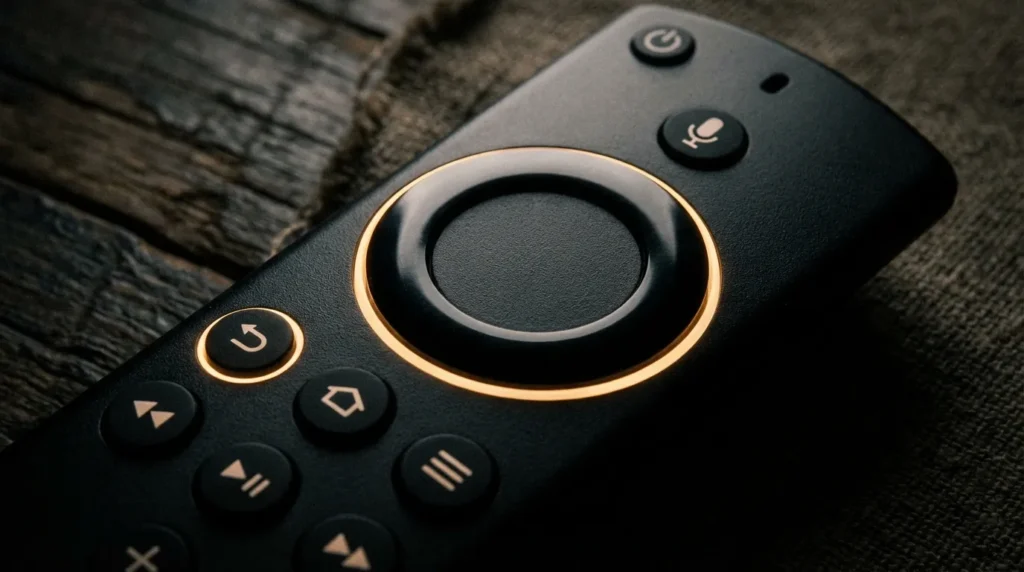
Toshiba Fire TV Models (2019–2026)
- Press and hold the Back button + right side of the navigation ring simultaneously for 10 seconds
- A reset prompt will appear on screen
- Confirm the reset
Alternatively: Go to Settings → My Fire TV → Reset to Factory Defaults
Toshiba Android TV Models
- Go to Settings → Device Preferences → Reset
- Select Factory Reset
- Confirm
How to Reset With No Remote
If your remote is lost or dead:
- Download the Amazon Fire TV app (for Fire TV models) or Android TV Remote on your phone
- Connect your phone to the same Wi-Fi network the TV last used
- The app should detect the TV automatically and let you control it
For a full walkthrough on controlling a Fire TV without a physical remote, see how to use Amazon Fire TV without a remote. If you need to reset the Fire TV stick itself separately, the guide on how to reset an Amazon Fire TV Stick covers the full process.
If the TV won’t connect to the app because it’s not fully on, use the physical buttons on the TV body:
- Hold the Menu button (or input button, depending on model) for 15 seconds to trigger a partial reset on some Toshiba models
Check your specific model’s manual on Toshiba’s support site for the exact button combination. You can also look up your model’s Toshiba TV service menu codes to access deeper diagnostic options if standard resets fail.
Fix 7 — Backlight Failure Test
Your TV might actually be turning on — you just can’t see it.
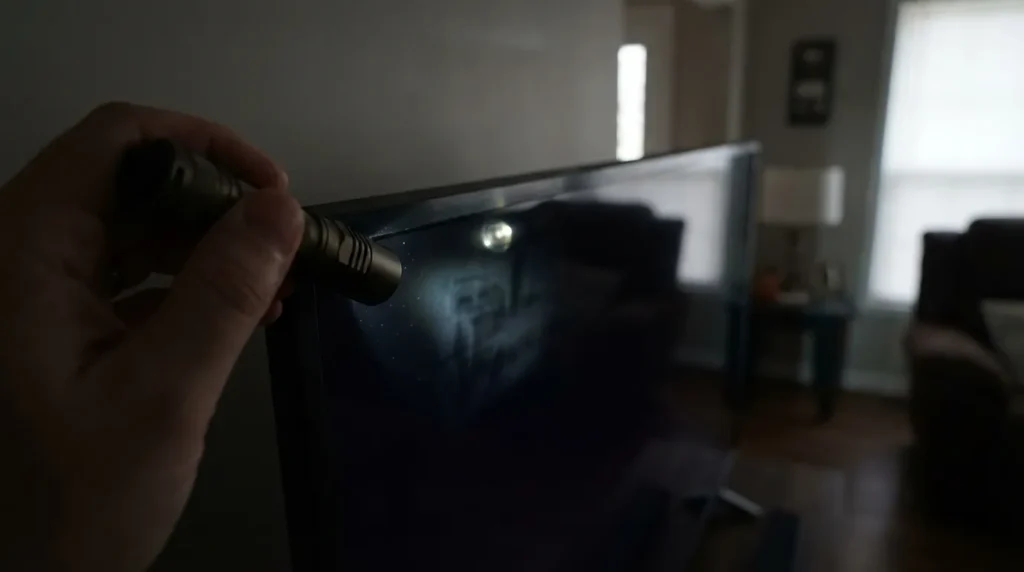
The flashlight test:
- Turn off all lights in the room
- Power on the TV
- Shine a flashlight directly at the screen at a sharp angle
- Look for a faint image behind the glass
If you can see a dim picture, the TV’s backlight has failed. The main board is working. This is a backlight inverter or LED strip failure — a repair that costs $80–$150 at a TV repair shop, or $30–$60 in parts if you’re comfortable opening the panel.
If there’s no image at all even with the flashlight, the issue is deeper — likely the main board or T-con board. A similar black screen symptom can also affect other brands — the fix for TV no picture problems covers multi-brand diagnosis if you want a broader reference.
Fix 8 — Power Supply Board Failure
If the TV has no standby light at all and the outlet is confirmed working, the power supply board is the most likely culprit.
Signs of power board failure:
- Absolutely no LED activity
- TV clicks but nothing happens
- TV was near a power surge or lightning strike
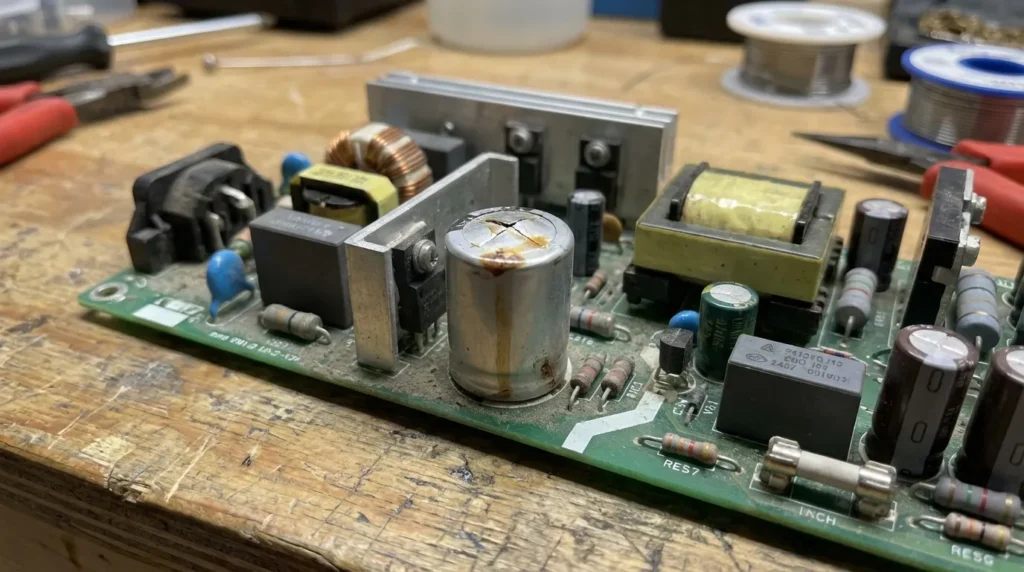
What to look for (if you’re comfortable opening the back panel):
- Swollen capacitors — the tops of the cylinders should be flat. If they’re bulging or have a slight dome, they’ve failed
- Burn marks on the board
- Blown fuse — test with a multimeter set to continuity
Replacement power supply boards for common Toshiba models run $20–$60 on eBay or Amazon. The model number is printed on the board itself. This is a beginner-level repair if you’re comfortable with a screwdriver and can follow a YouTube teardown for your specific model.
If you find no visible damage, the main board may have failed — a $40–$90 part but a more complex swap. Other brands experience similar power board failures — the fix for LG TV black screen issues walks through the same diagnostic logic if you want a comparison.
Fix 9 — Firmware Crash (Fire TV Models)
Toshiba Fire TV models receive automatic firmware updates. Occasionally an update corrupts during installation and leaves the TV unable to boot.
How to tell: The TV shows the Toshiba or Fire TV logo on startup, then freezes or shuts off repeatedly.
Fix:
- Perform a full factory reset using the button combination described in Fix 6
- If the TV can’t complete the reset because it won’t stay on long enough, hold the power button on the TV body for 40+ seconds to force a deeper reset on some Fire TV models
If this doesn’t resolve it, contact Amazon Fire TV support — firmware corruption on their platform qualifies for support even if the TV is a Toshiba-branded unit. Firmware freezes on Fire TV are also the cause behind many Fire TV black screen problems, which follow an almost identical fix path.
Fix 10 — Repair vs. Replace: The Real Math
| Repair Type | Typical Cost (2026) |
|---|---|
| Backlight replacement | $80–$150 |
| Power supply board | $50–$120 |
| Main board replacement | $100–$200 |
| T-con board | $60–$130 |
| Full professional diagnosis | $50–$80 (often applied to repair) |
The rule of thumb: If the repair costs more than 40% of the TV’s current replacement value, replace it.
A 43-inch Toshiba Fire TV sells for $229–$279 new in 2026. If a repair quote comes in above $120 for an older model, a new TV is the smarter financial decision — and you get a full warranty.
TVs older than 7 years are generally not worth repairing. Component sourcing becomes unreliable and other parts are close to failure anyway. Before buying a replacement, use the TV lifespan and health estimator to assess whether your current TV has enough life left to justify a repair investment.
If you’re weighing a new Toshiba against other brands in the same price range, a replacement remote for your existing set is worth trying first — it costs under $15 and rules out the remote entirely before spending on anything else.
Contact Toshiba Support
Toshiba TVs sold in the US, UK, and Canada are manufactured and supported under license by different companies depending on the region:
- US / Canada: Supported by Compal Electronics — contact through toshiba.com/us or Amazon Fire TV support for Fire TV models
- UK: Supported by Vestel — contact through Toshiba UK’s official support page
Have your model number ready (printed on the label on the back of the TV). If the TV is under 12 months old, a manufacturing defect may qualify for free repair or replacement.
If you’re experiencing similar power issues on a different TV brand, these guides cover the same fix process: TCL TV not turning on, Philips TV won’t turn on, RCA TV won’t turn on, and ONN TV won’t turn on.


