

Your LG Magic Remote stopped responding. The pointer vanished from the screen, or buttons do nothing when pressed. You’ve tried shaking it. Nothing.
This happens to thousands of LG TV owners every month. The good news: 80% of Magic Remote problems get fixed in under 5 minutes without buying a replacement.
This guide walks through every fix, from battery swaps to Bluetooth diagnostics. You’ll know exactly what’s broken and how to fix it.
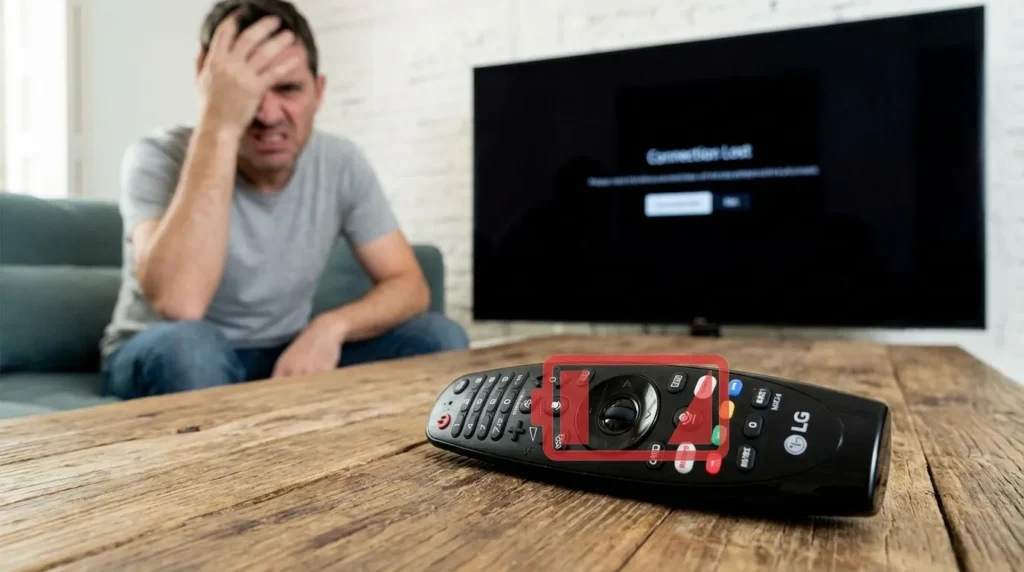
Why Your LG Magic Remote Stopped Working
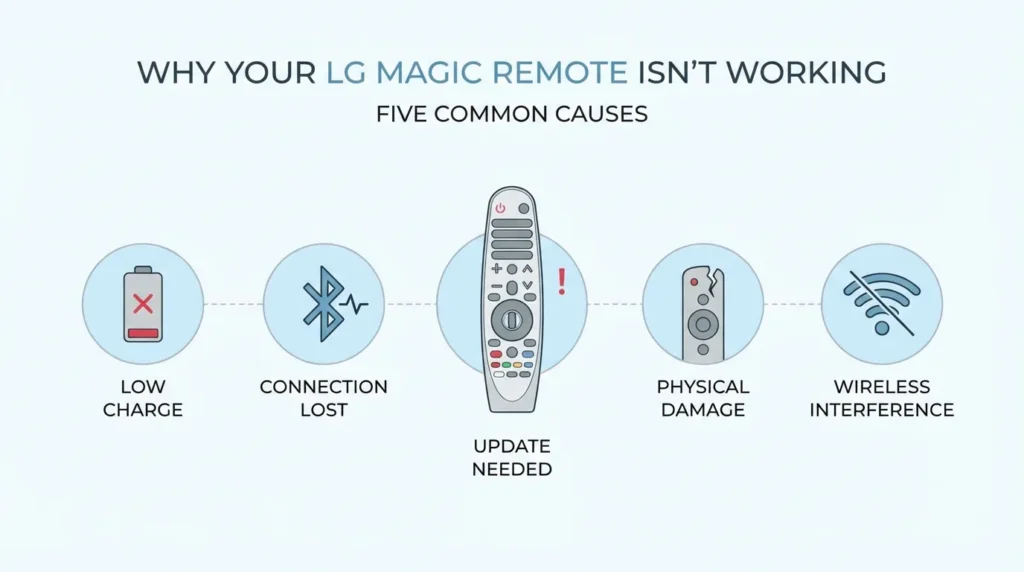
Five things cause Magic Remote failures.
Battery Failure (Most Common)
Dead batteries account for 80% of unresponsive remotes. The power button won’t light up when pressed. Even if one battery works, both must have charge for proper function.
Cheap batteries die faster. Dollar store batteries often read as “full” on meters but lack sustained output voltage. The remote needs consistent 1.5V from both AA batteries.
Lost Bluetooth Pairing
Magic Remotes use Bluetooth, not infrared. The TV and remote must maintain active pairing. Connections break after TV updates, power outages, or when batteries get removed.
You’ll see “unsupported remote” messages or the pointer simply won’t appear on screen. The remote has power but can’t communicate with the TV.
Firmware Compatibility Issues
TV firmware updates sometimes break remote compatibility temporarily. This affects 2021-2023 models more than newer ones. The TV and remote firmware versions must align.
Check if your TV updated recently. Look in Settings > All Settings > General > About This TV. If the update happened within 48 hours of remote failure, this might be your culprit. For advanced TV settings adjustments, you can access LG TV service menu codes to diagnose firmware-related issues.
Physical Button Damage
The wheel button (OK/select) takes the most abuse. Internal components wear out. Scroll works but pressing down does nothing.
Drop damage cracks circuit boards. Liquid spills corrode contacts. Physical damage needs hardware replacement, not troubleshooting.
Interference Sources
Bluetooth operates on 2.4GHz. WiFi routers, wireless speakers, and microwaves jam this frequency. The remote signal weakens beyond 30 feet or through thick walls.
Fluorescent lights create electromagnetic interference. Metal TV stands block signals. Even your smartphone sitting between remote and TV disrupts connection.
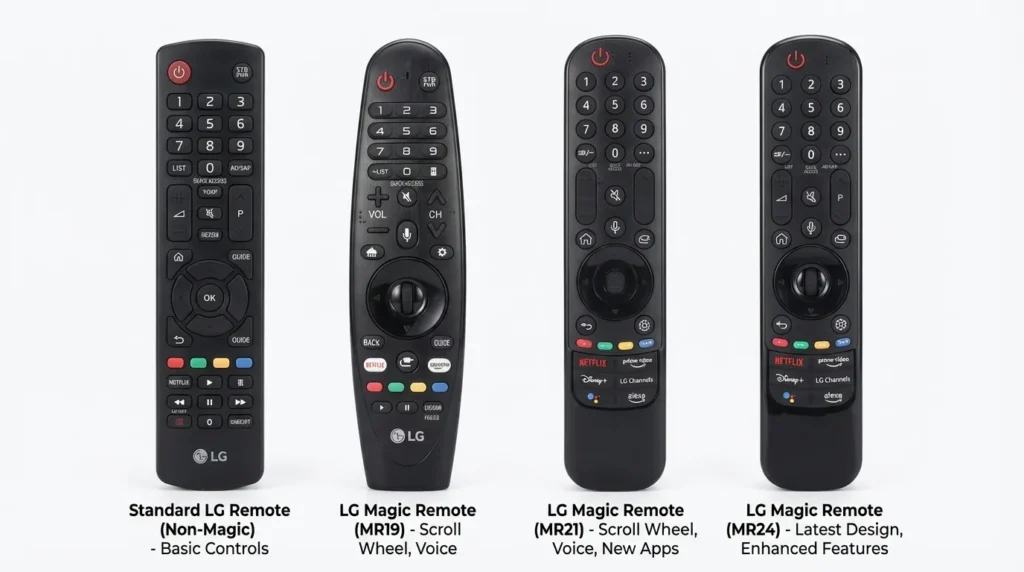
Identify Your LG Magic Remote Model
Different models need different pairing methods. Check your remote’s back panel for model numbers.
2024-2026 Models (MR24, MR23)
These remotes have a wheel button at center. No number pad. Slim profile. Power button on top. Netflix and Prime Video buttons below the wheel.
MR24 added a Solar Panel on the back for charging. MR23 uses standard batteries.
2021-2022 Models (MR22, MR21)
Similar wheel design. Power button placement matches newer models. Disney+ button appears on MR22. These lack voice button redesigns found on 2023+ models.
Both use Bluetooth 5.0 for faster pairing.
2015-2020 Models (MR20, MR19, MR18, MR650, MR600)
MR600 has a distinct 3D button (red dot). MR650/650A removed it. All models show Amazon and Netflix buttons. Bulkier than modern versions.
These remotes use Bluetooth 4.2. Pairing takes 10-15 seconds longer than newer models.
Standard Remote Models
Not a Magic Remote. Standard remotes use infrared only. No pointer functionality. These need line-of-sight to TV’s IR sensor. Different troubleshooting applies.
Quick Diagnosis Test (Takes 2 Minutes)
Run these three tests before attempting fixes. They identify whether your problem is power, pairing, or hardware.
Power Button Light Test
Press any button on the remote. Watch the power button LED.
Light turns on: Batteries work. Problem is pairing or hardware.
No light: Dead batteries. Replace both immediately.
Dim or flickering light: Weak batteries. Even if remote works intermittently, replace both.
Pointer Shake Test
Point the remote at the TV screen. Shake it side to side like you’re saying “no.”
Pointer appears and moves: Remote is paired. Your issue is specific buttons, not connection.
No pointer appears: Remote lost pairing or Bluetooth failed.
Pointer appears then disappears: Interference or weak battery voltage.
Button Response Check
Press Home button. Then Back button. Then wheel button.
All three work: Remote paired correctly. Individual button damage is your problem.
Some work, others don’t: Partial hardware failure. Replacement likely needed.
None work but power LED lights: Complete pairing failure or firmware issue.
Fix #1: Replace Batteries Correctly
Battery problems cause 8 out of 10 Magic Remote failures. Proper replacement matters.
Why Both Batteries Must Be Changed
Magic Remotes need balanced voltage from both batteries. One fresh battery and one weak battery creates voltage imbalance. The remote reads total voltage but needs consistent current draw.
Remote won’t pair properly with mismatched batteries. Power button might light up but Bluetooth module can’t initialize.
Never mix old and new batteries. Never mix brands. Buy two identical batteries from the same package.
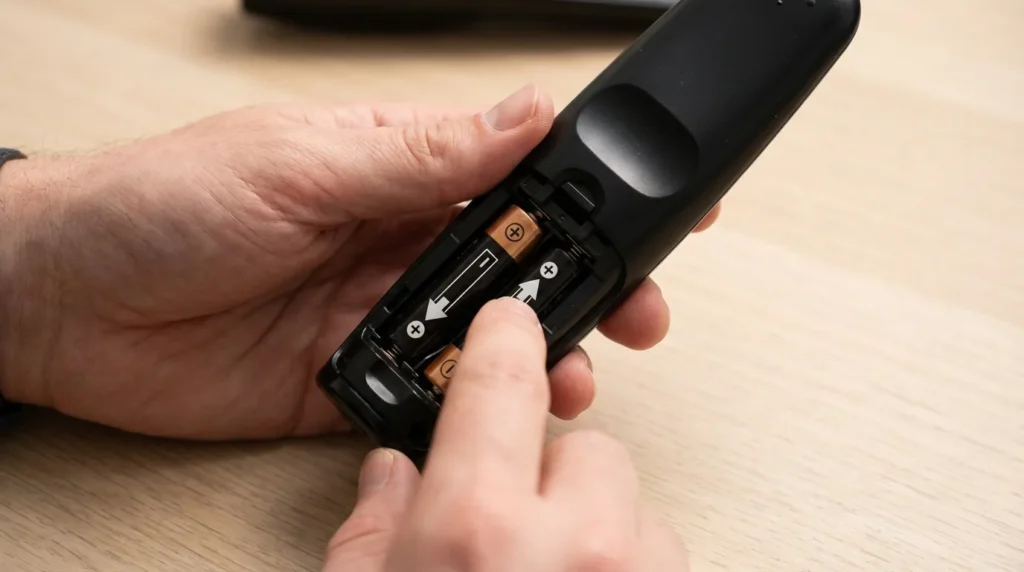
Correct Battery Installation
Remove the battery cover by sliding it down. Batteries sit in series configuration—positive end of first battery touches negative end of second.
Check the diagram inside battery compartment. Plus signs and minus signs show correct orientation. Reversed batteries prevent any function.
Press batteries firmly into place. Weak contact causes intermittent problems. The spring contacts must compress fully.
Check Battery Contacts for Corrosion
Green or white powder on metal contacts means corrosion. Leaked battery acid causes this. Corrosion blocks electrical connection.
Remove batteries. Dip cotton swab in white vinegar. Scrub contacts until metal shines. Let dry completely—5 minutes minimum.
For heavy corrosion, use pencil eraser. Rubber removes oxidation without damaging metal. Follow with vinegar cleaning.
Fix #2: Re-Pair Your Magic Remote
Lost pairing accounts for most non-battery failures. Re-establishing connection takes 60 seconds.
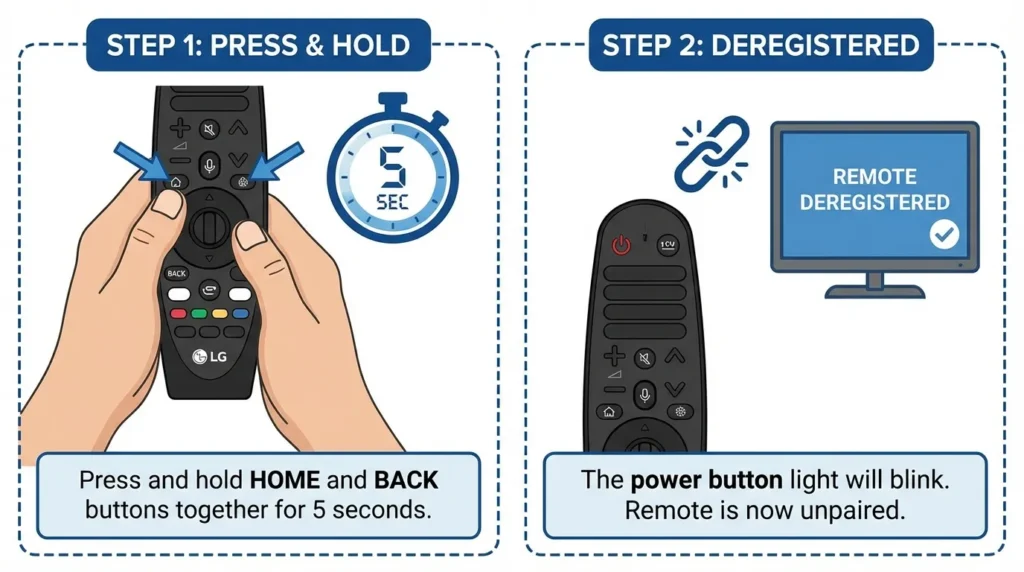
Deregister the Remote (Home + Back Method)
Turn TV on using the power button on TV itself. Don’t use remote yet.
Hold Home button and Back button simultaneously. Count to 5 slowly. Don’t release early.
Power button on remote should flash 3 times. This confirms deregistration. The remote just erased its pairing data.
If nothing flashes, hold buttons for 8 seconds instead. Some models need longer press.
Standard Pairing Process (Wheel Button)
Point remote directly at TV. Stay within 10 feet.
Press the wheel button once. Not the OK button—the actual wheel click itself.
Wait. The pairing screen appears on TV within 10 seconds. If nothing happens after 15 seconds, press wheel button again.
TV shows “Registering Magic Remote” message. Takes 5-20 seconds. Don’t press any buttons during registration.
Pointer appears on screen when complete. Shake remote to verify pointer moves smoothly.
Alternative Pairing Methods by Model
For 2021-2022 models (MR21, MR22): Some need power button press instead of wheel. Try holding power button for 3 seconds while pointing at TV.
For 2015-2020 models (MR18, MR19, MR20): These sometimes require pressing wheel button twice quickly. Double-click, wait, see if pairing starts.
For MR24 solar models: Ensure remote has charge. Place near light source for 2 minutes before pairing attempt.
Visual Confirmation of Successful Pairing
Three things confirm successful pairing:
- Pointer cursor appears on screen
- Shaking remote moves pointer smoothly
- All buttons respond when pressed
Test each button. Press Home, Back, volume up, volume down. Verify wheel scroll works and click works.
Fix #3: Verify Bluetooth Connection with Smartphone
This test determines hardware failure vs. pairing problems. Takes 3 minutes.
Step-by-Step Smartphone Test
Turn off your TV using TV power button.
Deregister the remote again. Hold Home + Back for 5 seconds. See power button flash.
Open Bluetooth settings on your smartphone. Enable Bluetooth if disabled.
Tap “Scan for devices” or “Search for new devices.”
Press the wheel button on Magic Remote. Hold it down for 2 seconds while watching phone screen.
What LGE MRXX Signal Means
Your phone should detect “LGE MR24” or “LGE MR21” or similar. The XX represents your model number.
Signal detected = Remote hardware works. Bluetooth module functions. Your pairing problem is TV-side.
This confirms the remote can transmit. The issue involves TV Bluetooth receiver, TV software, or interference.
No Bluetooth Signal = Hardware Failure
Phone detects nothing = Remote Bluetooth module died. Hardware replacement needed.
Try fresh batteries first. Repeat test. Still nothing? Remote needs replacement.
The wheel button might be broken. Try pressing other buttons while scanning. If phone never detects signal regardless of which button you press, internal failure occurred.
Fix #4: Reset Your TV and Remote
Software glitches block pairing. Resets clear corrupted data.
Soft Reset Procedure
Unplug TV power cord from wall outlet. Don’t use TV power button.
Wait 60 seconds. This drains residual power from capacitors. 30 seconds isn’t enough.
Plug TV back in. Power on using TV button.
Try pairing remote again using wheel button method. Fresh power cycle often restores Bluetooth function. If you need to perform a complete factory reset on your LG TV, check our guide on how to perform factory data reset in Samsung TV for similar procedures that apply across brands.
Hard Reset (Power Cycle) Method
Remove batteries from remote. Set them aside.
Unplug TV for 60 seconds.
Plug TV in. Wait for full boot—about 90 seconds.
Insert fresh batteries in remote. Try pairing immediately.
Hard reset clears both devices simultaneously. Highest success rate for software issues.
When to Try Factory Reset
Factory reset erases all TV settings. Last resort only.
Go to Settings > All Settings > General > Reset to Initial Settings.
You’ll lose WiFi passwords, app logins, picture settings. Everything returns to out-of-box state.
After reset completes, TV prompts for remote pairing during setup. Follow on-screen instructions.
Factory reset fixes firmware corruption. If this doesn’t work, hardware failure is certain.
Fix #5: Clear Interference and Obstructions
Bluetooth needs clear path. Interference weakens signals even when pairing succeeds.
IR Sensor Line of Sight
Magic Remotes use Bluetooth for most functions but infrared for power button. The TV’s IR sensor sits at bottom center of screen or lower bezel.
Remove objects in front of TV. Soundbars block IR sensors. Move soundbar down or remote positioning changes.
Pointer works but power button doesn’t? IR blockage is your issue, not Bluetooth.
Electronic Device Interference
WiFi routers within 3 feet of TV create Bluetooth interference. Move router further away or change WiFi channel to 5GHz band.
Wireless speakers, baby monitors, cordless phones—all use 2.4GHz. Turn them off temporarily. Test if remote works. Turn devices back on one at a time to identify the culprit.
Microwave ovens flood 2.4GHz when running. Don’t use remote near operating microwave.
Optimal Remote Distance (30 Feet)
Bluetooth signal weakens beyond 30 feet. Walls absorb signal. Each wall between remote and TV reduces range by 40%.
Thick furniture blocks signals. Don’t use remote from behind couch or bed headboard.
Metal objects reflect Bluetooth. Metal TV stands create interference. Elevate TV or remote for clearer signal path.
Specific Button Problems and Solutions
Individual button failures indicate hardware damage, not pairing issues.
Select/OK Button Not Working
The wheel button takes most wear. Internal switch mechanism breaks after 50,000 presses—roughly 3 years of daily use.
Scroll works but pressing down does nothing? The switch beneath the wheel failed. This requires remote disassembly or replacement.
Temporary fix: Enable “point and click” mode in TV accessibility settings. Hover pointer over item for 2 seconds. TV auto-selects without button press.
Pointer Cursor Won’t Appear
Pointer needs successful Bluetooth pairing. No pointer means no pairing, even if other buttons work.
Some buttons use infrared, others use Bluetooth. Power, volume, and channel buttons often work via IR when Bluetooth fails. This creates confusion—remote seems partially functional but pointer is missing.
Re-pair the remote. Deregister, then pair again using wheel button method.
Volume or Channel Buttons Unresponsive
These buttons use infrared. Check TV IR sensor for obstructions.
Test with TV facing you. Stand directly in front. Press volume up. Works now? Something blocks IR sensor at angles.
IR sensors fail rarely. Usually obstruction-related. Clean TV screen and bezel with microfiber cloth. Dust blocks IR reception. If you’re experiencing broader audio issues beyond just remote control, our guide on fixing LG TV sound not working covers complete audio troubleshooting.
Voice Command Not Working
Voice uses Bluetooth. Pairing must be successful.
Press microphone button. LED should light up and TV shows listening indicator. No indicator? Pairing lost.
Voice also needs internet connection. Check TV WiFi status. No internet = voice fails even with successful pairing.
Microphone hole on remote collects dust. Blow into microphone opening. Use compressed air if available.
Advanced Troubleshooting
Basic fixes didn’t work. Try these less common solutions.
Update TV Firmware
Outdated TV software causes remote incompatibility.
Go to Settings > All Settings > General > About This TV > Check for Updates.
Download and install latest firmware. TV restarts after update. Takes 10-15 minutes. Don’t unplug TV during update.
After restart, pair remote again. New firmware often includes Bluetooth fixes.
Check TV’s Bluetooth Settings
Some TV models let you disable Bluetooth. Users accidentally turn it off.
Settings > General > Additional Settings > Bluetooth > Enable.
If already enabled, toggle it off and on. This resets TV’s Bluetooth module.
Also check if TV shows list of paired devices. Remove old remote entries if multiple remotes appear. Too many paired devices causes conflicts.
Test with TV Physical Buttons
Modern LG TVs hide physical buttons underneath bottom bezel or on back panel. Find them.
Can you control TV using physical buttons? TV works fine. Problem isolated to remote.
TV buttons also unresponsive? TV has separate hardware or software problem. Remote isn’t your issue. If your LG TV won’t respond at all, read our comprehensive guide on fixing LG TV black screen issues.
Use LG ThinQ App as Temporary Remote
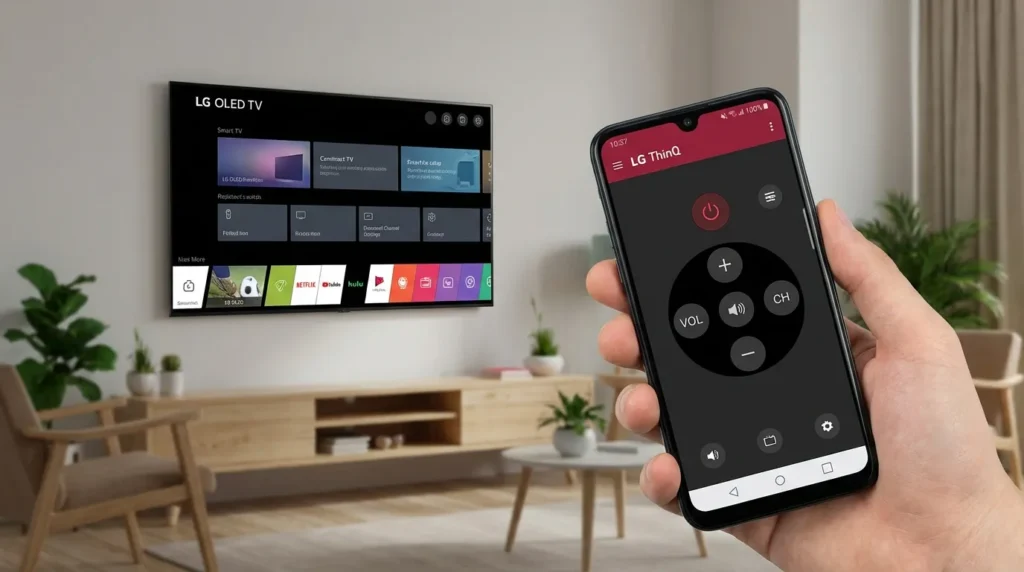
Download LG ThinQ app on smartphone. Connect to same WiFi as TV.
App provides full remote control including pointer functionality. This gives you TV access while troubleshooting physical remote.
If app remote works perfectly, your Magic Remote has hardware failure. If app also has connection problems, TV’s WiFi/network module is faulty.
When Your Remote Can’t Be Fixed
Some failures need hardware replacement.
Signs of Permanent Hardware Failure
Remote doesn’t appear on smartphone Bluetooth scan after fresh batteries and deregistration. Bluetooth module died internally.
Physical damage visible—cracked case, broken buttons, loose battery contacts. Corrosion can’t be cleaned fully. Water damage.
Dropped from height over 4 feet onto hard surface. Internal circuit board cracked. No visible damage doesn’t mean internal components survived.
Remote older than 5 years with heavy daily use. Component wear-out expected. Buttons lose tactile feel. Plastic wears thin.
Warranty Coverage Check
LG Magic Remotes carry 1-year manufacturer warranty from TV purchase date. Keep your receipt.
Warranty covers defects, not physical damage or battery corrosion. Dropped remotes aren’t covered. Water damage voids warranty.
Call LG support: 1-800-243-0000. Provide TV model number and purchase date. They’ll determine warranty eligibility.
Extended warranties from retailers often cover remotes. Check your Best Buy, Costco, or Amazon extended warranty terms.
Third-Party vs. Official LG Remotes
Amazon sells “compatible” Magic Remotes for $15-25. These work but lack features. Pointer sensitivity differs. Build quality lower.
Official LG remotes cost $40-60 depending on model. Full feature parity. Same feel as original. Guaranteed compatibility.
Universal remotes don’t support Magic Remote pointer functionality. They control volume and channels only. Not true replacements.
How to Order Replacement LG Magic Remote
Official LG store provides guaranteed-compatible remotes.
Official LG Accessories Store
Visit lg.com/us/tv-audio-video-accessories. Search “Magic Remote” or your TV model number.
Website shows compatible remote models. MR24 works with 2024 TVs. MR21 works with 2021 TVs. Cross-compatibility exists but features may vary.
Add to cart. Shipping takes 3-5 business days. Standard shipping usually $7.99.
Compatible Remote Models by TV Year
2024-2026 TVs: MR24 (solar charging) or MR23
2021-2023 TVs: MR22 or MR21
2018-2020 TVs: MR20, MR19, or MR18
2015-2017 TVs: MR650, MR650A, or MR600
Newer remotes work with older TVs but older remotes don’t work with newer TVs. Bluetooth backwards compatible only.
Check TV’s user manual for confirmed compatible remote model numbers. Manual lists alternatives.
Price Range and Shipping Options
Official LG remotes: $40-65
Third-party compatible: $15-30
Used OEM on eBay: $20-35
Expedited shipping available for $15-20. Arrives in 2 days.
Buy from authorized retailers: Best Buy, B&H Photo, Amazon (sold by LG directly). Avoid marketplace sellers claiming “genuine LG” at suspiciously low prices.
Prevent Future Remote Issues
Proper maintenance extends remote lifespan.
Battery Maintenance Tips
Replace batteries every 6 months regardless of function. Old batteries leak even when they work. Leakage corrodes contacts.
Use name-brand batteries: Duracell, Energizer, Panasonic. Generic batteries have inconsistent voltage curves.
Remove batteries if remote won’t be used for 30+ days. Vacation storage without batteries prevents leakage damage.
Don’t leave dead batteries in remote. Dead batteries leak faster. Replace immediately when power LED dims.
Proper Storage and Handling
Don’t drop remote onto hard floors. Circuit boards crack easily. Height over 3 feet risks damage.
Keep remote dry. Humidity corrodes internal components. Bathroom use shortens remote life.
Clean remote monthly. Wipe with slightly damp microfiber cloth. No harsh chemicals. Alcohol damages plastic.
Don’t press buttons hard. Normal pressure suffices. Aggressive button mashing wears internal switches faster.
Regular Firmware Updates
Enable automatic TV updates. Settings > General > About This TV > Allow Automatic Updates.
Updates include Bluetooth improvements and remote compatibility fixes. Keeping TV current prevents 70% of pairing problems.
Check for updates monthly if auto-update disabled. Manual checks take 30 seconds. Updates prevent problems instead of fixing them later.
Related Remote Control Issues
If you’re experiencing remote problems with other devices, check these troubleshooting guides:
- Fire TV users: Learn how to fix Firestick remote not pairing with similar Bluetooth diagnostic steps
- Alternative control methods: Discover how to use Amazon Fire TV without remote using smartphone apps
- Roku problems: Fix Roku app not finding device connectivity issues
- Samsung TV issues: Troubleshoot Samsung TV volume stuck or not working problems
Other Common LG TV Problems
While troubleshooting your Magic Remote, you might encounter other LG TV issues:
- Display problems: Fix TV no picture but sound still works
- Screen darkness: Learn how to fix dark TV screen brightness issues
- Power issues: If TV won’t respond, check fixing LG TV black screen complete guide
- Audio problems: Comprehensive LG TV sound not working fixes
Troubleshooting Other TV Brands
Having remote issues with different TV brands? These guides use similar troubleshooting methods:
- Samsung: Samsung TV service menu codes and Samsung TV black screen fixes
- Sony: Sony TV service menu codes and Sony TV freezing fixes
- Vizio: Vizio TV service menu codes and Vizio TV WiFi connection fixes
- Toshiba: Toshiba TV service menu codes and Toshiba TV won’t turn on fixes
- Hisense: Hisense TV service menu codes
- Philips: Philips TV service menu codes and Philips TV won’t turn on fixes
For comprehensive TV service menu access across all brands, visit our complete LCD LED TV service menu codes collection.


