

The Logik TV service menu is a hidden diagnostic interface built into the firmware of every Logik television. It sits behind a specific button sequence and gives access to settings that aren’t available in the standard on-screen menu — picture calibration, channel database resets, white balance, and a full factory restore.
This guide covers every working access method for 2026, model-specific notes, a plain-English breakdown of what each setting does, and a full troubleshooting section for when the standard method doesn’t work. If you want to compare service menu access across other brands, the all LCD and LED TV service menu codes reference page covers the full list.
What Is the Logik TV Service Menu?
Logik is a budget TV brand sold exclusively through Currys PC World in the UK. The sets are built on MediaTek (MTK) chipsets — the same platform used in many white-label TVs sold under different brand names across Europe. Brands like Bush, Cello, and Vestel share similar firmware architecture and often use near-identical service menu structures.
The service menu is a factory-level interface built into that chipset firmware. Engineers use it during production to calibrate displays and configure regional settings. Once a TV ships, that menu stays hidden but remains fully accessible.
It is not a shortcut to better picture quality. Most of the settings inside it are already at correct values for your panel. The service menu is most useful for three specific situations: running a factory reset when the standard menu is inaccessible, re-tuning Freeview channels after a signal change, or checking firmware and hardware information for a warranty or repair query.
Before You Start — Important Warnings
Wrong settings in a service menu can damage your display permanently. This is not a scare tactic — changing white balance calibration values or gamma curves on the wrong model can cause visible colour banding that cannot be reversed without a full board replacement.
Three rules before touching anything:
- Write down the current value of any setting before you change it.
- Only change settings you specifically need. Leave everything else alone.
- If the TV starts behaving strangely, power it off immediately and use the factory reset option to restore defaults.
Accessing the service menu does not void your warranty by itself. Changing settings that cause damage is a different matter — most Currys warranties exclude damage caused by user modifications. If your TV has a dark or completely black screen before you even try the service menu, check the TV no picture fix guide first — the fault may be hardware-level rather than a firmware or settings issue.
How to Enter the Logik TV Service Menu
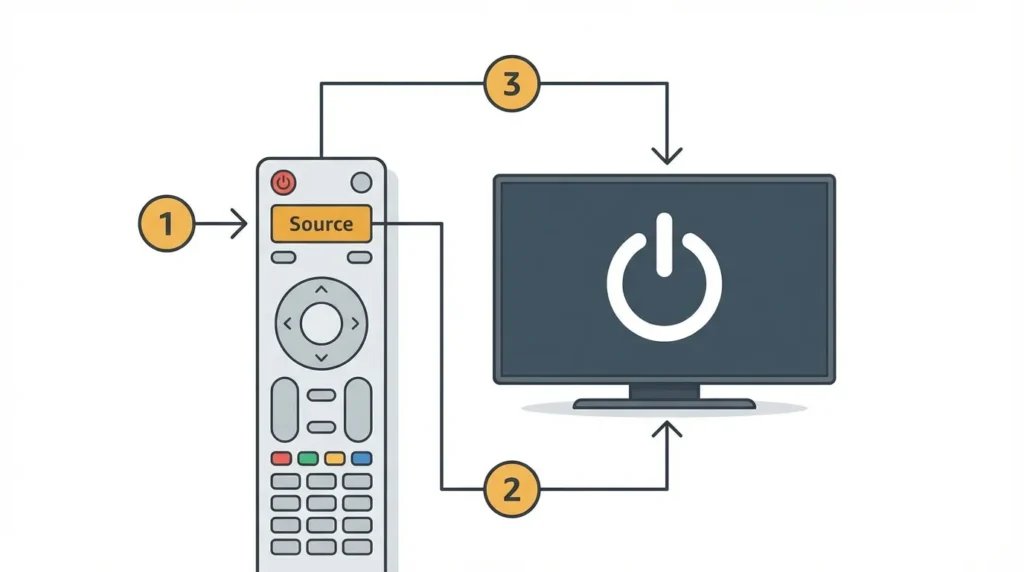
Method 1 — Source Button Hold (Works on Most Models)
This method covers the majority of Logik LCD and LED sets manufactured between 2010 and 2024.
- Turn the TV off completely — not standby. Use the power button on the TV body.
- Press and hold the Source button on the remote control.
- While holding Source, press the Power button on the remote to turn the TV back on.
- Keep holding Source for 3–5 seconds after the TV powers on.
- The service menu will appear as an overlay on the screen.
If nothing happens, try the same sequence but hold the Source button on the TV body itself instead of the remote.
Method 2 — Remote Key Sequences (Model-Specific)
Some Logik models respond to a specific numeric sequence entered via the standard remote. These are particularly common on the DVD combo and older LCD range.
| Model Series | Key Sequence |
|---|---|
| L22DVDW / L24DVDB | Menu → 1 → 9 → 9 → 8 |
| L32HED / L39FE / L46FE | Source (hold) + Power (as above) |
| L40DIGB / L32DIGB | Menu → 0 → 0 → 0 → 0 |
| L22FEDN / L24FEDN | Power off → Volume Down (hold) → Power on |
| Older L-Series (pre-2013) | Menu → 1 → 1 → 4 → 7 |
For models not listed here, try the Source + Power method first. It works on roughly 85% of Logik sets. The same logic applies to other UK budget brands — the Thomson TV service menu codes and Hitachi TV service menu codes pages show how closely related these entry methods are across the MTK chipset family.
Method 3 — Physical Button Access (No Remote Required)
If your remote is lost or broken, several Logik models allow service menu entry using the physical buttons on the TV body.
- Turn the TV off at the mains.
- Press and hold the Volume Down button on the TV panel.
- While holding, press the Power button on the TV panel.
- Continue holding Volume Down for 5 seconds after the screen lights up.
This method is confirmed to work on the L32DIGB20, L40DIGB20, and several L22/L24 FEDN variants. It may not work on models where the physical buttons are wired only to basic controls. If you need to operate any TV entirely without a remote, the principles covered in how to turn on a Roku TV without a remote and how to use Amazon Fire TV without a remote apply the same physical-button logic.
Navigating the Service Menu
Once inside, use the arrow keys on the remote to move between options and OK or Enter to select. Volume buttons adjust numeric values. Do not use the Menu button to exit — this can save corrupted values on some firmware versions. Always use the dedicated exit option within the service menu itself.
What Each Setting Does
Picture / Display settings
- Brightness — adjusts backlight intensity at firmware level, separate from the user-accessible brightness control. Changing this affects the overall brightness ceiling.
- Contrast / Colour / Sharpness — base factory calibration values. The standard menu adjustments sit on top of these. Leave them unless you’re recalibrating after a panel replacement.
- Aspect Ratio — sets the default ratio applied at boot. Useful if the TV is stuck in the wrong ratio on startup. A related issue — TV not filling the full screen — is covered in the Samsung TV not full screen fix which explains aspect ratio logic that applies across most flat panel TVs.
- White Balance (R/G/B Gain, Cut) — the most sensitive settings in the menu. Affects colour accuracy at a hardware level. Do not change these unless you have a calibration tool.
- Gamma — controls the tonal response curve. Default is 2.2 for most Logik panels. If the screen looks consistently dark even after adjusting brightness, the how to fix a dark TV screen guide covers both firmware-level and hardware causes.
System settings
- First Time Installation — re-runs the initial setup wizard. Triggers a full channel scan. Useful after a Freeview frequency change.
- Factory Reset / Restore Defaults — wipes all user settings and returns the TV to factory state. Channel lists, picture adjustments, and input names are deleted. For Samsung-specific factory reset steps, the how to factory reset a Samsung TV guide is a useful parallel reference.
- Software Version — displays firmware version and build date. Useful when checking if a firmware update is available.
- Auto Tuning — rescans for digital channels only, without resetting other settings.
- Manual Tuning — allows entry of a specific DVB-T frequency for manual channel addition.
Channel / Tuner settings
- Country — sets the regional broadcast standard. UK models should be set to United Kingdom / DVB-T.
- Channel Database Reset — clears the channel list only, without resetting picture settings.
How to Do a Factory Reset via the Service Menu
Use this method when the standard factory reset option is greyed out, inaccessible, or the TV is stuck in a loop.
- Enter the service menu using your model’s method above.
- Navigate to System or Installation (label varies by model).
- Select Factory Reset or Restore Defaults.
- Confirm when prompted. The TV will restart.
- Complete the setup wizard that runs on first boot.
If the screen is black but the TV is on: Some Logik models with backlighting failures will still respond to button inputs even with no visible picture. Count the button presses using the Source + Power method, wait 10 seconds, then press the down arrow 3–4 times and OK. On many models this lands on the Factory Reset option. It is trial and error without a visible display, but it works on models where the firmware is intact. For a full walkthrough of black screen diagnosis before attempting a blind reset, the LG TV black screen fix covers the same fault pattern in detail — the diagnostic logic is identical across MTK-based sets.
Troubleshooting Service Menu Access
Source button method not working
Check that the TV is fully powered off before starting — not in standby mode. Standby mode keeps certain firmware processes running and blocks service menu entry on most Logik models. Hold the Source button down before pressing Power, not after.
Code not recognised
Logik has used at least four different firmware platforms across its product range since 2008. Codes are not universal. If the standard method fails, identify your exact model number (found on the sticker on the back of the TV) and cross-reference with the table in Method 2 above.
TV powers on but nothing appears
The service menu may be appearing but invisible due to a backlight fault. If you can see a very faint image when shining a torch at the screen at close range, the backlight has failed and the service menu is running but unlit. This is a hardware fault, not a firmware issue. The fix Element TV black screen guide covers the same backlight failure pattern found across budget LCD sets.
Remote not responding
Try replacing the batteries before anything else. A weak battery signal is the most common reason the Source + Power sequence fails. The TV interprets the Source button as a short press rather than a hold and opens the input source menu instead. For a deeper look at remote faults on similar budget sets, the fix LG Magic Remote not working guide covers signal and pairing issues that apply to any IR remote.
How to Exit the Service Menu Safely
Always exit using the Exit or Return option inside the service menu itself. On most Logik models this is the last item in the menu list.
Do not:
- Turn the TV off at the mains while still in the service menu
- Remove power during a factory reset
- Press the Menu button on the remote to close it
Interrupting the service menu mid-session on MediaTek-based sets can corrupt the OSD configuration, which causes the main menu to become inaccessible on the next boot. If this happens, a factory reset via physical button method (Method 3 above) is usually enough to restore normal operation.
Frequently Asked Questions
Will opening the service menu void my warranty? Accessing the service menu alone does not void the warranty. Currys covers manufacturing defects regardless. However, if you change settings that cause damage to the panel or firmware, that damage is unlikely to be covered under a standard warranty claim.
My Logik TV has a black screen — can I still use the service menu? Yes, if the firmware is still running. The TV responds to button inputs even without a visible picture. Use Method 3 (physical buttons) and follow the blind navigation steps in the factory reset section above.
What is the default password for Logik TV menus? The default parental control and menu PIN on Logik TVs is 0000. If this has been changed and you no longer have it, a factory reset via the service menu will clear it.
Can I use the service menu to improve picture quality? In most cases, no. The factory calibration on Logik panels is set at production and the standard user menu gives enough range for normal adjustments. The only legitimate picture improvement through the service menu is a backlight adjustment on models where the user-facing backlight slider has been locked by a previous firmware setting.
Which Logik TV models does this apply to? The access methods in this guide cover all Logik TV models sold through Currys from 2010 onwards, including the L-Series, DIGB, FED, FEDN, and DVD combo ranges. Models sold before 2010 may use different entry sequences not documented here.
Looking for service menu codes for another brand? This site covers a wide range of manufacturers. See the guides for Sony TV service menu codes, LG TV service menu codes, Philips TV service menu codes, Panasonic TV service menu codes, Hisense TV service menu codes, JVC TV service menu codes, Toshiba TV service menu codes, and Samsung TV service menu codes.


